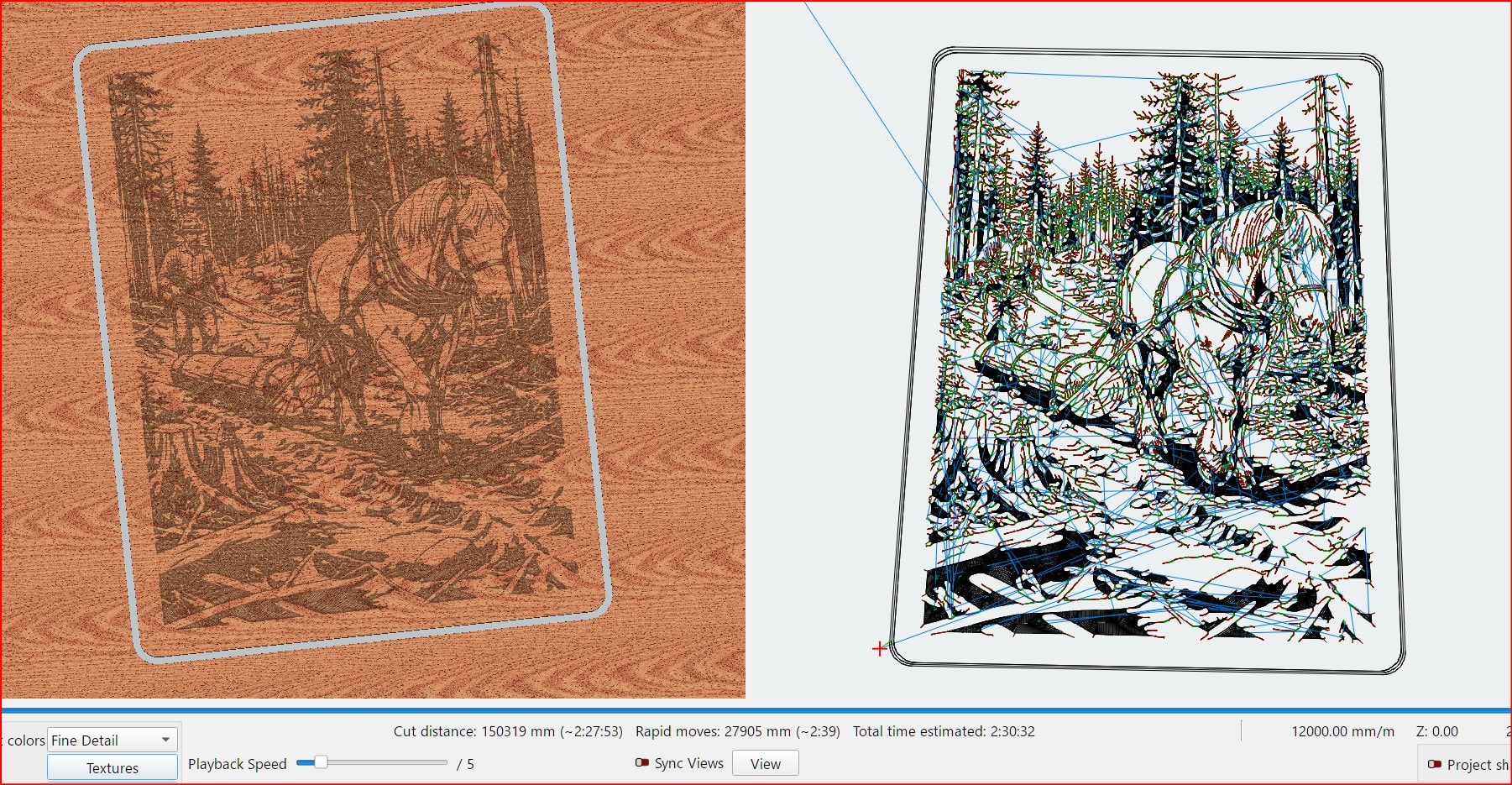
There are more variables that MM’s sim can possibly account for, so scaling as per the above video is probably a good idea. I’ve got a 8hr job on the machine right now and I’m really hoping it’s more like a 4 hour job
though that might be the case as the image is very detailed, i generally allow an hours grace when planning my day , that one just threw a spanner in the works being 2 half hrs longer,
hence asking as just updated to RC7 , checking there’s not an issue with control reader as previously have been around 30 min over of estimated times of v carves
Did you check that the firmware values are realistic? It’s very common with grbl lasers that the values given in the specifications are just insane and the machines never reach it. Therefore Simulation times are wrong.
E.g. if your firmware has 1000mm/min^2 as acceleration, but due to the heavy motor the true value is 500, simulation will always be wrong, no matter if you read the parameters or not.
CNC are much slower overall, so this might not be the case that often, but still important to be checked.
It says in the box that these are just for the simulation. That means you can make any of them anything you want. Just don’t “read from controller” if you fine tune them for good estimates.
I meant, messing around with the simulation parameters doesn’t make much sense, so I recommend changing the firmware parameters (and updating the simulation parameters each time) until the processing time fits. Then the system is set up correctly.
Would it be too simplistic for me to suggest running a small job, compare the percentage difference between the MM time prediction and the real world time that the job took then change the ‘Global speed scale’ percentage to compensate?
I’ve just noticed that you have noted the projection time and the actual time the job took, making a 66% difference. I would change the global speed scale by this percentage and then the projection time should match?
You are looking for a quick answer, and there is none. Every machine is different so you will have to experiment. On mine, vectors were very close, but images were 2x to 3x longer. Yet when I got done, both boxes contained 85% to give me 90% accuracy on time estimates for projects large and small.
I believe @misken has the correct answer if you want the best accuracy but remember, it is still an estimate.
firmware = GRBL, simulation = MillMage.
I wasn’t looking for a quick answer but rather a logical approach, whist you are correct in saying that all machines are different this is the exact reason I chose my logic as what I suggested should work in every individuals setups/scenarios.
Whilst I do not rely on AI for obvious reasons this is what AI thought of my logic…maybe I’m as useless as AI
Step 1: Read Firmware Parameters (GRBL Machines)
If your CNC runs on GRBL, MillMage can pull your hardware’s actual max speeds and acceleration rates directly:
Go to CNC Tools → Device Settings (or click the Device Settings gear icon in the toolbar).
Click the Additional Settings tab.
Click Read From Controller. This imports your machine’s actual firmware settings ($110-$112 for max speeds, $120-$122 for acceleration) directly into the simulation model.
Step 2: Manually Fine-Tune with Speed Scale
Even with firmware parameters loaded, complex 3D toolpaths (like V-carving or detailed pocketing) often take longer due to constant direction changes and Z-axis ramps. You can use the scale modifiers in the Additional Settings tab to force the simulation to match reality:
Cut Speed Scale: Scales cut-speed estimates by a percentage.
Global Speed Scale: Scales all movement calculations across the entire project by a percentage .
How to calculate your multiplier:
Example: If MillMage estimates a pocketing job will take 30 minutes, but it actually takes 45 minutes on the machine:
Entering 66% or 67% into your Global Speed Scale will force the software to project the realistic 45-minute completion time on future jobs.
Step 3: Verify & Save
Re-open your job in MillMage and press Alt + P (or click Preview) to check the newly updated estimated runtime.
If V-carves or high-retract jobs are still drifting, manually lower the Z Axis Max Speed or Z Axis Acceleration values in Additional Settings. (Adjusting these simulation-only fields will not affect how your CNC actually cuts—it only fixes the simulation timer).
If you’re noticing the time discrepancy on specific toolpath operations (like 3D rastering vs. 2D profile cuts), adjusting the Z-axis acceleration directly in the simulation settings is usually the culprit.
This video on MillMage Machine Setup walks through accessing the Device Settings and configuring GRBL controller parameters.
I have to say though, I have tried all sorts of adjustments in the simulation settings and just cannot get the simulation timing to alter more than 1.5 minutes either way for a 22 minute job for example
Can you upload your .mage file so I can look at it. Also include your $$ GRBL parameters and brand of machine or controller. Maybe not the same machine, but I may be able to spot something running it on my 3018 machine. I am willing to try.