Okay same thing with COM 3, busy.
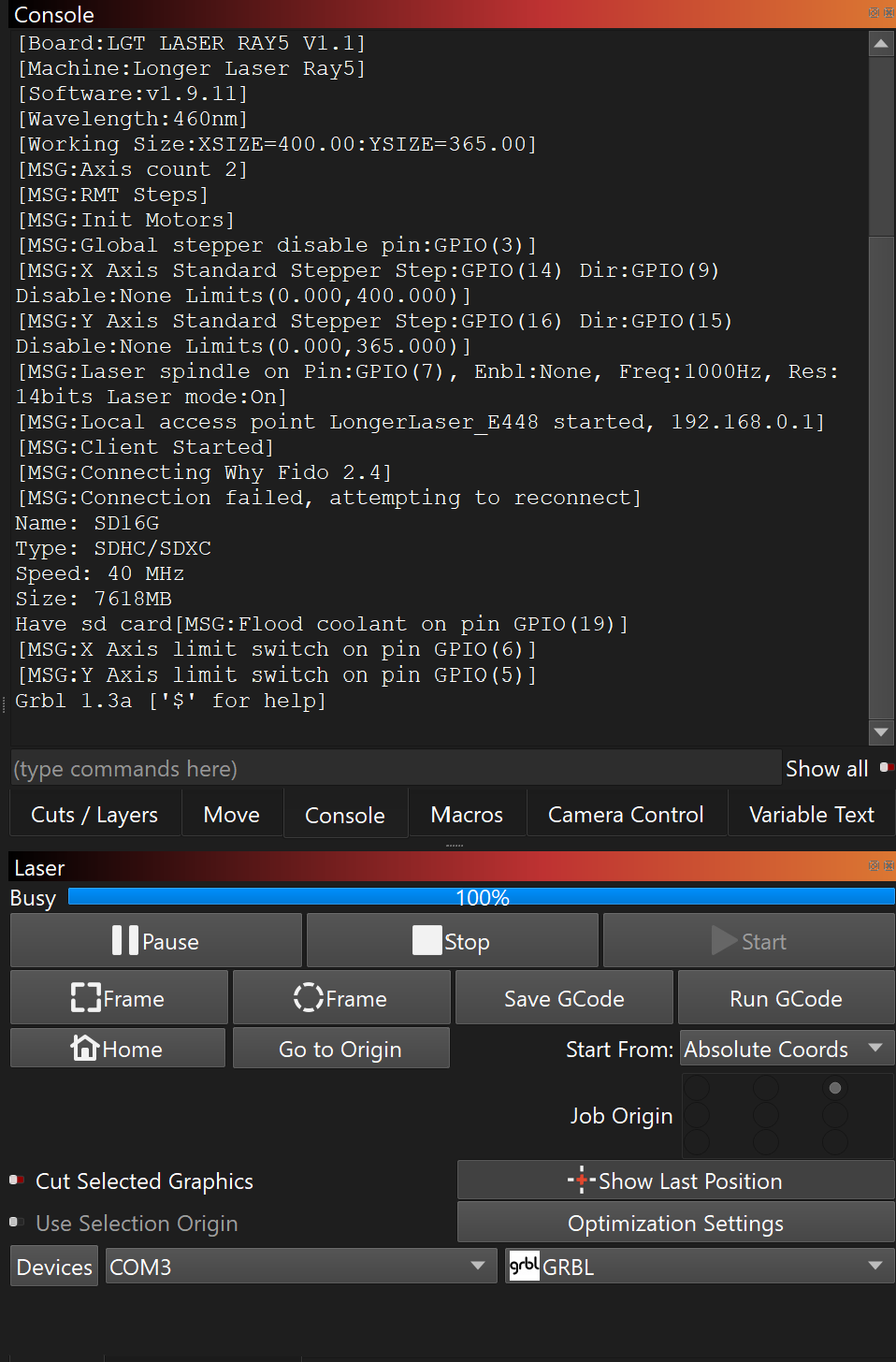
Try clicking the ‘Stop’ button when it’s in this state.
I have, it doesn’t do anything.
What about toggling the ‘Enable DTR’ setting in device settings?
That fixed it!!! Thank you so much! What is DTR?
UPDATE: As soon as I posted this, I saw you had solved it with the DTR switch. It is a communications setting that used more handshaking, like yes/no, during data transfer. Glad you are up and running!
Techie Talk: Lightburn has no control over which COM port it is allowed to use. This is decided by Windows when the laser is connected. The decision is made during the handshake between Windows and the laser. Usually, based on the GUID of the laser controller, Windows will assign the same COM port, but NOT always. If that COM port is already in use by something else, you get the “Busy” message.
- Turn off BlueTOOTH.
- Reboot the PC.
- Launch Lightburn.
- Turn OFF Enable DTR.
- Check Device Manager to make sure there is no CH340 listed.
- Connect the laser.
- Observe Device Manager to see what COM port is listed in the CH340 line.
- In Lightburn, select that COM port.
- Observe in the Console window that the laser starts communicating.
This is not a Lightburn issue. It is a Windows problem.
Sorry, but why do this if it works now?
DTR (Data Terminal Ready) is an electrical signal that can be optionally sent over one of the wires in the serial connection, and sometimes it’s required part of the communication handshake.
1 Like
Cool, thanks again! I bought a lightburn camera a few days ago and it arrived before I got LB working so I’m glad I can use it now!
1 Like
You dont. I was writing when you posted yours.
1 Like
All good, thanks for your help anyways.
This topic was automatically closed 30 days after the last reply. New replies are no longer allowed.