Here is a list of various actions you can take (for Windows systems) to try and solve this or to collect the data needed for troubleshooting.
Install the latest version of LightBurn
If it has been a while since you last used or updated LightBurn, download and install the latest version from our free trial page.
Repair missing or corrupted Visual C++ Redistributable Files
Often when LightBurn fails to start it is because the Windows does not have the correct system files needed.
If you download and install both of these files from Microsoft that will usually fix the issue:
| Architecture | Link | Notes |
|---|---|---|
| X64 | https://aka.ms/vs/17/release/vc_redist.x64.exe | Permalink for latest supported x64 version |
| X86 | https://aka.ms/vs/17/release/vc_redist.x86.exe | Permalink for latest supported x86 version |
Do you have a Windows N Edition?
If you are running a Windows N edition, please install the ‘Media Feature Pack’
To check your edition click here
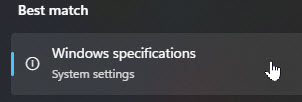
Use the Search bar to find and open ‘Windows Specifications’ , where your edition will be displayed;

Follow these instructions if needed:
Start LightBurn with debug log enabled and inspect the log
Open the Windows Run dialog (Win+R), and enter in the following command:
%ProgramFiles%\Lightburn\LightBurn.exe -d
After LightBurn closes, look in your Documents folder for ‘LightBurnLog.txt’.
Inspect the Windows Application Logs
Use the Windows Event Viewer to look in your Windows Application Logs for any recent errors relating to LightBurn.exe.
One way to do this quickly, is to open the Windows Run dialog (Win+R), and paste in the following command:
powershell -NoExit -Command "Write-Host 'Check'-NoNewLine;1..3|%{Start-Sleep 1;Write-Host '.'-NoNewLine};$e=Get-EventLog application -After(Get-Date).AddDays(-7)|?{$_.Message -like'*LightB*'-and$_.Source-ne'MsiInstaller'};if($e){$e|fl}else{'nothing found.'}"
If any results found, copy and paste them into an email to support@lightburnsoftware.com