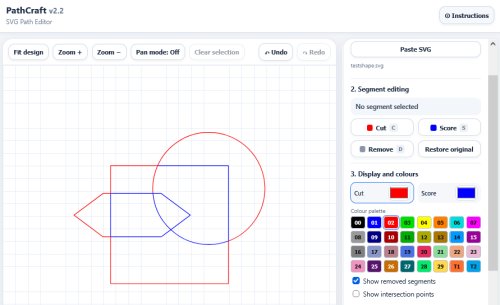
I’ve been working on a small browser-based application called PathCraft, which I thought might be useful to other LightBurn users.
The idea came about when working with overlapping text and shapes. Sometimes you want to cut the overall outline of a design, but retain certain overlapping sections as scored lines to give the appearance of one letter or shape passing in front of another.
LightBurn has some excellent tools for manipulating vector shapes, including Boolean operations, Weld, Trim Shapes and Node Edit. However, there isn’t currently a straightforward way to hover over an individual section of a path, between two intersections, and simply assign that section to a different colour layer without first separating the geometry.
PathCraft is intended to make that process easier.
How it works
The application imports an SVG file, analyses the vector geometry and identifies intersections between paths. These intersections divide the original outlines into individually editable segments.
You can then hover over a segment and press:
- C – Assign the segment to the Cut colour (blue by default).
- S – Assign the segment to the Score colour (red by default).
- D – Remove the segment entirely.
The change is applied immediately, without needing to select the segment first.
You can also drag a selection rectangle around multiple segments and apply the same operation to the entire selection.
Both the Cut and Score colours can be changed using a numbered colour palette corresponding to LightBurn’s layer colours.
Preserving the vector geometry
One of the challenges during development was maintaining the original SVG geometry.
The early versions approximated Bézier curves using thousands of short straight-line segments. Although these looked reasonably smooth, importing the resulting files into LightBurn produced an excessive number of nodes.
The current version retains Bézier curves and uses mathematical subdivision to split them at detected intersection positions, rather than permanently converting everything into straight lines.
There is also an option to automatically join adjacent segments of the same colour during export. This reduces the number of separate paths and produces cleaner geometry when imported back into LightBurn.
Intersection detection is still numerical, so very complex or unusual geometry may need checking.
Using PathCraft
The workflow is straightforward:
- Create your design in LightBurn or another vector application.
- Export it as an SVG.
- Open the SVG in PathCraft.
- Change or remove the required overlapping sections.
- Export the modified SVG.
- Import it back into LightBurn.
The exported file retains the selected colours, allowing the cut and score operations to be assigned to their respective LightBurn layers.
A few other details
PathCraft is a self-contained HTML application. It runs entirely in the browser, with no database, account or installation required. SVG processing takes place locally, so the design isn’t uploaded to a server.
The application is free to use.
It’s still under development and testing, so I’d welcome feedback, particularly from anyone working with complicated overlapping shapes or lettering.
A possible feature for LightBurn?
Although PathCraft provides a way of doing this, I think it would be a useful feature to have directly within LightBurn.
Imagine hovering over a path section between two intersections and being able to change its layer colour or remove it immediately, without having to break the path manually.
Combined with automatic joining of adjacent same-colour sections, it could make working with overlapping lettering and intricate designs considerably easier.
I’d be interested to hear whether others would find this useful, and whether there are existing LightBurn workflows that achieve something similar.
https://www.burntstuff.com/tools/pathcraft/
Any comments, suggestions or bug reports would be appreciated.