I am getting small unwanted dots across my finished work. I’m using a creality falcon 10w, with light burn software. How do I get rid of these or what am I doing wrong. I am not very good with computers and I’d go as far as to say I’m a complete novice.
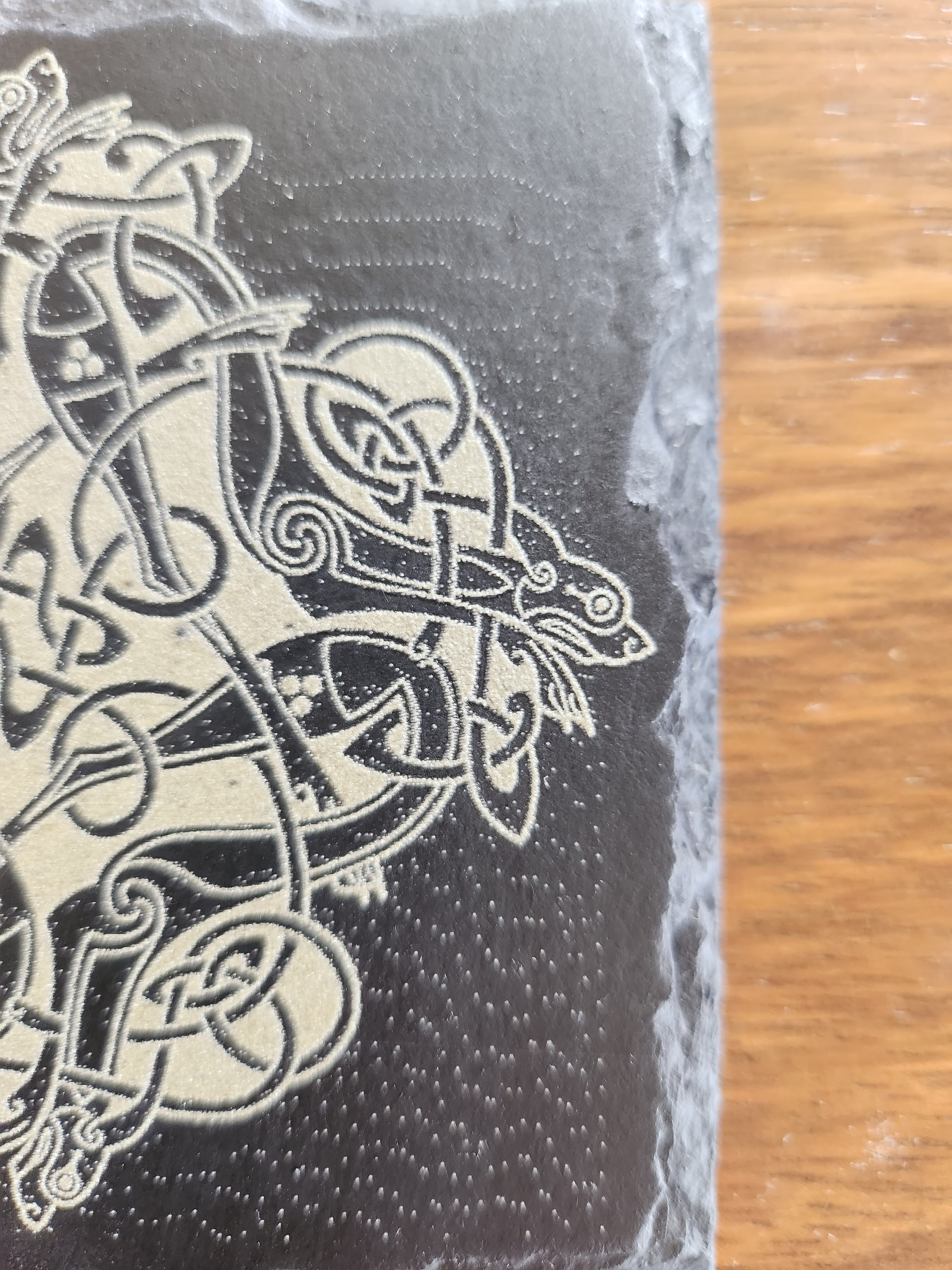
Most likely, the “white” background of the image is not pure white, so the image dither makes it visible.
Because the image doesn’t (seem to) have any gray values, use Threshold to convert it into a vector pattern on a Fill layer.
To clarify further;
The ‘Threshold’ image processing mode is used directly from your image on the Image layer:
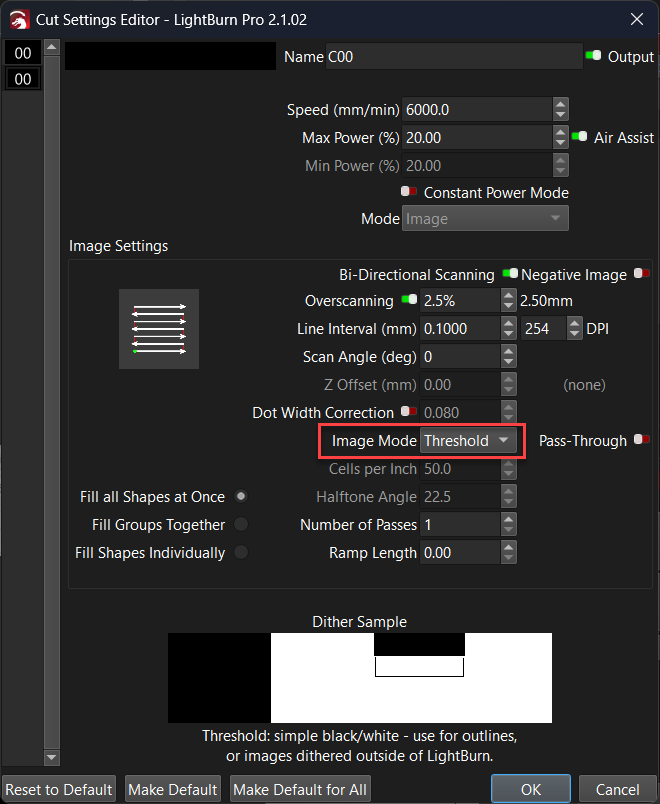
The Image layer method is recommended in your case and is the quickest path to a good result.
An alternative approach is to Trace the image, and then use the resulting vector pattern in a Fill layer.
Using a Fill layer with a vector is best for those wanting more control and to chase smoother results.
IMO, pretty nearly everybody you meet around here has “control freak” in their genetic loadout. 
Haha yeah, nothing wrong with that 
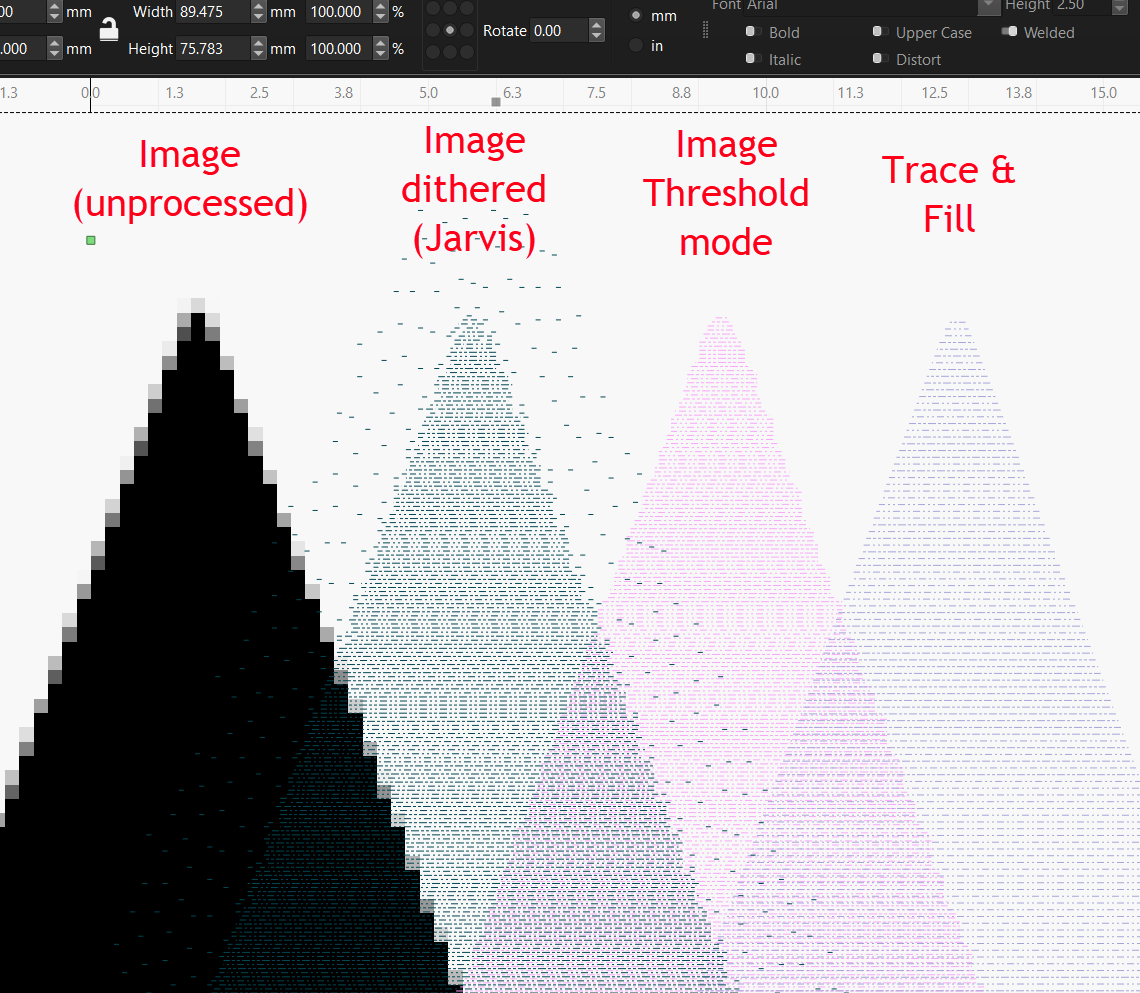
Here’s an image for the control freaks, it shows a close up of the point from a star shaped image that has been processed for laser output using various methods. By importing gcode output files back into your project you can compare the various outputs up close.
As seen here, the Threshold mode is very good but it also preserves jagged edge detail from the pixels. The Trace and Fill looks best, but has possibly lost a bit of sharpness to the point, and I noticed it is slightly smaller at the edge by a hair.
Did you trace using Trace Transparency?

Much Obliged. 
I can’t tell if the Image has an impure background or if we’re seeing a dithering artifact from the image processing in LightBurn
Image Mask is probably the fastest way to get rid of the background of an image.
Image Mask has been around a while.
The Trace tool has some new settings that make the tool trace only the outside of the art in the rectangular image file. That might work well for your image.
Let us know if you get stuck.
If you’re willing to share your file, I could take a look.
The Preview window will give you a move-for-move and a dot-for-dot map of the behavior of your engraver. Selecting ‘Show traversal moves’ will help show the dots outside the image.