What about the other issues’ e.g not recognizing the engraver, getting homing error, etc.
im so glad i found this thread. i am having the same exact issue
the console window says “waiting for connection” and the laser window says ready. i can not manually jog and unit will not auto home (i do have limit switches) if i try to re select the usb serial connection the laser status displays disconnected and the console window message is "port open failed - already in use? i recently did an update as well. when i try and find/create a new device it can not find mi genmitstu jinsoku Lc-40. i also tried re installing LB but no fix.
What about them exactly?
Those issues are almost certainly unrelated to the upgrade itself.
Have you searched the forum for this? There are many Topics directly related to this issue.
Most common issues:
- You’re not attempting to connect to the right port in Laser window
- Another application is connected to the laser and occupying the port
This doesn’t necessarily guarantee that it’s the right port but let’s confirm.
Go to System Report->Hardware->USB and confirm that when connected the device is being detected. Can you take a screenshot of that.
Check that a serial device is being created. Run in Terminal and return output:
ls /dev/*usb*
Try this with and without the laser powered on. Confirm that a device is being created when the laser is connected. Make note of the device.
In LightBurn, make sure the device is selected for the port in Laser window. Please take a screenshot of that.
Finally, confirm that you have no other programs on your computer that could possibly be occupying the port. Reboot the computer and start no other programs before starting LightBurn. Do you have any programs set to start at boot?
Also, can you take a screenshot of the Device Settings screen?
Geez. Some rest and fresh eyes will surely do you some good.
Machines are not always detected so that alone is not an issue.
I don’t actually see your device listed in the System Report. Can you confirm?
I do see the serial terminal being listed. Looks like you have redundant ports listed “usbserial” vs “wchusbserial” so not sure if that poses an issue.
Try these things:
- select usbserial-1420 in Laser window and see if that will allow you to connect
- Enable DTR signal in Device Settings. Try this for both ports and see if that allows you to connect.
- The other common issue is bad rate being incorrect but I believe 115,200 is common for WCH340 chips.
This requires a proper serial connection for that to work.
Are you scrolling through the whole thing? It should be impossible to even have a serial device without the device being detected.
Did you try toggling the “Enable DTR signal” in Device Settings?
And to confirm, have you rebooted your computer recently?
Separately, what version of MacOS are you running? Do you have another computer you can use to try connecting to the laser?
if you want remote access at some point we could do that.
confirmed: rebooted computer several times in the last 24 hours
This might actually be the source of the issue. Modern versions of these OSes come packaged with drivers. Installing a driver may have caused a conflict.
On the Mac computer can you run these commands in Terminal and post output:
ls /Library/Extensions
ls /var/db/receipts/
On Windows, can you connect the laser and check Device Manager->Ports to confirm you can see the laser connected?
The Terminal command was fine. It’s the System Report that’s now showing the device in the screenshot.
Okay. Post driver install would have been the relevant time.
Unclear but this seems to occur more often on Macs for some reason.
The other thing to try is to step through all other baud rates to see if that makes a difference.
Right-click on the Devices button in Laser window in each cycle to force a reconnect attempt.
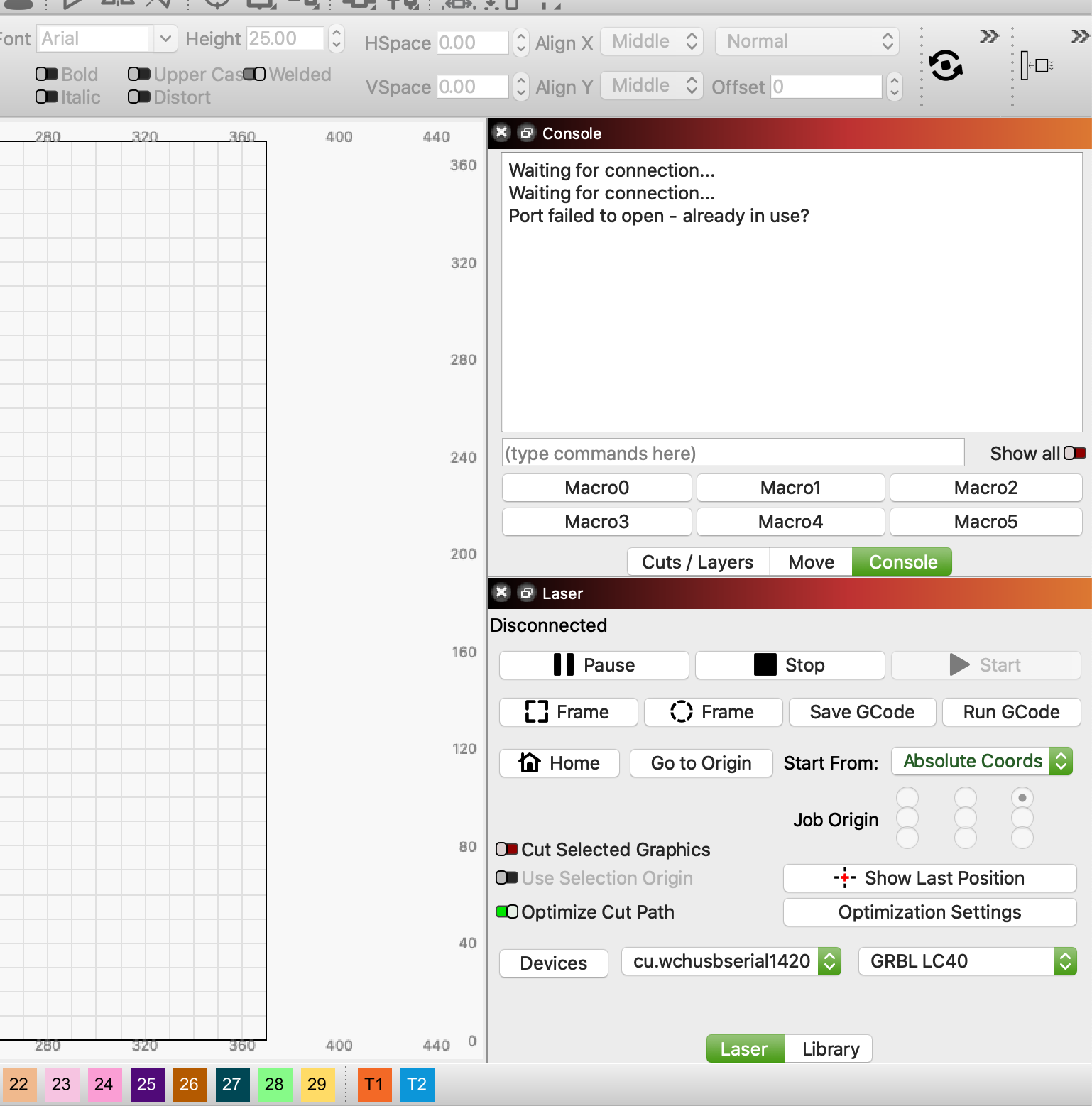
alright here is a screen shot of the terminal after i hopefully removed the other ones and reebooted then re installed from your link. i can not reply to the topic anymore it is asking me to edit previous posts, i hope you are seeing them
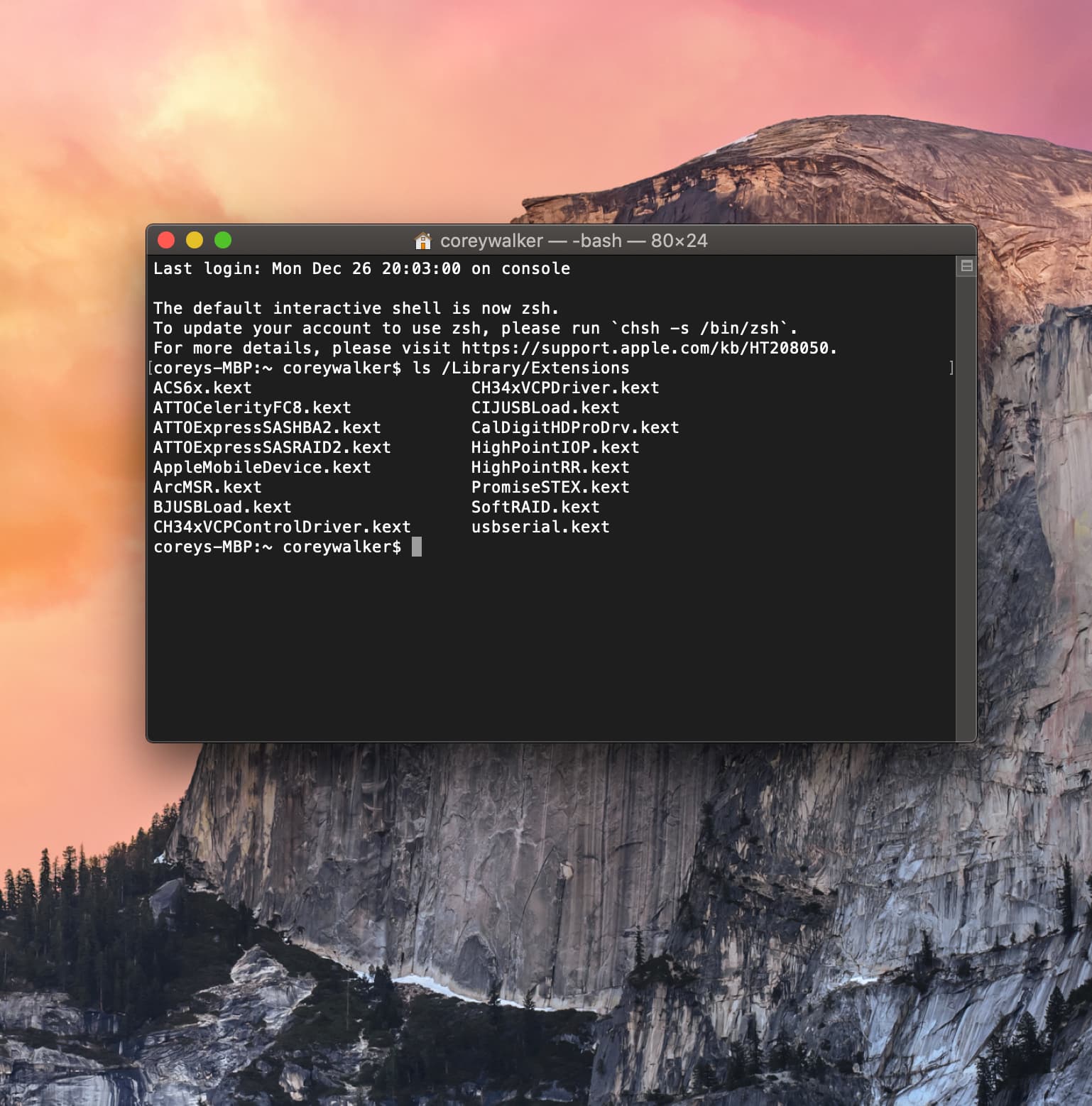
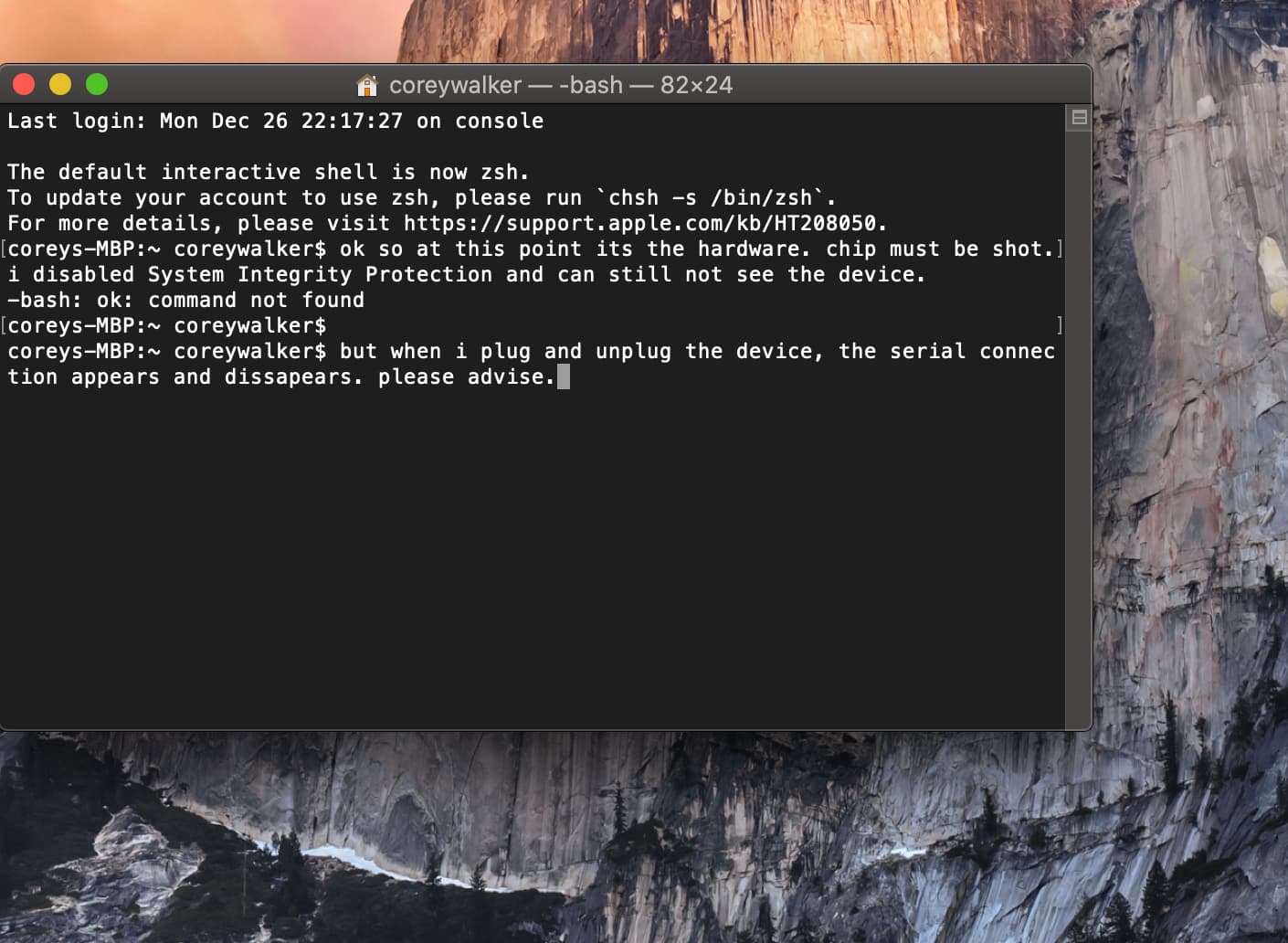
Can you rerun this? I think you had a typo when you ran it. You can copy and paste the text rather than taking screenshots but either is fine.


You definitely have redundant drivers.
Let’s try to remove these. Run these commands in Terminal. Best do this by copy/pasting one line at a time as this is potentially destructive.
sudo rm -R /Library/Extension/CH34xVCPControlDriver.kext
sudo rm -R /Library/Extension/CH34xVCPDriver.kext
sudo rm -R /Library/Extension/usbserial.kext
sudo rm -R /var/db/receipts/com.wch.ch34xinstall.mykextdir.pkg.bom
sudo rm -R /var/db/receipts/com.wch.ch34xinstall.mykextdir.pkg.plist
sudo rm -R /var/db/receipts/cn.wch.pkg.CH34xVCPDriver.bom
sudo rm -R /var/db/receipts/cn.wch.pkg.CH34xVCPDriver.plist
You will be asked for your administrator password. If anything doesn’t look right just take a screenshot and close out.
After you complete, reboot and then reinstall the driver.
This topic was automatically closed 30 days after the last reply. New replies are no longer allowed.