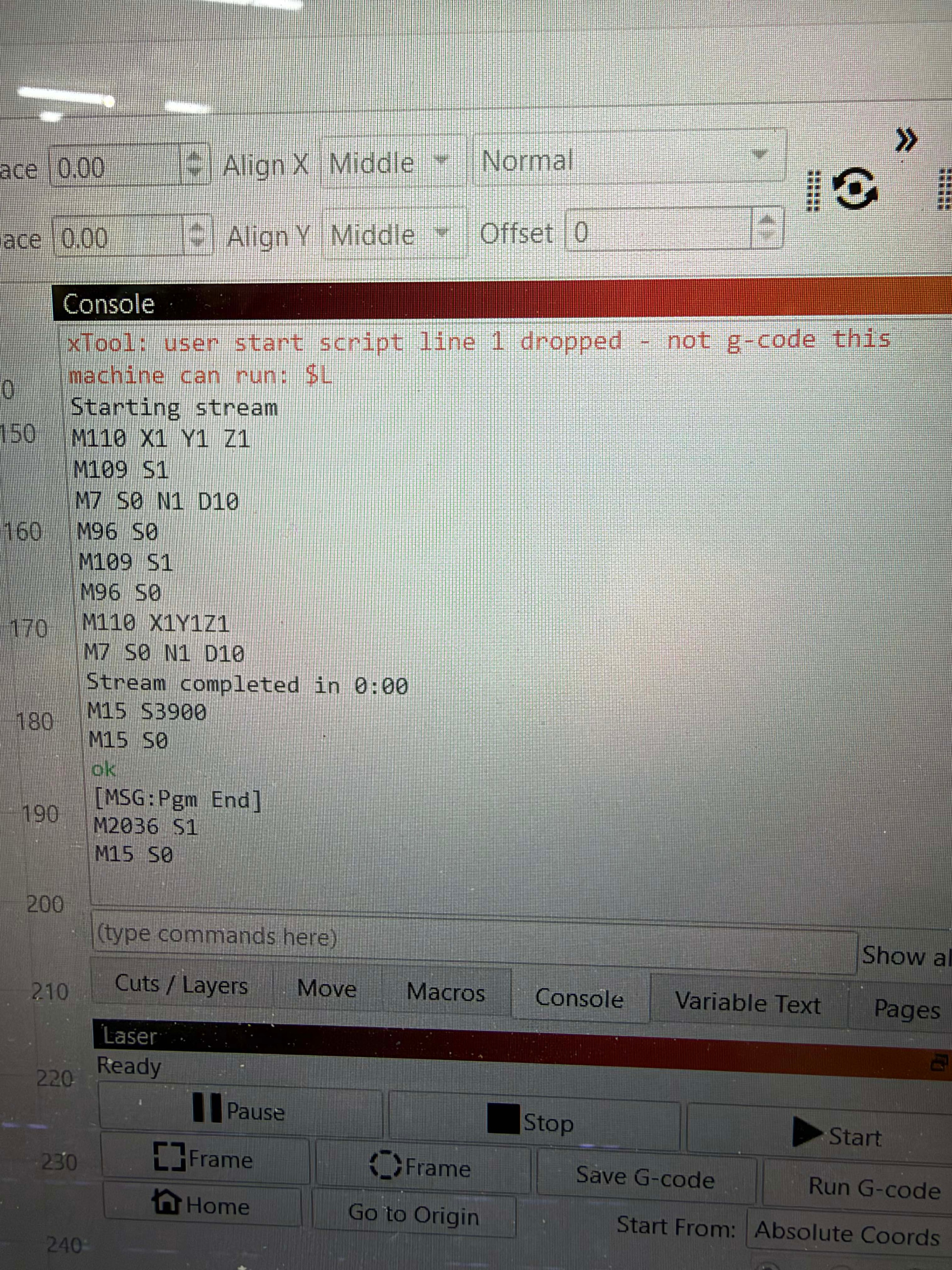
Whenever I push the Start button to cut or engrave the console window pops up with an error “XTool: user start script line 1 dropped - not g-code this machine can run : $L”.
The projects cut and engrave perfectly but the error always pops up.
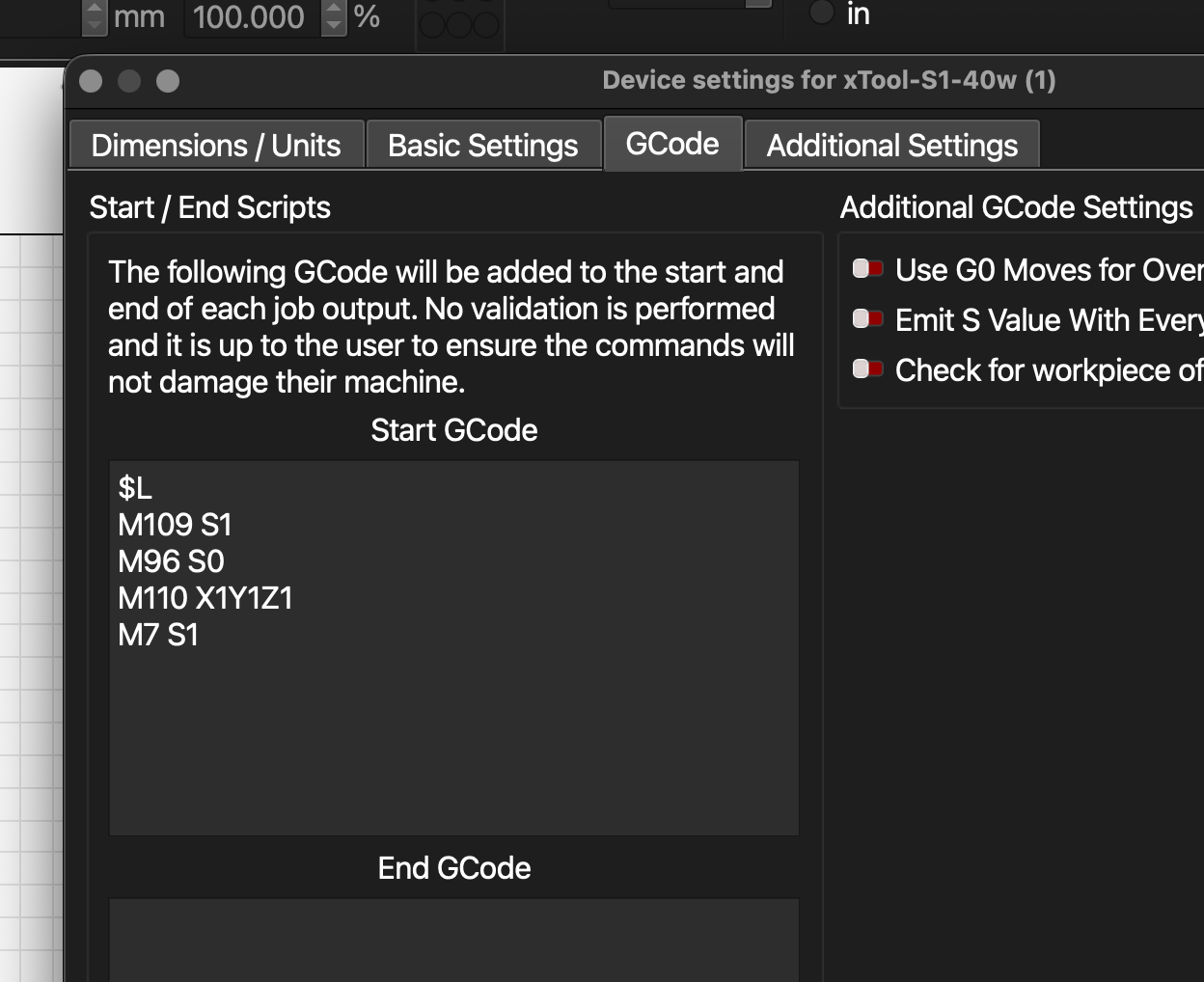
That’s the code that I believe is included in the recommended S1’s LBDEV profile.
No, I have not added any custom commands. I just used the new Dev file that the Lightwave Team posted and recommended to install.
Colin … When I went into additional GCode settings it displays the exact same thing as in the screenshot you posted. Should I just remove the $L command? Should I leave the other commands as is or edit them?
Thanks
Did an AI search and came up with this. Will give it a try
This error typically happens after updating to LightBurn 2.2+*while using the recommended xTool S1 device configuration profile (.lbdev)
The newer version of LightBurn features native support for the xTool S1. However, the official .lbdev configuration profile includes an automated start script containing the command $L. The xTool S1 firmware does not recognize $L as valid G-code, causing the console to flag it as an unrecognized command every time you press Start.
The project itself should still engrave perfectly, but you can easily remove this annoying console popup by removing the $L command from your device settings.
How to Fix the $L Error in LightBurn
- Open Device Settings Near the top toolbar, click on Edit and select Device Settings (or click the wrench/screwdriver icon).
- Navigate to GCode, Click on the GCode tab at the top of the Device Settings window.
- Locate the Start Script: Look at the text box under Start GCode
- Delete $L On the very first line, you will see $L. Delete just that $L text (leaving any other lines, such as
G90, untouched). - Save Changes: Click OK to save and close the window.
Once removed, LightBurn will no longer try to send the unsupported command to your XTool S1, and the error will disappear.
I tried the above fix and it works great now, no more error.