This may be similar to previous topics I’ve searched through, but perhaps a little different.
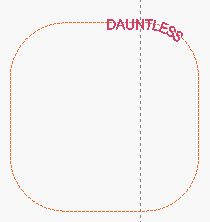
I know that I can manipulate text I’ve applied to a circular path, but what about a square with rounded corners? Can I somehow slide the text along the path to place it where I want?
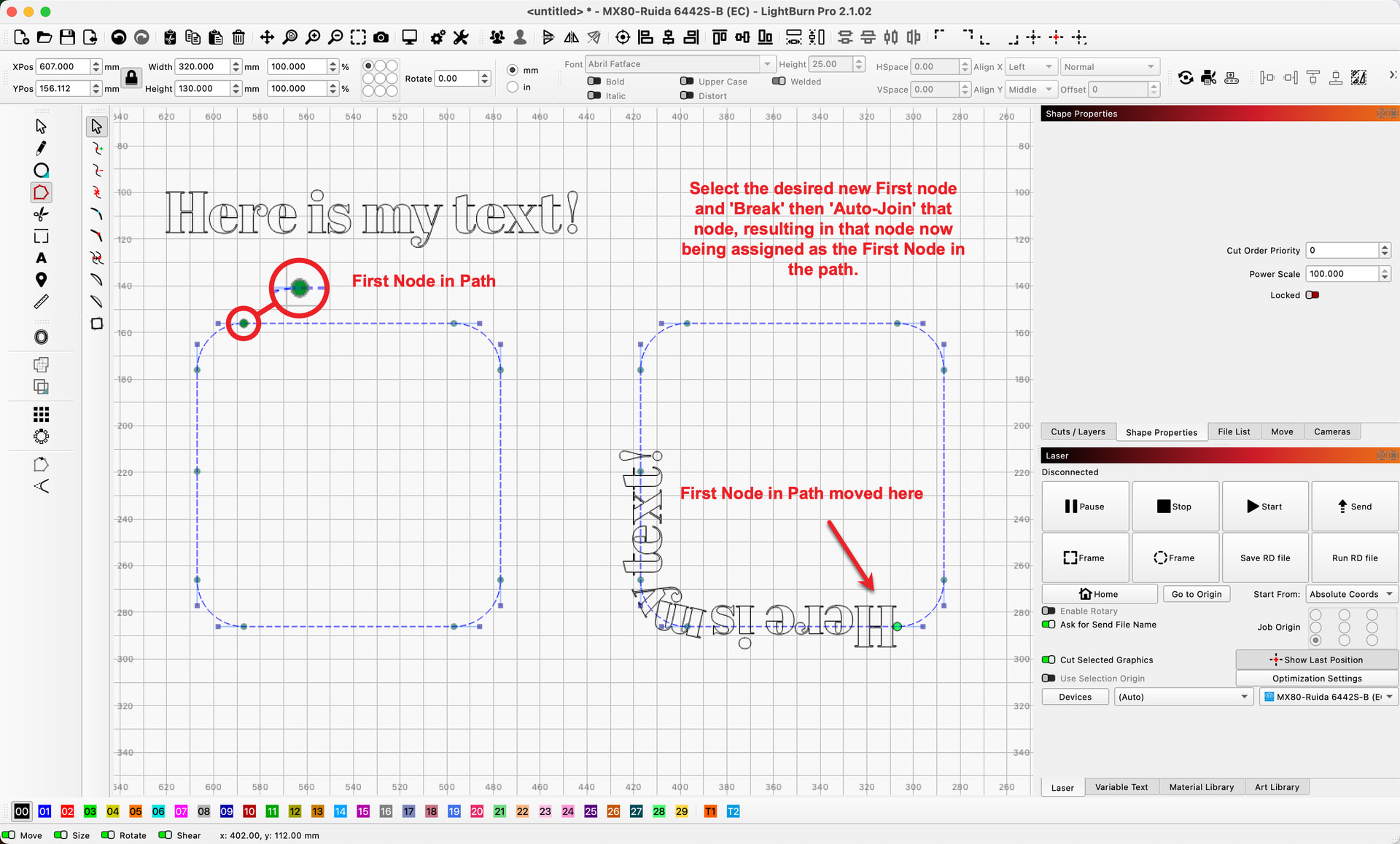
When applying text to a path, the anchor for the text is the first node in the path. You can change which node is considered the first node. Using the ‘Node Edit’ tools, you can select a node and ‘Break’ then ‘Auto-Join’ that node, resulting in that node now being assigned as the First Node in the path. If you want to start the text where there is not currently a node, simply add a new node where you’d like. Then do the process I shared above — ‘Break’ then ‘Auto-Join’ that new node to make it the new First Node (the text anchor point) of the path.
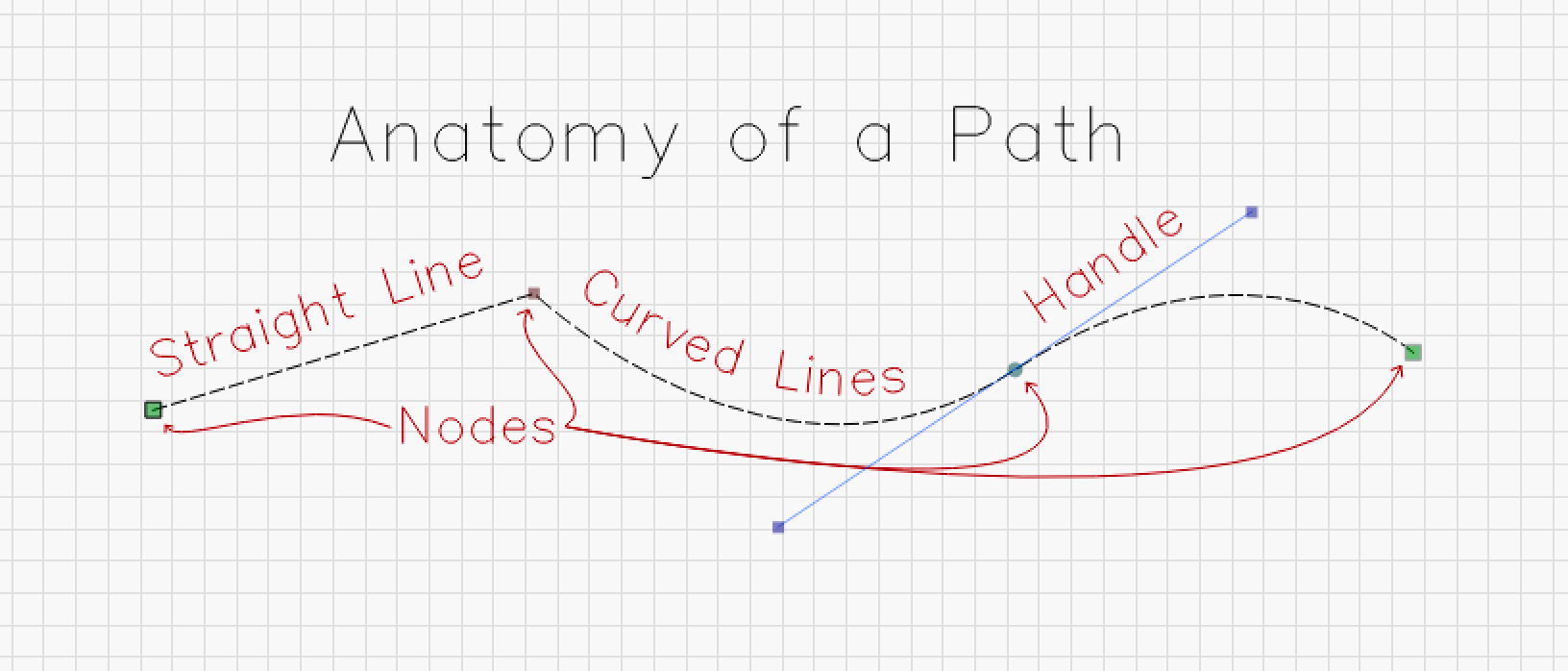
In the image above, please note the different visualizations of the nodes. Square nodes are straight or corner nodes, while round nodes represent curved nodes. The First in the Path (along with the Last) node is represented slightly larger than the rest of the nodes. I’ll try to show it in the image below.