My laser smashes the bottom of bent text. I calibrated the laser and used Arial font. Bold, Welded and distort checked. The biggest I tried was a 4 inch coaster and it still smashed the text. I was trying to do a 2 inch wooden nickel. I used to run 4 inch coasters all the time with no problem. It only smashed the first few lines, after that it works fine.
How does it look on preview? A picture of problem would also help.
@Dskall is right, Preview is probably the most important tool in Lightburn. Screen capture WinKey+S the Preview window too, no cell phone please.
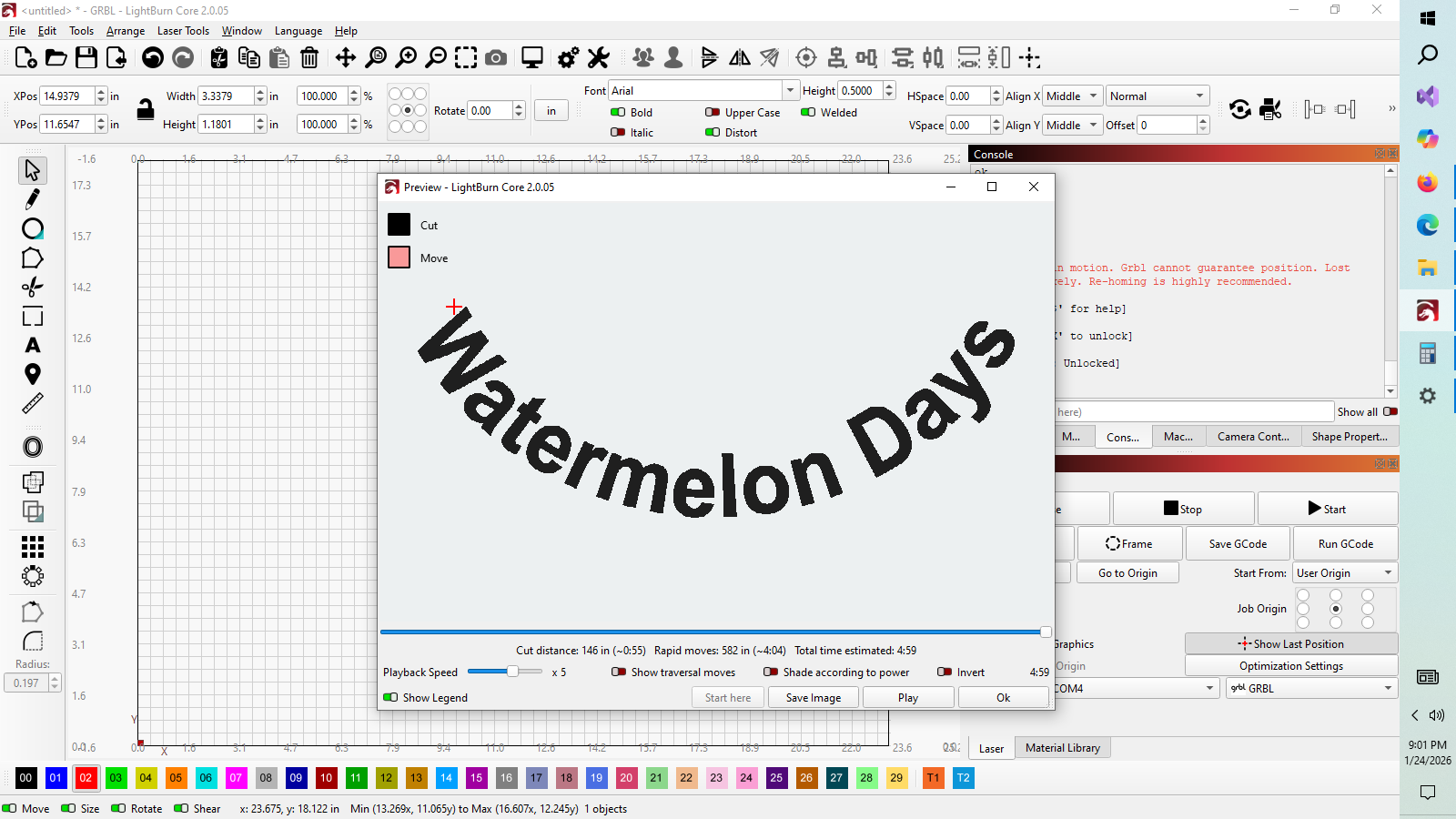
Beniding text can have some strange interpolation issues.
Apply text to path is a more reliable approach, in my experience. I use a tool path to set the circle diameter to apply the text to.
1 Like
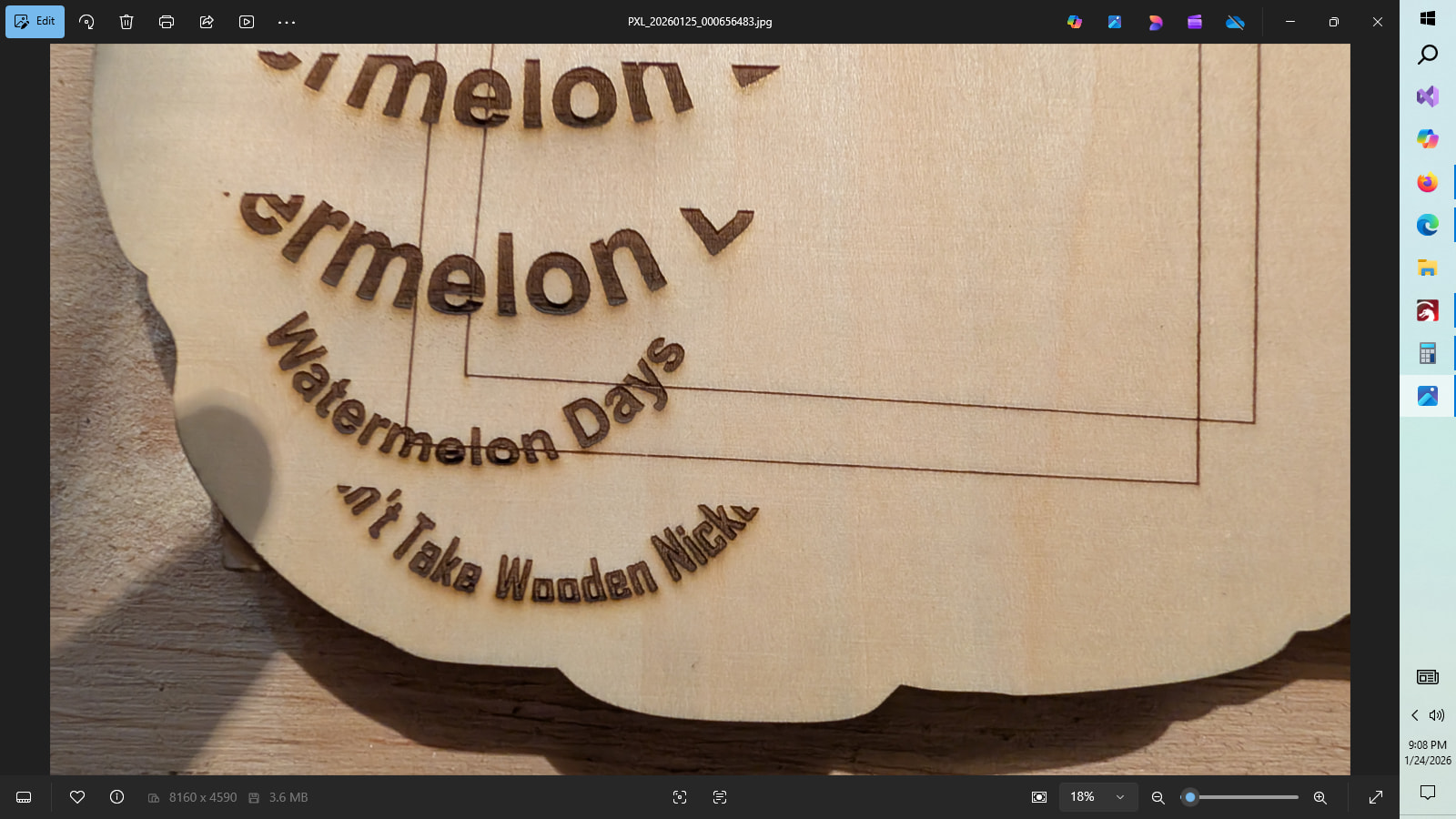
So I click text to path and try it>
Convert to path?
Draw a circle
Make your text
Select both
Under Tools, click on apply “ text to path”
What direction are you running the scan angle at?
What is the speed you use?
What is your overscan set to?

Where on the workspace is your graphic? It looks like a mechanical issue. Belts or rails need adjustment or rollers/bearings.
Put on a piece of cardboard for test media. Move your object to the top of the workspace. Burn a test.
Move the object to the middle of the workspace. Burn a test.
Compare results
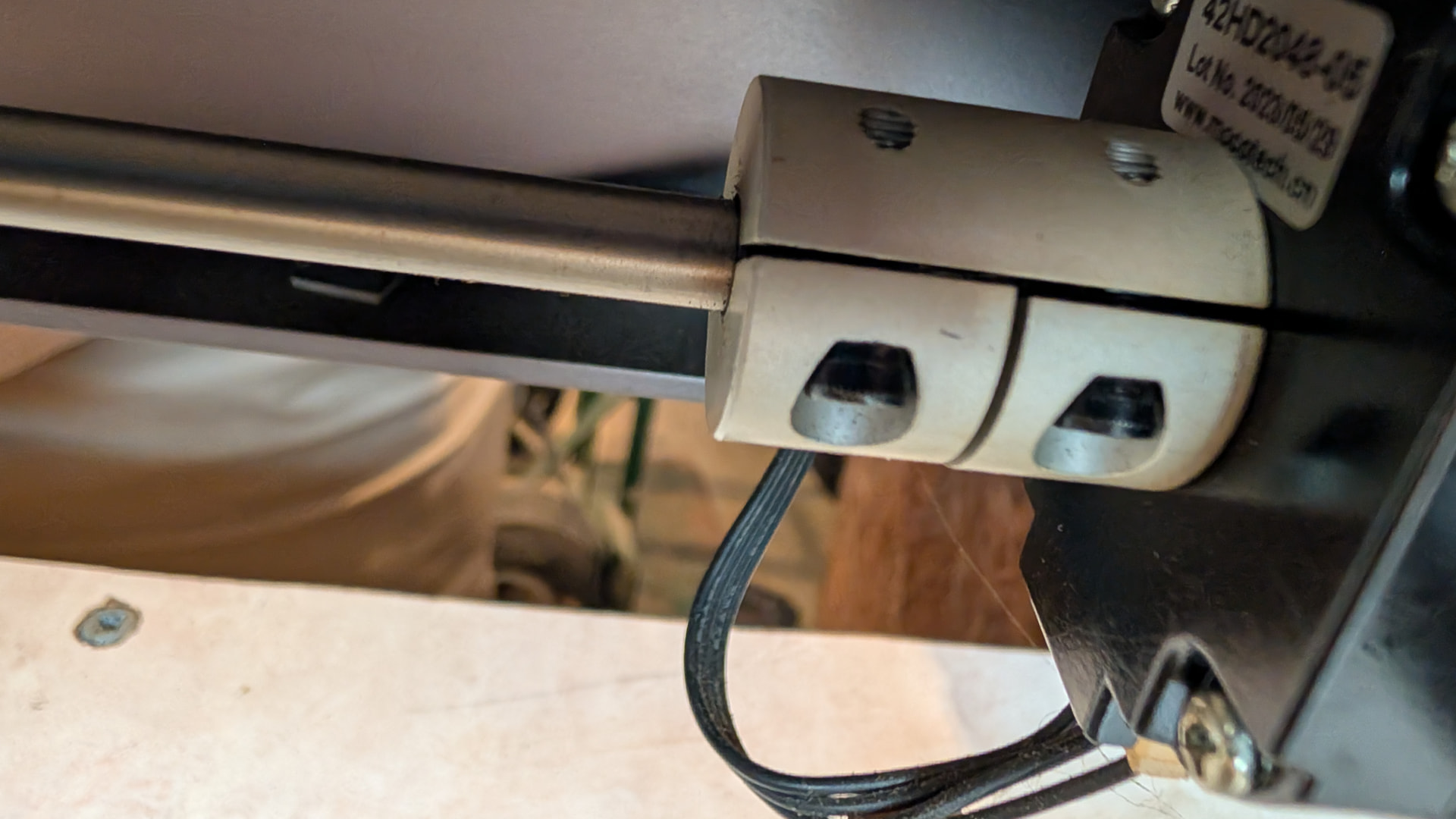
After loosening the belts I found the left connector here was loose so only the motor side of the y axis advance was driving and the other side was riding along. I tightened the set screw and everything works perfectly.
I want to thank you for trouble shooting it with me and teaching me about path to text. I appreciate your help.
3 Likes
CONVERT TO PATH will make a text section into plain vector art (iow makes TEXT into OBJECT). You will lose the ability to change font or edit the text…but then you can do some other things that are object specific and not available for text.
This topic was automatically closed 30 days after the last reply. New replies are no longer allowed.