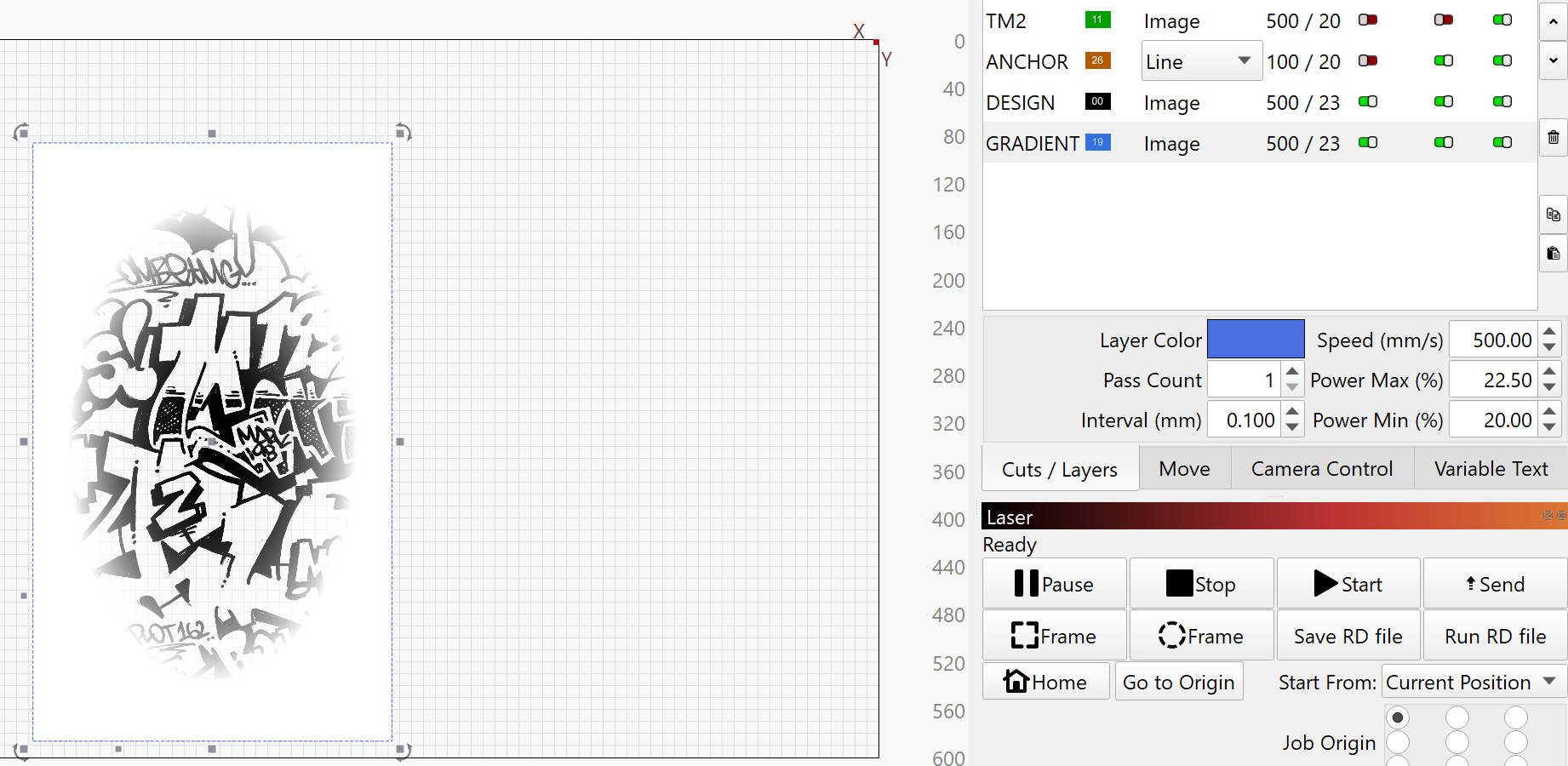
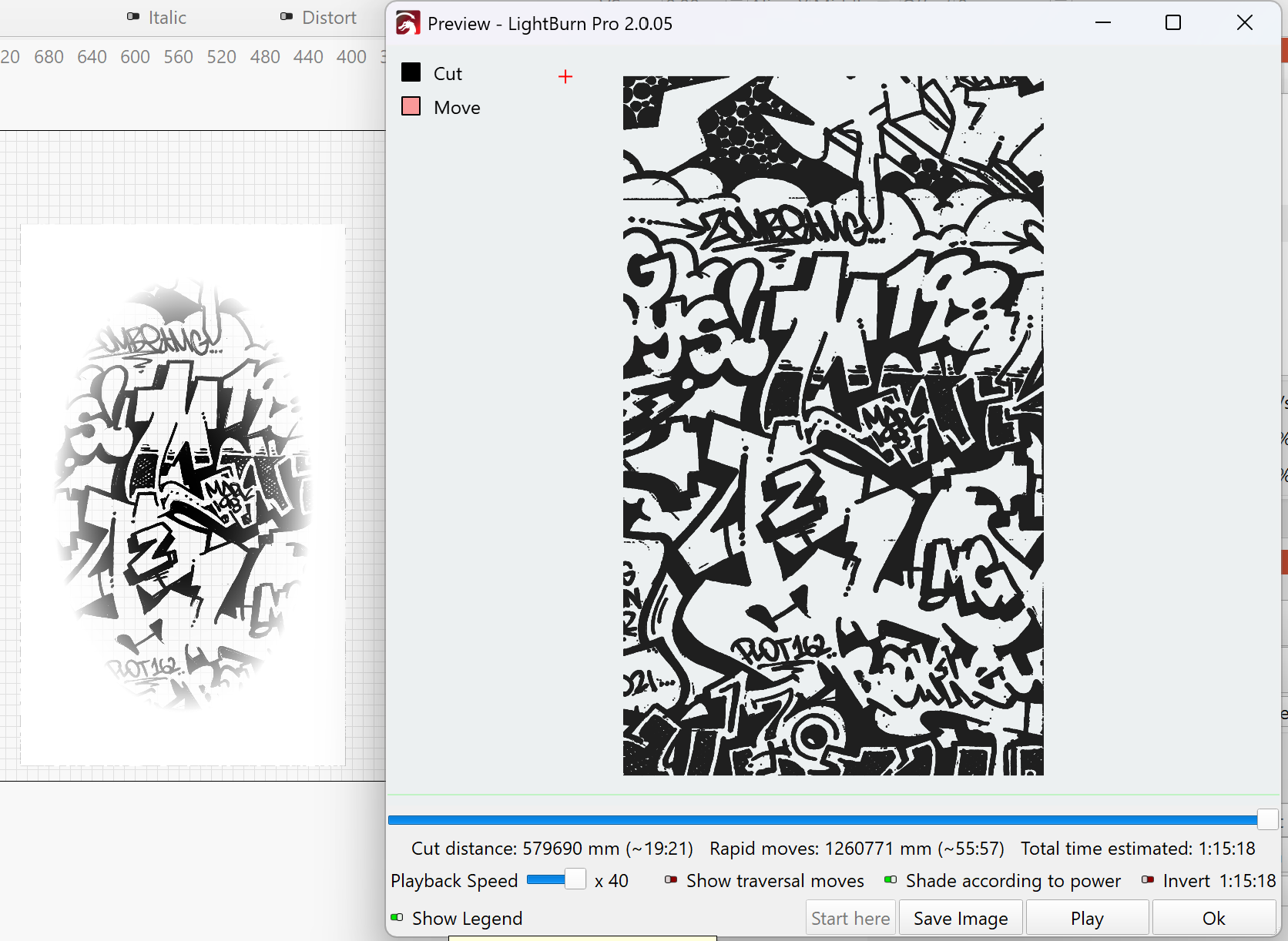
As there are no vector gradients in lightburn, i have tried creating a white-to-transparent bitmap mask and placing it on top of my original graphic. I am hoping to acheive a design where it engraves the black and not the white, with the power decreasing from black through grey to white, with white being 0 power/no marks left.
I am doing it this way as i want to hold the position of the print that has already done one pass, then do more passes in certain areas of the design with a feathered edge, so that the areas with multiple passes do not have a defined hard edge showing the differences in depth/colour in the end result.
I am engraving on an object that is not flat and need to change the height of the bed for certain areas. if i don’t mask it off, the laser head will hit the object being engraved.
Here is a screenshot of the bitmap mask over an area of the design with the design masked to only the area where the white fade is.
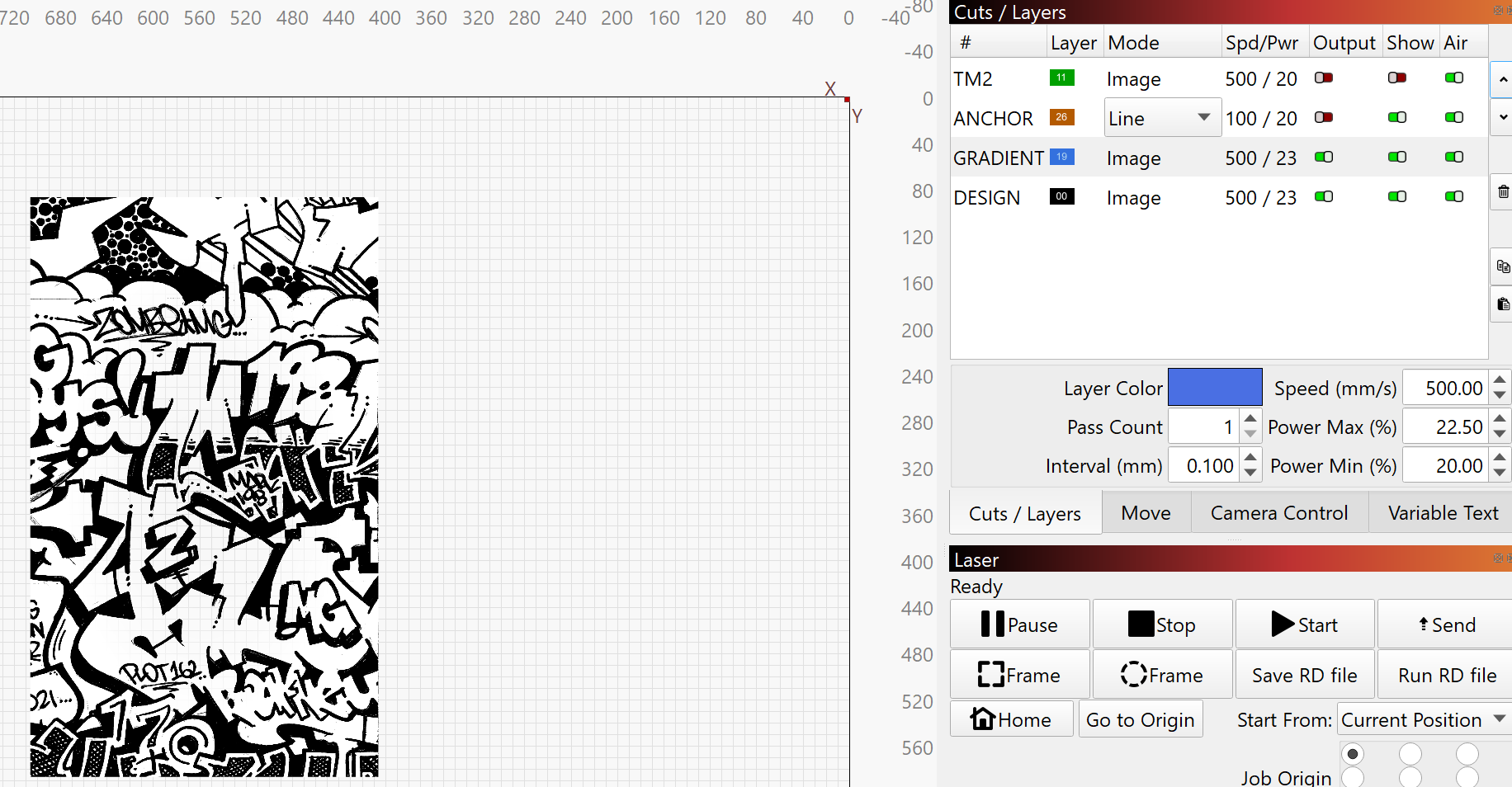
When i move the gradient to the top layer, it is not visible at all, even before clicking into preview. (i tried using illustrator/photoshop layer order logic to see if this was the problem)
Running with the theme of using illustrator/photoshop logic, i have tried to select both bitmap layers (the design and the gradient mask) and merge/flatten the two into one layer however i cant seem to find a process for this.
What am i doing wrong or what can i do to achieve my desired outcome?
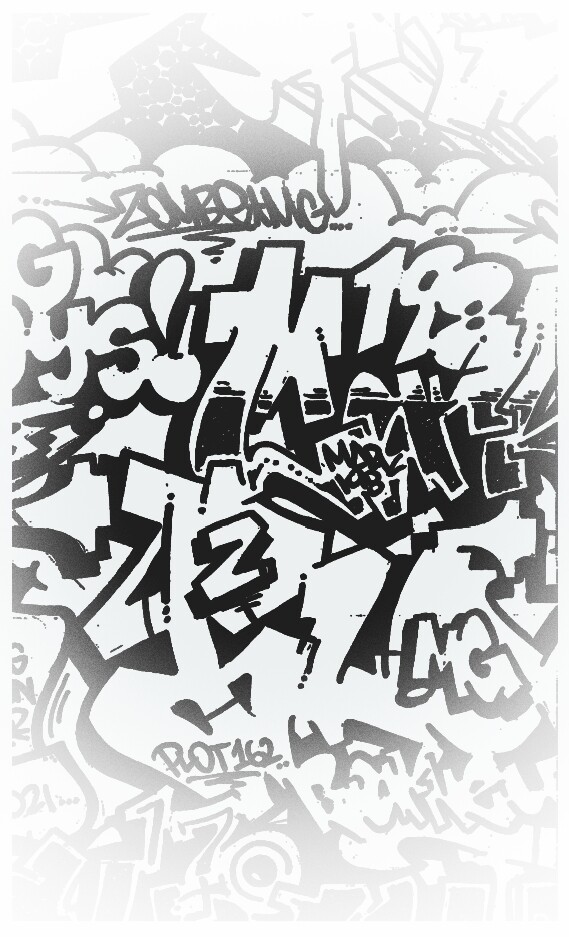
I took the liberty of downloading and editing the image (using the “preview” image you posted) and applied a filter with PhotoScape.
Try this image to see if it works better.
White usually is ignored along with transparent, so I’m hoping the mask goes from black to transparent with transparent being equated to white.
Probably true.
You actually have both of the images done with the same power level.
Co2 machines running as a bitmap usually are for 3d type operations. Unlike diode machines. Most lasers don’t do well with bitmapped images from a hobbyist point of view. The difference from white to black is very compressed and the image and laser has to be setup, each is different.
Keep in mind that lasers are much like a printing press, they don’t burn or they burn. I’d suggest using some type of dither for the gradient. This seems like it should work much better as the dither will handle the gradient.
I also suggest you keep the speed down, unless this is an RF (metal tube) laser. The response time of a glass tube can be as slow as 1mS. If you use that as a default value, at 1000mm/s you cover 1mm in 1/S, so the quickest you can toggle the tube on would be once every mm or a possible dpi of 25.4 at 500mm/s that doubles to 50.8dpi.
Most of these, from the factory, can outrun a glass tube laser power supply.
You have a lot of power, which is really only good for cutting thicker material.
My experience is limited to diode lasers for hobbies. And I don’t even take the hobby very seriously because I have other priorities in life.
Supposedly, from my point of view and probably from many others, the laser intensity should vary according to the tone of the image. Hence, those who engrave on canvas, tiles, wood, etc., consider that more power will burn more and less will burn less. Certainly, that is exactly the principle of engraving. However, finding the “sweet spot” for a perfect result requires a lot of knowledge, a lot of wasted material in tests, and above all, a lot of experience.
Taking into account variables such as the thickness of the paint layer or type of wood, as well as temperature, air humidity, and even the efficiency of the laser, it is easy to see that:
Controlling the line length when the laser is on and off makes it much easier to achieve different shades than by adjusting the laser power.
The problem is the combination of the laser and material limit. Most materials the marks are imperceptible to burnt. Unless you can compress the image you are likely not to get the desired effect. Sometimes compressing the image you loose a lot of detail.
If your laser/material starts to run at 40% power and is burnt at 60% power, that only gives you a range of 20% to compress the image down to a something that looks good.
Although I’m sure it’s possible, but that is exactly why you would use a dither – to get the maximum apparent grayscale practical from the laser/material relationship.
This is how a diode and RF (metal tube) co2 operate. If you set it for 50%l power, it’s on 100% power for half your pwm period.
Glass tubes don’t work that way, so how are you actually changing this in Lightburn?
It’s worth stating that layers in LightBurn never affect each other. LightBurn layers do not “paint over” each other like they would in a design application.
To make this work you’d need to export the graphic as a bitmap and embed the transparency (or color fade) directly into the bitmap itself.
I believe we are both arriving at more or less the same conclusion, but in different ways.
You are referring to how lasers are controlled through pulse modulation.
What I meant to say was that the dithering or stucki mode, like so many other methods, transforms the shades into strokes that vary in length until they are considered dots.
In that video, at minute 4:40, you can see what I mean.