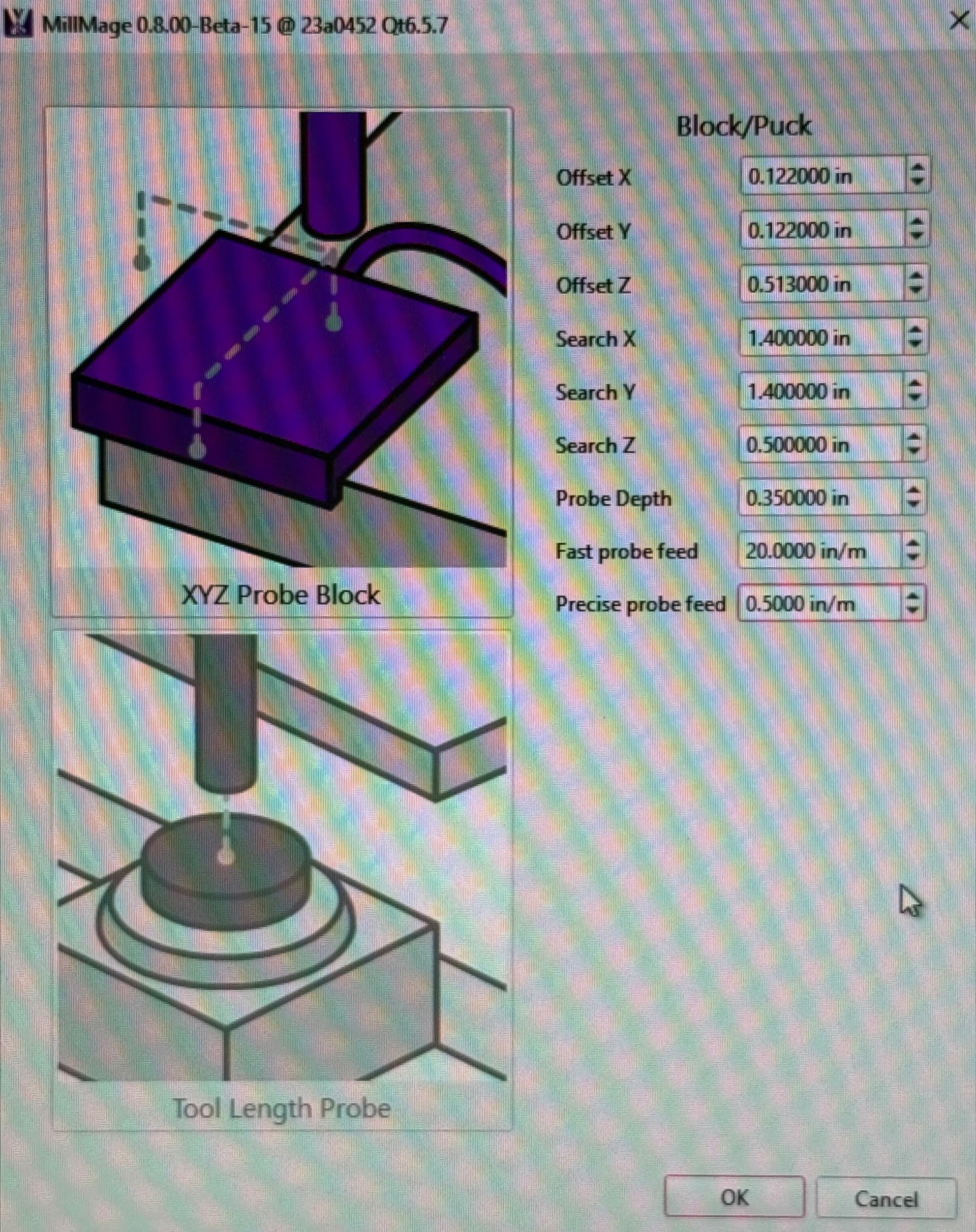
I’m using a BitSetter V2 and only using side taps for X and Y zeroing.
Below are configuration screens that work for me to see XYZ zeros.
Shapeoko owners, let’s get MillMage up and running for all configs!

Hi, does this automatically run the bitsetter to probe tool length during a job with 2 different tools?
Looking to try this out on my Shapeoko 4 XL soon.
Hi Travis! We’re working on having common probe blocks preconfigured and selectable in MillMage (Like the Autozero from Sienci, and the Bitsetter from Carbide3D) - thanks for sharing your settings!
I notice you’re on 0.8.00 Beta 15 - I strongly recommend moving to the latest full release here: Download MillMage Trial – LightBurn Software
Or the 0.9 RC to try out Pro features, like V-carving, Relief Milling, and True Nesting.
FYI Colin - this is my biggest issue with MillMage. I’m evaluating it currently and it’s got some nice features, but throwing away the automation on my Shapeoko 4XXL is a tough cookie to eat. The other deal breaker for me was no built in support for manual tool changes. Running separate operations is tedious.
One of the things that Carbide3D got really right in their Control software is the integration with the bitsetter, bitzero, router settings, and tool change pop-ups. I don’t see the value add to replace the control software.
Being able to output to a Cardide file and actually run it with Carbide Control would be well worth the license to me. Carbide Create lacks some of the finesse that I see in MillMage from a CAD perspective.
All in due time @Brian-houston - making the workflow and setup intuitive for the most common machines is on the list. Personally, I have a 4x4 Sienci Altmill in my shop that (As of this weekend) is now fully ATC/manual tool changing/probing tools/work probing all via MillMage. It’s doable, but not a two click endevour, which is what tightly integrated software packages from first-party vendors can do, because their scope is very narrow compared to the wide swath of machines MillMage supports.
You can absolutely run the BitSetter and Bit Zero in MillMage and run fully automated jobs in MillMage. It does take a small amount of manual configuration but it definitely works very well.
What isn’t supported is probing the bit diameter using the hole on the Bit Zero, but we are working through adding that.
So, I got the impression in evaluating MillMage that support for tool changes was not there. One of the things that Carbide does really well is setting the work zero with bit setter and then doing tool offset with the bit zero. They call it again when a tool change is needed which allows running one file with multiple tools. This is similar to how a machine tool without a tool change operates.
My expectation stems from; when the G code for the tool change is encountered or a speed change is needed the program stops and the change is executed and then a continue is run. My Hurco KMB1M did that and my Fadal TRM does that. A CNC Router should behave the same way in my opinion.
Carbide with their Shapeoko’s stops and has you change the tool and then runs a bit zero to find the tool offset before continuing.
I got the impression with MillMage, watching the excellent training videos, that a CAM sequence should be broken up into operations. Each operation should basically be grouped by the tool needed and then loaded and run one at a time. Did I misunderstand the training video?
So in Carbide I might have one file that has 2 or 3 different tools and a half a dozen operations.
In MillMage my understanding is that I need to output by operation and tool… so everything with a 1/4" bit needs to be a file, and then anything with a 1/8" bit is a separate file. That’s fine for simple jobs. It’s a mess on complicated jobs. Take for example a sheet that has 6 different parts on it. I might use a 1/4" bit for interior profiles, pockets. Then switch to a 1/8" bit for drilling where screws need to go. Then switch to a v-bit for countersinking the screw holes and text. Lastly back to a 1/4" bit for profiling the parts. Four tool changes is not the end of the world, but if the operations run for any extended period of time it means I have to manually keep track of which operation was running, load the next one, possibly zero the work again, and then run it. That adds to the task loading.
I have not dug into this far enough to see if I could export the file from MillMage and then open it in carbide motion and run it with that. Care to shed any light on why the architecture assumes that I want to use MillMage to run my machine?
Not sure why you think this. You can have one file with 20 operations if you want. The attached .mage file has exactly the sequence of operations you described, except for the countersink.
Pocket Mill Check - Study.mage (26.6 KB)
Myself included, that is what most of the MillMage users asked for. You make it sound like it is a negative using one application instead of 2 or 3 of them in the workflow.
Lightburn gave you a free **non-**crippled Trial to determine if it is suitable for your machine and workflow. If you do not like it, you are not obligated to purchase it. Did I mention that if you purchase it, the license is valid forever? No annual fees to enable it. An annual fee is charged for upgrades, but you are not obligated to buy those either.
Yea so I got the export operations video - export operations mixed up with running the code in MM.
But to be fair, I lost confidence in MM’s ability to run my Shapeoko when the machine config is imported but the rapid speed was very slow and there did not appear to be support for the BitSetter, BitZero or the tool change work flow. As I said previously, I stopped evaluating MM because it did not seem feature complete. MM looks promising because there is a companion laser flow that people speak highly of. I have not had time to look at LB.
I didn’t reply to this thread to debate separation of concerns or to bash the support and dev folks.
I did reply so that they would know that there are users who want to see better machine support for Shapeokos. If it requires manual tuning then that’s probably something to document. The getting started videos are well done and break the content down into bite size chunks. One easy way to get native compatibility is to output a file that can be opened in carbide control and run from there.
In my case I stopped evaluating MM because there wasn’t anything that I needed from CAD that justified the investment of time to work through a young CAM code base. It looked like I was going to spend alot of time fiddling with it and tuning it to get it working smoothly. I may eventually get to where I need to do that, but I’m not there today.
I’m not sure what your point is. Rather than debate you I’ll just point you back to where you missed me saying that I stopped evaluating it. In the software world it’s generally understood that “evaluating” means you are running on the trial license.
I want to see Lightburn or any other software vendor make money. I’m not worried about $99 or $199 be it one time or annual. It’s a cost of doing business and honestly it’s pretty reasonable and affordable compared to some of the other software I use or have used in the past. There is no “one” package that is good at everything… it’s common to use multiple tools that are specialized.
My point was to counter-point your statements to provide a balanced discussion for others reading this Thread. I already knew I was not going to change your view.
I know I cannot contribute any more to this subject. Thank you for sharing, all opinions are valuable.
Can you explain what you mean what you mean here?:
Rapids are set with the machine max speed in $110, $111, $112. Nothing that MillMage sets. If you are talking about the Jog speed, you can set that to whatever you want in the move window. The drop down speeds are conservative because people are silly and if you give them the tools to move at mach 10, they will and then blame you when they hurt themselves.
If you need docs to walk through the setup of the tool change process, they will exist once we get MM Pro out. Otherwise its pretty straight forward.
Bitzero? - Setup the block in the probe wizard and ignore the hole. - XYZ/Puck Probe Block - MillMage Documentation
Bitsetter - Setup the tool length probe and enable it - Tool Length Probing - MillMage Documentation
Tool Changes - Enable these in Device settings

and add something like this to your Tool Change block
;Tool Change Script
M5                                 ;Turn Spindle off
G53 G0 Z-2                   ;Lift Head to top of Z
G53 G0 X-300 Y-600    ;Move to front of machine to present tool
M5                                 ;Make sure its really off

;Millmage specific message script. This will cause an error in other senders
@P Please insert tool #{tool} {tool_name}
After that, run a multi tool process in one go. It should just work. The process isn’t hard, but it’s complex and we haven’t documented it well yet.
i do jobs with multiple tool changes in a lot of my jobs , normally 3-4 in the operations tab i drag them into the order of how they are to run, when it is time for the next tool MM will come back to my tool change and probe position and a pop up will appear on screen telling me which is my next tool i need to use. Putting something like this in here brings the popup on screen
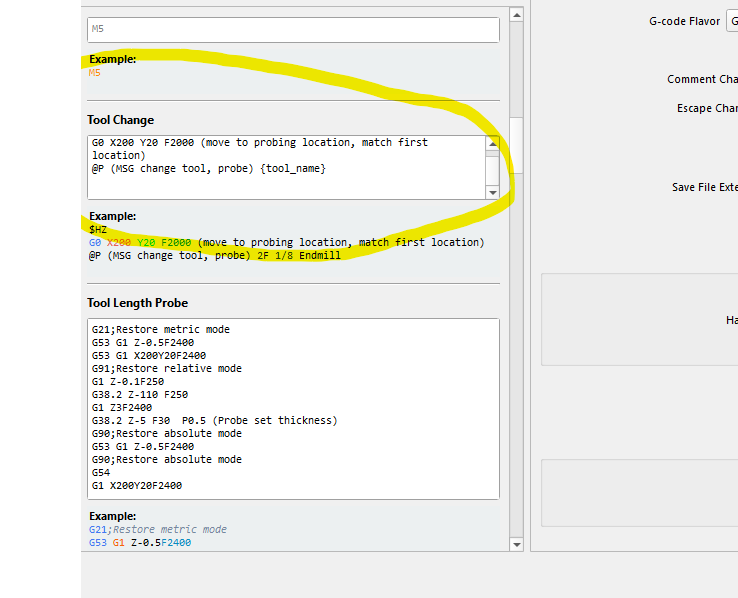
you don’t need to manually keep track of it MM does it for you, pre running the job run the preview it even shows different types of tools during the preview . yes it does take a little setting up custom g codes but once its done it all runs seamlessly, i really enjoy i can do everything inside MM