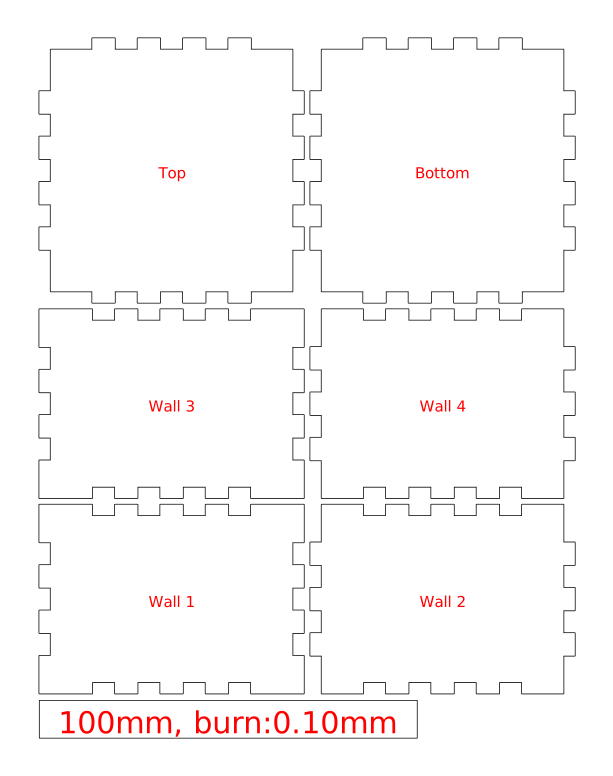
I am trying to create a box using the boxes.py tool. i have used this tool before and had good success with it. but in this case I have run across something I can’t seem to find an answer to.
in the boxes generator I have created a box and downloaded the file. brought that file into lighburn and I can use the boolean functions with a second object on all pieces except those listed as wall 1 and wall 3. when I try to even select the boolean assistant they are all greyed out. I have done everything I can think of to make it work. including
I searched the forum and read all the posts I could on the subject to try and find an answer. searched google and youtube and didn’t find an answer.
grouping or ungrouping the object (hoping to find a hidden object thus giving me 3 selected but no luck I wondered if maybe the text from boxes.py was causing it so deleted that and selected what seems like just the side of the box and still no boolean available.
tried recreating the box file from the begining on boxes.py (3 times) and starting over… same issue
I have made sure that I have both objects selected. using the select tool or manually selecting them using the control key.
tried edit> close path. nothing available.
tried to delete everthing but wall 1 (or 3) and doing a preview to see if it caught an open path i missed. nothing.
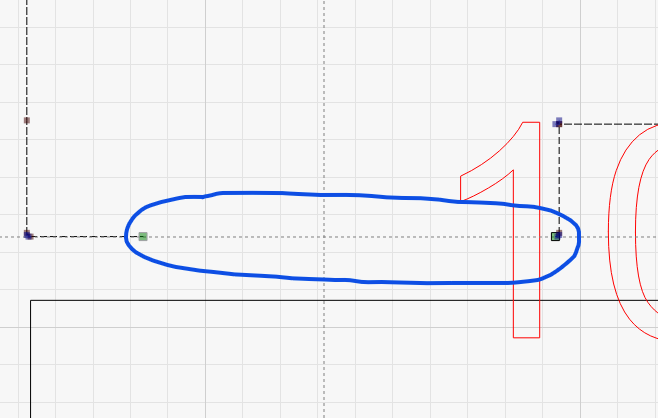
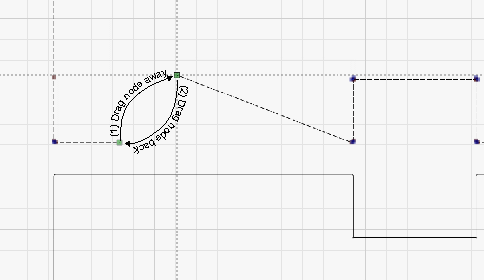
I saw one post about resarting computer and software and finding broken nodes. I restarted everything but the nodes function is not something I am very familiar with but didn’t see an issue. actually when I tried to edit nodes nothing showed up. so maybe that is a hint… not sure.
I am uploading my lightburn file as well as my boxes.py file that I started with. I have not added the second item to join because I wanted to upload the most basic starting place I can to see where the problem is. I am at the end of my rope and ready to tear my hair out. I sure hope someone can find the problem I can’t see. its probaly something simple that my inexperience is causing me to miss. but who knows.
thanks in advance for your help
70mm box file.lbrn2 (110.9 KB)
dalton