Hi to all the camera experts, I need to be able to switch off the camera overlay once I have positioned the job on the laser bed.
I sse in a earlier post that the answer given was “Switch OFF the camera overlay”
I am using version2.1.03 and cant find where this switch is. Can anyone help
John
…not sure about the off switch, but you can use the slider to fade the camera overlay out completely
Thanks for your reply. Your suggestion worked for me. The older post about the switch seems to be for a past version.
Regards
In an earlier version, you could toggle the overlay on and off. I wish they would bring that feature back.
Did you try clicking on each end of the fader slide?
I don’t want to put my head on the block but even though I’ve always worked a lot with camera assistance in LB, I don’t remember there ever being such a button. I also don’t see the purpose of it, activating the slider (clicking won’t work), i.e., pulling the slider forward and or all the way to 0, gives the desired result.
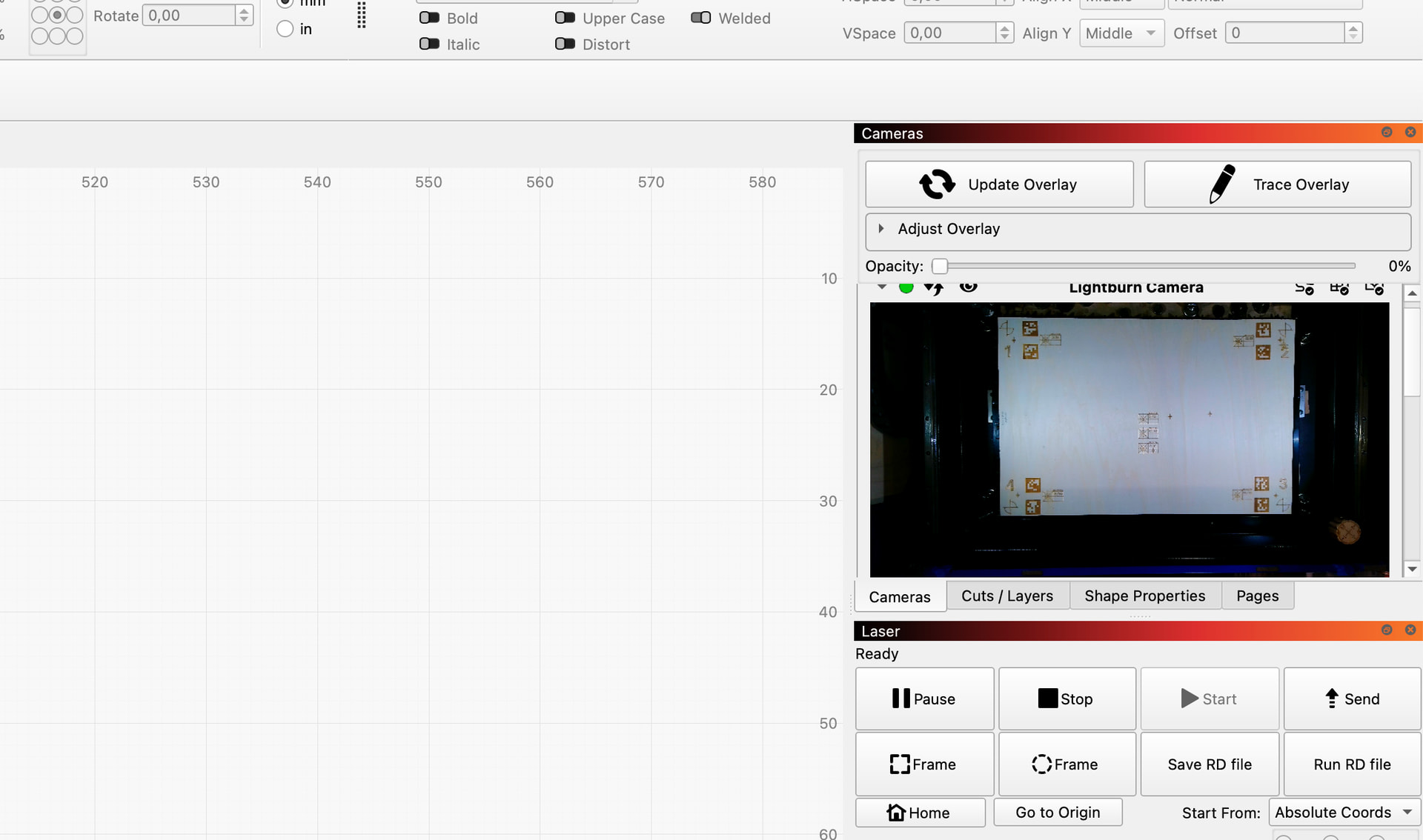
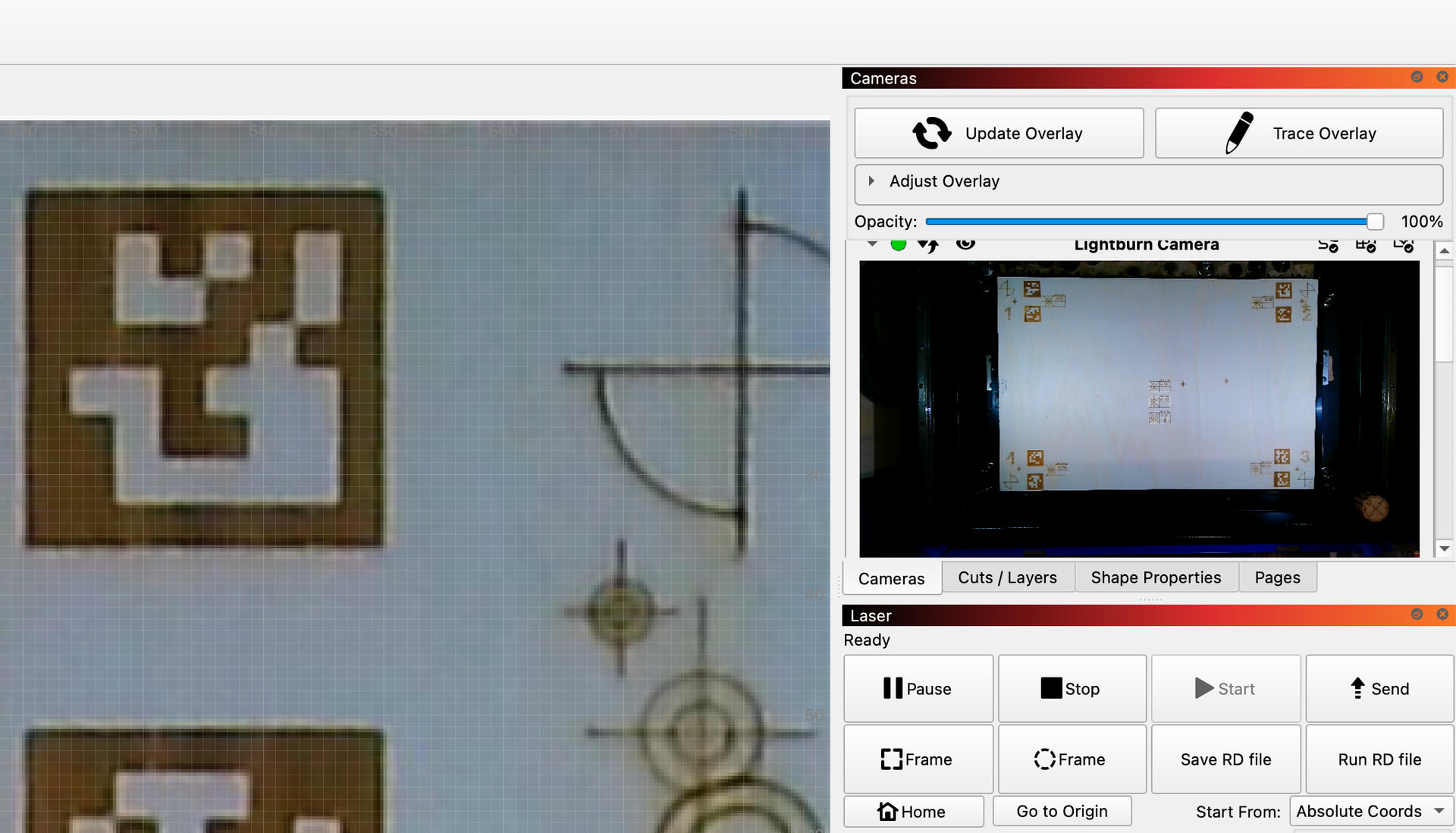
I believe the button was labeled Show. If you turned it off, the overlay disappeared. When you refreshed the overlay, the Show button would be set to on. The problem (really more of an inconvenience) with using the opacity slider is that if you move it to zero, it stays there and when you update the overlay you don’t see anything until you finally remember that you previously moved the slider to zero. I suppose an alternative to bringing back the Show button would be to automatically set the opacity to 100 when you update the overlay.
Two opinions. An earlier version reinstall and screen capture would settle it.