Win 10
LB 2.0.01
Generic K40
Updates are up to date and sec software isn’t blocking.
I run 3 cameras in my laser. Basic USB style, all 5mp or better. All the cams had decent image quality before the 2.0 updates. But now the framerates are super low. I’ve tried adjusting the framerates up and down with little improvement. One of the cams is running at around 4 frames per minute. All the cams run great if I use the Windows camera app outside of LB.
TIA
Thank you for drawing our attention. Yes, some adjustments have been made to the camera system, and frame rates were part of this change. I will ask @JediJeremy to chime in when available as he spearheaded these developments. 
As an FYI, most of the team has gathered from around the world for LBX 2025, being held in NYC this weekend, so it might take a little longer for replies than normally expected. Thanks for your patience.
1 Like
Keeping the post active
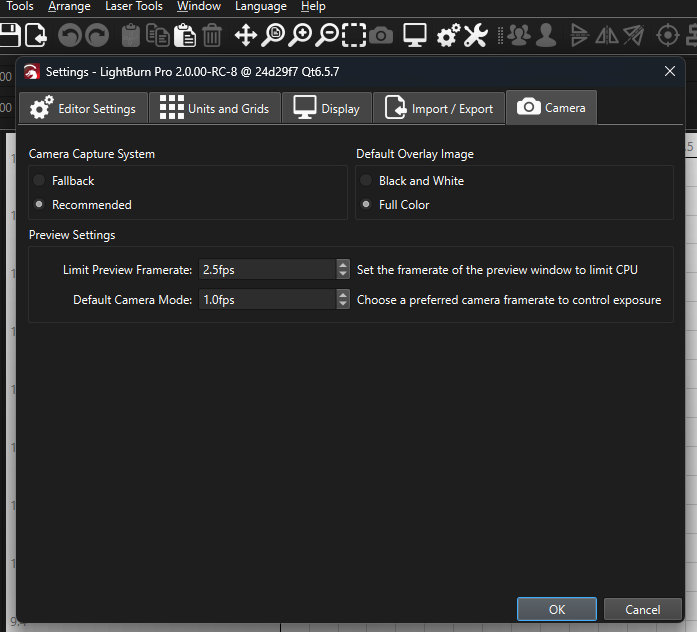
Cameras now default to low FPS to keep CPU overhead low. You can change the default FPS from the Camera tab under ‘Edit > Settings’
1 Like
I’ve adjusted the FPS setting through the entire range. Minor improvement with everything maxed.
1 Like
Still having issues if anyone has the time. Thanks
Anyone available to help?
Most likely, if you describe the issues in more detail.
You mentioned, that you run 3 cameras. LightBurn only supports one at a time (for now!)
Stick with one of them, and perform fresh Lens Calibration with the new AprilTags and Tracking:
After this, run the Calibrate Camera Alignment
I’m curious to hear about your results!
Yes, 3 cameras. One at a time. Different locations (like facing under the bed) so I have different views of the work. I have the main camera that’s for actual work. The issue isn’t calibration, focus, etc. It’s the frame rate of the cameras. No matter how I adjust them in the camera settings the actual frame rate is very low. Slows one down to 5 frames per minute. They’re all at least 5mp cameras. If I use the cameras outside of Lightburn with the windows camera app they all run fine. Did not have this issue until the recent updates. Running on a Win10 Asus ROG laptop. Used this laptop for 3yrs with Lightburn.
October now.
I’m gonna assume this one was too much to figure out?
BTW, if I roll back to prior versions the issue goes away.
Camera framerate is lowered to reduce CPU overhead - cameras take a lot of processing power. The framerate is now selectable in LightBurn if you wish to bump it up: Camera Control Window - LightBurn Documentation

On the right side of the camera control panel
Apologies for not following up sooner. I note my callout to @JediJeremy went unanswered. I will reach out directly and ask him to provide additional diagnostic steps.
Update: Jeremy has been neck-deep in camera code, we expect him to surface shortly.
Hi there, sorry I’ve taken so long. I’ve checked in every now and again but did not have any better theories than the support crew, and I’m just as confused. I’ve never had a USB connected camera with a framerate as low as you’ve described. I’ve seen some drop down to 0.5fps in low-light conditions as they try to adjust exposure to match, but 5 frames a minute means 20 seconds per frame…
I’m not even sure it’s possible to enter in fractional FPS’s that low (0.05fps) and I doubt you’ve have missed that.
You are correct that it doesn’t have anything to do with calibration or alignment. Those systems aren’t involved with the preview. I doubt the bottleneck is your CPU otherwise you’d be complaining the app UI was slow (because the preview would be using all your processor power).
There doesn’t seem to be any reason for it, and to my knowledge we’ve never had any else complain about an FPS so low. (one person complained about the default 2fps limit instead of the 30fps they were used to…)
I have one suggested thing to try, and if that fails one possible way forward.
In the LightBurn Settings window, in the Camera tab, try the “Fallback” capture system instead of “Recommended”. That will use an older set of camera drivers that typically has worse performance, but may be more compatible.
If that fails, could you create a debug log which contains the camera startup sequence? (I think it’s ‘enable debug log’ then right-click on the ‘Devices’ button to reconnect the laser/cameras and log about it. But support can walk you through that) We’re looking for the “VISION:” block that lists all the camera resolutions.
We could also use a little more information about the camera you have, and your exact version of Windows 10. Are you at least running the “Windows 10 Anniversary Update” version or later? (aka version 1607) There were significant updates to the Win10 camera system API after that. If you are running a very early version of Windows 10 that could explain it.
If you can tell me your exact camera model, I will consider getting one for testing.
2 Likes
Thanks Jeremy. The specific steps for ‘Debug Logging’ are as follows:
Enabling and Disabling the Debug Log
Go to Help → Enable Debug Log to begin recording a log of the actions you take in LightBurn. A check mark will appear next to it when it’s enabled, and logging will continue until you select Enable Debug Log again to disable it, or restart LightBurn.
The Debug Log will automatically save to My Documents on Windows or Documents on Mac, with the file name LightBurnLog.txt.
The Debug Log is cumulative — each time you use Enable Debug Log it will append to any existing log, so it’s a good idea to delete it after you’re finished and have sent the log to LightBurn Support.
1 Like
This topic was automatically closed 30 days after the last reply. New replies are no longer allowed.