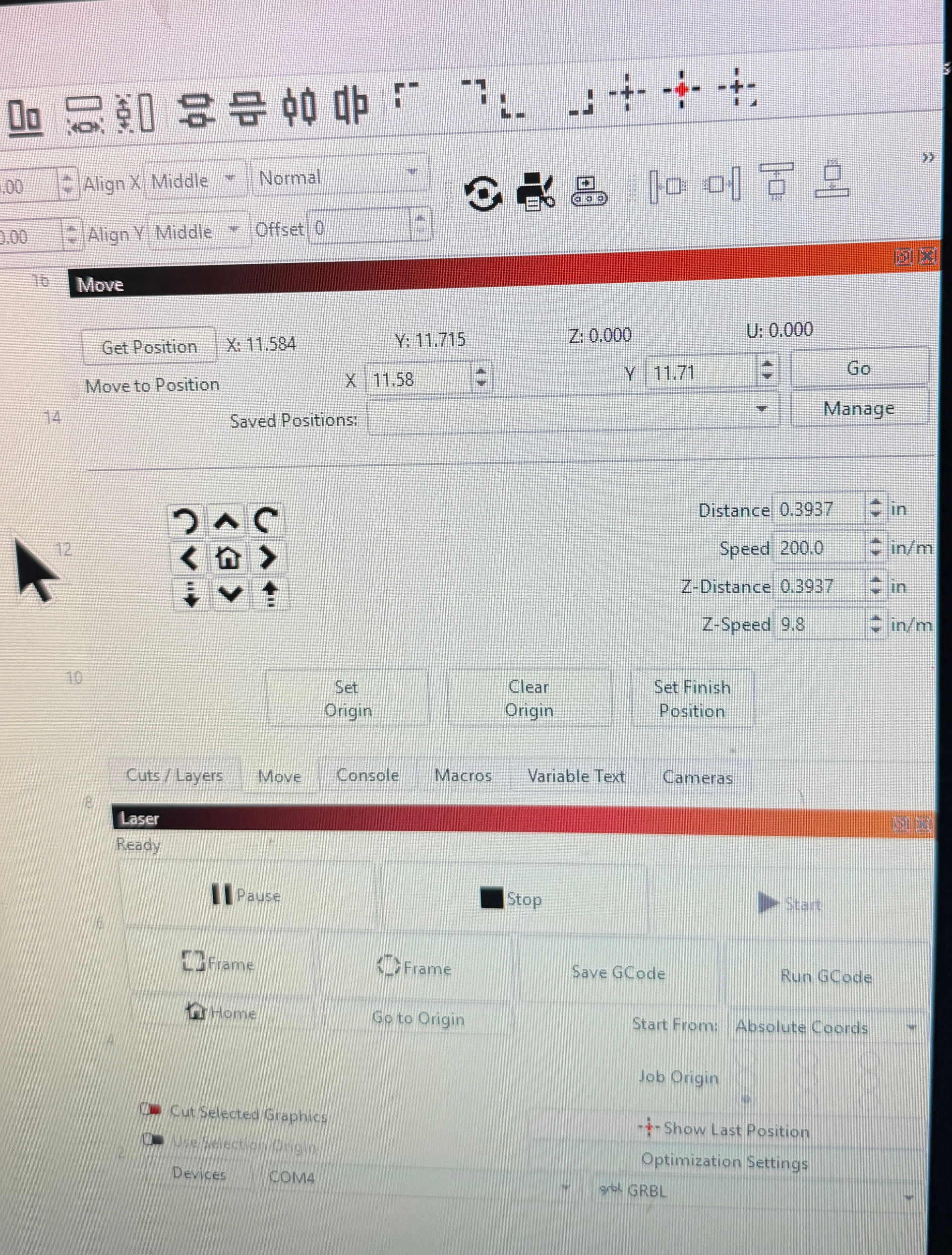
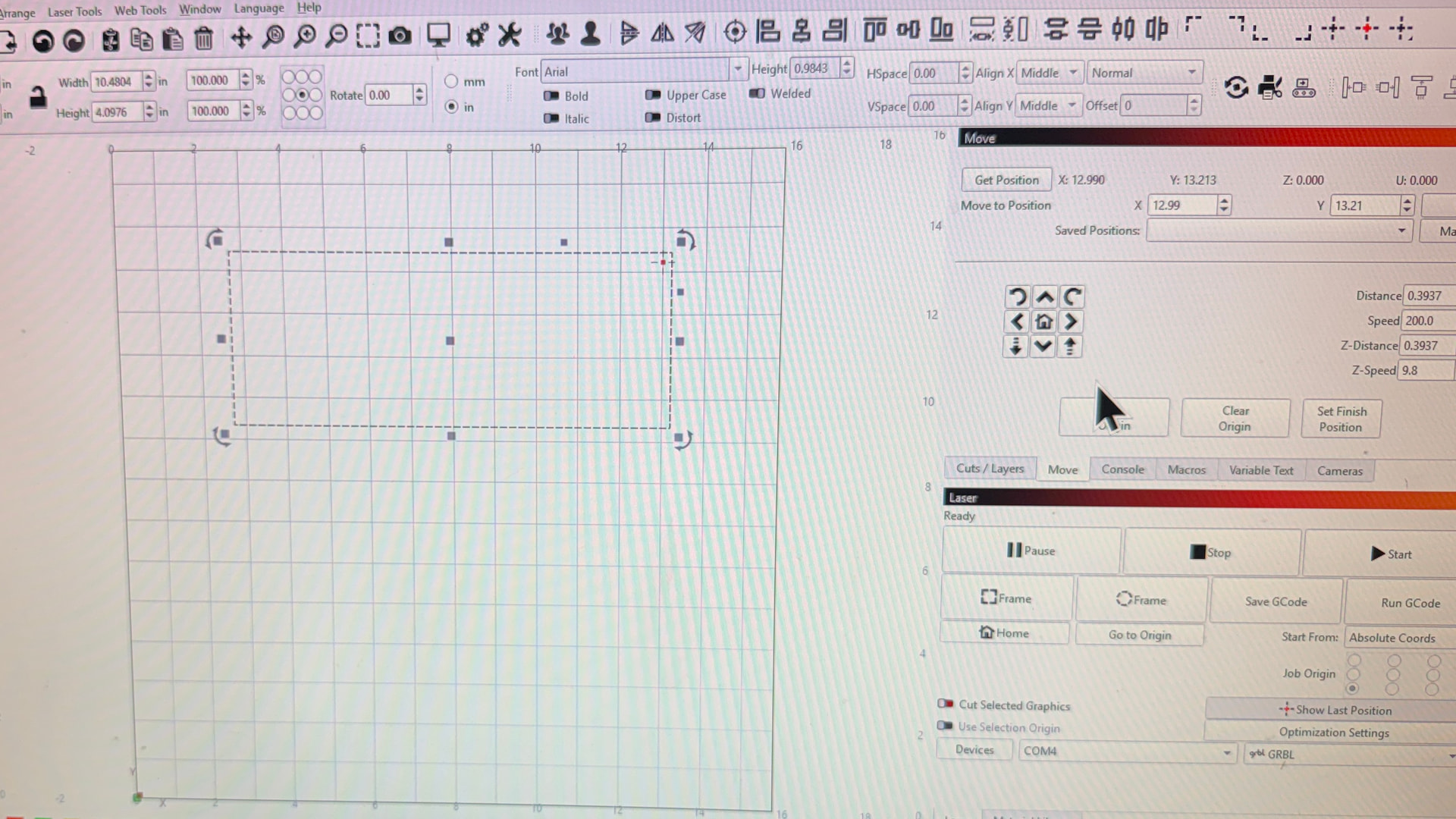
I am using Lightburn 2.0.0. I was using 2.0.3, This is occurring in both versions, but I have had less trouble in 2.0.0. This all started with my homing not working and when the laser would “home” it would get a horrible grinding noise and stop. with an alarm 1. and tell me to rehome. That never worked, so I went on to Use Origin, which seem to work for a while, then today. all coordinates started being totally off. That was using 2.0.3, so I uninstalled and went back to 2.0.0 and things are the same in that version as well. I am using a Laser Tree K1 Pro 30W Laser Cutting & Engraving Machine which is on their frame, etc. I have only had it since the end of January. I have disabled Home in order to not get the grinding and User Origin was working well yesterday, but today is when the mess with the coordinates started. The laser would be in the bottom left corner, and as you can see in the images, it does not show that it is even close to x=0 y=0. I am using Windows 11. I am trying to figure out how to post the screenshots.
This is usually because it is not tripping the homing switch.
Sounds like one of your limit switches isn’t working. Here is the test. With power off, move your laser head to the opposite corner from the limit switches. Turn the power on and click the home button. As it’s moving toward the home location press on each limit switch in turn. If forward motion toward that switch stops, the switch is working. If forward motion doesn’t stop the switch isn’t working.
If the laser stops in both directions when you manually trigger the switches, but grinds when it reaches the rail, the switch is out of position and must be adjusted. Solve this problem and things will work better for you.
Your screen pic shows absolute coordinates. The only way this will work is if Lightburn knows where the home location is. If you have homing disabled in firmware, the laser position when you power it up becomes the home location. Place the laser head in the front left corner before turning it on and Lightburn will call that the 0,0 position. From this point on don’t move the laser head by hand. Only use the jog controls in the move window or the location pin in the main workspace. But, getting your limit switches working properly is the better path.
Turns out the “hidden” limit switch was not striking well, thus all of the stupid problems. The switches were working but when I moved the rail to the front and looked over it, I could see that the x switch was not striking correctly. Thanks…
Yes the images showed absolute coordinates, but that was just showing what the stupid machine was doing…nothing to do with how crazy things were. I got those numbers when I had the laser at the bottom left …and hit the get position. That is why…
Problem solved. Now i know what to look for should this happen again.
The x switch was not striking correctly…So correcting that, problem solved.
THanks