How can I turn the typical street map 9left) to a single line engrave ? (right) Can I do it in Lightburn ? I also have CorelDraw and Inkscape. Thanks
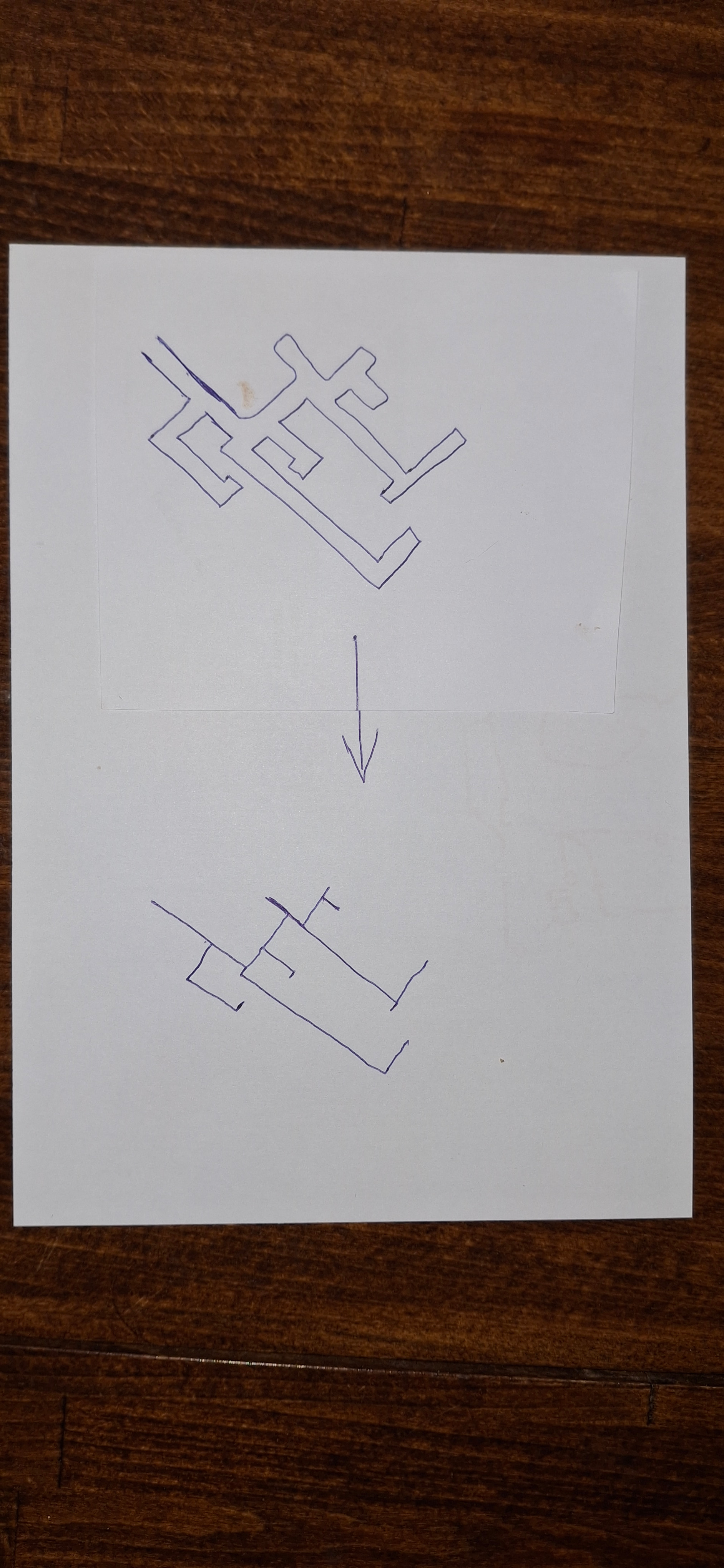
Lightburn does not have a “center line trace” mode. I think people are doing it with other software, then exporting the SVG file for Lightburn.
1 Like
I think Inkscape can do a center line. Not a simple algorithm.

1 Like
And on the Webz:
1 Like
I knew there was an app for that, just could not remember.
That app will try to create single lines through the middle of any solid pixelated dark colored lines like the ones you have drawn as you can see from the blue output below which is obviously not what you want.
If your street map had a different color or shade in the middle of the street compared to the rest of the map? then I could probably get the app to put lines through the middle of that instead and it might work?

Continuing the discussion from Engraving street map as single lines:

Here is a file I would typically want to upload to lightburn. When it arrives, I can use the ‘Trace’ tool, but obviously when ‘vectorizing’ it gives each side of the black lines a thickness. As a ‘PNG’ file, it is a black image against a white background. Hopefully useable. I’m keen to know if its possible for the streets to remain a single line, if possible. Then know how to do it myself, somehow. Thanks. Andy
As the others already mentioned, it is possible with various tools, but not with LB directly.
What you are looking for is known as ‘Center-Line’ tracing. While on our list of additions we plan for a future release, this is not currently available in LightBurn. At present, we cannot provide a timeline for completion.
Yes you can use my web app for that, here is the output from your image:

You will probably need to lower the “Min Path Length” because it’s very detailed:
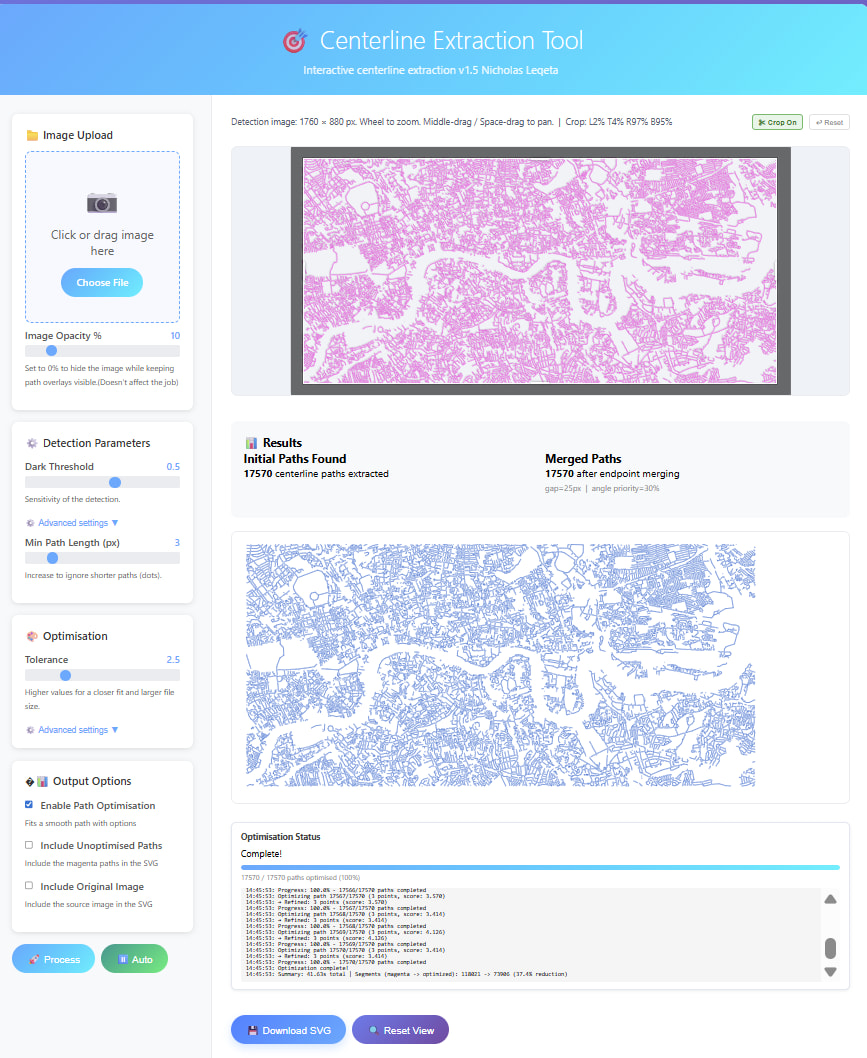
There is a crop tool at the top now, so you can easily remove the black bars at the edges.
I did notice there are small gaps, when you look at it close up, not sure if that matters or not - I surfaced a lot of the background settings in “Advanced Settings” so you may be able to get a better result than me.