Hey i have omtech polar. It’s connected using ethernet. Everything was fine yesterday and today its always disconnected. I’ve tried pinging from my pc and its not working. I think i may have accidently changed a setting on windows. How can i check to see if lightburn is being blocked and add an exception?
How is your laser connected to the network? It is a direct connection to the computer or is it through another network device?
A few things to check:
- If the laser is connected directly to your computer make sure that the assigned IP address of your ethernet controller on your computer hasn’t changed
- If the laser is connected through a switch or hub, make sure that no other device has been assigned the same IP as your laser
I’m using an unmanaged switch where my pc and my laser are connected. There was no error with this when it was set up on monday. It’s been working fine since. Yesterday i was using it and i had no issue. I think i got a windows defender prompt and selected to allow it cause it was lightburn from what i remember.
I logged into the router and nothing else is using the ip 192.168.1.100. However the laser is on and i can use the ruida and ive tried changing the ethernet cable and the port and its still not working. I have my xbox connected to my pc so i know the issue isnt there either. It’s something on my pc thats blocking it. I put lightburn under whitelist for defender and there wasnt a difference

i’ve uploaded the image. i dont know how to undo this
We’ve seen several collisions between LightBurn and OneDrive.
Are you the administrator for your computer?
Is there a way for you to move your Documents out of OneDrive?
Yea i’m the admin on here. Is it putting installation files on onedrive? Should i reinstall lightburn or something? I’m kinda confused. I was only using onedrive to save files
I’m moving all my files to google drive then uninstalling one drive. Would this fix it?
I’ve also seen data loss and file loss with Google Drive.
It’s best to save your files locally so you create a solid copy that the shared services can’t mess with. Then back up your files (copy the whole folder) to shared storage services after closing LightBurn.
The dev team is hunting this down but we don’t have an example of this in house to work from. For now we’ve been advising people to avoid shared data services until this is resolved.
When do you get this message?
What happens if you clidk the “Controlled folder access settings” link?
In any case, I don’t think that’s related to the network issue.
Can you post the network settings for the ethernet controller on your computer?
What do you mean by this? Do you have another laser? Or are you saying you have a display panel that you’ve added to the Polar?
Google drive is just a temporary solution while i get rid of onedrive. I actually was simswapped earlier this year and microsoft didn’t recover my files and accounts even though they said the ip was different when the hack occured. After formatting onedrive somehow ended back on my pc. I didnt realize things were being saved there so
i got that message yesterday evening. I clicked the link for controlled and attached the photo along with network settings.
I dont have another laser linked, i just meant the display panel i added to the polar works fine.


I meant what prompts the message? What do you do immediately before the message is prompted?
What on the network is serving DHCP? Did you have to configure it to provide addresses in the range of 192.168.1.XXX?
Can you open a command prompt and run this command? Please return output:
arp -a 192.168.1.100
it actually would prompt it whenever i was using lightburn so i htought i would allow it and somehow i messed up
C:\Users\nyxxi>arp -a 192.168.1.100
No ARP Entries Found.
Wait after i ran that line it seems to work? Do i need to run this in the future if it stops working again?
Actually nevermind its disconnected again! arghj
No. That shouldn’t have really changed anything although it’s possible that you have an unresolved network conflict.
The fact that the command found no entries means that the laser doesn’t appear to be on the network.
A couple of things to verify:
- On the Ruida panel confirm that the network IP for the laser hasn’t changed
- On your router or whatever is serving DHCP reserve 192.168.1.100 to your laser. This can typically be done in “Static IP assignments” or something similar. You want to make sure nothing else potentially collides with this. Often times 192.168.1.100 is the first assigned IP from the DHCP server.
- If you have a firewall on your computer disable it entirely. Then test. A ping should be sufficient to confirm connectivity.
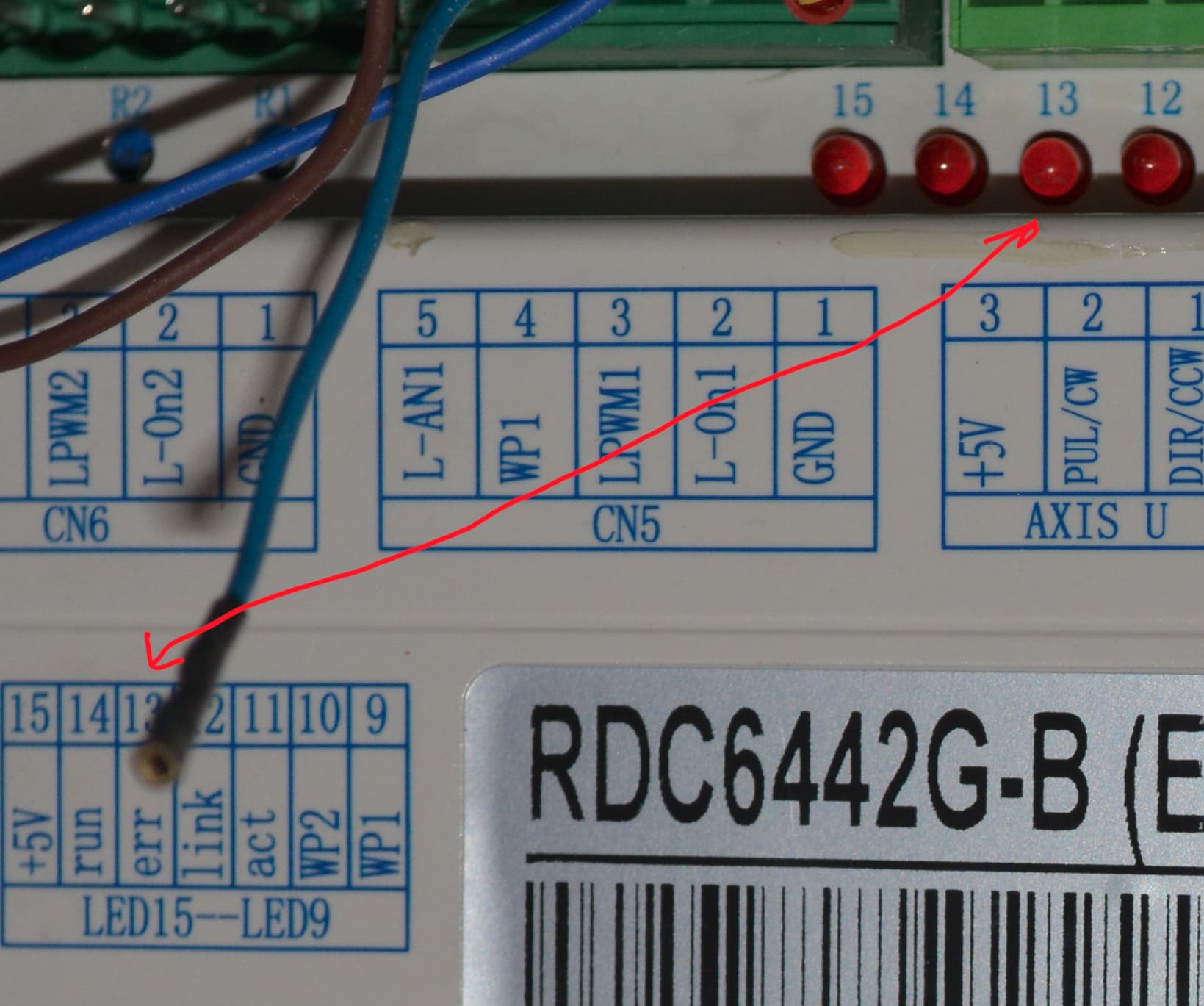
In addition to @berainlb suggestions, you can see the link led on the controller and on the bottom right of the Ruida machine console.
These only indicate a hardware connection, not software. However if these aren’t OK then it can’t talk.
This is for an error, but it’s led 12 that shows link status.


So i’m trying this but i cant find a mac address or the laser listed under the seciton to link the item. I’ve attached screenshots. Sorry about this.


It says Lan On. Should i still open the unit up?
For some reason the Ruida isn’t showing up on your router for you to reserve it.
You can try and change your ending IP address under DHCP to < than 100, if your Ruida is x.x.x.100. But it’s not showing up on the router so it’s not going to talk. This is probably a cable/connector and/or Ruida problem.
I feel like I’m missing something here… Normally this part works fine.
This is because the laser is not requesting DHCP. Only just asserting an IP for use.
Try this:
If your router has a “diagnostic tools” type of section there should be a ping command availablie. Try pinging 192.168.1.100 from there. If it doesn’t work from there that means you likely have a hardware issue of some kind. Make sure your cable is properly seated. Try a different cable.
If this is what the machine sees on the lan, then it’s missing.
It appears that none of these addresses are reserved, so it must be current list of ip the router can see.
Mine shows up on the router as a device. I don’t see how it could work if the router ignored that address.
To me it looks specifically like a list of already reserved addresses, not all addresses that have ever been present on the network.