Is there a way to fill shapes in Lightburn with patterns to make them more discernable? For example, I’m designing a jewellery stand that has a rattan-style main section and a frame with various sections. When designing it, I have the layers on top of one another to ensure everything is going to fit, before separating later to cut. But it’s just all coloured lines, some overlapping and it’s hard to discern one from the other. I’d like a way to shade the shapes while designing, e.g. the inside part of the frame has stripes, the next layer has dots, or maybe just each has different translucent colours. Is there a way to do that?
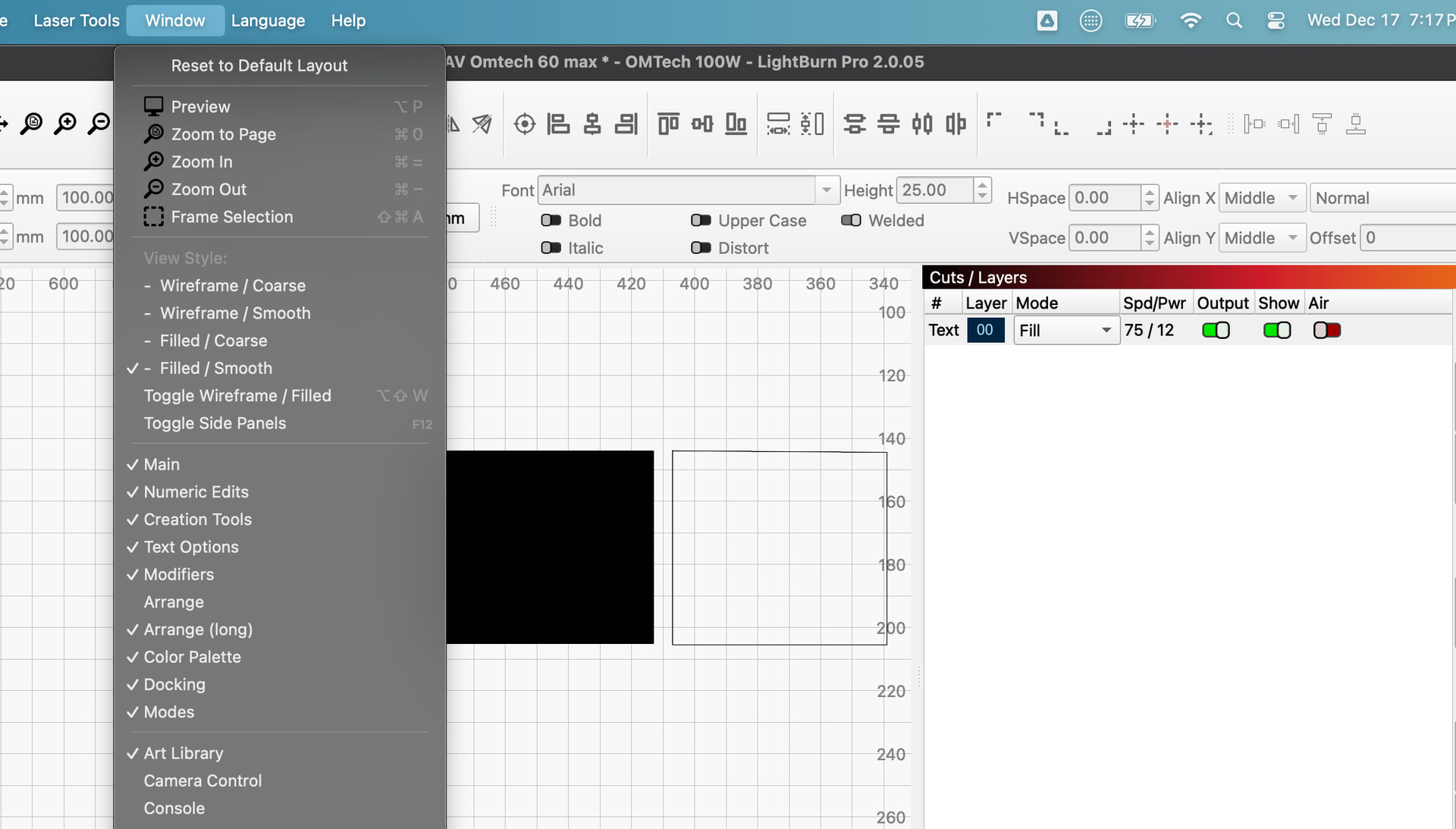
Window menu>filled smooth. This will fill in the closed shapes set to fill, but you want to turn it off for design work. The filled layers make it difficult to select items. Take note of the shortcut to toggle the render in and off.
I’ve just tried that, but it’s staying as an outline…?
Or duplicates…
They are definitely closed shapes I’m using; just rounded rectangles. But I figured out the issue. It will only fill in a shape on the workspace if the layer itself is set to “fill” instead of “line” - even though these are not engraved shapes. So I could use that function to see my shapes better, but would have to set them back to line and adjust settings before cutting.
I wanted it, less to show the filled areas for engraving (albeit quite helpful), but more to show up groups of lines on the same layer, that would end up being a full shape when cut, such as a frame. It’s more from a design standpoint, as especially the lighter line colours (like yellow) are difficult to see when there are a lot of elements to a design and the shapes are overlapping. It would be useful to be able to set any closed shape or group that makes up a shape, to a translucent colour reflecting the layer colour so that all elements, even ones just to be cut, can be seen seperately.
Regardless, this does help a bit in the interim as a workaround, thanks.
Which I said in my first reply
Right, I see, I didn’t realise you were talking about the layer setting. So I hope better visibility of items on the workspace will be in a future update for those of us working on complicated layered items. Thanks for your help.
@Skeetarus, thank you for the suggestion. I do see you made an official request on our Feature Suggestion site (Full cut shapes with translucent colour for better visibility · LightBurn). If willing, share an example of one of your “lot of elements” designs so we can visualize what you are working with. That would be very helpful in evaluating your request. 