There are several “Origins” in play, which the doc does a poor job of defining.
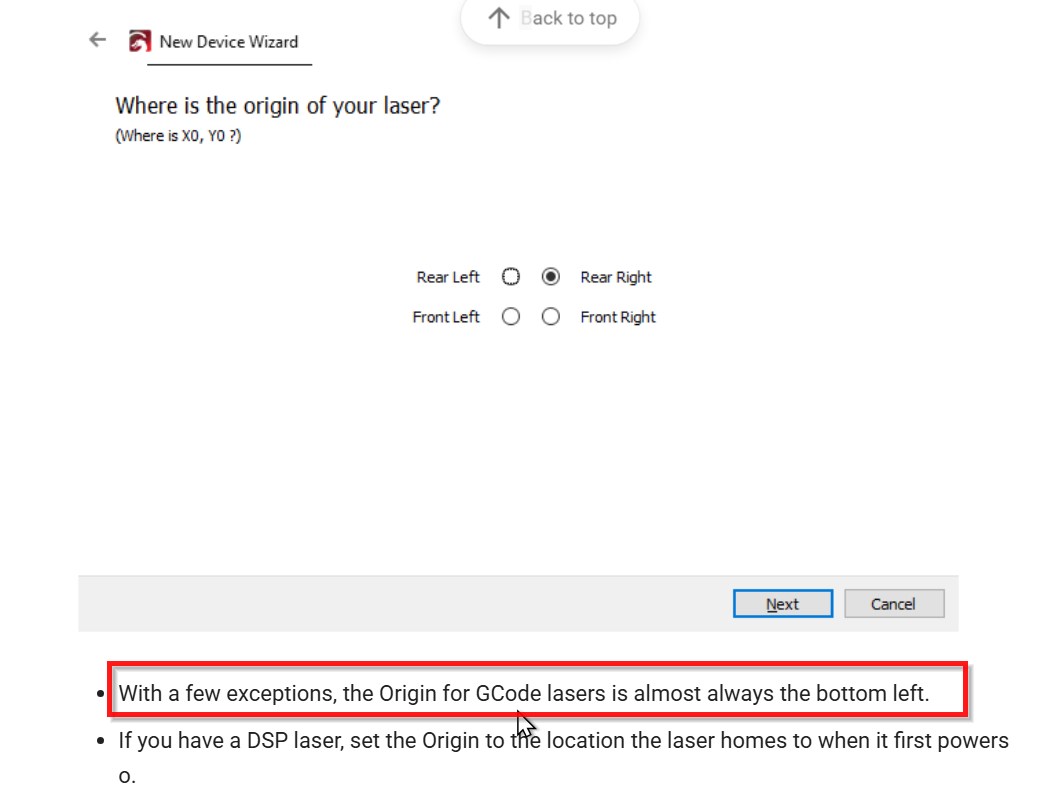
The machine controller has an origin which is always located in a corner of the platform, because the home switches are at the ends of the axes. When the controller homes the machine, each switch sets the place where the axis coordinate is 0.0.
CNC machines can apply offsets to the home position to put the (0,0) origin anywhere on the platform, but in general diode lasers running GRBL do not use any of those offsets and leave the origin in one corner. Because GRBL started in the CNC world, it can process the commands setting those offsets, which causes untold confusion in the laser world.
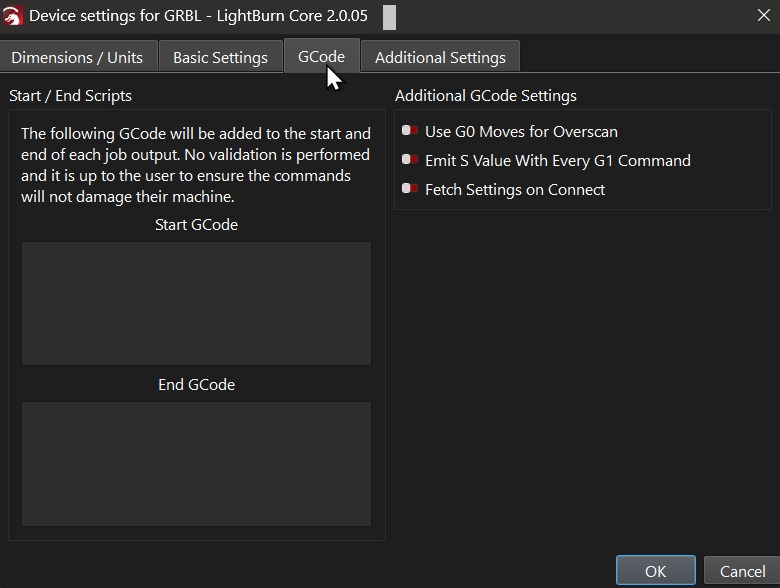
LightBurn must know which corner the machine homes at, which is the Device Origin you defined when you set up the device or tweaked in the Device Settings. If those two do not match, then the display won’t match reality.
Having the machine properly homed ensures the controller knows where the laser head is in relation to the physical limits of the axes. If it’s not properly homed, then the controller cannot prevent the laser head from smashing into the limits, because it does not know where the head is.
After homing, the LightBurn workspace will exactly map to the machine platform in Absolute Coordinates mode: where you put the design in the workspace is where it will appear on the platform.
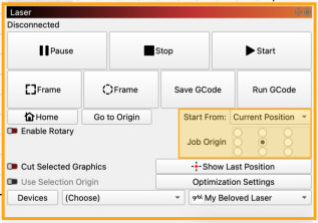
In the other modes (which I rarely use), the Job Origin dots in the Laser window define where the design lies in relation to the User Origin or Current Position, both of which are defined with respect to the overall coordinate system origin set by the home position.
The doc describes how those modes work:
So if you want the design centered on the User Origin, you’d select the center dot. Then it’s your responsibility to place the the User Origin so the design doesn’t extend beyond the machine limits.