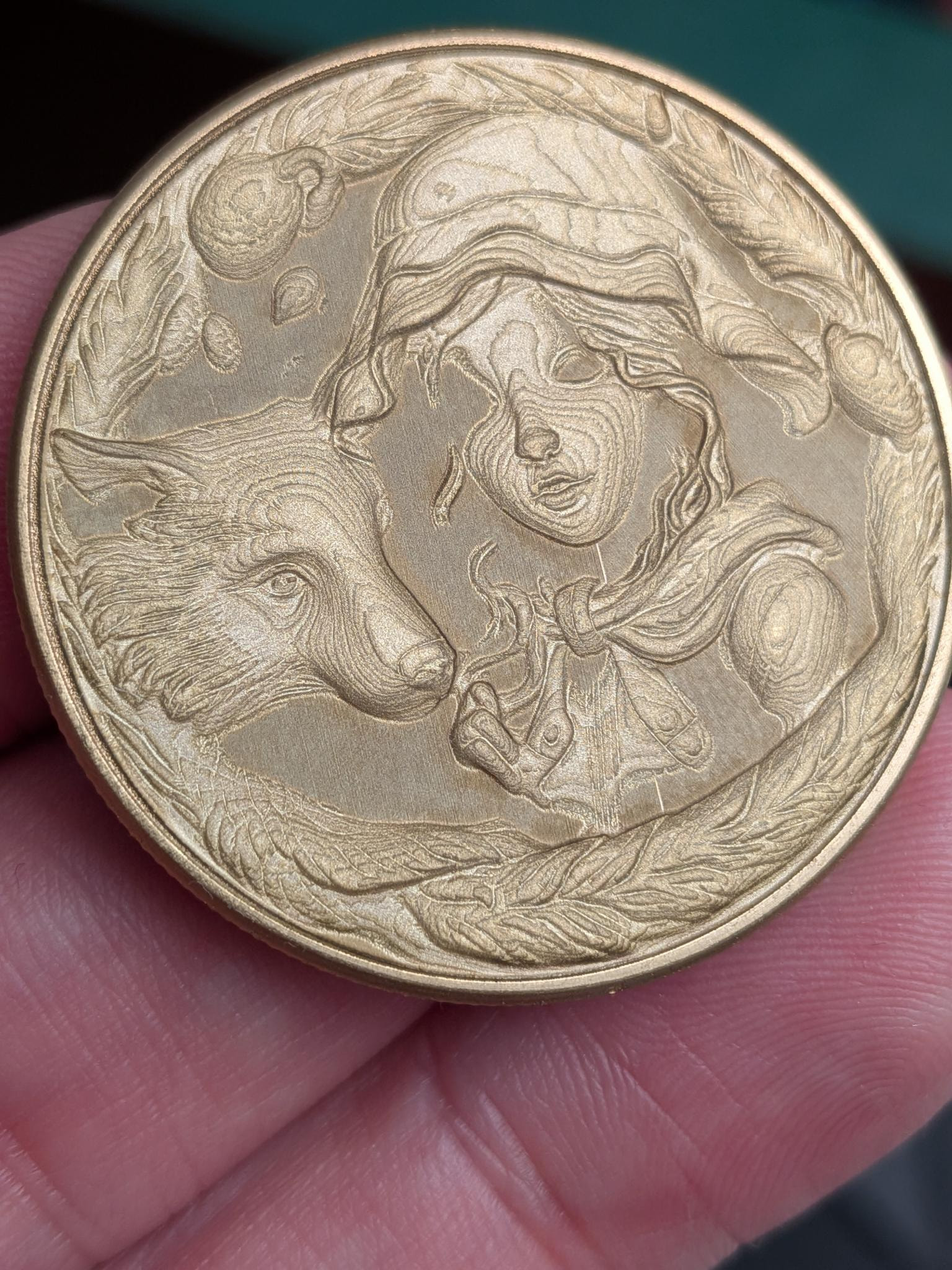
Finished, but not good 3D layer lines...Help?

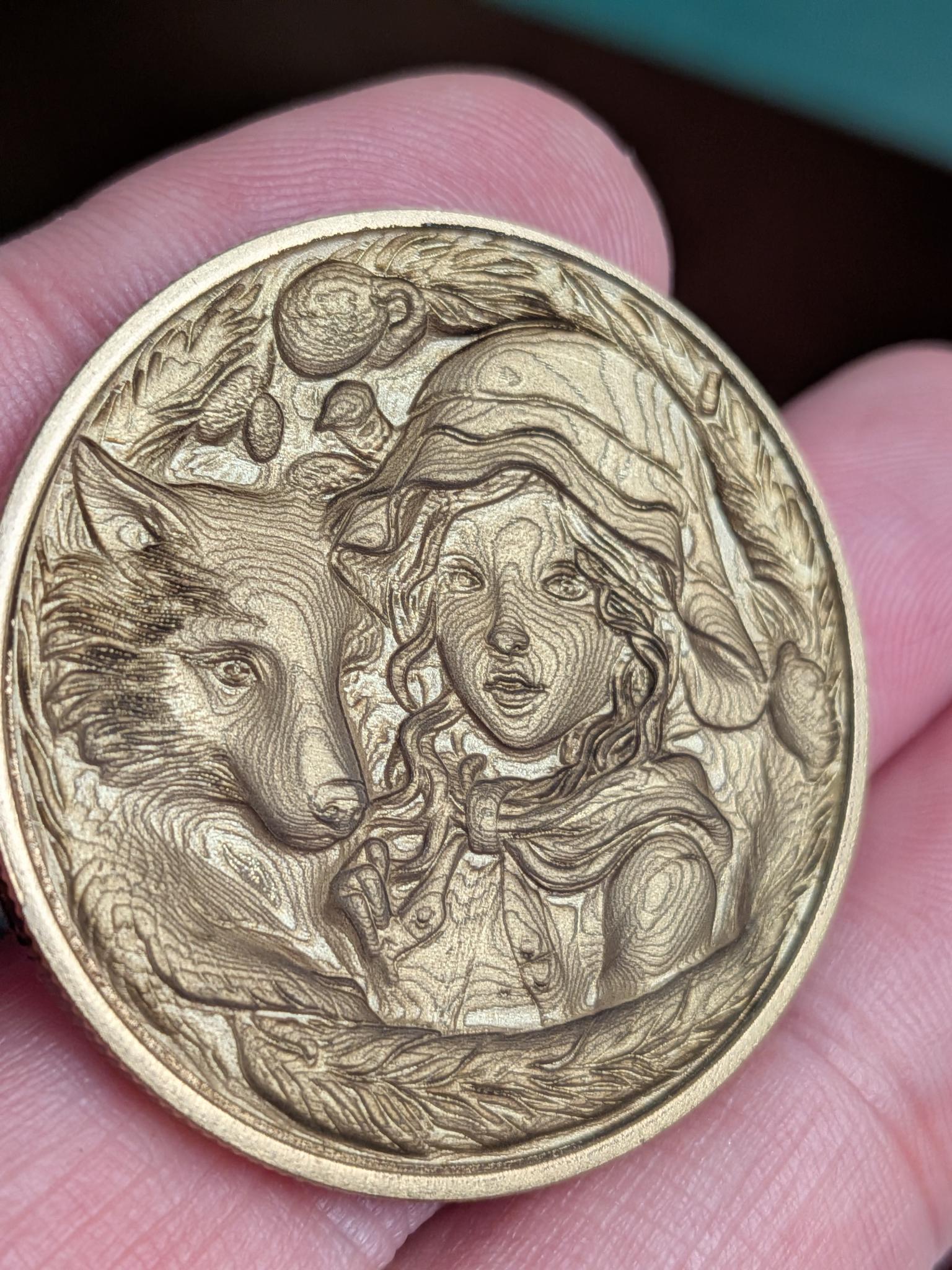
Fiber noob here - I’ve had a Gwekie Cloud G2 Max for about a month and a half. I’m just putting my toe in the 3D engraving water, but I’m having a consistent issue. This is an image of a girl and a fox…just downloaded from a site to try. The layer lines are making me crazy. My settings are stock (recommended by Gweike Cloud)

Speed: 1500 Power: 60 Freq: 50
256 layers at 800dpi
10 passes, and then a cleaning pass at 4000, power 30, freq 75

I haven’t seen layer lines like this on other cuts, and I’m just doing another one that I created that has the same issue.

I did cut one coin of a detailed viking face that was good, but again, that was a public file.

It seems like less of a settings issue and more of a source file issue, but that’s an uninformed theory based on unrelated experience.

Anyone have an ideas as to what I’m probably very obviously doing wrong?
I defer my ignorance to your collective experience and wisdom.

aka: lil help?
Assume you are using 3d slice for this operation?

If so, you need to understand how 3d slice actually works. Oz created this statement in the galvo beta section a while back. You probably need access if you want to see the post.


With 3D Slice, each pass is thresholded to the current threshold value, and the result is run as a 1-bit image. If you use 256 passes you get exactly one pass per gray-level in the image. Every pixel at or below brightness 255 for the first pass, every pixel at or below 254, then 253, and so on.

If you choose 128 passes, you get every pixel at or below 254 for the first pass, then 252, then …

It “clusters” the layers together into batches if you use fewer than 256 passes, and will duplicate some layers (with even spacing) if you use more than 256. 384 passes would duplicate every 2nd layer. 512 passes would duplicate every layer.


In order to use all bits a minimum of 256 passes is needed. If it’s below 256 slices, it will have the appearance as different layers, much like yours. :thinking:

Newer versions of Lightburn can handle 16 bit images. Requiring 512 passes for a 9 bit image. The higher resolution costs you time.


If you have this and can allow it out, if it’s public, then it likely isn’t covered by a copyright. If that’s an issue to you, then you can send it to Lightburn support, where they will keep it secret.

If you can drop the .lbrn2 file on the edit screen. This would have all your settings, so we can see what you’re actually asking it to do.

What you’re doing sounds OK, but the results show otherwise…

:grinning_cat:

2 Likes

ppa3.lbrn2 (4.9 MB)

Thanks for the feedback. I’ve attached the file that’s currently frustrating me.

Ultimately, I suspect I’m just impatient and thought 256 layers would be “fine.”

I’m just going to read the link you shared and see if there’s space in my brain to make sense of it (probably, but roofers are being very loud and concentration is near zero at the moment). :stuck_out_tongue:

Thanks again…will be back with another attempt soon.

Cheers
~A

I think you may need to be part of the beta test group to access the link.

I would think 256 passes would be sufficient, but it looks like you did something else by the engraving.

I will check it out tomorrow, time, it’s bed time now.

:grinning_cat:

Thanks, @jkwilborn. I moved the old post (2023) from the private beta section to the regular galvo section to make it more available. I tested the link you shared, and it still works.

2 Likes

Looked at the file you sent, doesn’t look like the same image? This makes me suspicious, I know how easy it is to get the wrong values.

As far as this goes, I don’t see anything that would cause what I see in the photo.

Sorry, I took so long, had to find the thread.

:grinning_cat:

This is a different file but with the same kind of result. I’ll be back in a couple of days. We lost part of our roof in a windstorm and have to move stuff out and get it rebuilt before the snow flies. Back in a few days…

If the source image is only 8 bit, you won’t get more than 256 layers out of it - using more than that will just repeat some of them.

It doesn’t look like the image is well distributed within the layers though, so taking the original photo to 16 bit first and then doing the background dimming could help.

It’s also mostly just a photo, not a heightmap image, so it’s not going to look great when engraved. Anything that looks like a picture when you look at it is generally not going to work well.

For the first image, areas with “shallow” brightness changes are likely to show those ridge lines. You can help clean them up some by doing cleaning passes over the whole image, and by using some steel wool to clean up the coin when it’s done, but ultimately using a 16 bit image source, and possibly more passes, is going to help.