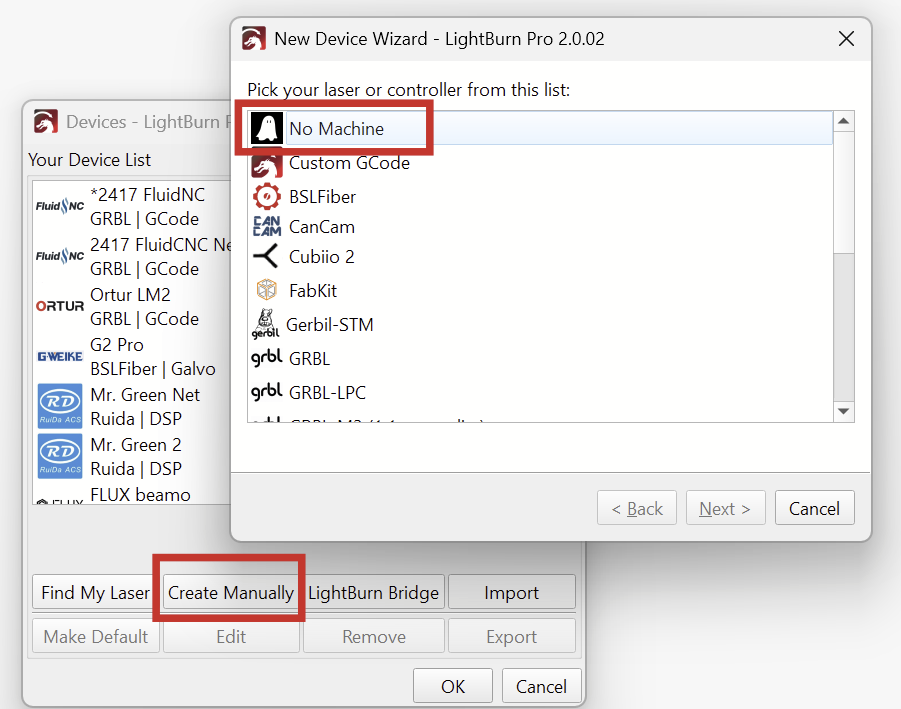
Wen ich Lightburn benutze und in der “Erstellphase” mein ComMarker B4 nicht “Online” habe bremst die Suche von Lightburn nach dem Laser das Programm ganz schön aus bei mir. Ist das Normal? Finde es nervig schon die ganze Zeit beim Erstellen den Laser laufen zu lassen. Die Lüfter sind sehr laut. Kann man die Gerätesuche deaktivieren?
When I use Lightburn and my ComMarker B4 isn’t online during the creation phase, Lightburn’s search for the laser slows the program down considerably. Is this normal? I find it annoying to have the laser running the entire time while creating. The fans are very loud. Can I disable the device search?
The fans are controlled by the device. You can see if it gets quieter when you leave the device switched on and only switch off the laser source. (As far as I understand, this is the button on the far left at the base).
The device does not need to be connected to configure it.
Yes, depending on which devices are connected to your computer, LightBurn may take a moment during the scan.
The “Find My Laser” function in the device manager only selects the correct controller for you. No readable settings are stored on Galvo controllers. These must be imported using a configuration file as described here:
Die Lüfter sind vom Gerät gesteuert. Du kannst schauen, ob es leiser wird, wenn du das Gerät eingeschaltet lässt, und nur die Laserquelle abschaltest. (Nach meinem Verständnis ist das der Knopf ganz links an der Basis)
Das Gerät muss nicht angeschlossen sein, um es zu konfigurieren.
Ja, je nachdem, welche Geräte an deinem Computer angeschlossen sind, kann es sein, dass LightBurn während dem Scan einen Moment braucht.
Die Funktion “Find My Laser” im Gerätemanager wählt bei Galvo lasern lediglich den korrekten Controller aus. Auf Galvo Controllern sind keine lesbaren Einstellungen gespeichert. Diese müssen wie hier beschrieben mit einer Konfigurationsdatei importiert werden:
Auf Windows müssen noch die Treiber installiert werden:
Thanks for the answer. Unfortunately, it doesn’t help me. The switch on the left controls the entire device. The laser works perfectly with Lightburn. My only concern is that when the device isn’t connected or turned on, LB tries to connect to it, slowing down the entire program. This makes creating laser sessions difficult.
Well, as soon as I get the device online, nothing slows down anymore. But thanks for the tip about “No Machine.” Hmmmm… Strangely, LB seems to be running normally again now that I’ve used it for a while. I have no idea why. I’ll check tomorrow to see if it lags at the beginning next time too.
It may be that another device on your computer is presenting a COM port that is interfering with the scan, but it should not slow down the entire program.
Changing to the No Machine device does rule that out as the cause.
Or it might have been a one-off hiccup! Please keep us posted
Update: I discovered that for some reason, my mouse sometimes skips left clicks when using Lightburn. Sometimes you have to click multiple times. This makes it feel like the program is running slowly. The USB keyboard isn’t affected. Switching to a different USB port doesn’t change anything. As soon as my laser is online or LB is closed, everything works smoothly again.
Update 2: I’ve now connected a different mouse. It’s working smoothly again. My mouse was the culprit. Apparently, it’s somehow interfering with the laser’s USB driver.
That’s exciting! I’m sure it’s a laser mouse.
I’m glad you found the offender.
I’m guessing that for some reason, your mouse stops working briefly when LightBurn “pings it to get information about the device” - I’m not sure, that’s exactly how it works.
If willing, could you do a final test so we can look for a way to prevent this?
Which mouse, brand, and model were you using, and did you install custom drivers for it?
It would help a lot if you could send us a short Debug Log as described here when using the offending mouse.
To obtain a meaningful log, proceed as follows:
Turn off your laser.
Select the B4 in LightBurn.
Go to “Help > Enable Debug Log”
Do the thing(s) that showed the delays
Turn on the laser and wait for LightBurn to connect to it.
Do the same thing that showed the delays
Switch to the No Machine device (If you still have it)
Then, Help > uncheck Debug Log
That should save a LightBurnLog.txt to your Documents folder, hopefully providing valuable clues.
Sent. Hope that means something to you. The mouse is a Hama MC-200 3-Button Mouse, 1000 dpi. Nothing expensive. It uses a standard Windows 10 mouse driver.
USB mouse developed a hair trigger right button and the left bitton sends double clicks when I click once. It makes Lightburn behave like it is possesed. Is there something in Lightburn that I can set to ignore these problems?
Just Kidding!!!
I have just been to too lazy to replace it because it is a keyboard + mouse + dongle setup, and the keyboard works just fine. They don’t grow mice like they used to.