Hi. I haven’t had my Ortur 3 Pro long, so am very much a newbie, but I’m confused as to why a setup that worked perfectly yesterday doesn’t today! I have a 400 x 400 honeycomb and cut predominantly leather. Yesterday I set up a cut using the whole area - a lot of pieces cut from one square of leather - and (with a bit of fiddling to set the start position and using User Origin) I got a perfect cut. Today, I wanted to use leather that covered the bottom half of the bed and drew up the pieces on the worksheet as usual, but every time I tried to frame I got the Alarm:2 error, even though the laser was well within the workspace.
I tried all 3 Start From settings and reset the Origin multiple times - both User Origin and Current Position got the Alarm:2 error, while Absolute Coords stubbornly wanted to start an inch to the right of the left edge and run an inch over the bed edge on the other side. Eventually, after spending 5 hours fiddling, I gave in and moved the bed over to the right and the laser is now happily cutting.
What was wrong - any guesses? I had the bed centred yesterday and no issues. I’d welcome any help please - not much hair left at the minute….
If you did not set everything up the same as yesterday, this can happen. User Origin and Current Position do not provide any degree of repeatability. Use Absolute Coords instead.
This then allows your Lightburn work grid laying on top of the laser bed. Where you place your design in Lightburn is where it will go on the laser.
I am guessing your laser has limit switches, so you can Home the machine. With Absolute coordinates, the controller, and Lightburn, will always know where the laser is pointing, as long as you do not grab something (laser module) and shove it around.
Alarm 2 basically means you told it to go someplace it could not physically go. If you do not know for sure where the laser thinks it is, telling it to go somewhere may not be where you expected.
The Home cycle gives you a known start point. Absolute Coords gives you a known reference location for all motions.
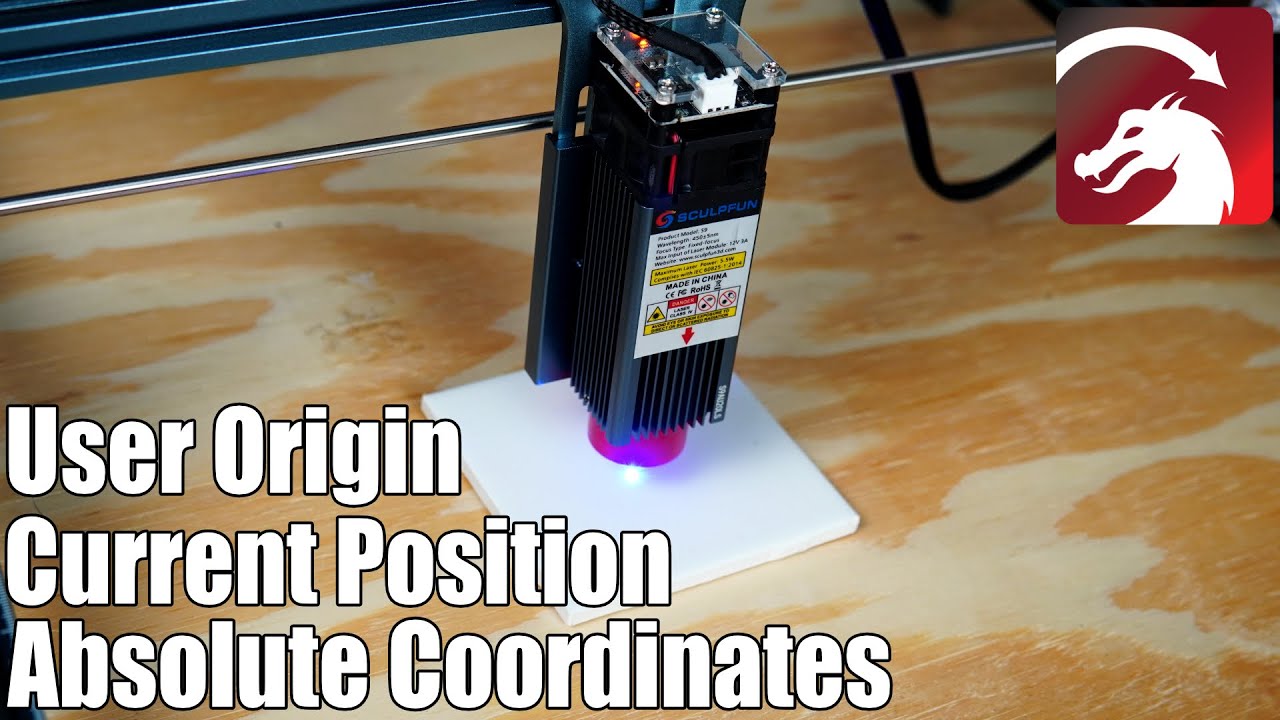
This video may help explain the three start from modes.
Thank you for your reply. The odd thing is that nothing at all was changed between cuts other than the file (and I did check that the settings were identical to the previous one) and the leather. As I said, after hours of frustration and because I needed to get the cut done, I finally moved the honeycomb grid to where the laser wanted to cut, rather than the other way round.
I have watched a lot of videos on the subject - probably also this one - but I’ll watch it anyway and see if it helps my understanding.
A new issue yesterday was the laser just stopping dead in the middle of the cut I eventually got it to do. No idea why - reading up on it, I do have a choked USB cable and a steady electrical input, so
Thanks for your reply. I did manage one cut in User Origin mode the other day, but yesterday it just kept triggering the Alarm 2 error. I’m sure it’s me not doing something correctly, but I have no idea what that is.
I have been using Absolute today and it is cutting, but I’ve still had to offset the honeycomb to the right of centre to get the laser to start in the bottom left corner of the leather (the leather piece covers the whole mesh.) I don’t know how to move the start point so I can centre the bed. But, it is cutting. I did discover that it was also cutting through the leather, down through the honeycomb and on down into the baseboard of the box the laser is fitted in - that was a surprise, as the laser is focused according to the instructions. I’m now playing with the speed and power to cut just the leather. Trial and error (mostly error) all the way!
I created a T1 box 350mm square (adjust for your honeycomb size). This represents your honeycomb area.
I approximately centered it in the Lightburn workspace.
I grouped all the parts so everything would move as a unit.
I selected the parts, then selected the T1 square. What you select first will be positioned relative to the second selection, like A goes into B.
I then used the Centering icon (bullseye thingie) to center the parts in the T1 box, which centers it in your honeycomb.
I then ungrouped the parts in case you want to burn one separately.
This list is in the Lightburn Show Notes window for handy reference. Put the honeycomb back in the center of the laser workspace, stick with Absolute Coords, and you should be ready to go.
Morning Mike,
I finally (just!!) got time to look at the file you constructed for me. I understand the layout and how to achieve it, but am a bit puzzled as to why the whole thing isn’t centered on the LightBurn workspace grid. I can see that the offset explains why I had to move the bed over, but why would there even be an offset? Am I just being dim? Also, will I need to do the T1 square process for everything I want to burn from now on?
The drawing does not automatically center in the Lightburn workspace. You place it wherever you want. If center works for you, that is okay. Me? Usually use the Home corner, but odd shaped cutting boards can be anywhere.
To center the part, you need something to center it in, whether it is a box, circle, pentagon, or whatever. The Grid in the workspace is not a vector, so you have to add one to use centering. When engraving a part for a customer, I often sketch the product outline and then align that with the product on the table.
No, you only need to create one T1. Make it align with your honeycomb (Frame it), then save it as Honeycomb Template.lbrn2 to your local drive. When you get a new pattern, open up the template and immedately save it as [your pattern name].lbrn2 to your local drive. One template, many patterns.
There is no need for an offset unless you have one of those red crosshair pointers like on a CO2 machine. Use Absolute Coords, Home the machine, and everything becomes predictable.
No, if you were, you would not keep the laser long. You are trainable, so keep asking questions.
Glad to know I’m not a total lost cause!! I did build my own 3D printer and got it printing perfectly every time, so I guess there’s hope yet
I realise that nothing auto-centres, which is fine. What threw me was the grid and the T1 outline on your file not being synced with each other - I expected that the T1 would sit exactly on top of the work grid.
I appreciate the explanation of needing a vector something to centre things in - I didn’t know that. Also the template idea - good one, thank you. I’m actually not hung up on centering, I just wanted to have a predictable starting point for the laser as I’m usually wanting to cut sheets of pieces in one go.
Thanks so much for your help Mike - I’ve learned a lot and am actually cutting my stuff reliably now


 You are trainable, so keep asking questions.
 Glad to know I’m not a total lost cause!! I did build my own 3D printer and got it printing perfectly every time, so I guess there’s hope yet