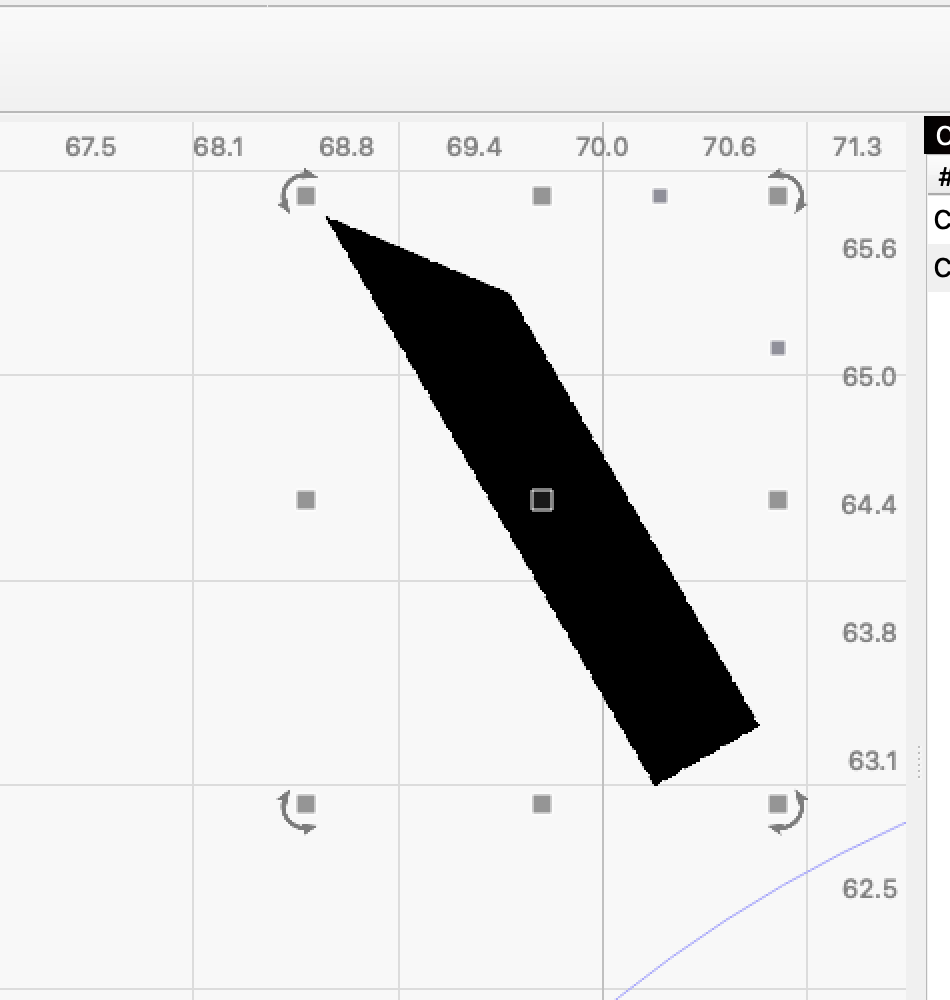
I have tried auto join selected shapes, close path, close path with tolerance, and just cant get 6 objects to close so I can fill them. Help!
jay enn washer.lbrn2 (19.1 KB)
You have duplicate lines on top of each other. Not sure why delete duplicates doesn’t work. When you click on any of the lines of those shapes, notice how the marching ants behave. On 3 of 4 lines in your shape they flash, that is indicating a duplicate. On the 4th line they appear to be marching (normal behavior) no duplicates.
Select the entire shape, then go to Arrange> Break Apart.
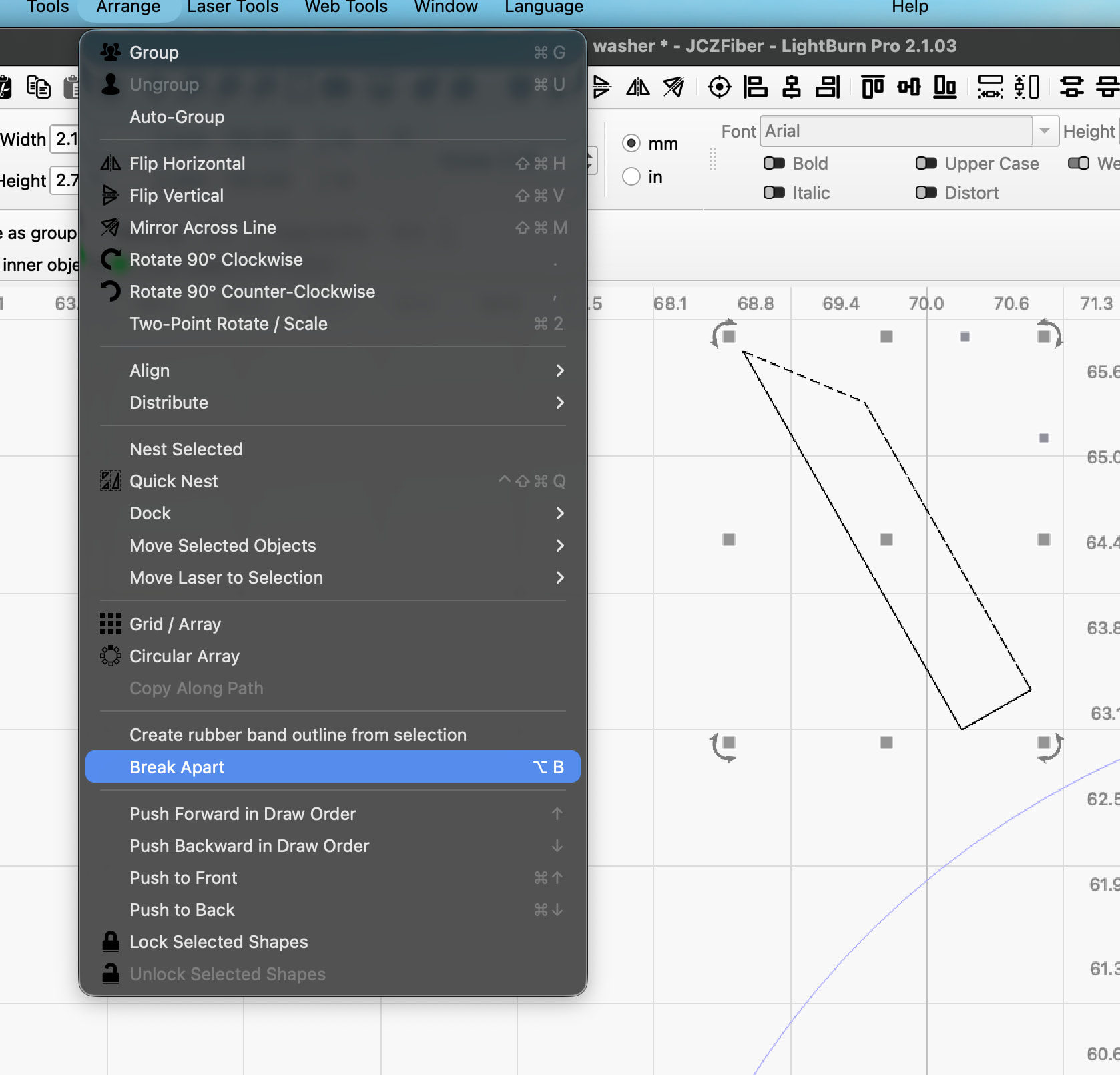
Now click off the shape, then click back on one of the lines that was flashing. Drag that line off to the side. Repeat for all the other lines.
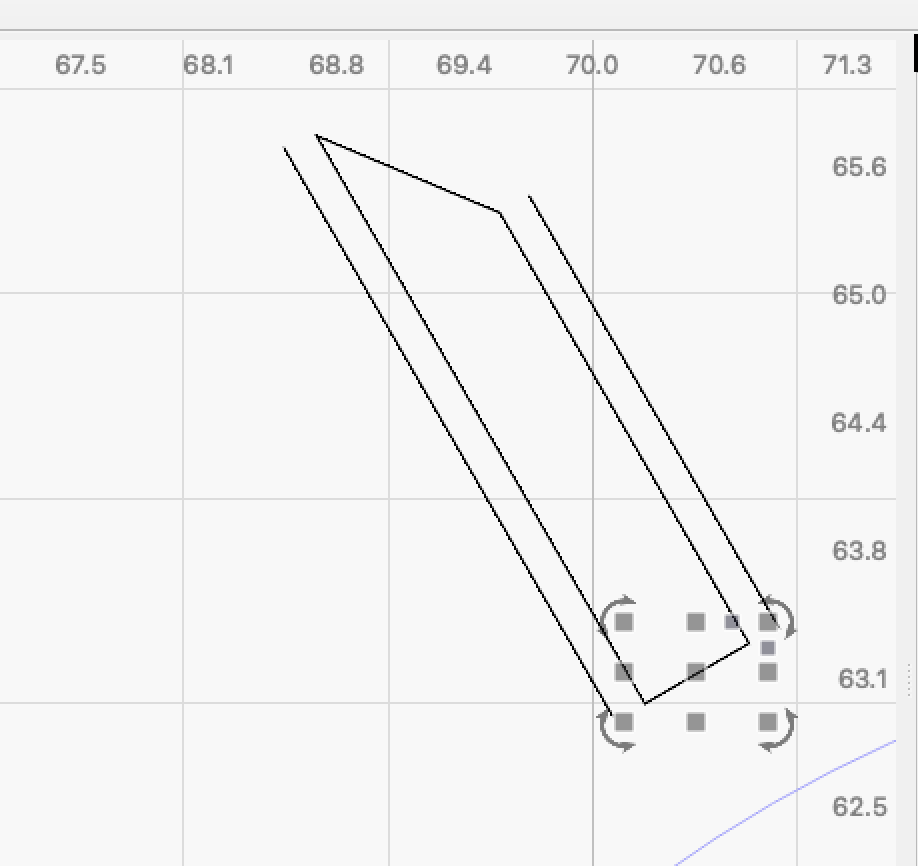
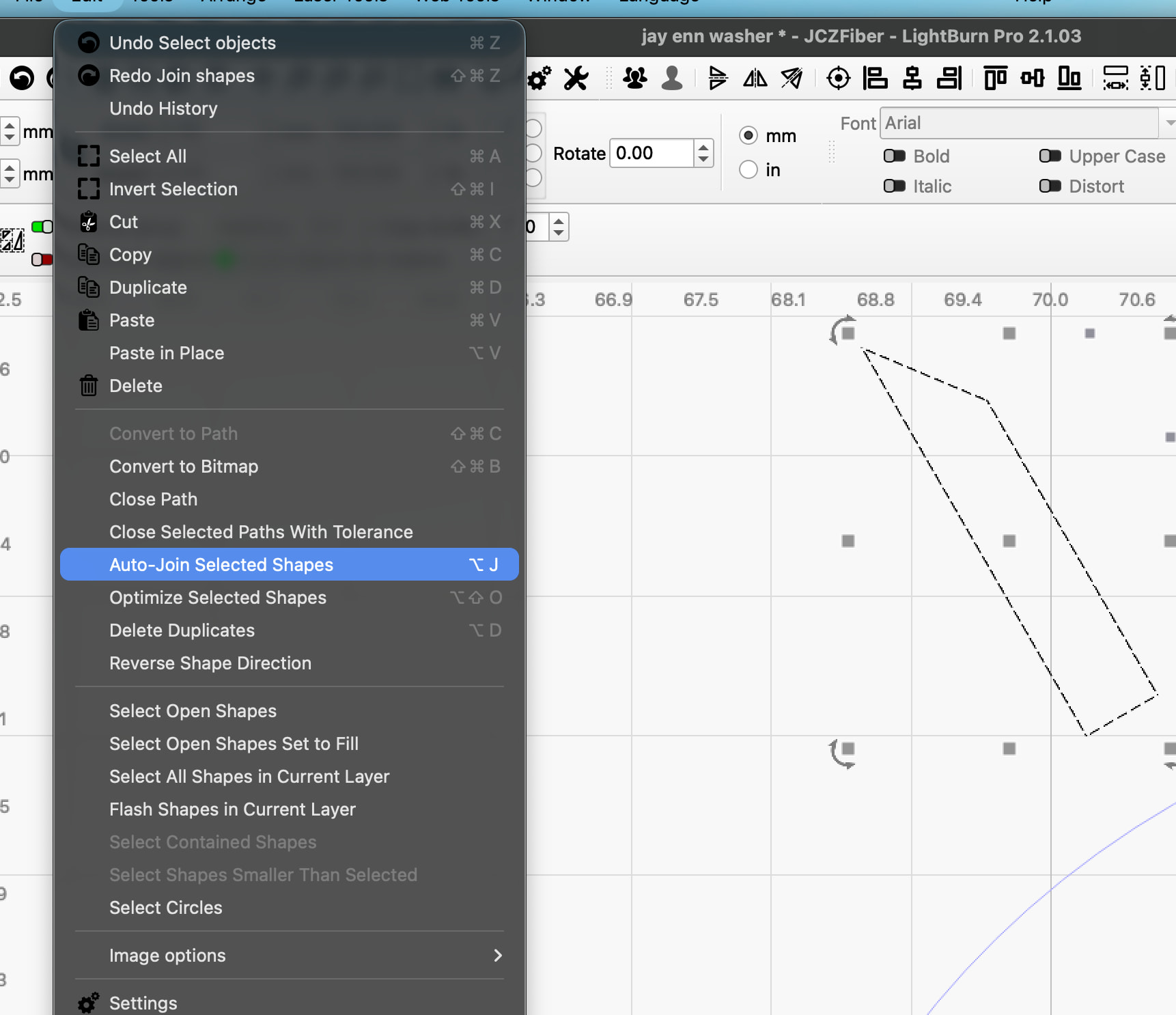
You can delete these extra lines. Select the entire shape again and go to Edit> Auto Join Selected Shapes.
Repeat with all the other shapes as necessary.
Even quicker; Select all, Arrange > Break Apart; Edit > Delete Duplicates > Confirm; Edit > Auto Join Selected Shapes. Then using the Node Editor you can join the 2 disconnected lines.
If you see blinking segments instead if traveling segments, Use Node Edit, cursor over the line blinking, then hit D. The line will turn into marching ants for you.
@thelmuth’s statement got me curious. And he was right, the duplicates do not respond to normal editing tactics.