I am using a ‘roller type’ rotary accessory. It moves the objects ok as long as it is moving slowly. When it moves between engravings it slips, throwing the next engraving to a wrong location. Is there a way to slow this movement down so eliminate the slipping?
Reduce the max speed and increase the acceleration time in the rotary settings. You could go as far as setting the max speed to be the same as the minimum speed to get an (almost) constant speed.
1 Like
I have a chuck and a PiBurn roller or wheel rotary.
Edit → Machine Settings you can save your current configuration values in a file for safe keeping, as you’ll likely confuse yourself… it’s real easy to do… trust me. Why would I lie? 
There are a few values you can change that will likely help you out.
- decrease acceleration values (not increase) on the offending axes, usually Y
- decrease the jumpoff speed values. This is how fast it accelerates to rotate initially.
- be aware of how the start speed setting relates to minimum/maximum power
- if possible, use a scanning operation over a vector, reduces movement on Y
Using the machine normally still makes use of min/max power settings.
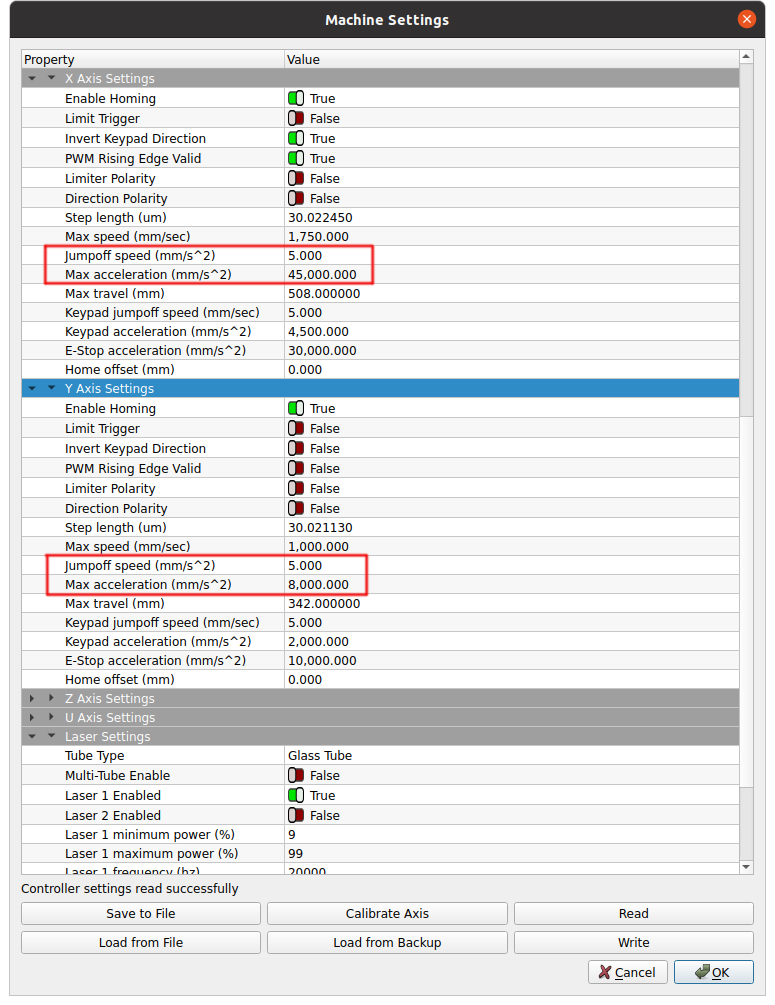
There are also limits that can be set in the cut and engraving sections. I don’t know how they relate, such as how does the Ruida know a cut from an engrave.

Once you find these, you can save the file under a different name. When you’re done with the rotary, reload the machine settings you saved and you’re back to ground zero. If you want to use the rotary, you can read/load the rotary file. Of course you have to write them to the controller.
Make sense?

Makes sense for the most part. I will try to set this up and if I get scrambled I will reach back out.
I do have one question. When I save the rotary settings how will I retrieve them? Where are they saved?
When you save/load, you can navigate to anywhere on your file system.
This topic was automatically closed 30 days after the last reply. New replies are no longer allowed.