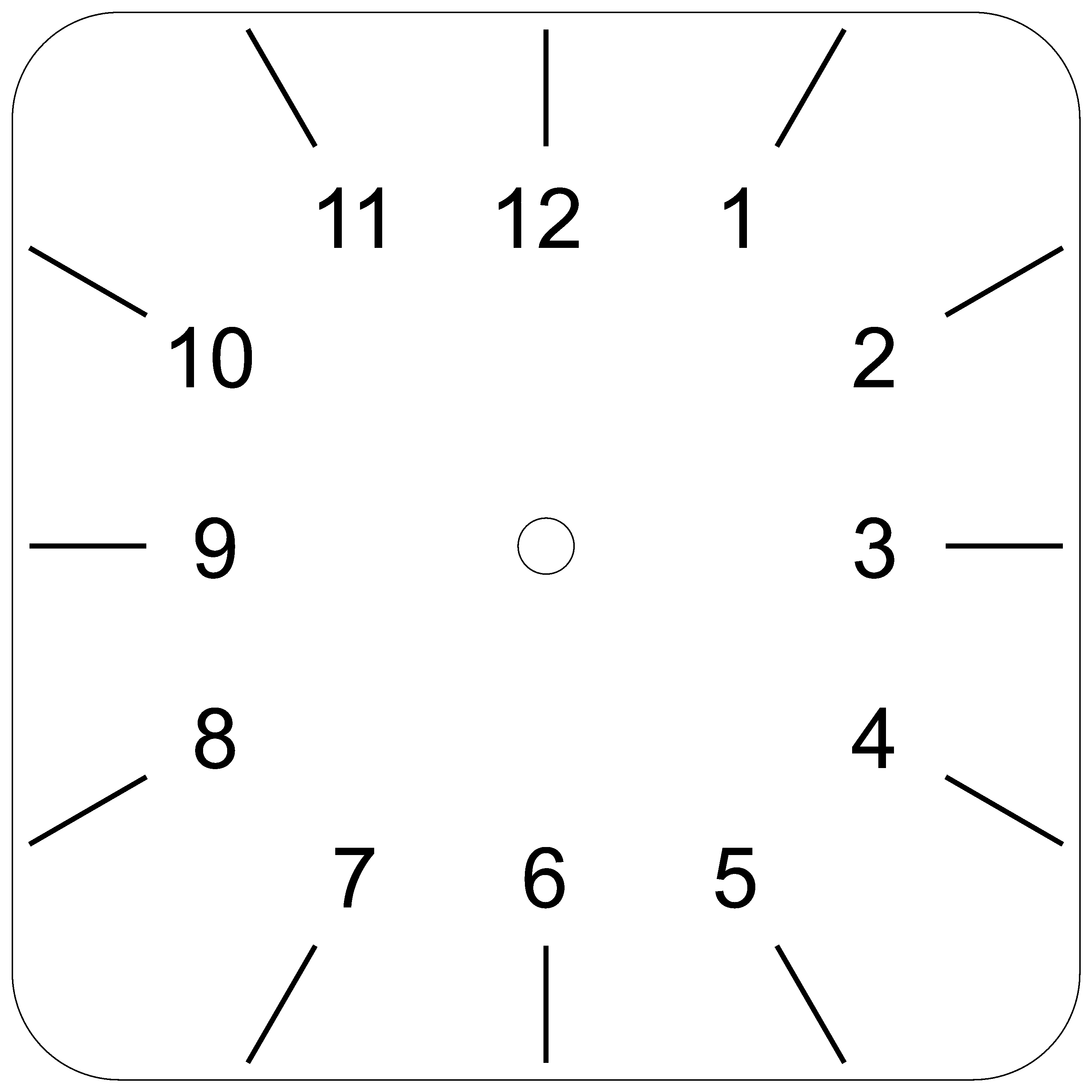
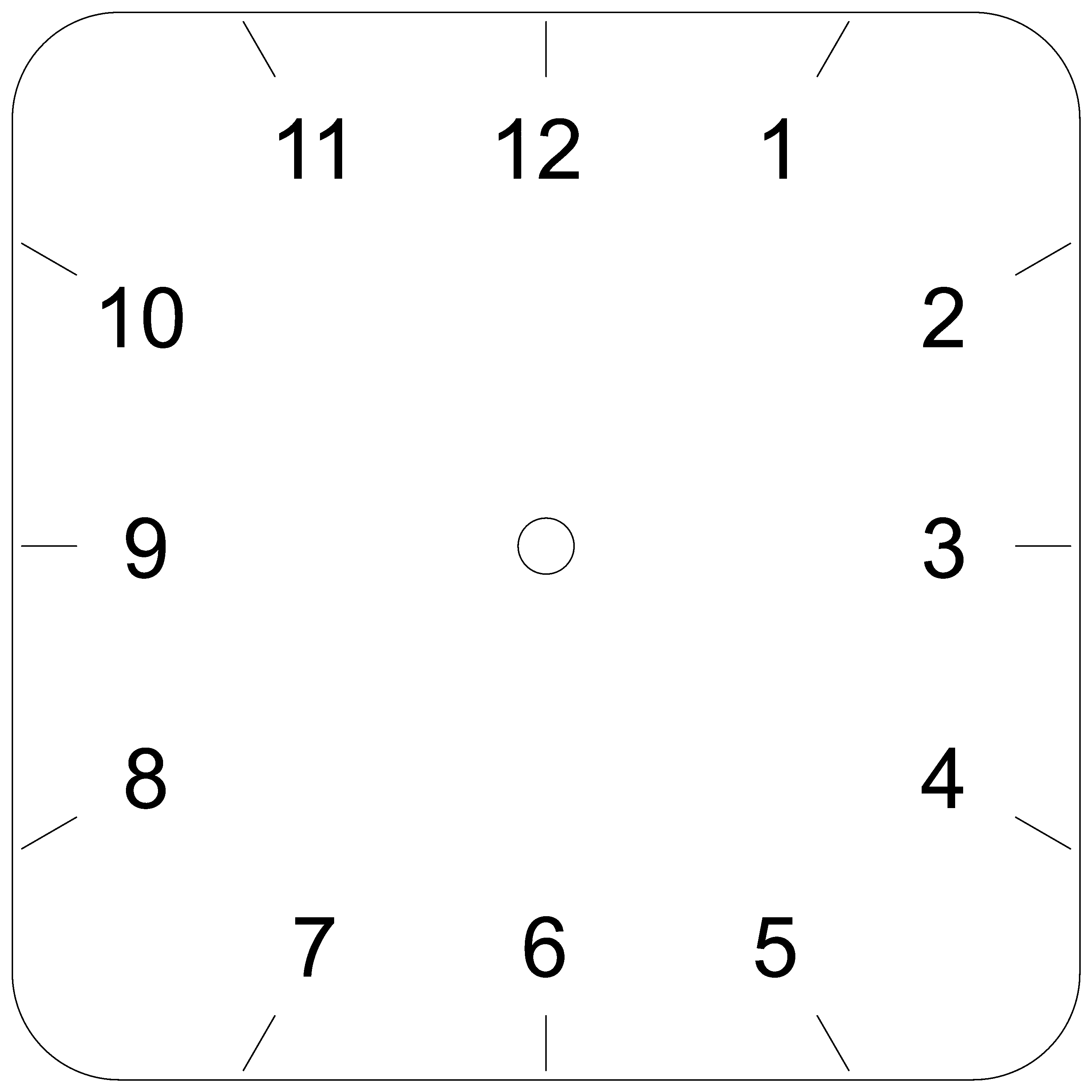
The Circular Array function could help you distribute the numbers around a circle inscribed in a square, but if you’re wanting the numbers to be evenly distributed along the perimeter of the square (i.e. three in line along each side), you’ll have to do that yourself. Still, I’d use a bit of a cheat to help me if I were doing that…
First, I’d use the “star” tool to draw a star, holding Shift so that it’s square (1:1, horizontal:vertical).
Then with the “select” tool, I’d select it, right-click, and choose “Show Properties” from the right-click menu.
In the “Shape Properties” window, I would then update the “Points” to 12 and the “Ratio” to something small, e.g. 0.1, to make a very sharp-pointed 12-point star.
I’d then select my star and my square and use Alt-Home to center the star in the square.
Finally, I’d grab one of the corner resizing points for the star and, holding Ctrl to keep the center while resizing, drag it until the points for the two outer numbers along each edge touch the square (with the center points cutting through).
With that, I’d have guides for where to place each of the 12 numbers, and I’d place them by eye using the points as guides. I’d align the top and bottom edge trios with each other in X, and I’d align the left and right edge trios with each other in Y (exactly how depending on typeface).
Personally, I’ve found that I’m going to want to adjust the placement of clock hour numbers a bit regardless, as placing them in a mathematically perfectly defined arrangement does not look quite right to me due to the varying size and weight of the numbers in whatever typeface I’m using. Having the pointy-star-in-square guide is perfectly adequate, then, for getting the hour numbers on there.
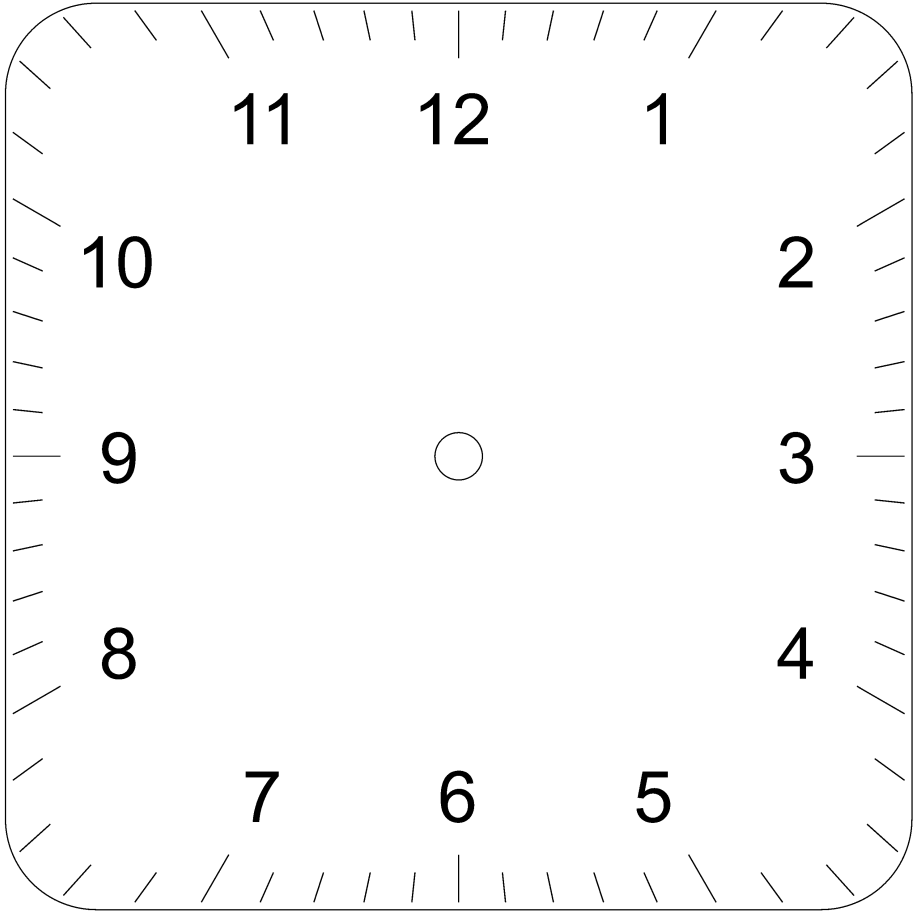
Now, if I were wanting to also add minute tick marks (or hour/minute tick marks for a numberless face) to a square clock face, I’d work a little differently. Using the hour/minute numberless face as an example:
Draw a rectangle that is ample to more than cover the square along the diagonal (1.5x is conveniently larger than the square root of two).
Resize the width of my tick bar rectangle to the width of the hour marks.
Select the hour tick bar and the face square and hit Alt-Home to center the bar in the square.
Duplicate the hour tick bar.
Rotate the duplicate 360/12=30 degrees (repeatedly, if necessary) to put it in a new hour spot.
Repeat steps 4 and 5 until all the hour spots are full (six total bars).
Duplicate the hour tick bar and resize it smaller for the minute ticks.
Rotate the new minute tick bar 360/60=6 degrees, duplicate it, repeat until you have one set of minute ticks.
Select the set, duplicate it, rotate 30 degrees, and repeat to fill in the rest.
You now have lines to turn into all your tick marks using boolean operations…
The steps for cutting the lines into ticks would be something like this:
Duplicate your clock face square and resize the duplicate so it lands where you want the outer edge of the ticks to land.
Duplicate the square again and resize that duplicate so it lands where you want the inner edge of the ticks to land.
Select the two squares and group them.
Select the lines you want to turn into tick marks (e.g. the hours) and group those.
Select both groups (lines and cutting squares) and do a Boolean Intersection (Alt-*, or use the Boolean Assistant) to get nicely sliced ticks.
Repeat from the top for the minute ticks (on my clocks, using a bit larger inner square so the minute ticks are shorter than the hour ticks).
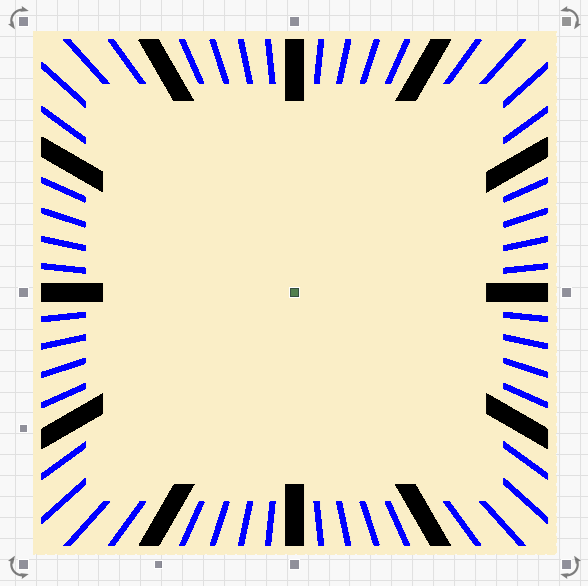
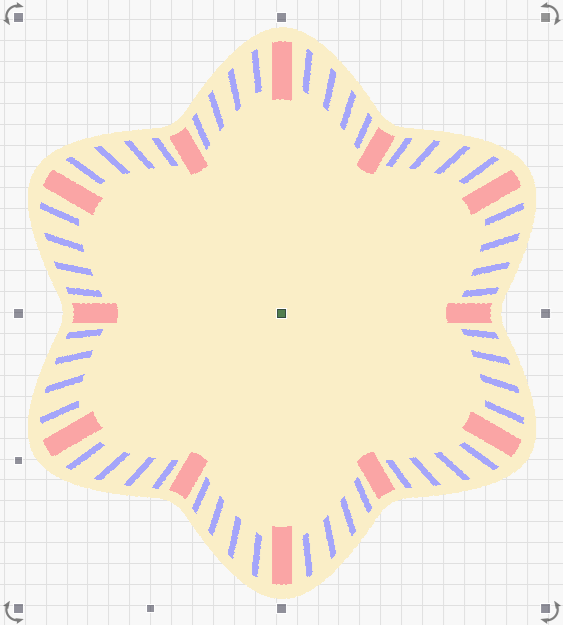
Of course, the cool thing is that these techniques work for any shapes you might want, circular, square, ellipsoidal, random blob, etc. Here’s an example of a square numberless face and a starblob face, both of which I just threw together:
Yes, I see how you do that and see the benefit. When I made the video it was just for a how to, I don’t actually make clocks.
My way is just one way of doing it. Using the spreadsheet would be great if you were making multiple clocks, for a one off the way I did it is good enough in my opinion.
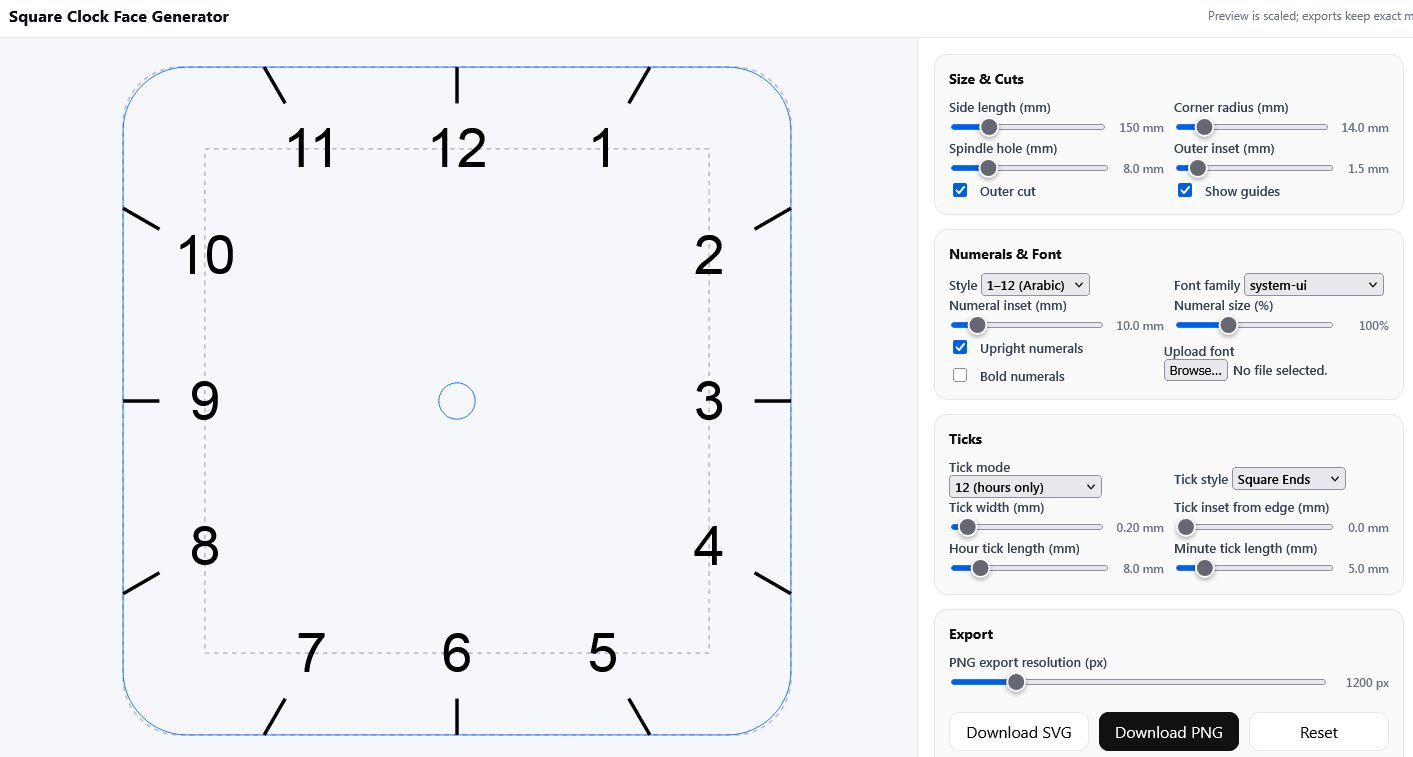
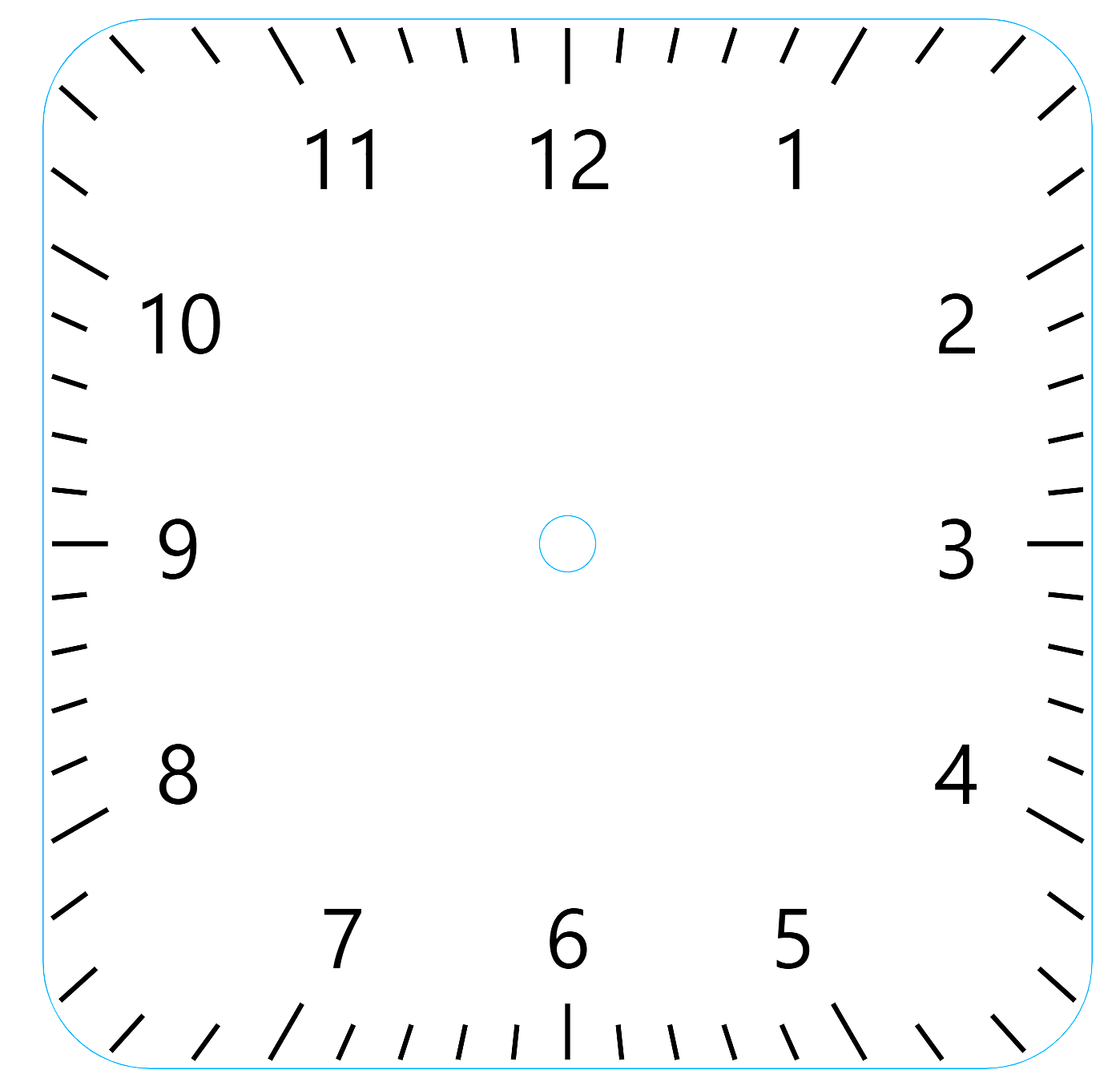
This is a Square Clock Face Generator, based on my Round Clock Face Generator, it isn’t finished yet, still a few issues to sort out, but you can try it here: https://www.burntstuff.com/tools/clocks/
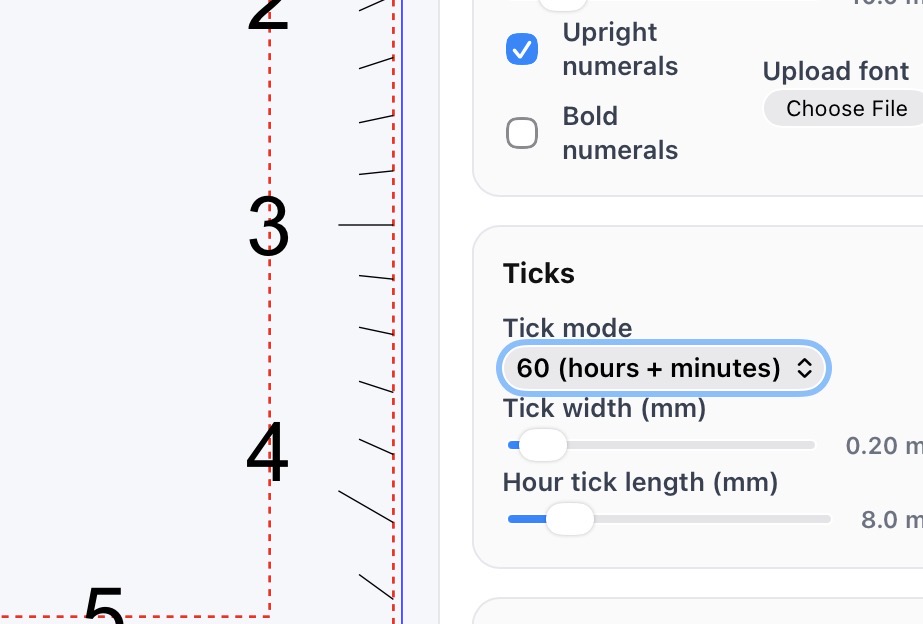
I noticed that the minute ticks don’t show up in either the round or the square clock when I download either an SVG or a PNG. Is this on my end or yours?
Not sure, but I’ve made some changes to the app, the save svg to make it fully compatible with Lightburn, was causing issues, so I’ve got rid of the svg option for now, you can now save or copy as a very high dpi png, which can then be traced within Lightburn. The latest (hopefully fully working) version can be found here: https://www.burntstuff.com/tools/clock/