there is someone knowing how to use arrow keys to manually move the CNC head?
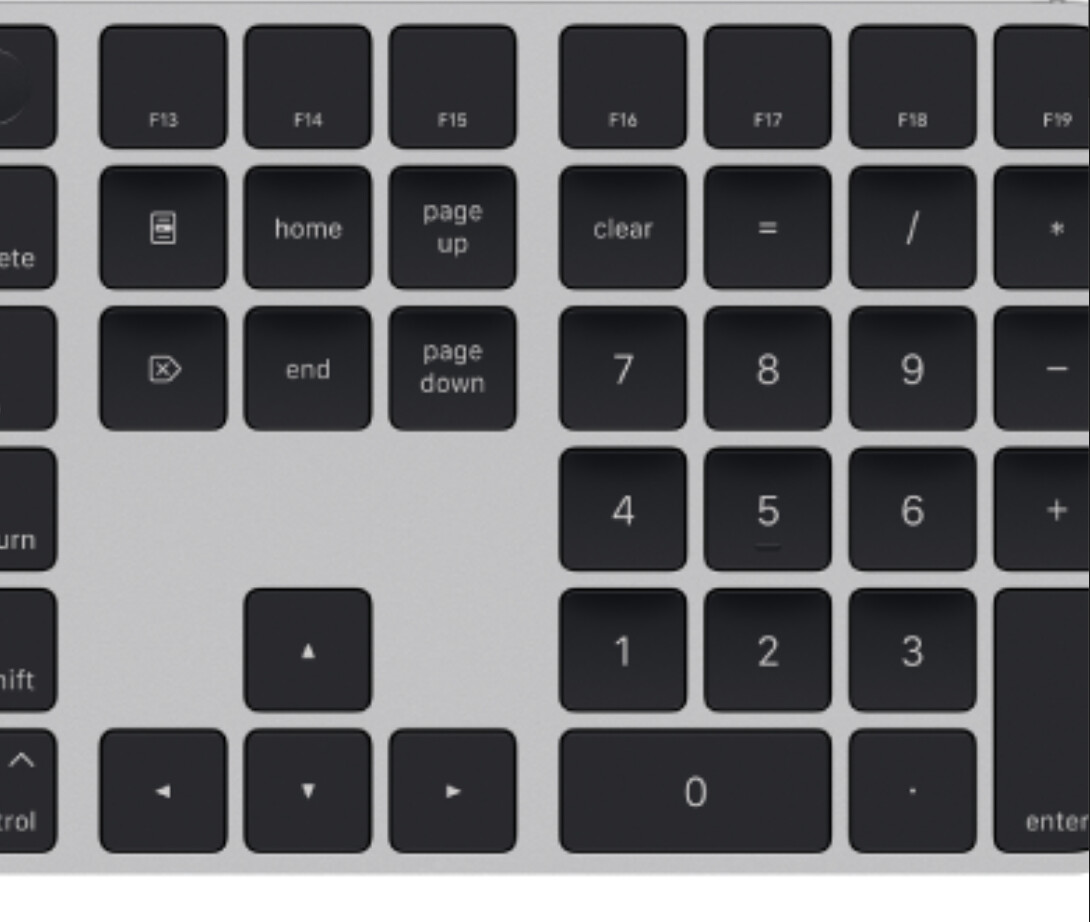
Use buttons in the interface works, but I cannot find a way to do it with arrow keys in keyboard (Apple Mac Studio + Apple Magic Keyboard)
If you click into the Edit window area, then use the number pad keys, does that work?
The arrow keys are to move artwork around the editing area. We’ve considered making it so when the “Control” mode has focus that the arrows work as jogging keys, but that’s only been a discussion so far.
I will try again, but I am pretty sure it don’t works because yesterday before post I have tried a lot of times and a lot of differents approaches.
I think the problem is that i am on a Mac with an Apple Magic Keyboard, which, despite having a numeric keypad, only has numbers, no arrow keys – and no Num Lock key.
If the development team have possibility to test this configuration, using this keyboard, I think the problem will be evident.
If your keyboard doesn’t have a number pad, you can use the following shortcuts for jogging the X and Y axis:
Jog Left:Alt/Option+Ctrl/Cmd+[
Jog Right:Alt/Option+Ctrl/Cmd+]
Jog Forward:Shift+Ctrl/Cmd+]
Jog Backward:Shift+Ctrl/Cmd+[
But I was not able to make it working in any way.
The problem is that is really unconfortable to jog the machine head to find zero position if your computer and your machine are separated from some space - if I can use the keyboard (which is wireless) this can help a lot.
I already have tried with Hammerspoon and Karabiner Elements to “simulate a windows keyboard”, but without any success.
Do you think there is a possibility to solve the issue in some way?
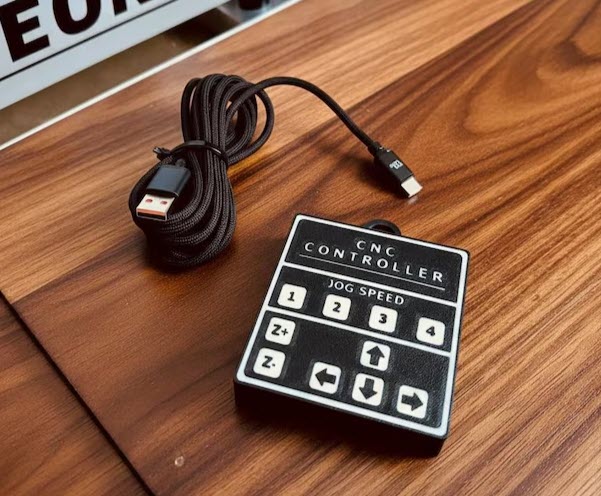
Thanks for the suggestion, but I am speaking about MillMage, not Carbide Motion and before purchase something so specific I will prefer to be sure it works.
If this USB device simulate a keyboard, I think there is an high probability to have the same issue.
Looking around I see a lot of similar issues regarding also LightBurn, which share probably the same codebase of MillMage for that scope.
I think there is something at software level that can be improved.
The possible solution mentioned by Oz “We’ve considered making it so when the “Control” mode has focus that the arrows work as jogging keys, but that’s only been a discussion so far.” seems to me the best approach.
In next days, when I have some time to dedicate, I will try to make more tests in both MillMage and LightBurn as well, providing some feedback.
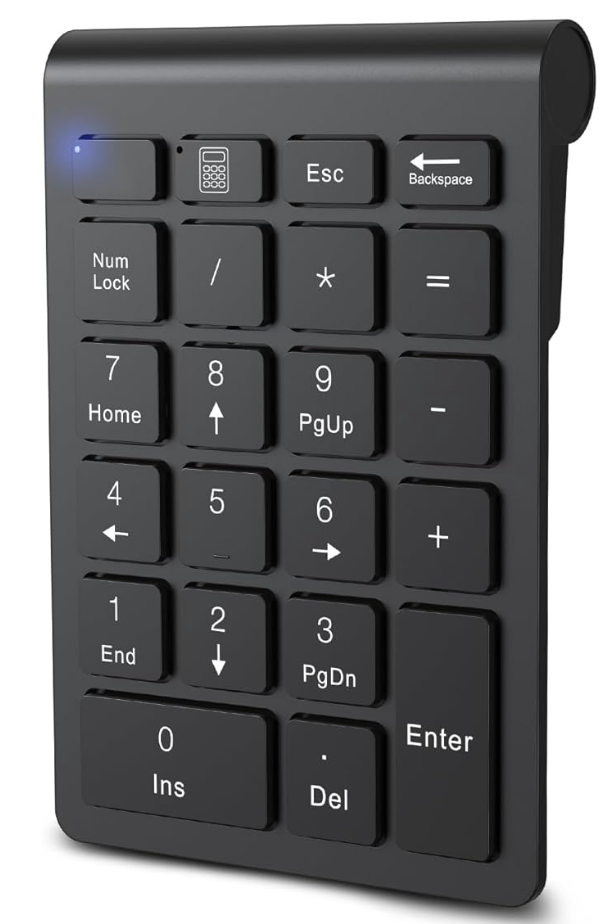
I have done some test and in both LightBurn and MillMage, using my Apple Magic Keyboard (with numeric pad), I can confirm to be unable to jog with keyboard, EXCEPT:
Because Apple Magic Keyboard numeric pad does not offer “arrows icons” and does not have Num Lock key, I suspected that it wasn’t working for that reason…
which have arrows icons and have Num Lock and works exactly as expected (numeric values/arrows depending by Num Lock) in my Apple Mac Studio for any other applications, except LightBurn and MillMage, where no jog function is triggered.
I think this “jog by keyboard” feature in Mac environments is definitely buggy and I would expect the development team fix it.
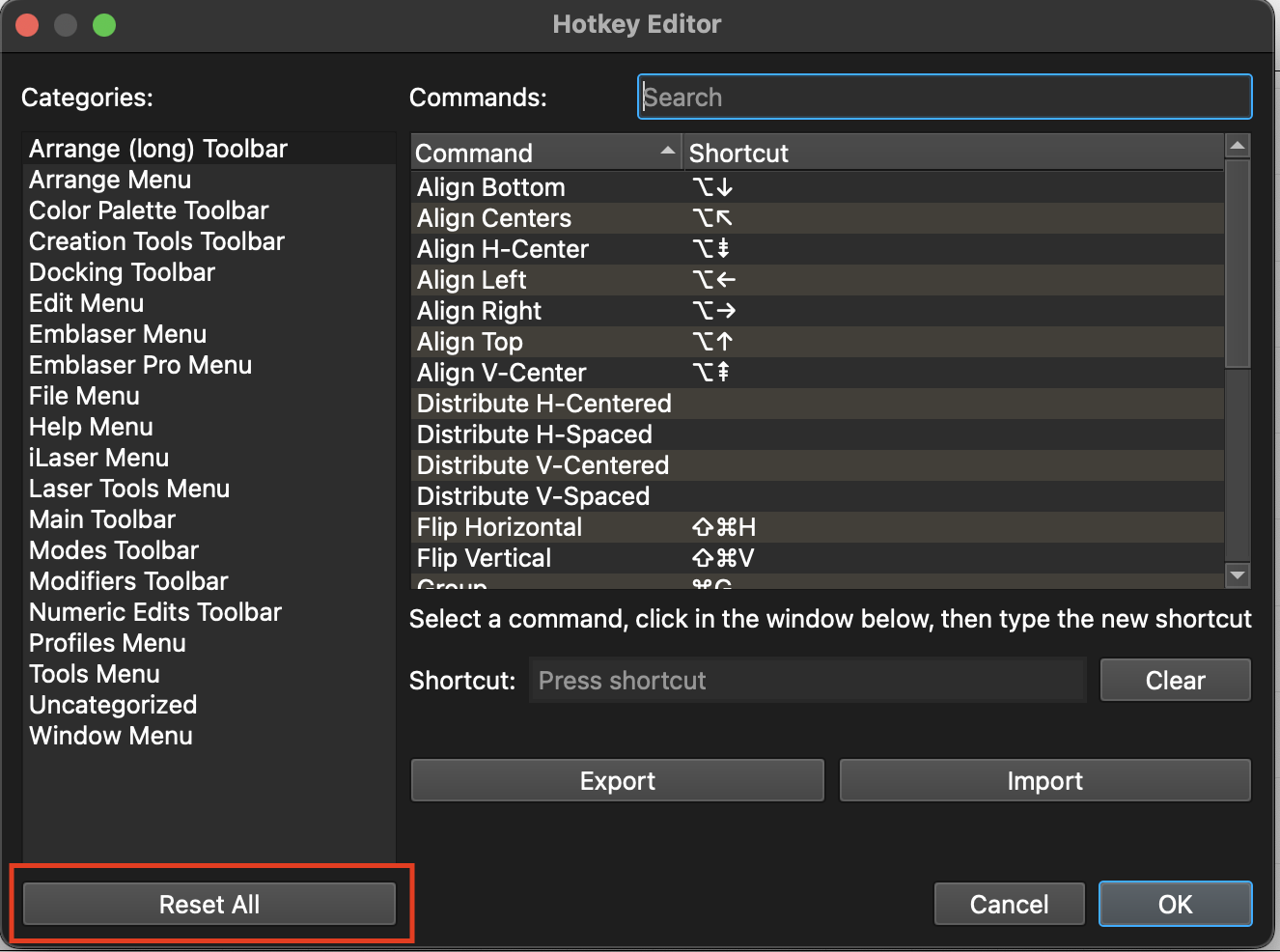
I am not sure to understand why, but looking in the menu File > Preferences > Edit Hotkeys and performing Reset All command, it start to work, on both Apple Magic Keyboard and the numeric external pad!
I had bookmarked this to come back and check it, so I’m happy to see that it’s resolved. I’m not sure I would have thought to check for edited hotkeys.
I know this is slightly of topic , but along same lines , have you or are you considering adding the set laser position tool in to MM,
I feel it wold be very helpful in setting up those out the gate jobs
eg positioning say text on a live edge slab where there is no way to measure anything and it is all positioned visually, not by measurement
i mark roughly where i want text/ design on slab/ material than move tool to each marked position , make markings on my screen , than manipulate drawing to meet those points
cause trying to move 80kg + slabs say 5 mm is nightmare to match the screen I use this tool more in light burn than i do the move or frame tool and i do miss not having it here , the XY arrows still have their place on material with a straight edge
Honestly, I thought we still had it. It was moved off the main toolbar at some point because it was deemed scary and easy to mis-click. With a CNC machine you have to be more careful about clamps and collisions, but I thought it was just moved somewhere.
If you go to your device settings and enable $J jogging that will allow continuous jogging, meaning you can press and hold a direction button (or key) until the machine is where you want, and then let go. Shift, Ctrl, etc will vary the jogging speed instead of distance in that case.
I use the bajeebies out of that thing in Lightburn, and initially thought, “Bring it back!” Then I realized when I use it, I am staring at the PC screen instead of the laser. Due to random fixturing and clamps on the CNC, I now think it is a Not-So-Good idea for the mill.