I am trying to cut a piece of work in half to use on my pass through. Old version you clicked on the piece then click on the cutter. then go click cut shape. well that does not work with the 2.0.05 version. I even went in and re-watched the tutorials, but they all are working with the 1.7 version. can someone shed some light on what I need to do, or direct meto a tutorial that shows how to use the cut shapes using 2.0.05 Thank you
Looking for love in all the wrong places.
Docs 2.0 >>>
Thanks Mikey. i have seen that tutorial, and they are using version 1.7. 2.0 does not work like the the 1.7 version. wondering if i can reinstall the 1.7 back on my computer without losing anything. Hopefully someone who is running 2.0 version can enlighten me on this issue.
I’m using version 2.0.05. Still works the same as before. If you are having difficulty maybe it has something to do with your project. upload your project and I’ll take a look.
Select the shape you want cut then shift select the path you are using to cut with.
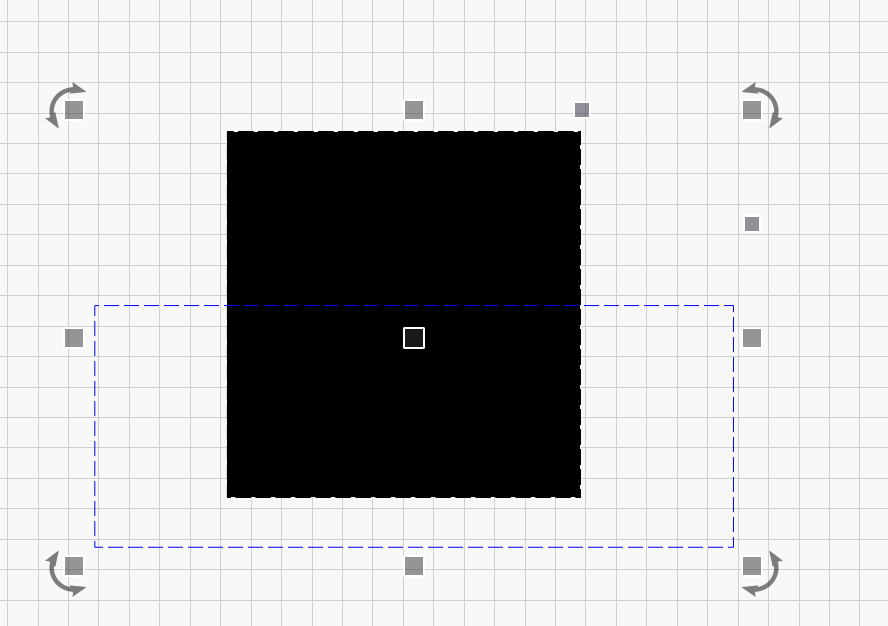
Tools Menu> Cut shapes. Done.
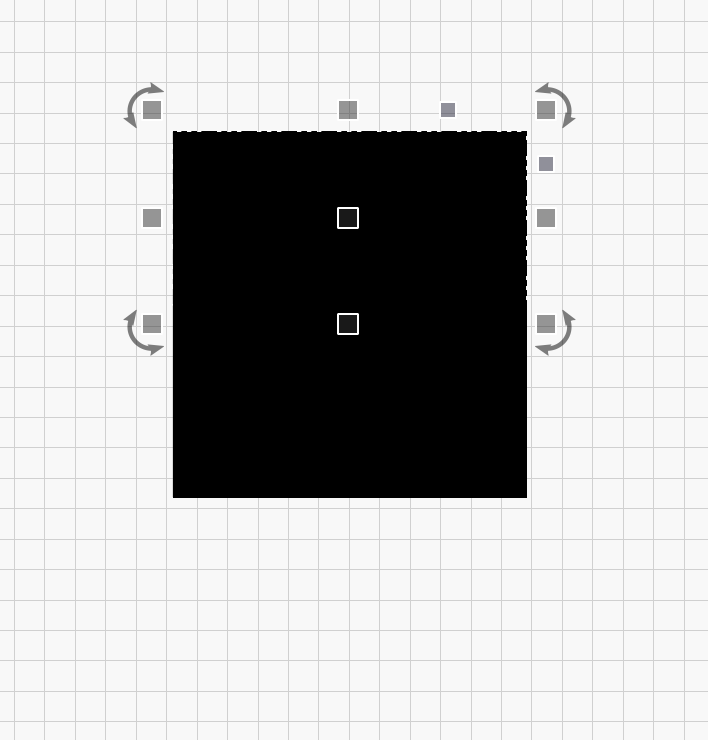
i have tried other files and it is doing the same thing.. what it is doing is, if I select the project then the cut line the cut button button does not work. the only way i can do it, is to left click and drag box over the two then it will cut, but then it also has the out line if the other half still attach. so when i try to laser it the laser follows that extra line and hits my limit switches. i have tryed every backward ways i can think of but get the same results
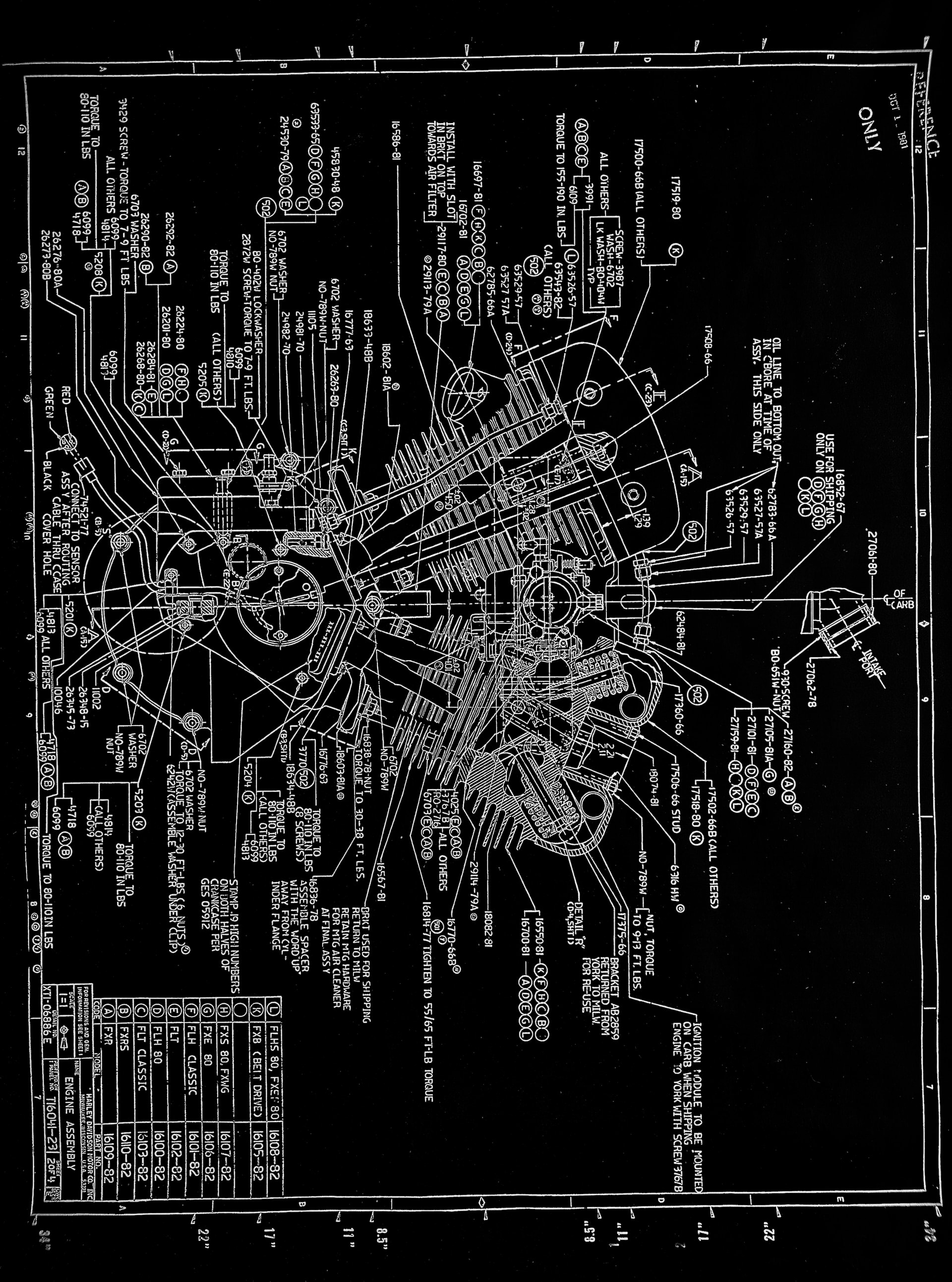
I am trying to cut this in half with targets and i am doing as a negative so it only prints the white
Image files act different than Vectors with cutting shapes. See docs.
Try this. Make 2 boxes exactly the width of the file and 1/2 the height. Align them to the image, one top, one bottom. Temporarily hide the image and verify that they are touching in the center and aligned on the edge.
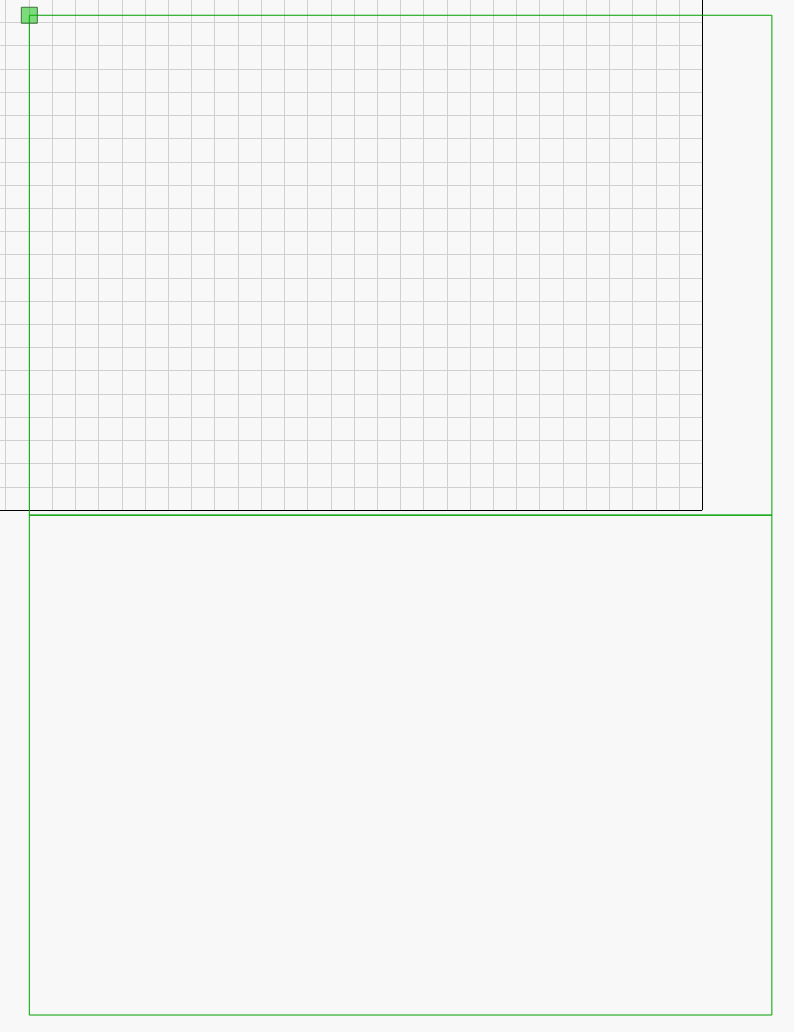
Show the image then duplicate it. With one copy of the image selected, hide the image, shift click the top rectangle, right click and choose apply mask to image then right click again and choose flatten image mask.
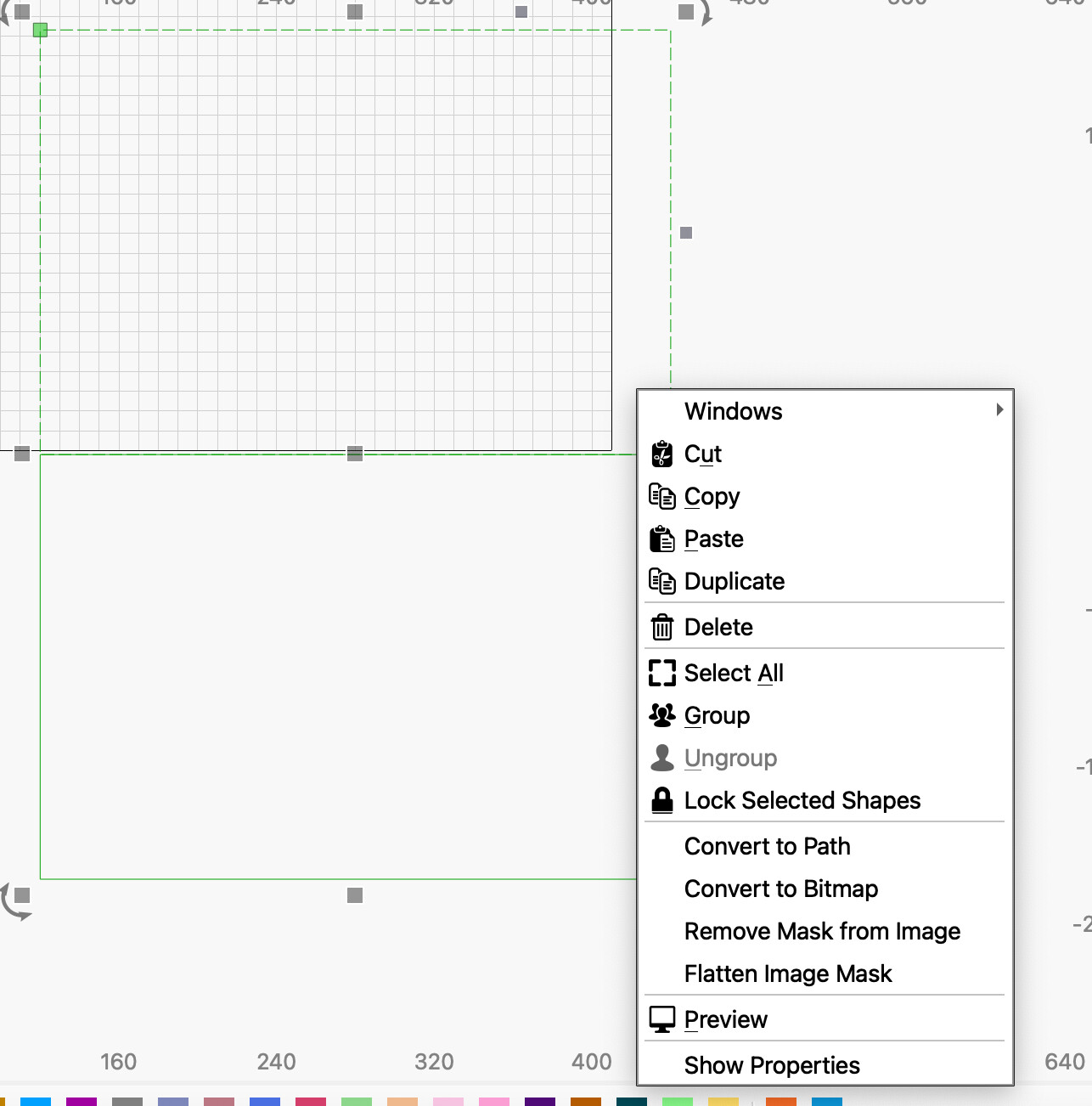
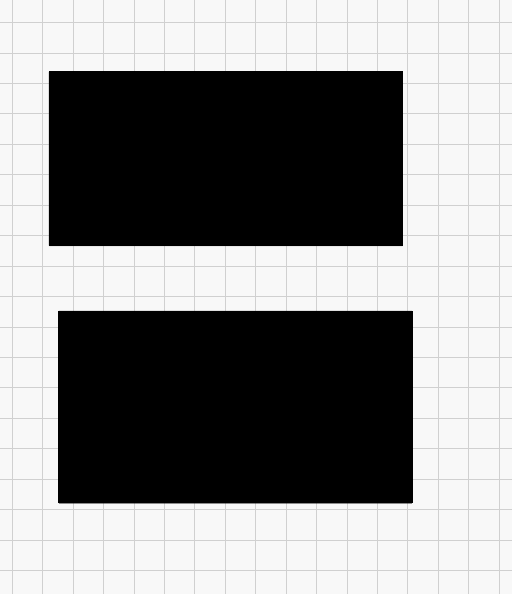
Show the image layer, select the bottom half of the image that you didn’t apply the mask to, hide the image, shift select the remaining rectangle, right click and choose apply image mask then right click again and choose flatten image mask. Show the image. I moved them apart to show they are separate.
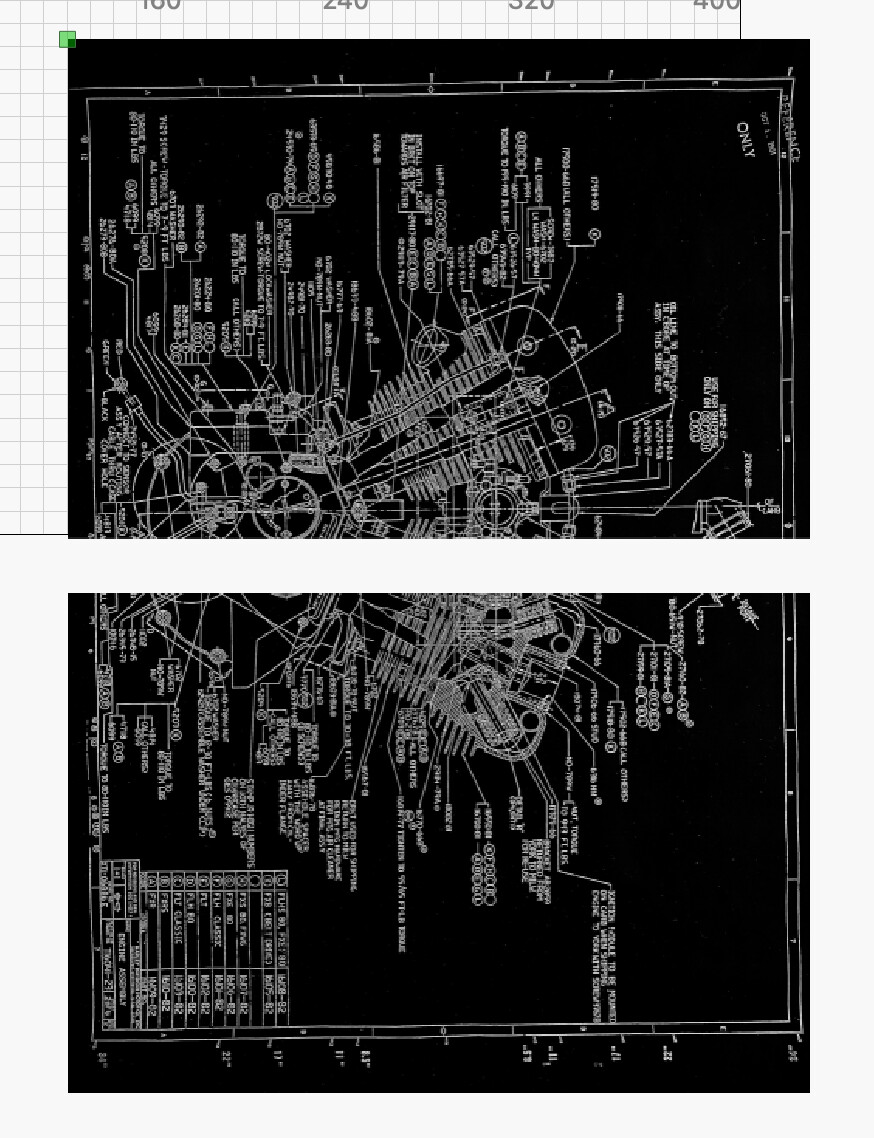
You now have the image split in half and you can place targets as needed for print and cut.
1 Like
Thats might work give me a few to test that theory
Yes Thank you. i can make it work that way and finish the project i have going. But boy that is a round about way of doing it. i can always figure the cut to not working properly later on down the road Thanks again
I never had this issue when i was run 1.7 so i am not sure of what has happened
Glad I could help you get through this.
I don’t recall how cut shapes worked with images before. I typically only use it with vectors.
well i thank you much. this back door way of doing it seems to be working. i will up load the finished project after im done so you can see. thanks
1 Like
This topic was automatically closed 30 days after the last reply. New replies are no longer allowed.