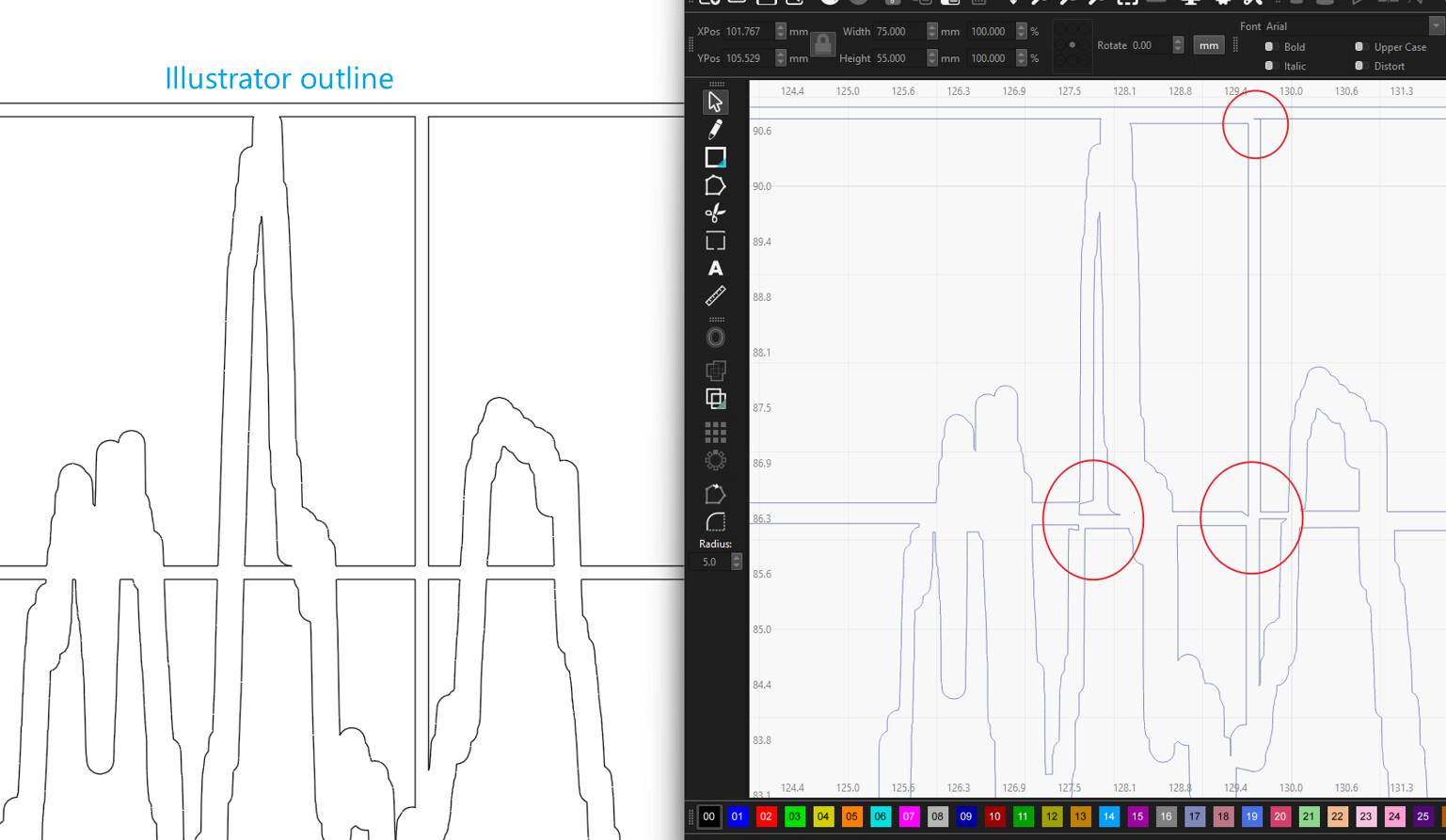
Import and Copy/Paste are two completely different processes. To properly copy/past, you should staty with an image, not the workspace of the Adobe file. There you are copying the internal commands used to create the image for screen display, which could be anything.
Exporting and importing into Lightburn is the proper method. This brings in all the correct info for Lightburn to recreate the paths. If you want to copy/paste, use a screen capture program like Windows Snippit Tool in Adobe to create an image file and save it to your PC. You can then copy/paste or drag 'n drop as you see fit.
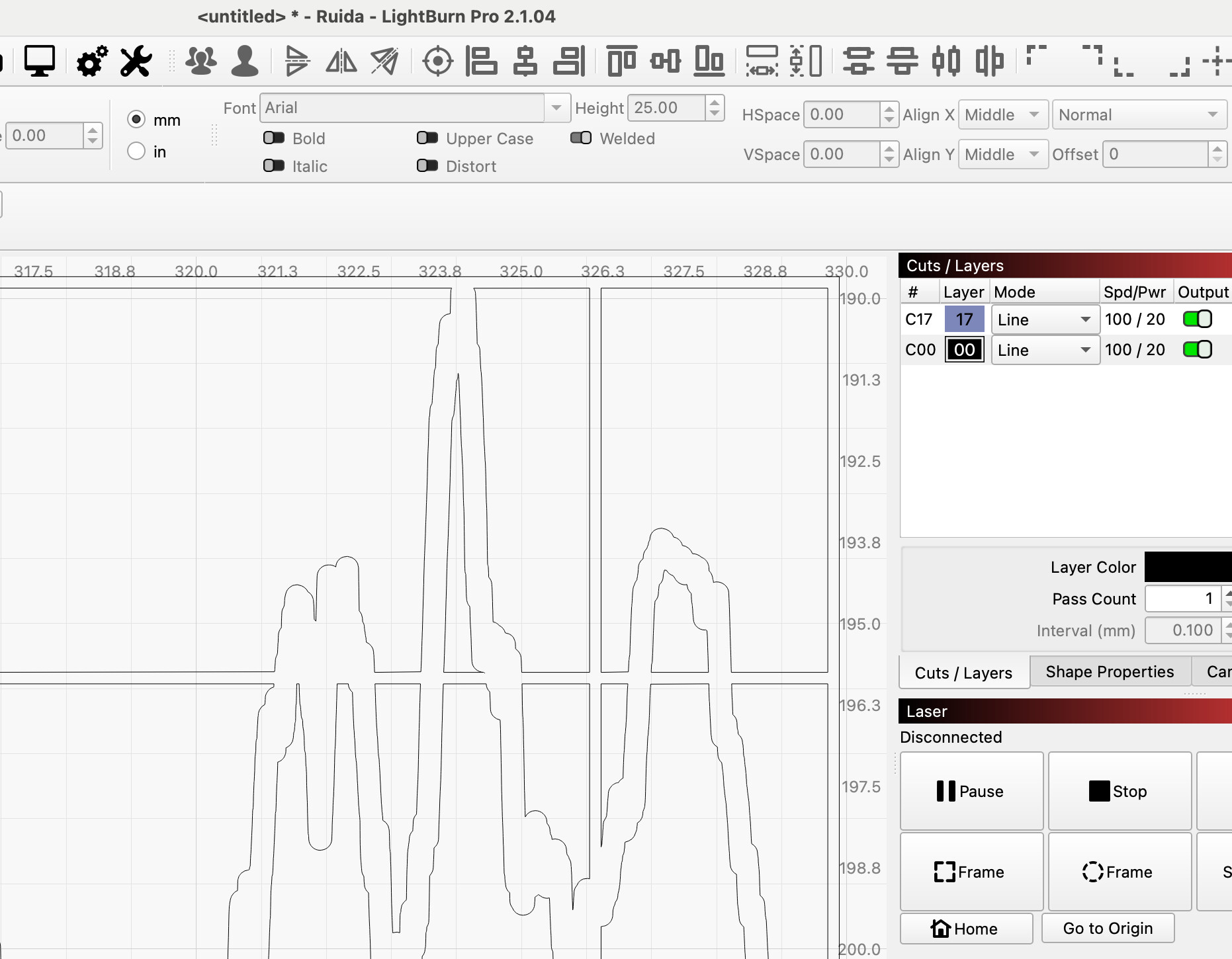
Vector elements are exchangeable within all vector programs, even through clipboard as long as the copied elements are pure vector. I’ve been using this method for a while and haven’t had issue until this one. Perhaps it has too many points for Lightburn? I’ve tested it with Affinity Designer, no issue there.
When working with multiple artboards in Ai, paste through clipboard is way faster than importing.
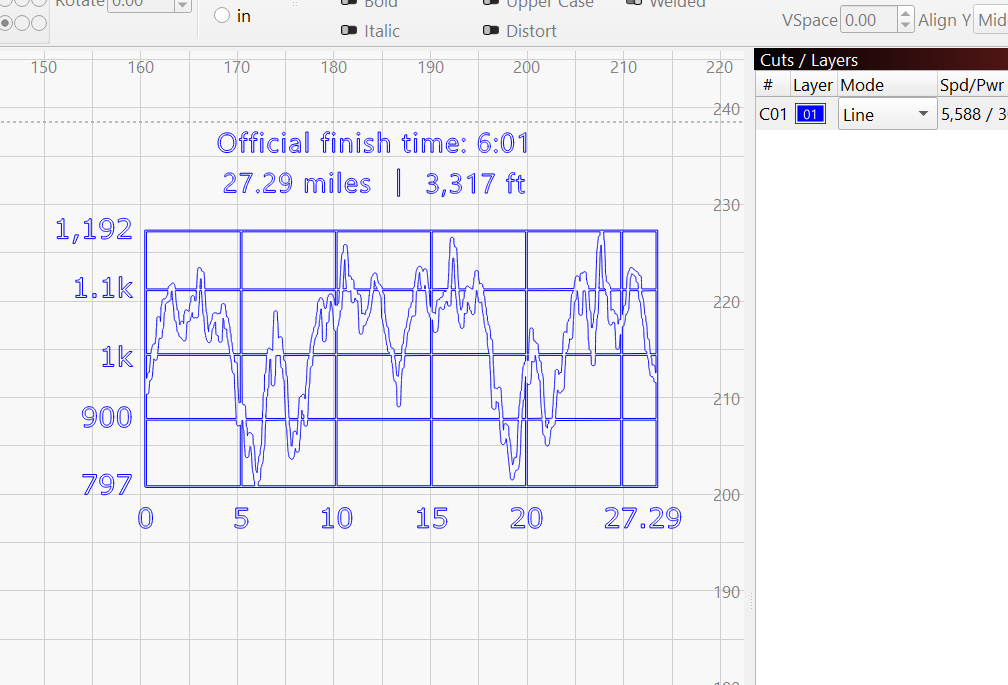
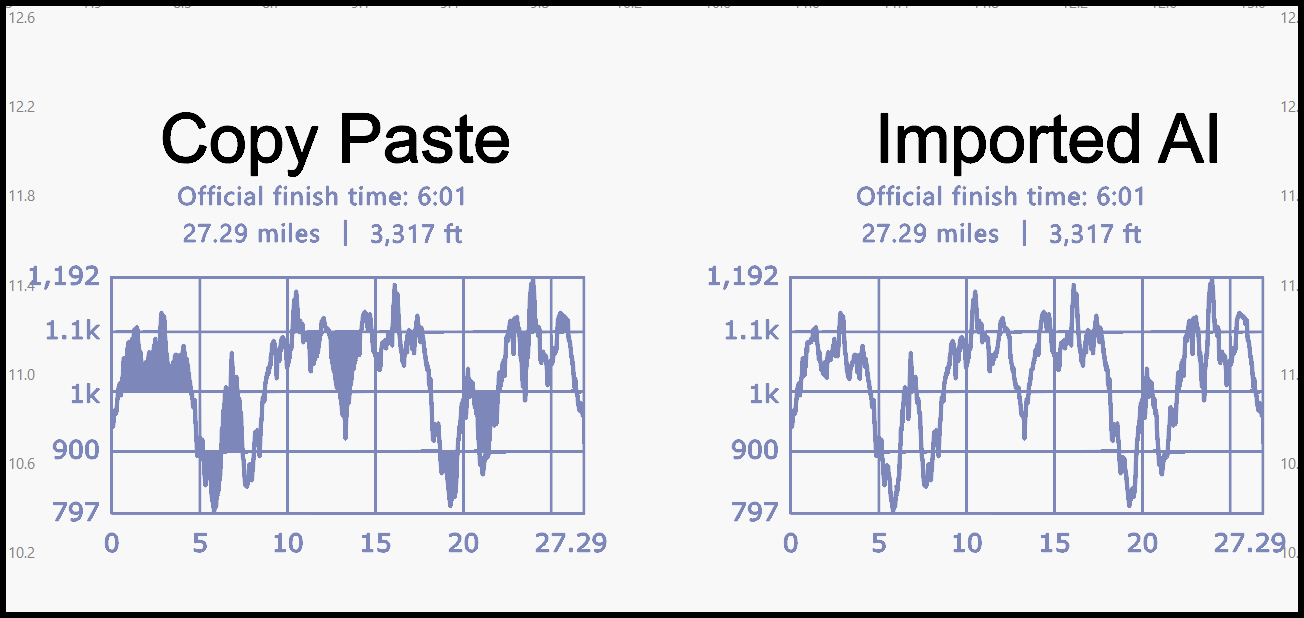
I downloaded your file. It saved in my download folder as Clipboard paste bug.ai. I then did a drag and drop onto the Lightburn grid. Below is a screen capture of the result. I am not seeing the fractured design you describe.
Thank you for helping out. Normal import method works fine as I’ve stated, the issue is copy and paste through clipboard. Vector elements without too many points paste correctly through clipboard. It seems Lightbourn can’t handle vector elements with a lot of points. I hope the dev team can fix it.
If mine works and yours does not, then Lightburn cannot fix it. The issue is at your machine. I am using both Win10 and Win11 each on 2 of my machines.
I started this Reply on the Win11 machine. I am now writing on the Win10 one (gotta love technology!). With Lightburn v2.1.03 I am getting exactly the same result on both machines here.
This indicates it is not a Win10 or Win11 version issue, and I am running v2.1.04 on the other machine suggesting it is not an upgrade issue either.
I am sure by now you are saying WTF, why can’t I get help. But look at everything. I recently read a posting where a conflict between the mouse and the touch pad was causing what appeared to be an RF noise issue. Windows has a LOT of DLL’s and one could have stepped on another. It could be a video driver issue.
The point here is you will have to turn stuff off and on, or do some reinstalls to get this cleared up. I would include a fresh download and install of Lightburn as well. Normally not necessary, but maybe uninstall Lightburn first (copy your design files to a safe place).
My fill looked okay too, and not like yours on the Copy side.
I think what we have is the inability to copy/paste here like you are doing. I do not have Adobe so I can not start with “copy”. I just did a “copy” on the Clipboard paste bug*.ai*** file and used CTRL-V on the Lightburn grid, and I still get an accurate version. You did not send a clipboard dump, you sent an Adobe file.
I still suggest that COPY from the Adobe screen is why you are getting strange results. Windows can only copy what it sees in the graphics engine buffer, and that likely does not have the complete node information to accurately reproduce the design.
I have no explanation for why you succeeded in the past. Could be a Windows patch or an Adobe update.broke it.