Incorrect Color Mapping Of Tool Layers

I decided to map some color layers into my preferred design software. Layers 00 to 07 works fine (that’s all I need so far)

I wanted to add some notes to a file that would be imported to LB and I figured a tool layer would be best.

After mapping the color values into the software this is what happened.
Color mapping for T1 converted to Layer 05
Color mapping for T2 converted to Layer 14

At first I thought the problem was with my design software so I created a simple file in Inkscape, Corel Draw and Illustrator using the color codes below.

All software resulted in the same error as above

Values from LB’s documentation.
Layer T1 RGB (243, 105, 038) Hex #F36926
Layer T2 RGB (012, 150, 217) Hex #OC96D9

Also…
Maybe I’m missing something, I’d like to fill in the text when using the Tool Layers. Is that possible?

SVG Below

Thanks for reporting this, @RonSa. So more details, if you will. Please share your source file(s) along with the LightBurn project file for review.

Which version of LightBurn?

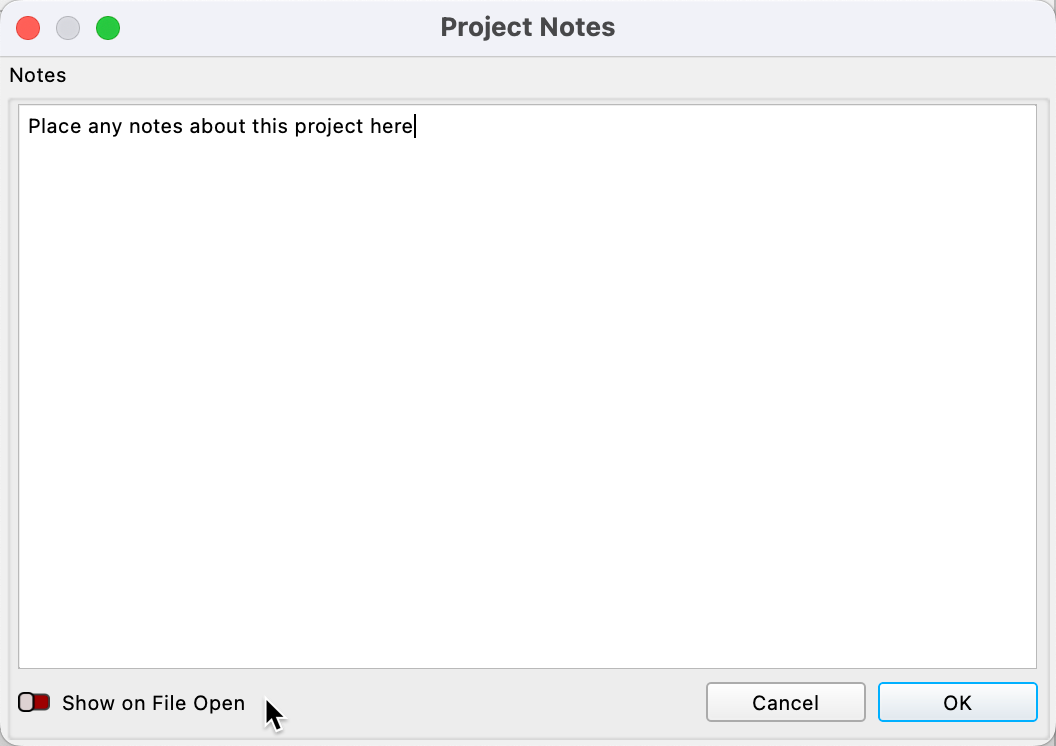
One option, LightBurn provides ‘Project Notes’ under ‘File’->‘Show Notes’.

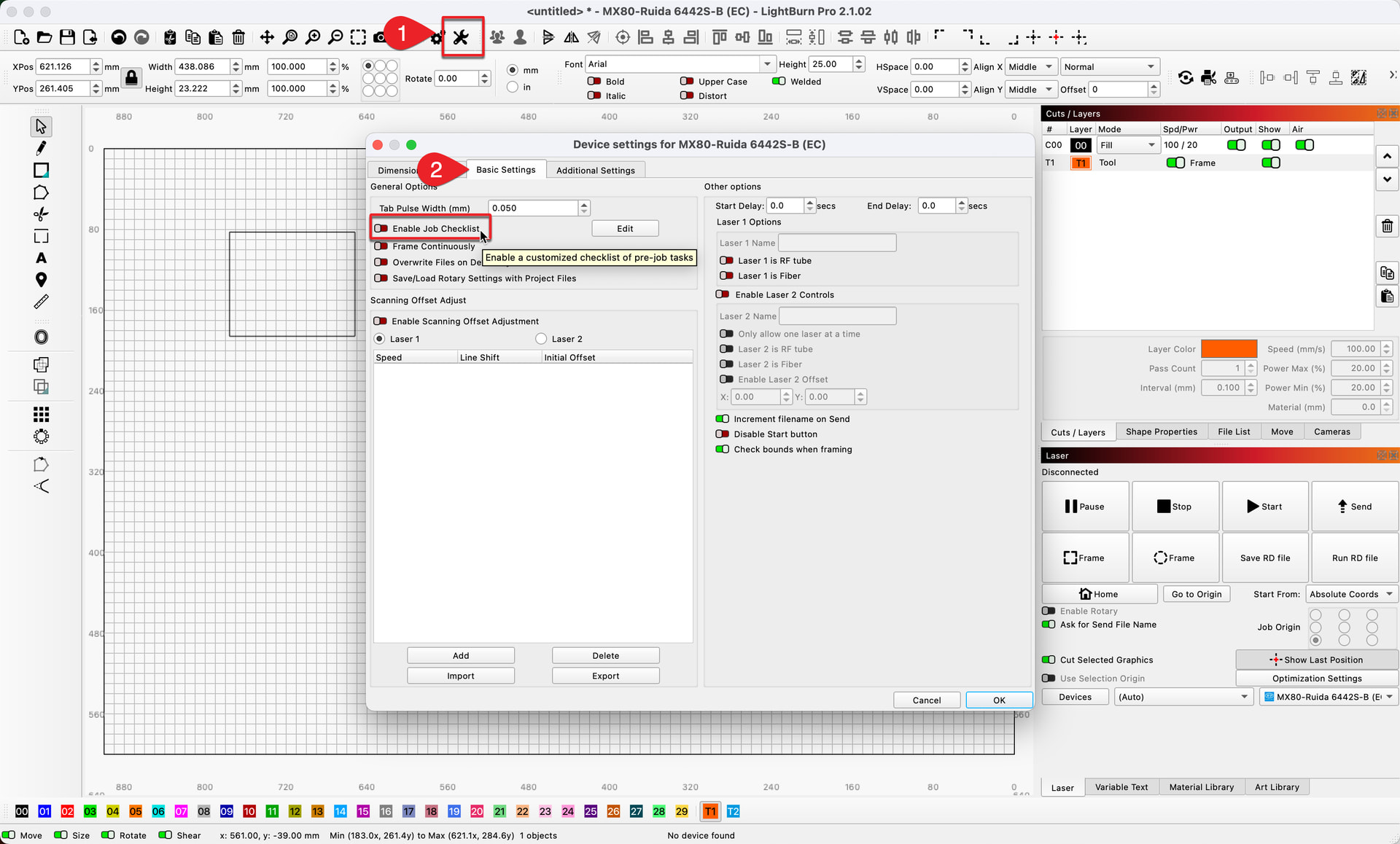
Another option is to turn on (green) the ‘Enable Job Checklist’ in the ‘Basic Settings’ tab of ‘Device Settings’ window.

And as you where thinking, you can place text on the tool layers. When you ask about,

There is no way currently to “fill” text placed on a Tool Layer.

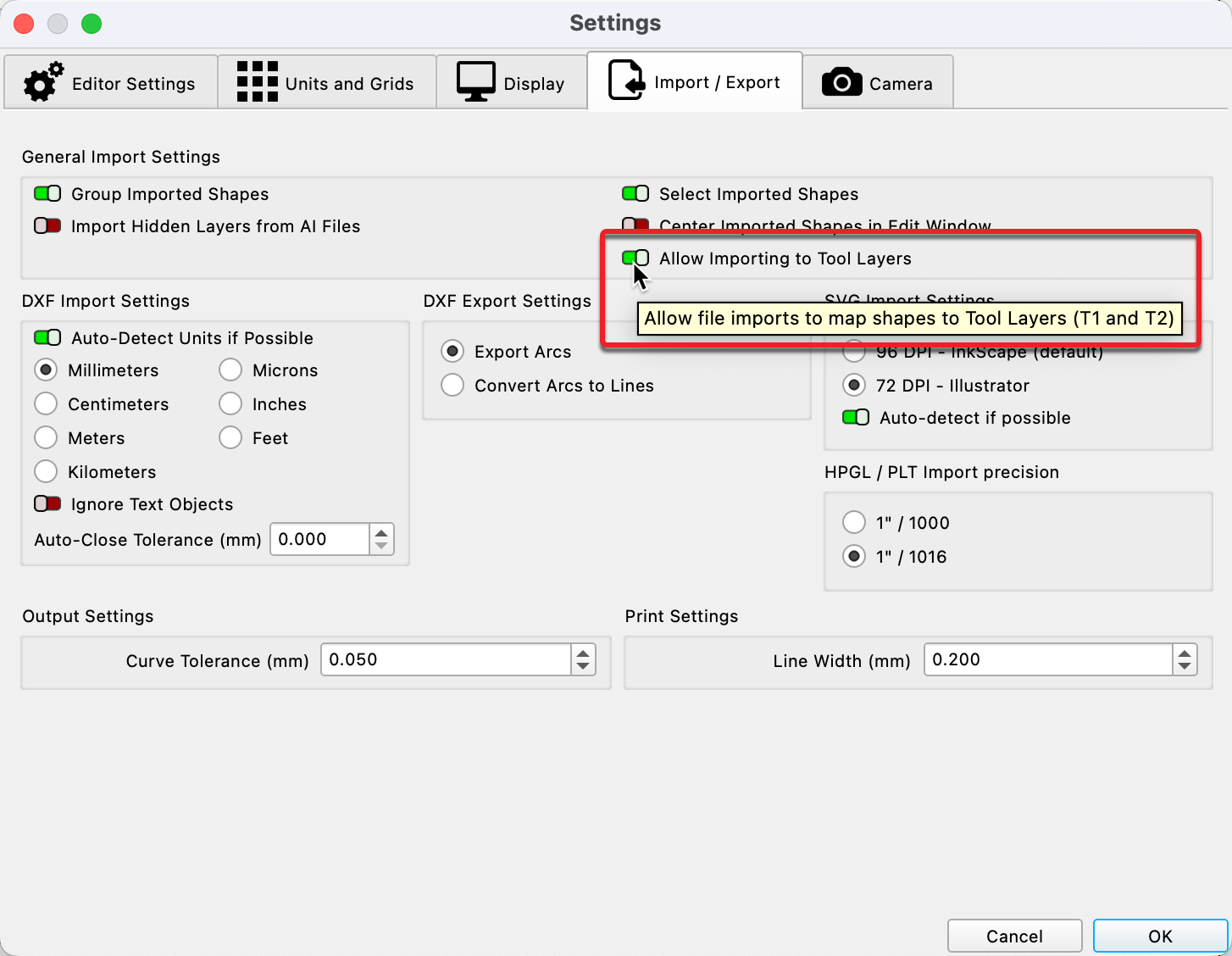
Perhaps Allow Importing to Tool Layers is turned off:

:open_mouth: Yup, that was it.

@Rick
Thanks, those are all good options. I just needed to add notes while I was still designing the project. (So I wouldn’t forget what the heck I was doing!)

You could use a normal layer for your text notes, with the output turned off in the cuts/layers window.

Turn off output, and the color of the layer is faded but still very visible when set to some sort of FILL.

That’s what I was doing until Ed fixed my faus pax