I will cross post in the V1 Engineering Forum but I have not been able to connect via wifi to my LR4 Jackpot via FluidNC on either my Windows 11 laptop or I even tried my MacBook Air. I keep getting a no connection and and it trips an alarm fault when I drop out and go back into normal WebUI interface. It shows an Alarm set that even reseting won’t clear.
What’s interesting I CAN connect across the basement with my desktop and actually control but I can not see the LR4 but can hear and see all the commands. on the console in MM.
I exported the bundle from my desktop Windows 11 that works and imported it into my Win11 laptop and still no luck.
Frustrating as I really want to control the machine. I love the rest of the MM program.
I have a V1 LR4 with a Jackpot Controller V3.9.5 I believe.
Note I can connect with my desktop via wifi.
TIA!!
Craig
Just to get started, confirm that everything works when connected via USB. When going through diagnostic steps, it’s best to remove complexity where we can, and wifi control is more finicky than USB. So my first recommendation is start with USB and we can go from there.
I tried the USB connect and changed the settings but my Jackpot board does not wrk like that. But I did get connected somehow today with my laptop. I think that WebUI is stepping on the MM. It automatically connects to the ESP3d board and launches the WedUI whereas on my desktop works.
Anyway I also need to get systematic opening sequence of which to open first. May go mack for now just using the rest of the tool and just run with WebUI. I could never control my machine with Estlecam anyway.
Since you can connect over WiFi from your desktop, it sounds to me as if the different computers are not on the same subnet.
Can you ping the Jackpot from the laptop?
Open a terminal and enter this command:
ping [IP of the controller]
If you are using the hostname (defaults to fluidnc.local) try using the IP address instead.
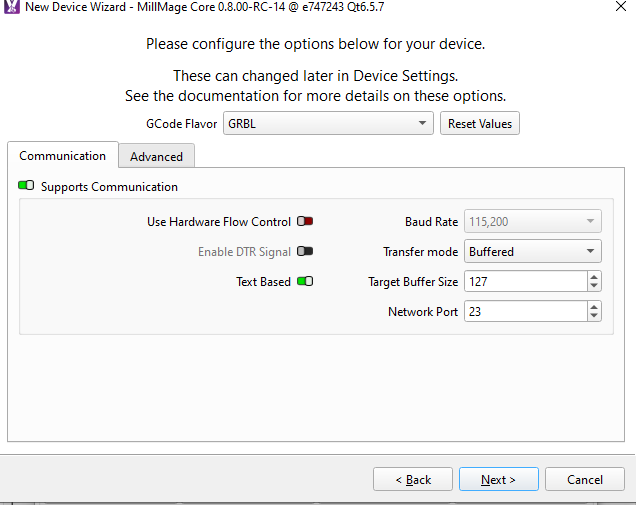
Also, ensure that you are using port 23 in the Device Settings.
Thanks but that is exactly what I do. In fact it’s the only way I know how. Not sure and need to try I think that it really matters the order. When I try connect to FluidNC (browser) first THEM open MM it I’m thinking is conflicted as my internet browser already open the WebUI interface.
Btw I tend to forget the proper terminology.
I just need to experiment.
ok you can see the controller. so im going to post my setup steps 5 each.
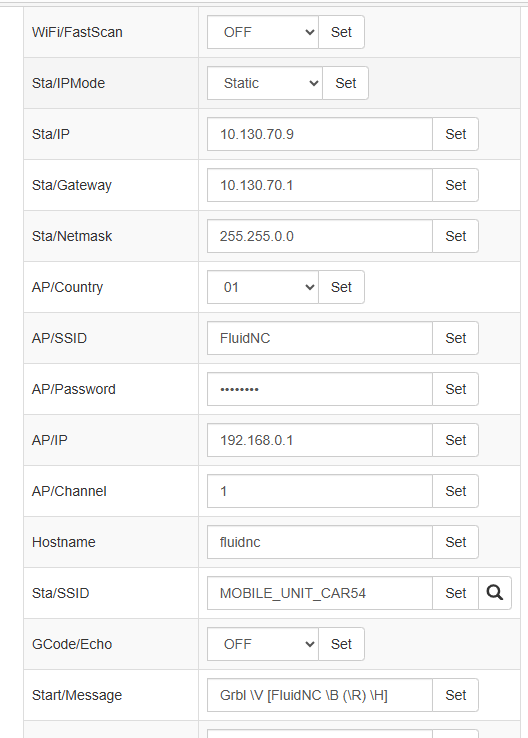
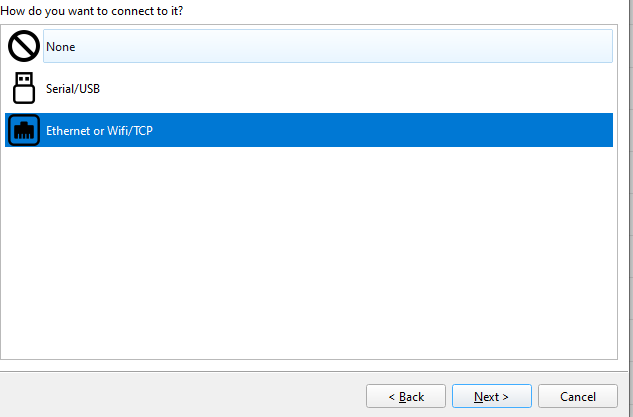
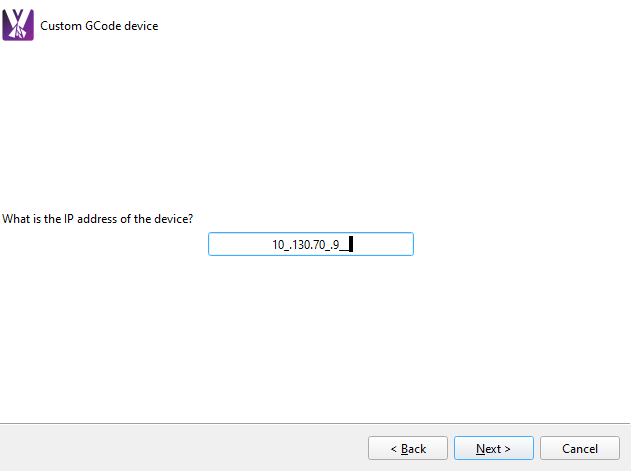
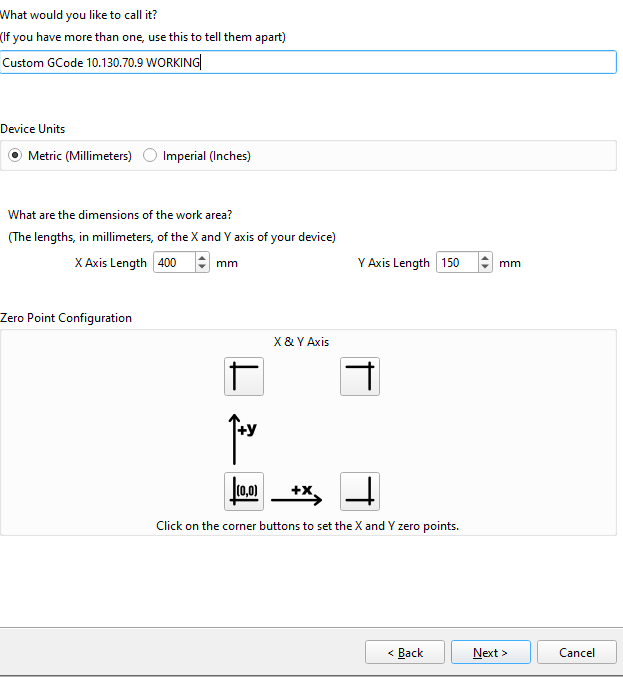
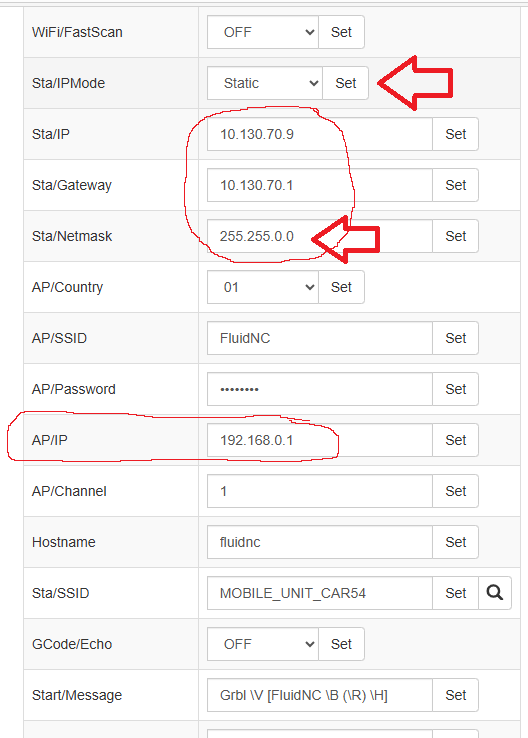
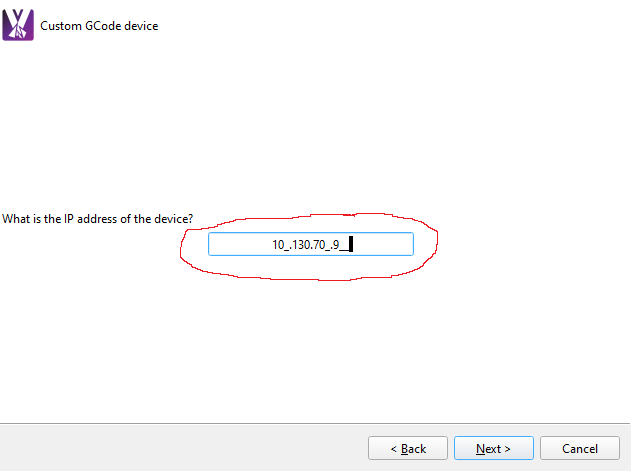
you need to change things like your local network and ip address and stuff like that on your end, mine will not work on your network. the first screen shot is the network setup in your fluidnc via your browser and the other screen shots are in MM comms setup. but it works good for me and no problems even on long runs 6hrs.
Thanks so much for clear response. Anxious to roll my sleeves up and dig in.
MM added so much fun things to try. I have to as they in our V1 group it’s time to just dig in and “get dirty”
WOW! I dropped the ball on following your suggestions and got distracted and have been limping along as I can get through my needs. Just finally sat down today to try this as I forgot you sent.
Incredible results even thought I sure realize what I don’t know
So far I think it’s a major improvement!! Fingers crossed.
I know somehow have a connection to my FluidNC V1 Lowrider AND even still have a wifi internet connection. Seems much more stable.
ya the 255.255.255.0 is best, i use the static ip because i go thru a wireless router and dont want the router to assign a random IP to the fluidNc device…….. so my setup is fluidNc (10.130.70.9) connects to wireless router (10.130.70.1) and my laptop connects to the wireless router with a random 10.130.70.? ip, light burn and MM has a fluidNC connection now, located in the “Custom G code” device list
Over USB you should be able to see if the Jackpot is connecting to your wifi or not. If it’s working with a static IP (Sta/IP value), that means that the Jackpot is failing to connect to your wifi network, and starting up its own hotspot.
That’s when you’d be using the 10.130.70.9 IP after joining the FluidNC hotspot.
Use the FluidNC installer page to look at the console when you reset the board, see if it throws an error connecting to your home wifi. If it’s an older release of FluidNC, if your wifi network has a space in the name, it will also fail. I think it should work from version 3.9 onwards, but you’d need to look up the changelog to know for sure what version works better.
I have tested the Jackpot myself, so I’m pretty confident it’ll behave as expected.
Thanks, I will check out. I had a medical situation with a twisted intestine so surgery and 3 weeks in hospital but all went well. At this point I cannot spell CNC
But miss my MillMage as well as my Lowrider!! Need to get on that horse again!!