Hi I’ve had this issue for a while and whilst i’ve got a workaround using layered grouping, it is still something it regularly confuses the heck out of me. So I am importing svgs made in inkscape and have all the swatch colors allocated in accordance with the layer color import list passed on elsewhere in this forum.
However, C11, C23 and C27 quite often import as C29. I have checked opacity, stroke settings and layers and they don’t seem to be the root of the issue. I’ve also noticed that if i allow ‘importing to tool layers’ C11 and C23 can sometimes also be imported as T1.
If it always happened i’d probably be less confused, but i think it is the lack of predictable behaviour that has me thinking i’m doing something wrong setting up the svgs but for the life of me don’t know what that could possibly be?
Anyone got any ideas?
Can you attach one of the SVG files that you’re having the issue with for us to have a look at?
certainly, sorry had ment to on first msg. PFA
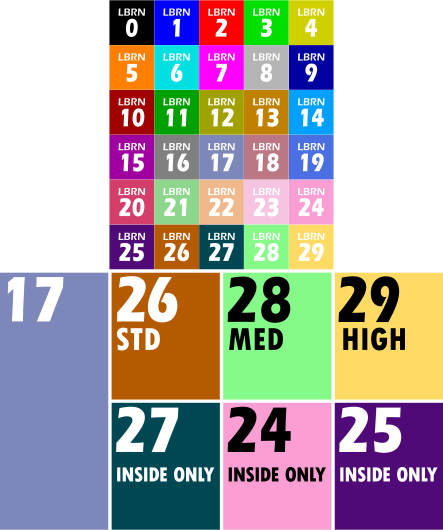
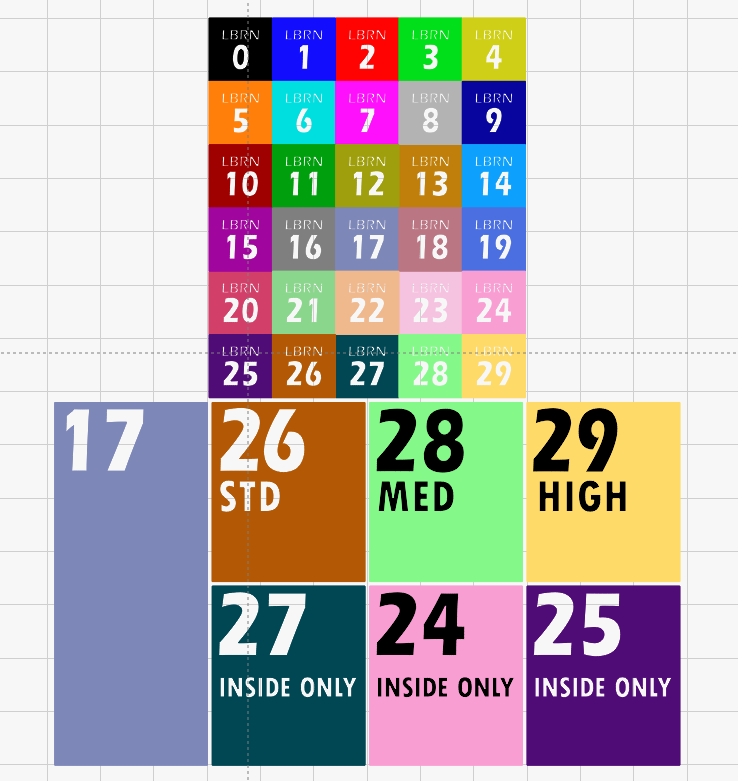
Yes and no. it imports fine some times but other times not… literally can close lightburn down and reopen and the ones that import incorrectly changes.
I use it as my import checker and copy it into other svgs and import with them to make sure to check when i goes wonky.
I’ve attached another version which at the moment is import C23 as either T1 or C29.
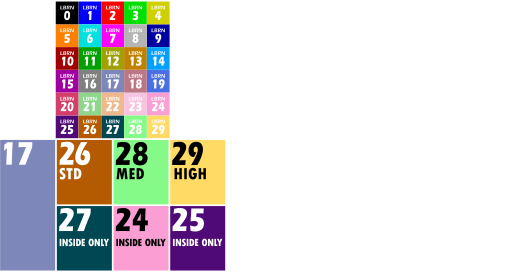
Hmmm… weird! I’ve tried about half a dozen times and so far it imports correctly every time. I’ll probably be out for the next few hours so hopefully someone else can replicate your issue and find a solution while I’m away.
Thx for giving it a go Marcus most appreciated. Yep very frustrating work fine for a while then absolutely doesn’t haven’t noticed any coloration with lunar phase or neighbours music dB either!
@JohnJohn and I have been testing the files you shared and do not find issue. Each color is imported as expected and lands on the appropriate layer. We are not seeing the issue you describe.
Is there a file that is reproducibly failing or persists in producing this mismatch as you describe, you are willing to share? 
We will continue to test importing art to see if we can get our color ‘best-match’ code to fail, but no luck so far. John has additional information he will share shortly.
thank you all for looking into this. This one seem to reliably import C27 incorrectly as C29 as well as the white square… wait is it the white fill causing the issue? there is always white fill areas when i import and get an error… nope not that just tested it C27 still coming in as C29
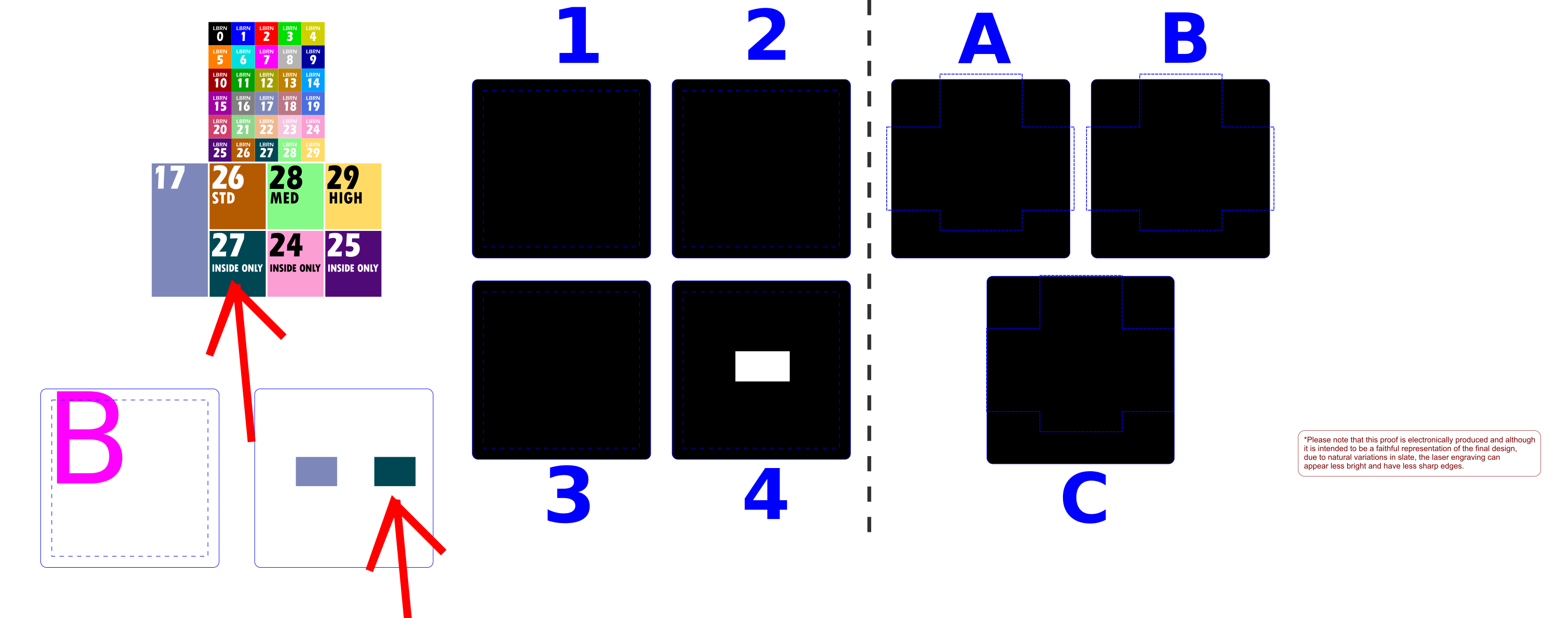
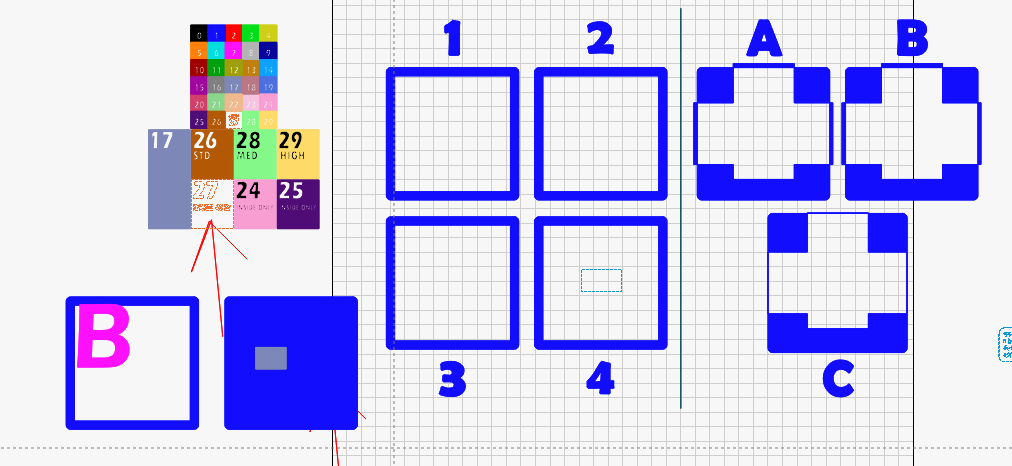
Ok, I’m getting a different result with this one.The swatch 27 that’s arrowed is coming into LB on the T1 layer for me
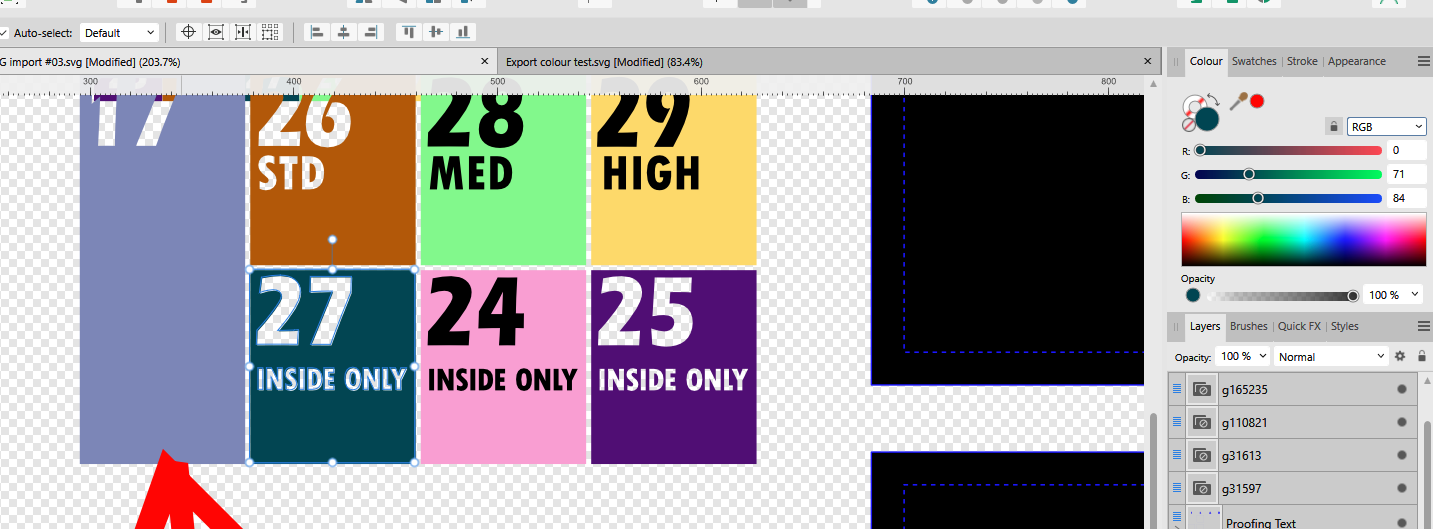
However, if I open it in Affinity Designer it’s showing the correct colour (RGB - 0, 71, 84).
Anyway, it’s bedtime here, I just wanted to give you some quick feedback.
Hope this helps.
Night, night!
Don’t know how man times ive tried to problem solve this before but i think its the vertical dashed line, or rather it’s stroke color which is driving the import drift. if i set that particular lines stroke color to B 255 (leaving RG the same) all C1 layer is reallocated C29, and the same happens setting R255 albeit C2 being reallocated.
Thanks for looking into that Marcus. I too get that with “allow import to tool layers” setting checked when unchecked the weirdness happens with C29 instead. Good night and thanks for taking the time to look into this
Not sure exactly how the mapping works exactly but I think what’s happening is that because there are shapes with colors not represented within the layer colors that somehow that’s not making the color available for the C27 tile to map.
In this case, the dotted line separating the black rectangles. If you remove or change the color of the line to match a layer color then C27 tile gets mapped correctly.
I would have thought that every shape would have had a closest fit to each layer but that may not be exactly how that works. I suspect all shapes of the same color get mapped to the same layer and once the layer is accounted for it cannot be used again. And since every layer color is accounted for there aren’t any more layers to reassign to so gets pushed to something else.
Thank you! Good workaround will implement that thx. Yes i think you are right about it bumping the allocation on, well makes sense to me at any rate; especially as now i think of it there isn’t a not-recognised color layer.
for anyone else looking at this in the future, an alternative is to adjust the vertical (z-axis) position of the import items you want. Lightburn appears to read the file in order and svgs are constructed bottom to top; i.e. the first read by Lightburn will those objects at the back/bottom. Well in inkscape at least.
So the tip is to place all the items you wish to import with correct color layer allocation as the lowest (at Back) then any chaff objects you have closer to the front with similar color coding won’t supercede your carefully colored main objects.
[edit: also if you activate “allow import to tool layers” within settings any chaff object(s) will get pushed to the T1 layer rather than the active C29 layer.]
Another option is to use a color palette with the lbrn colors placed as the lowest object. This will allow lbrn to import the layer colors correctly before cycling through your objects. I have attached my LBRN layer color swatch as an svg.

I’ve also made up a gimp palette file that I use in inkscape. I can’t upload here for some reason, but if you paste the following into a text file and name it yourfilename.gpl you can import to inkscape to make sure you don’t make any typos when setting lightburn layer colors!
GIMP Palette
Name: LightBurn Layers
#
  0   0   0 BLACK
255 255 255 WHITE
  0   0   0 LBRN #0
  0   0 255 LBRN #1
255   0   0 LBRN #2
  0 224   0 LBRN #3
208 208   0 LBRN #4
255 128   0 LBRN #5
  0 224 224 LBRN #6
255   0 255 LBRN #7
180 180 180 LBRN #8
  0   0 160 LBRN #9
160   0   0 LBRN #10
  0 160   0 LBRN #11
160 160   0 LBRN #12
192 128   0 LBRN #13
  0 160 255 LBRN #14
160   0 160 LBRN #15
128 128 128 LBRN #16
125 135 185 LBRN #17
187 119 132 LBRN #18
 74 111 227 LBRN #19
211  63 106 LBRN #20
140 215 140 LBRN #21
240 185 141 LBRN #22
246 196 225 LBRN #23
250 158 212 LBRN #24
 80  10 120 LBRN #25
180  90   0 LBRN #26
  0  71  84 LBRN #27
134 250 136 LBRN #28
255 219 102 LBRN #29