I have a 400mm by 400mm bed but the y axis is 70mm out. I move the y axis to the bottom of the grid in lightburn but it still has 70mm to go, same if i move the y axis to the top of the grid it hits the out of bounds switches hard. if i move it to the center of the grid its 70mm to the top of the grid.
Need screen shots and feedback or you wont get much help.
Does Height and Width show correct value in Device Setup Screen?
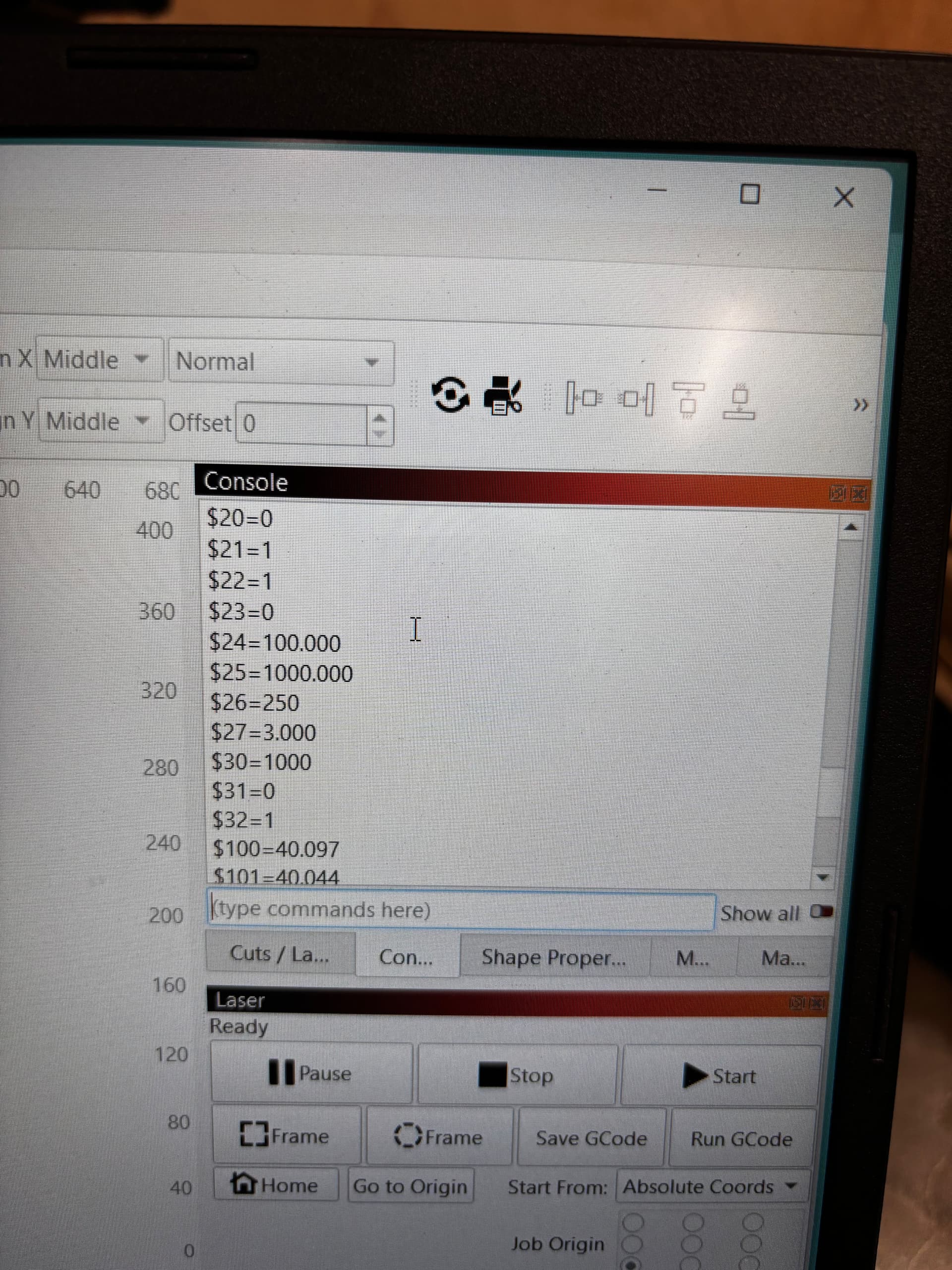
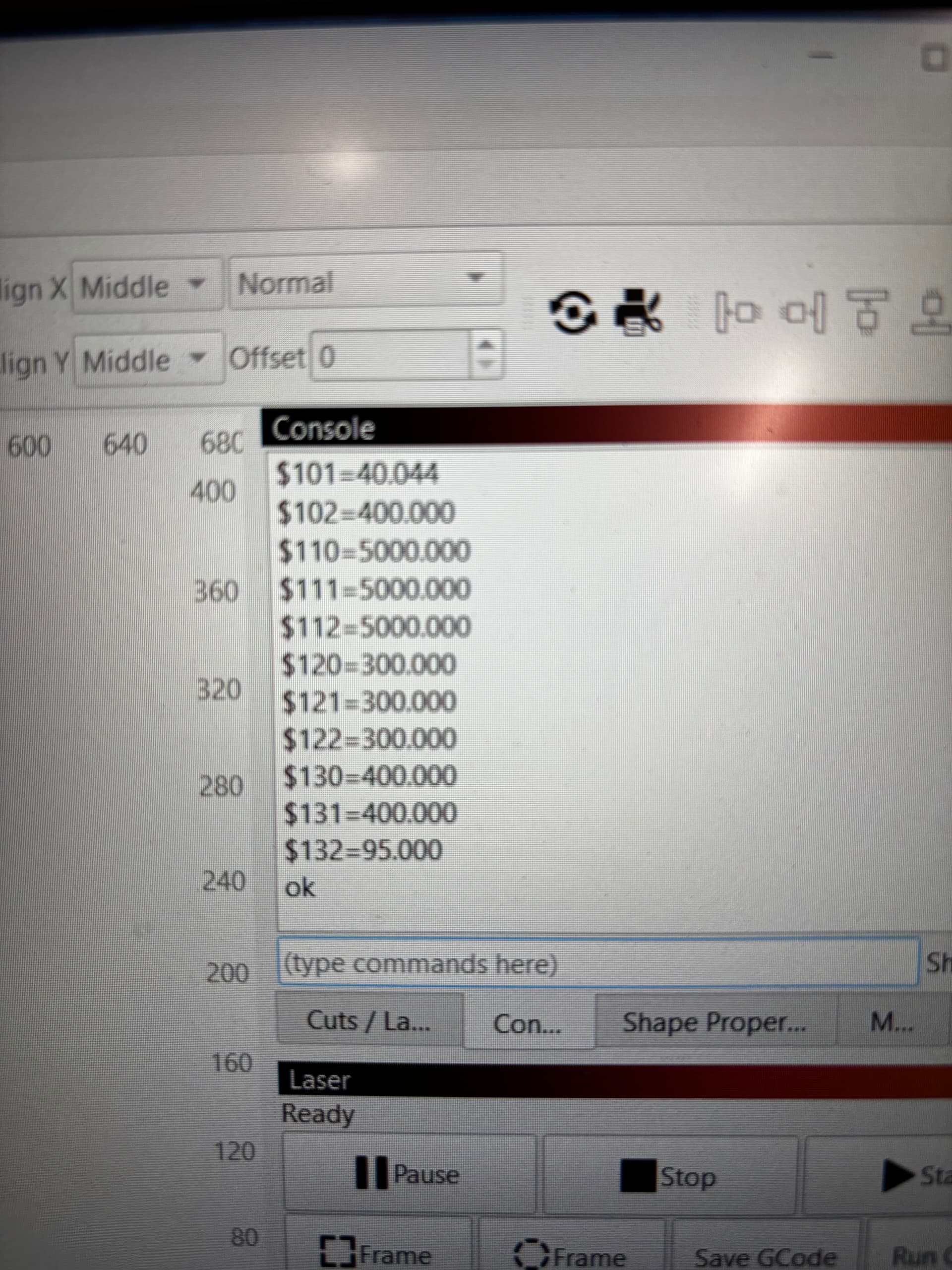
Does Machine Settings show correct values for X $130 and Y $131?
Does the machine home correctly and are you using Absolute Coordinates?
Is your machine a Diode Laser?
Did you use Grbl when setting up the device?
Do you have Laser Offset Turned On?
What do you mean Out of Bounds Switches. Typically on Diode Laser there are no out of bounds switches.
1 Like
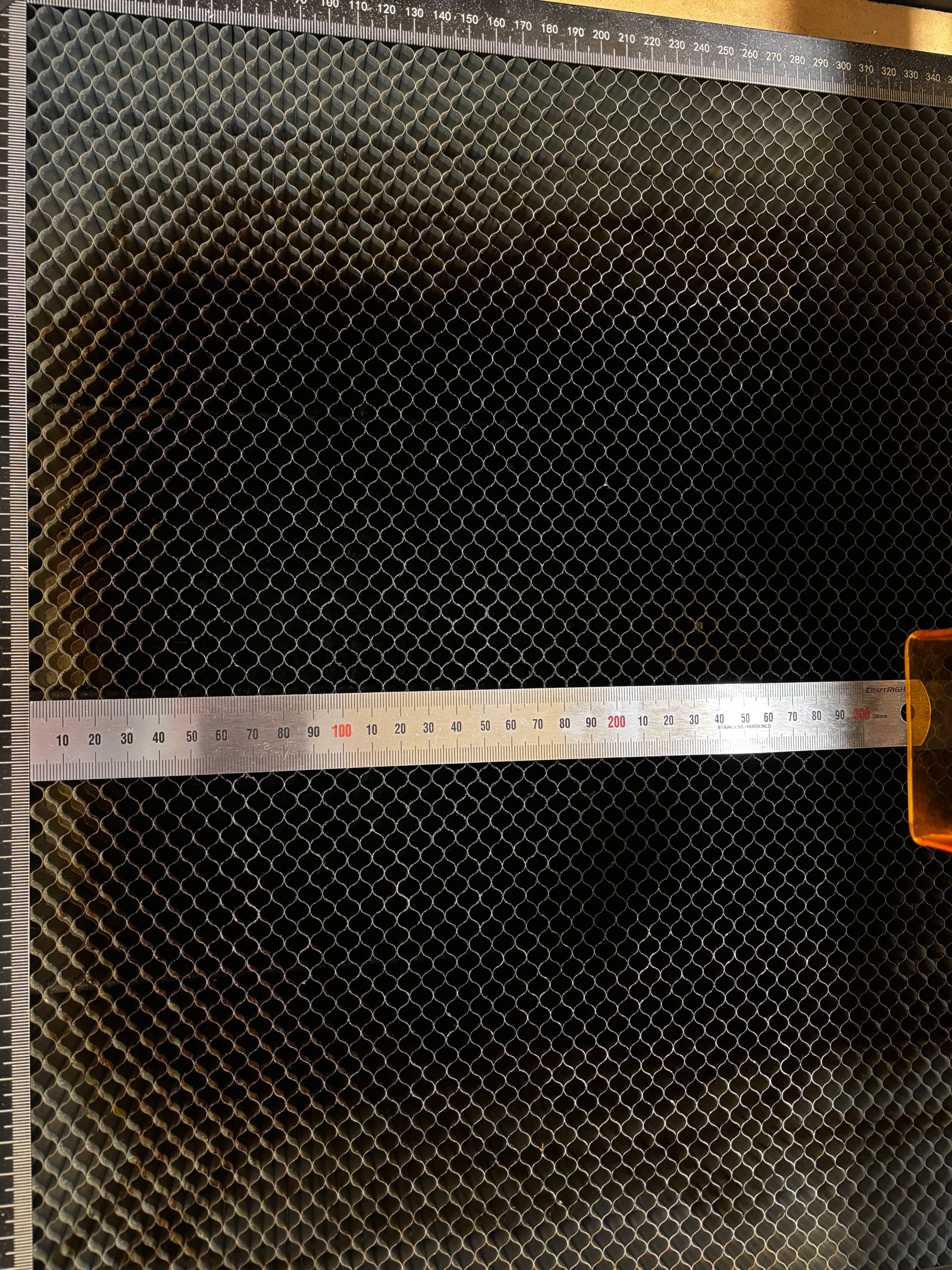
The height and width are set to 400x400. It’s a diode lazer. it homes to the rear right correctly using the out of bounds switched. The ruler showes that the lazer head when jogged to the centre in LightBurn it should be over the 200mm
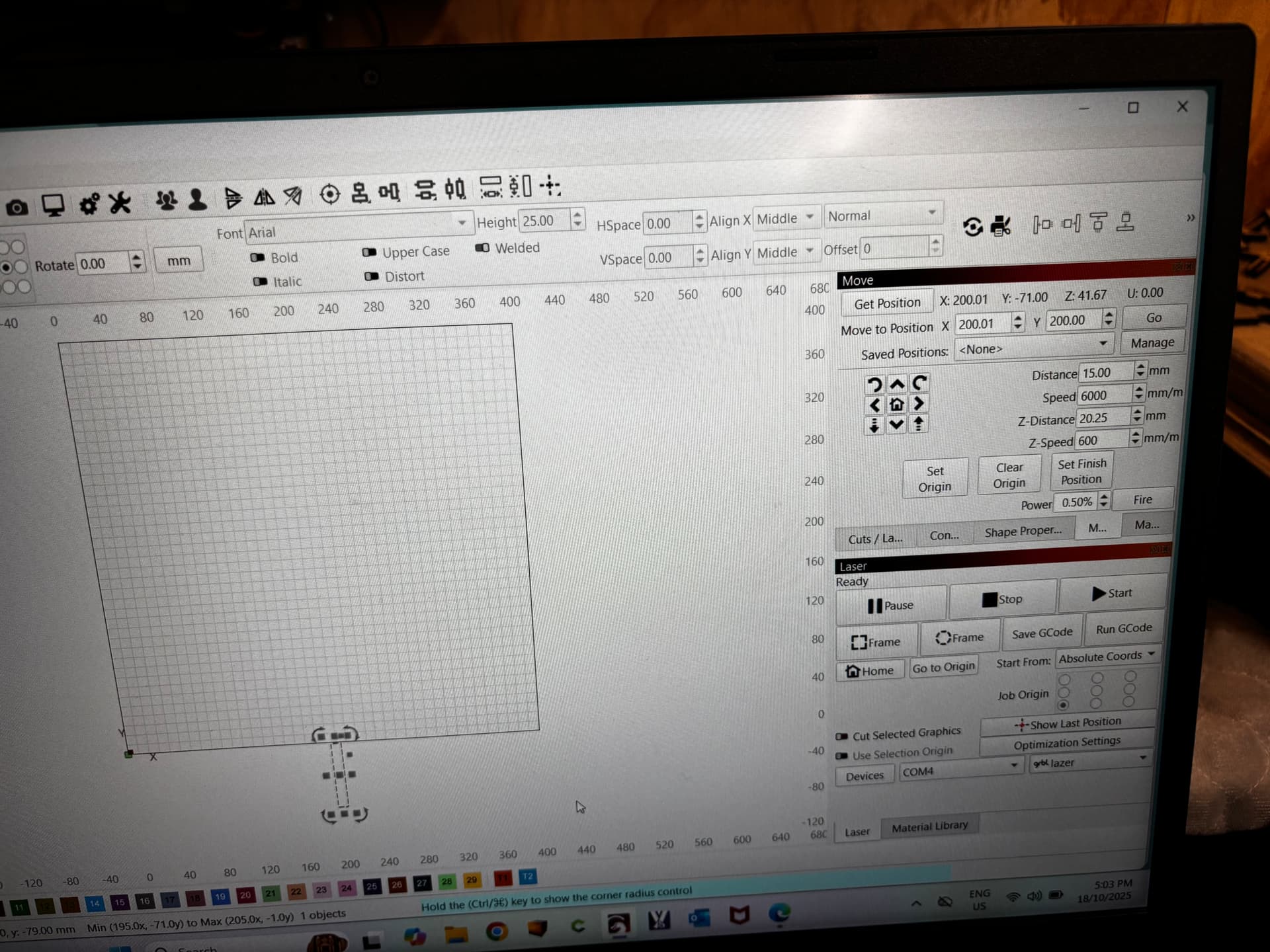
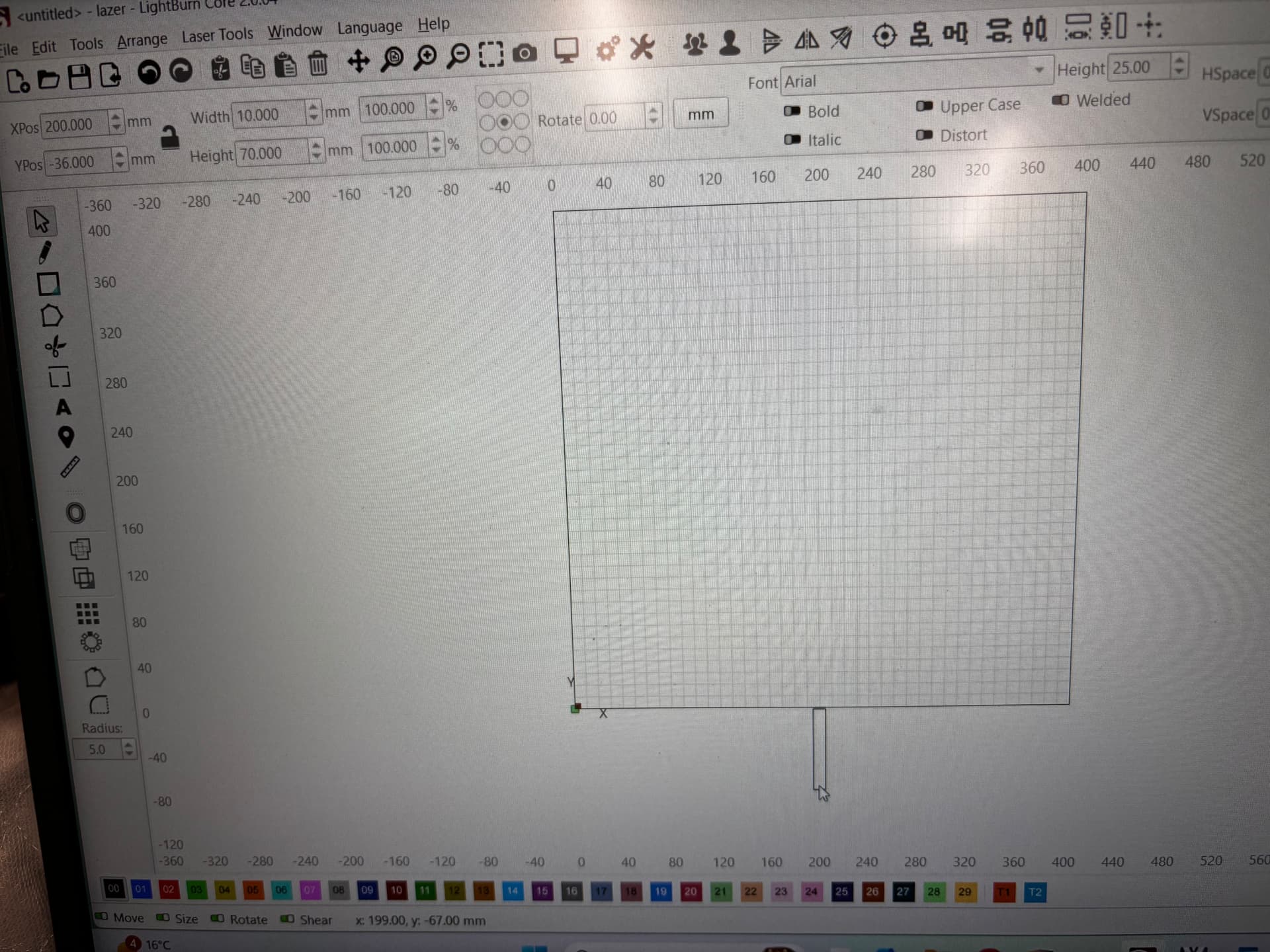
The LightBurn Device Origin is set to the front left corner:
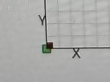
Set the Device Origin to the corner matching the home position.
FoxAlien machines resemble CNC routers and, if it does indeed home to the rear right corner, the “diode laser” default isn’t correct.
@Colin: The 2.0 doc still says Device Settings are under Edit, rather than Laser Tools.
You could try to run reset from the console. $RST=*
If that doesn’t help do a firmware update
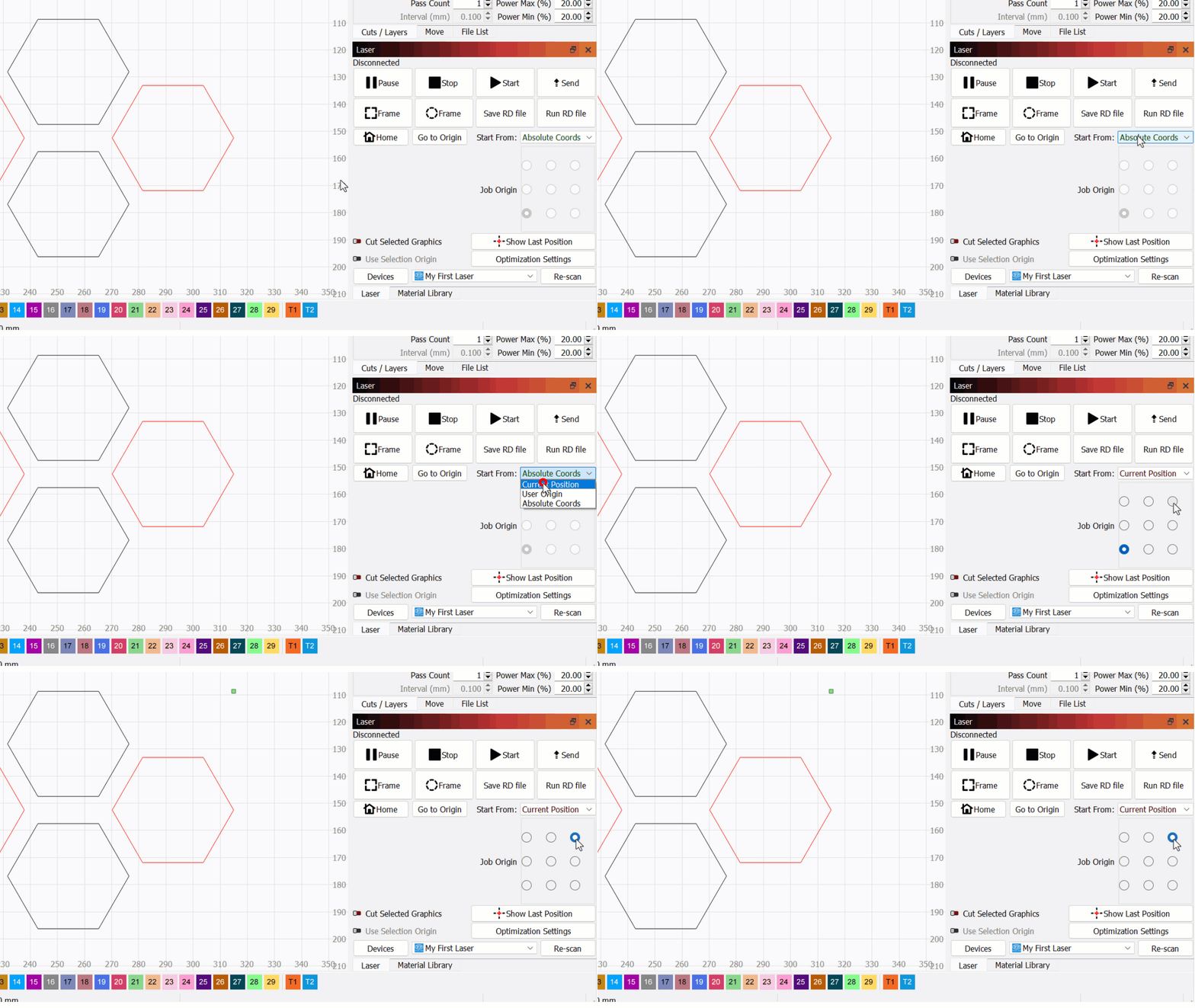
There is Job Origin and Device Origin. I understand that Device Origin is where the machine homes to. That would be set whenever you create the device profile. I’ve never quite understood what Job Origin is though. I know Job origin is greyed out when you are not on Absoute Coordinates
That’s the Job Origin:
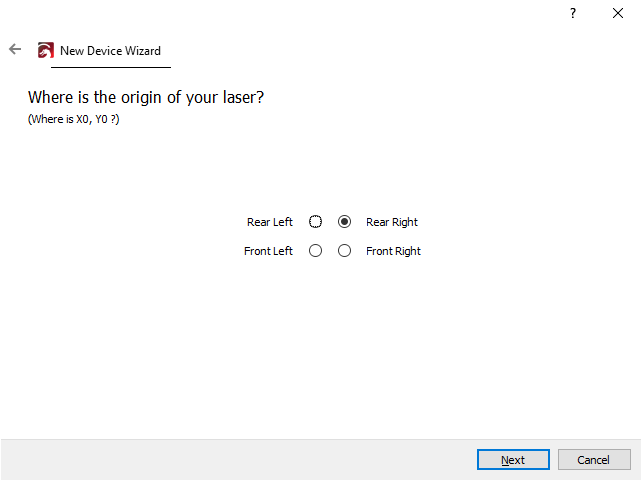
The Device Origin doesn’t have a Center option and must correspond to the machine home position:
AFAICT, everybody confuses the various origins. 
On my machine i always use Absolute Coordinates unless im using the chuck and doing tumblers. Then i use Current Position. When doing that i dont have to home the machine and i can manually move the laser to the proper place and then i run the Frame command to see where my design will be placed. My Job Position is set for the Center and I have never changed it. I do notice when doing tumblers this way i have to flip the design or it cuts backwards. Maybe that’s where changing Job Position would correct that.
That’s because the Device Origin determines where LightBurn sets the origin of its coordinate system and, thus, how it renders the design on its Workspace.
When the Device Origin does not match the mechanical home position, LightBurn will mirror the design along the mismatched axis (or axes).
The Troubleshooting page explains in detail:
Thanks everybody for your answers, i have fixed it. I put in code G10 L2 P1 X-400 Y-400 and that now knows the correct dimension of my work piece.
That is the legacy method to use a negative coordinate workspace offset. Versions 2.0 and higher now have a “use machine coordinates” switch and “cnc machine” switch in the workspace setup. Using machine coordinates should negate the offset without having to enter the offset manually.
This topic was automatically closed 30 days after the last reply. New replies are no longer allowed.