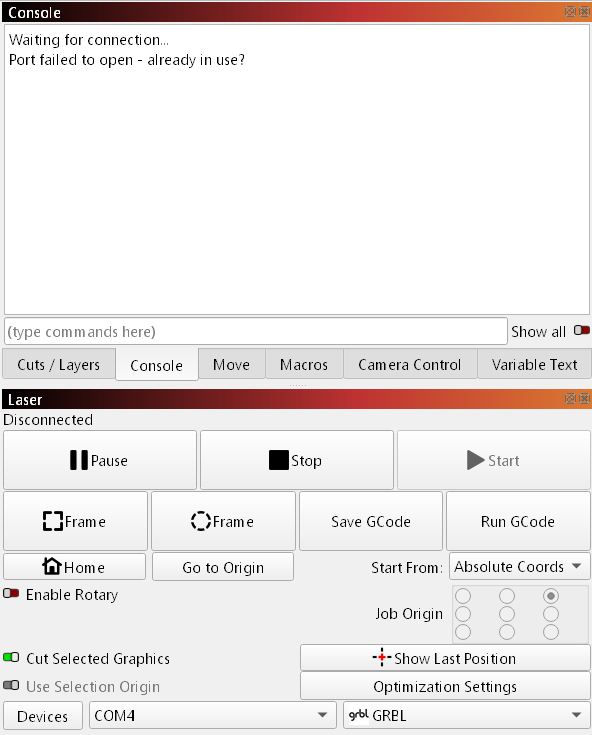
I’ve been trying to use ChatGPT (Plus) to troubleshoot this so as not to annoy any people, but I think in the end it has been hallucinating or running me down multiple rabbit holes.
At the risk of TL;DR, here are some of the instructions which you might scan through:
 Step 1. Completely remove the broken driver
-
In Device Manager, right-click
Silicon Labs CP210x USB-to-UART Bridge (COM3) → Uninstall device.
-
Check “Delete the driver software for this device.”
-
Click Uninstall.
-
Unplug the laser’s USB cable.
-
Reboot Windows.
Step 2. Install the current signed driver
-
Download the latest signed package directly from Silicon Labs:
 https://www.silabs.com/developers/usb-to-uart-bridge-vcp-drivers
-
Under Windows Downloads, choose
“Windows CP210x VCP Driver (v11.x or newer)” → click Download ZIP.
-
Unzip it somewhere (e.g. C:\CP210x_NewDriver).
-
Right-click CP210xVCPInstaller_x64.exe → Run as Administrator.
(Do not manually pick .inf this time; let the installer register the new, signed driver.)
-
When done, reconnect your laser’s USB cable.
If successful, Device Manager → Ports (COM & LPT) should show:
Silicon Labs CP210x USB to UART Bridge (COM3)
No yellow triangle
 Step 3. Confirm functionality
Right-click → Properties → Driver Details.
You should see something like:
Provider:  Silicon Laboratories
Driver Date:  2023-08-30
Driver Version:  11.3.0.0
If so, you’re good to go.
 Step 4. Test in LightBurn
Once the COM port is clean:
-
Open LightBurn → Devices → Create Manually
-
Controller: GRBL
-
Connection: Serial/USB
-
Port: COM3
-
Baud Rate: 115200
-
Open the Console tab — you should see:
Grbl 1.1f ['$' for help]
Once you confirm the driver shows without the warning icon, I can walk you through the correct LightBurn device profile and origin setup for your Falcon 10 W. Would you like me to outline that next?
You said:

After running CP210xVCPInstaller_x64.exe as Administrator, I do not get Silicon Labs CP210x USB to UART Bridge (COM3) in Device Manager under Ports.
ChatGPT said:
Perfect — this confirms the installer ran, but Windows didn’t associate the correct driver with the device yet (it fell back to the generic “USB Serial Device (COM3)”).
That means the driver is installed, but not bound to the hardware.
Let’s manually link it to the new, signed Silicon Labs driver that’s now on your system.
Step-by-Step to Rebind the Correct CP210x Driver
-
Right-click “USB Serial Device (COM3)” → Update driver.
-
Choose Browse my computer for drivers →
then Let me pick from a list of available drivers on my computer.
-
You should now see a list that includes:
-
Select Silicon Labs CP210x USB to UART Bridge and click Next.
-
Approve the warning about compatibility (it’s safe — the new driver is signed).
-
Wait for the installation to finish. You should then see:
Silicon Labs CP210x USB to UART Bridge (COM3)
with no yellow triangle.
 If “Silicon Labs…” Doesn’t Appear in Step 3
That just means Windows hasn’t yet loaded the catalog entry.
Do this:
-
Click Have Disk…
-
Browse to:
C:\Program Files\Silicon Laboratories\CP210x\Windows Drivers
-
Select the .inf file (usually silabser.inf or slabvcp.inf) and click Open → OK.
-
Then select “Silicon Labs CP210x USB to UART Bridge” and click Next.
Verify Success
When done, check:
-
Device Manager → Ports (COM & LPT) shows
Silicon Labs CP210x USB to UART Bridge (COM3)
-
Driver Details show Silicon Labs as provider, date 2023 or newer.
Once that’s set, LightBurn will finally detect the Falcon on COM3.
Would you like me to give you the exact LightBurn device setup parameters (controller type, baud rate, origin, etc.) to confirm communication right after this?
You said:

ChatGPT said:
Thought for 2m 16s
That error (“The system cannot find the file specified”) usually happens when Windows is trying to bind the wrong driver to the device. Let’s confirm exactly what chip your board exposes and then take the right path.
1) Check the device’s Hardware IDs (this tells us the real USB chip)
-
In Device Manager, right-click USB Serial Device (COM3) → Properties.
-
Go to Details tab → Property drop-down → choose Hardware Ids.
-
Note the VID/PID you see, e.g. USB\VID_10C4&PID_EA60.
Use this key:
-
VID_10C4 = Silicon Labs CP210x (use CP210x driver)
-
VID_1A86 = CH340/CH341 (use WCH CH34x driver)
-
VID_303A = Espressif (ESP32 native USB CDC — use Windows’ built-in “USB Serial Device”, no extra driver)
-
VID_0403 = FTDI FT232 (use FTDI driver)
Tell me what you see and we’ll lock it in. Meanwhile:
2) If it’s VID_303A (Espressif)
Nothing else to install—the generic “USB Serial Device (COMx)” is correct.
If LightBurn doesn’t talk yet:
-
Close LightBurn completely.
-
Plug in the Falcon (leave it powered on).
-
Re-open LightBurn → Devices → Create Manually → Controller GRBL, Connection Serial/USB, pick COM3, Baud 115200.
-
Open Console in LightBurn. You should see a Grbl ... banner after you power-cycle the laser. If not, type $$ or $I and press Enter.
3) If it’s VID_10C4 (CP210x)
Your earlier Code 10 + “file not found” means the old INF was referenced or the driver store got messy. Do a clean reinstall:
A. Remove broken entries
-
Unplug the USB.
-
Device Manager → View → Show hidden devices.
Uninstall any Silicon Labs CP210x or USB Serial Device (COMx) entries related to the laser (right-click → Uninstall device → check Delete the driver software when offered).
-
Open an elevated Command Prompt and remove stale packages:
pnputil /enum-drivers | findstr /i "silicon cp210"
For each oem##.inf it lists:
pnputil /delete-driver oem##.inf /uninstall /force
B. Install the current driver
-
Run CP210xVCPInstaller_x64.exe as Administrator (use the newest package you downloaded).
-
Plug the laser back in. In Device Manager you should now see
Silicon Labs CP210x USB to UART Bridge (COM3).
C. If it still shows “USB Serial Device (COM3)”
-
Right-click it → Update driver → Browse my computer → Let me pick → select Silicon Labs CP210x USB to UART Bridge.
-
If it isn’t listed, click Have Disk… and browse to
C:\Program Files\Silicon Laboratories\CP210x\Windows Drivers\
(make sure the folder contains the .inf, .cat, and the x64\silabser.sys subfolder).
-
Finish install, then unplug/replug USB.
4) If it’s VID_1A86 (CH340/CH341)
Install the WCH CH34x driver instead. After install, it will appear as USB-SERIAL CH340 (COMx). Then set LightBurn to GRBL / COMx / 115200.
5) Quick sanity checks
-
Try a different USB cable (must be data-capable) and a USB 2.0 port directly on the PC (avoid hubs).
-
Power the laser ON before opening LightBurn.
-
In LightBurn, if the port list looks stale, close/reopen LightBurn after plugging in the cable.
Reply with the Hardware Ids you see and I’ll give you the exact next step (and, if needed, the correct driver link for that VID/PID).