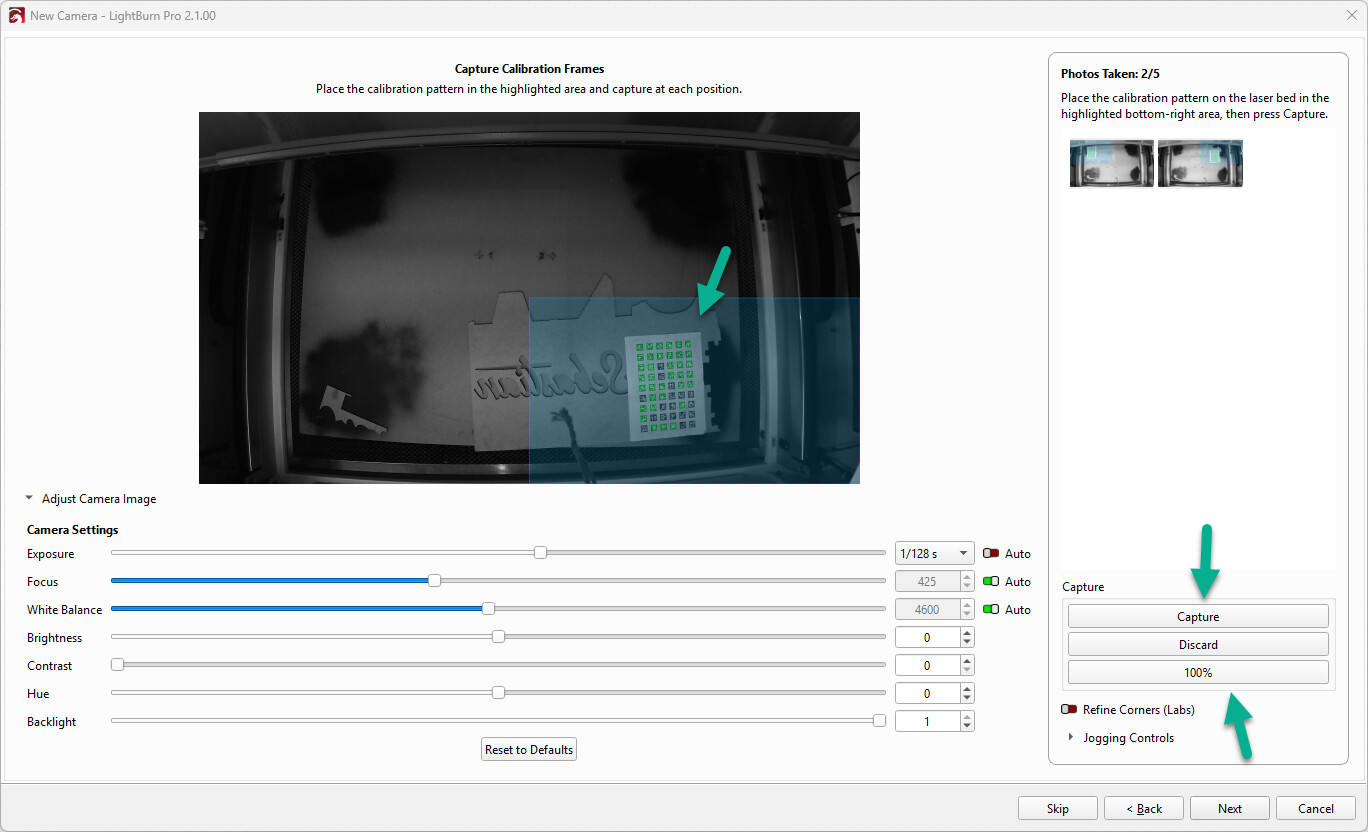
I recently updated LightBurn to version 2.1 on my setup with a Thunder Laser Nova 51. Prior to the update, the camera functioned normally, but the update reset my camera settings. While attempting to recalibrate and realign my newly purchased LightBurn 120W camera, I encountered two distinct issues.
Issue 1: Lens Calibration Wizard “Next” Button Greyed Out for Fisheye Model
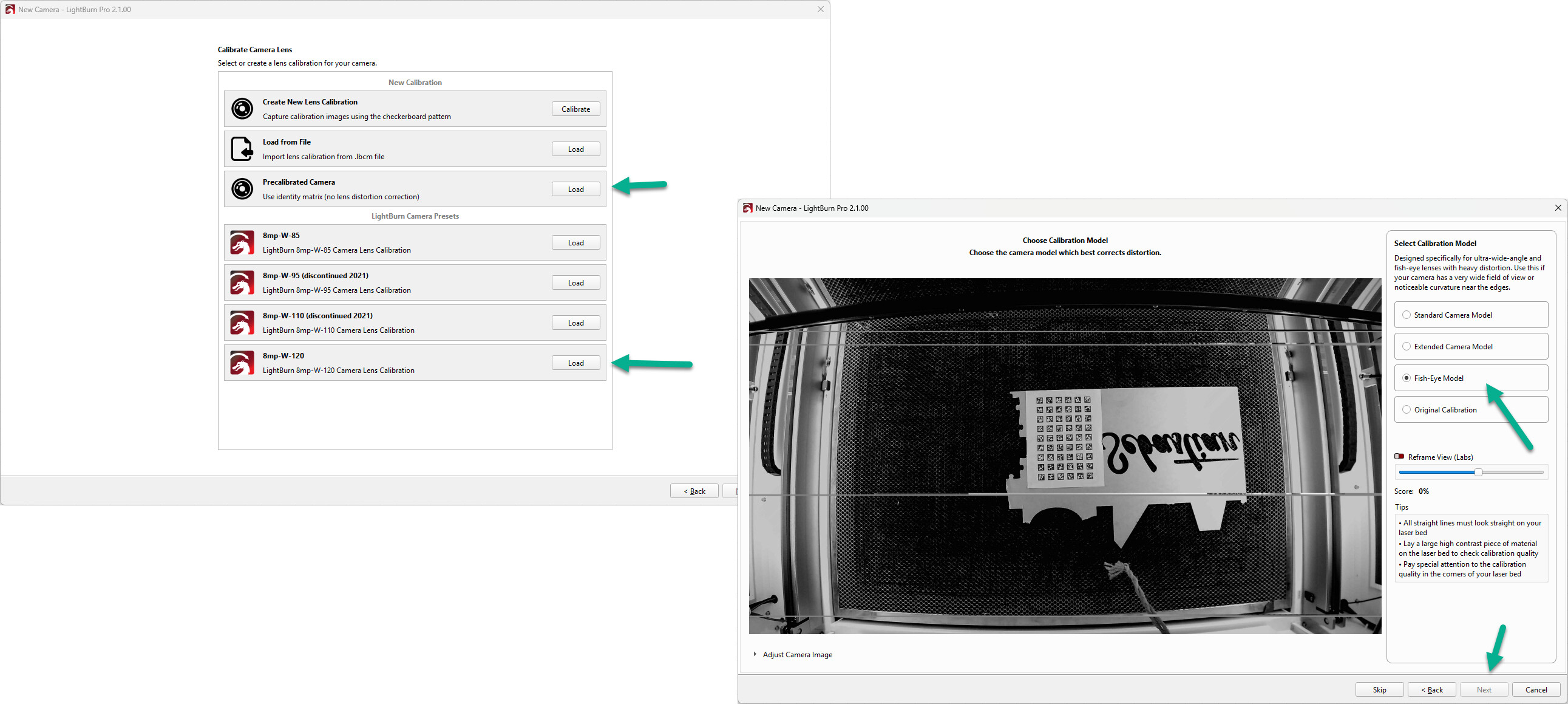
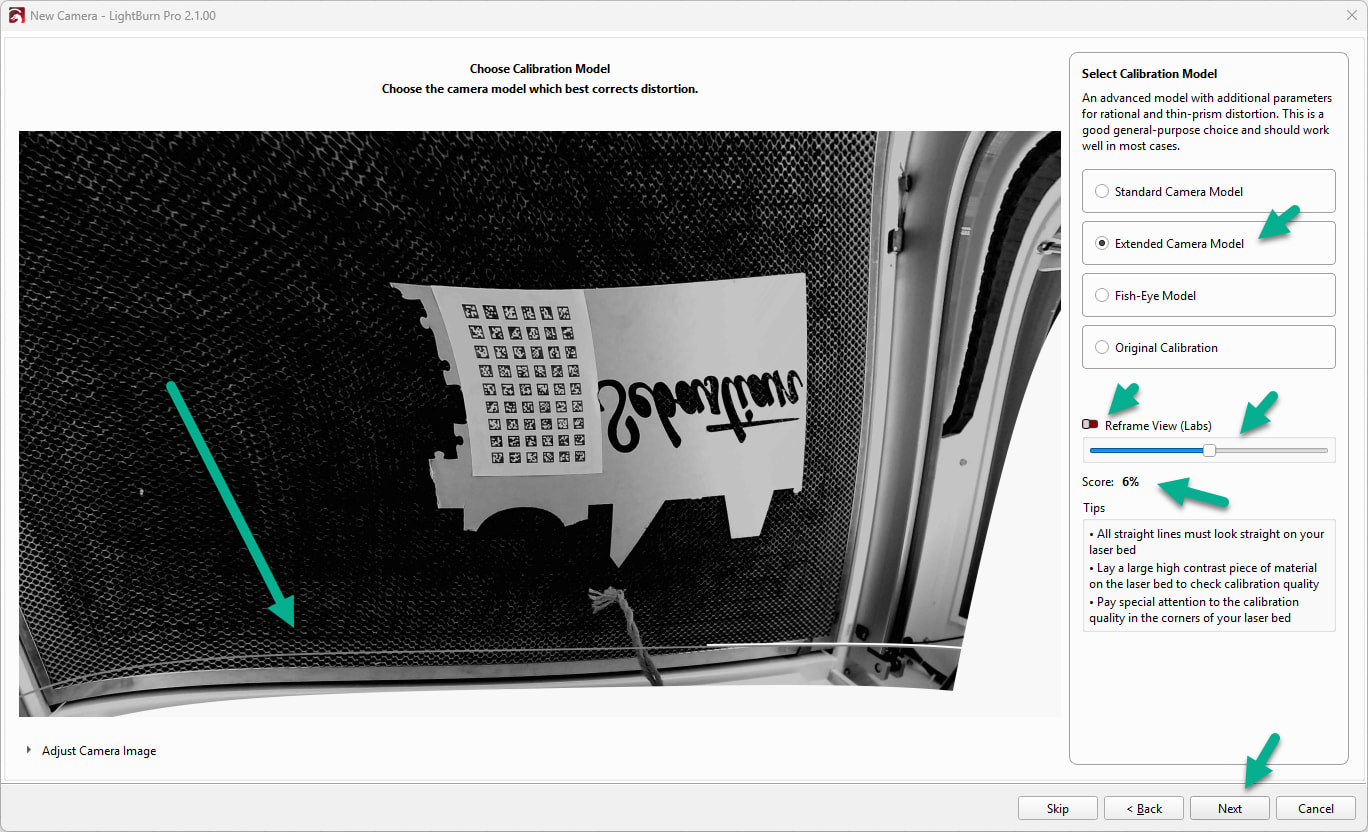
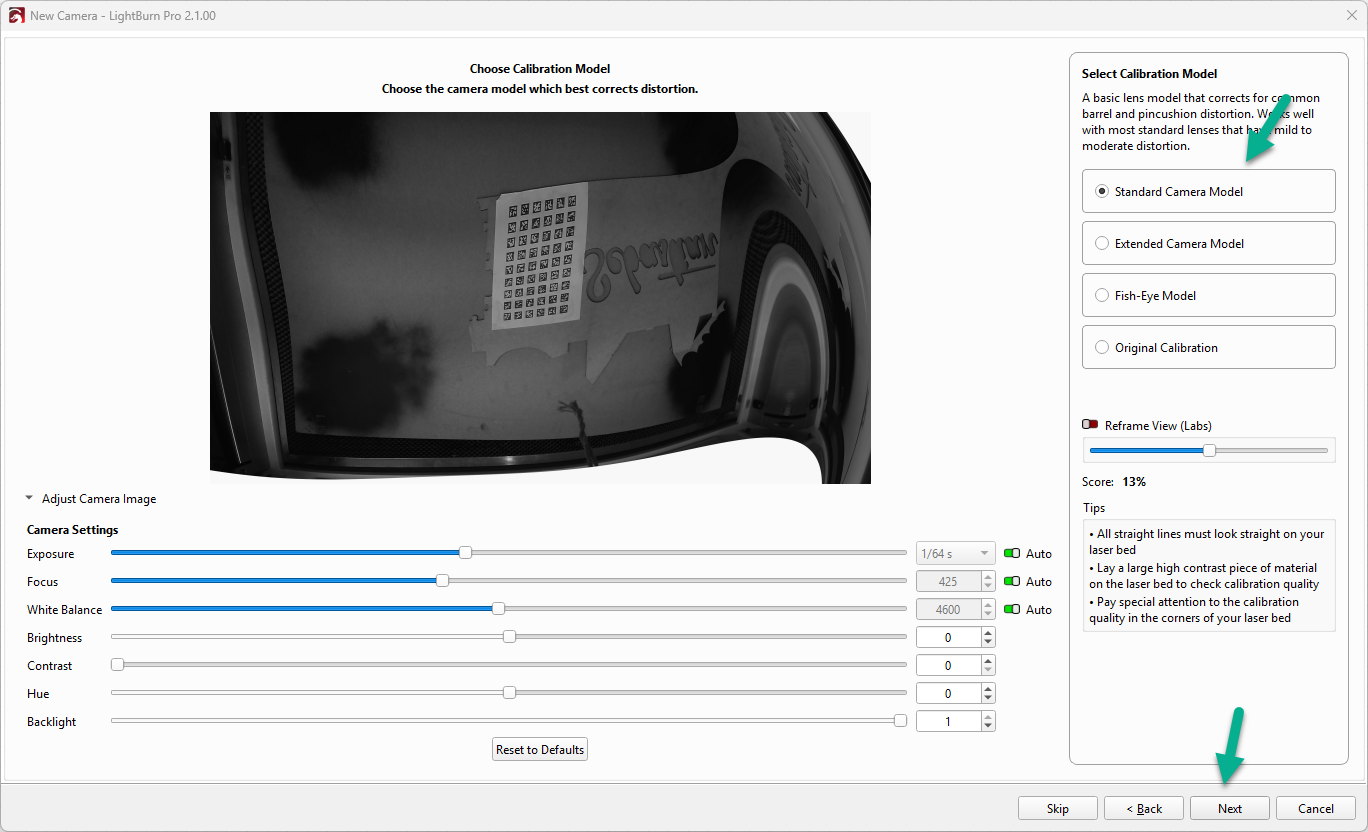
Upon completing the Camera Lens Calibration wizard, I am presented with the four standard model selection options: Standard Camera Model, Extended Camera Model, Fish-Eye Model, and Original Calibration.
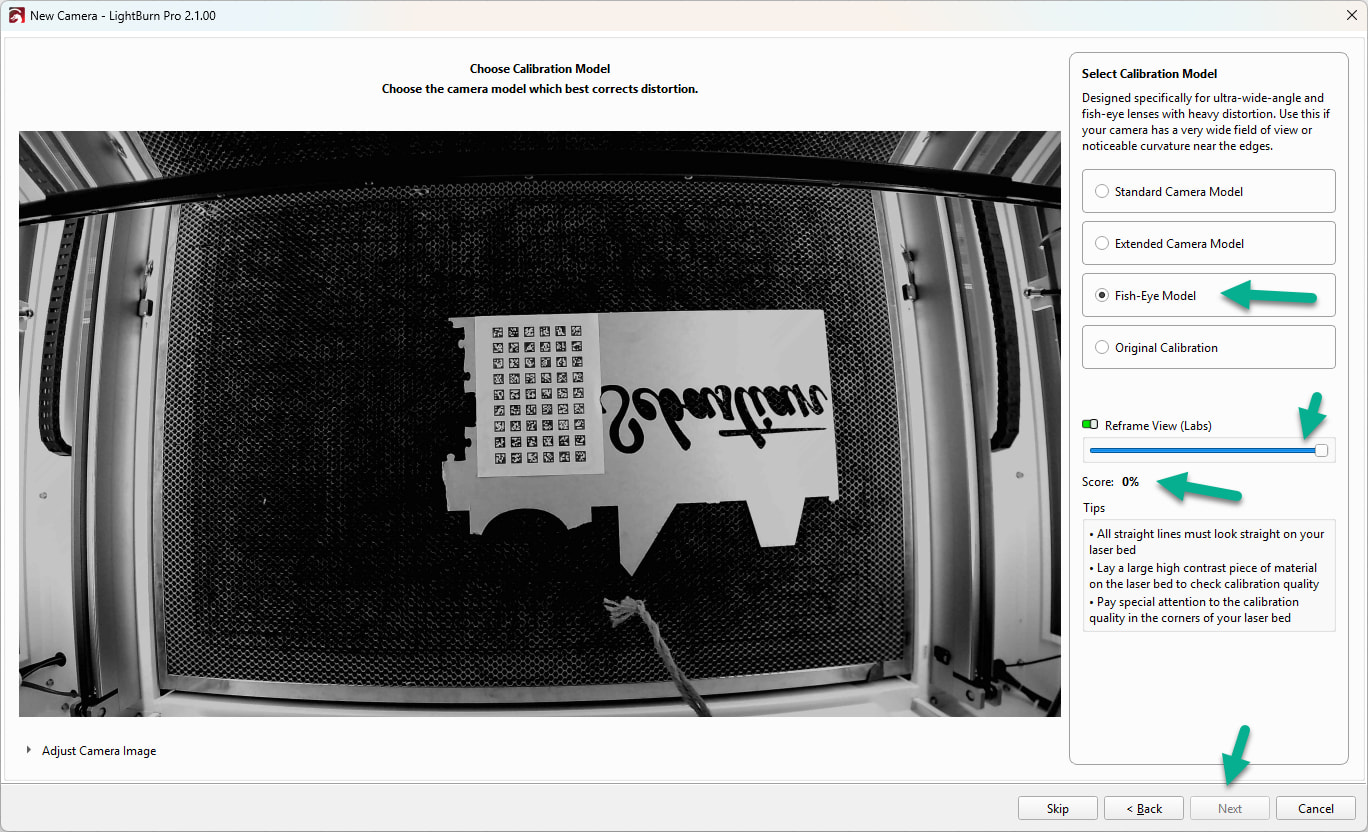
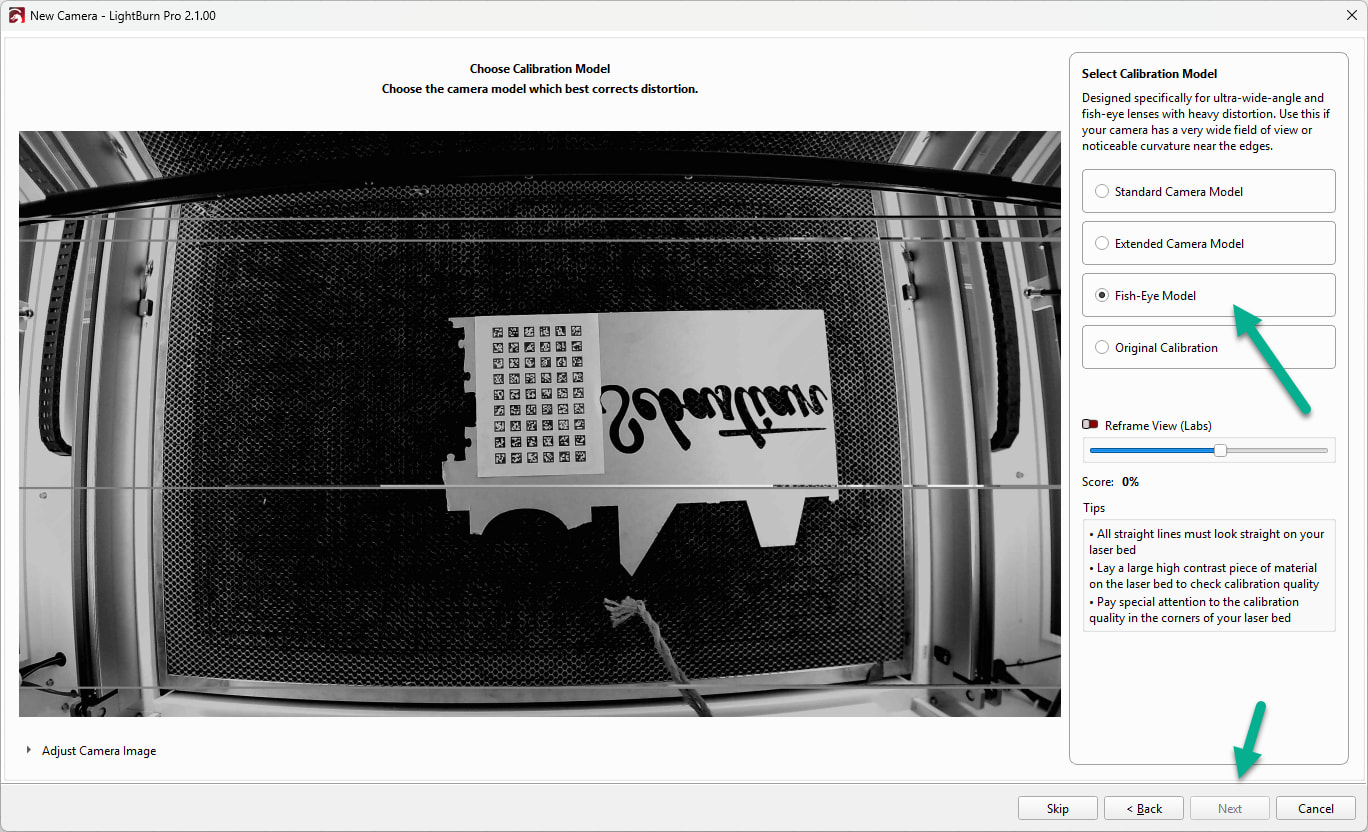
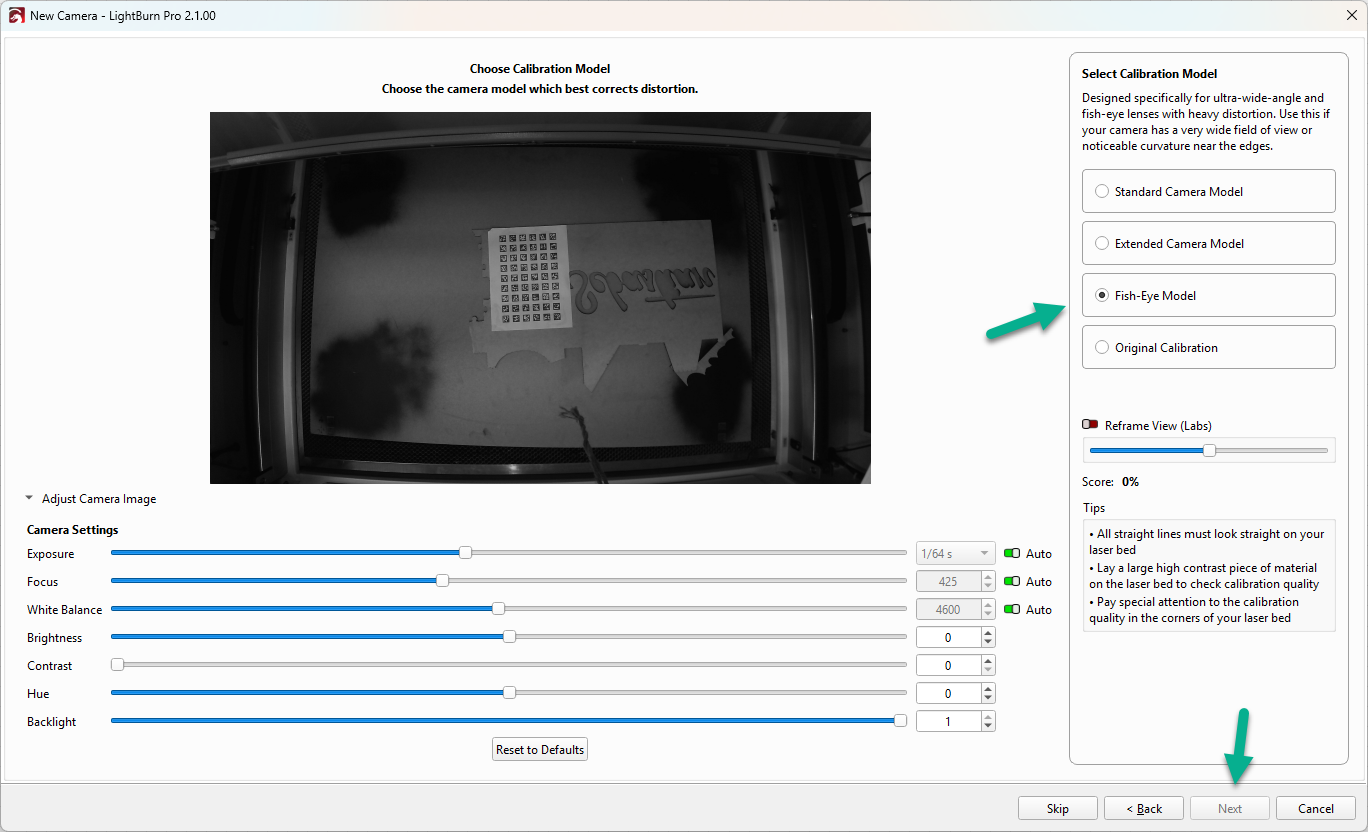
Symptom: Because the LightBurn 120W is a wide-angle lens, the Fish-Eye Model provides the only visually accurate, undistorted preview. However, when selecting Fish-Eye Model or Original Calibration, the Next button remains greyed out, preventing me from advancing.
Workaround Attempted: If I select Standard or Extended, the Next button becomes active and allows me to proceed. However, both of these options yield a heavily distorted, unusable image preview.
Analysis: This behavior appears to be a software bug introduced in the v2.1 update, where specific lens correction models fail to validate the completion criteria required to advance the wizard.
Issue 2: Severe Coordinate Offset Using Precalibrated Profile
To bypass the wizard restriction, I attempted to utilize a precalibrated camera option to complete the setup and proceed to the Camera Alignment wizard.
Symptom: The alignment process completes, but the final positioning accuracy is lost. When utilizing the Update Overlay function and placing a design over a target piece of wood, the actual engraving coordinates are physically offset by several inches from the visual representation on the screen.
Variables Considered:
The camera worked accurately once prior to the v2.1 update.
The material thickness and Z-height focus match the state utilized during the alignment process.
The laser is operating under Absolute Coordinates mode.
Given that the system functioned correctly prior to the software update, the coordinate shift appears linked to either an improper lens model fallback or a calculation regression in the updated alignment engine.
I have attached several screenshots demonstrating the greyed-out wizard states and the resulting image distortions for diagnostic review. Any insights on a fix or a temporary downgrade path to restore calculation accuracy would be appreciated.
The next button only appears when the calibration quality is over 0% That fish image does not look calibrated to me. The bottom of edge of the image still has some lens distortion. All straight lines should be perfectly straight.
The alignment will be off if you just use the precalibrated camera calibration preset. You need to have a well calibrated camera for the alignment to be accurate.
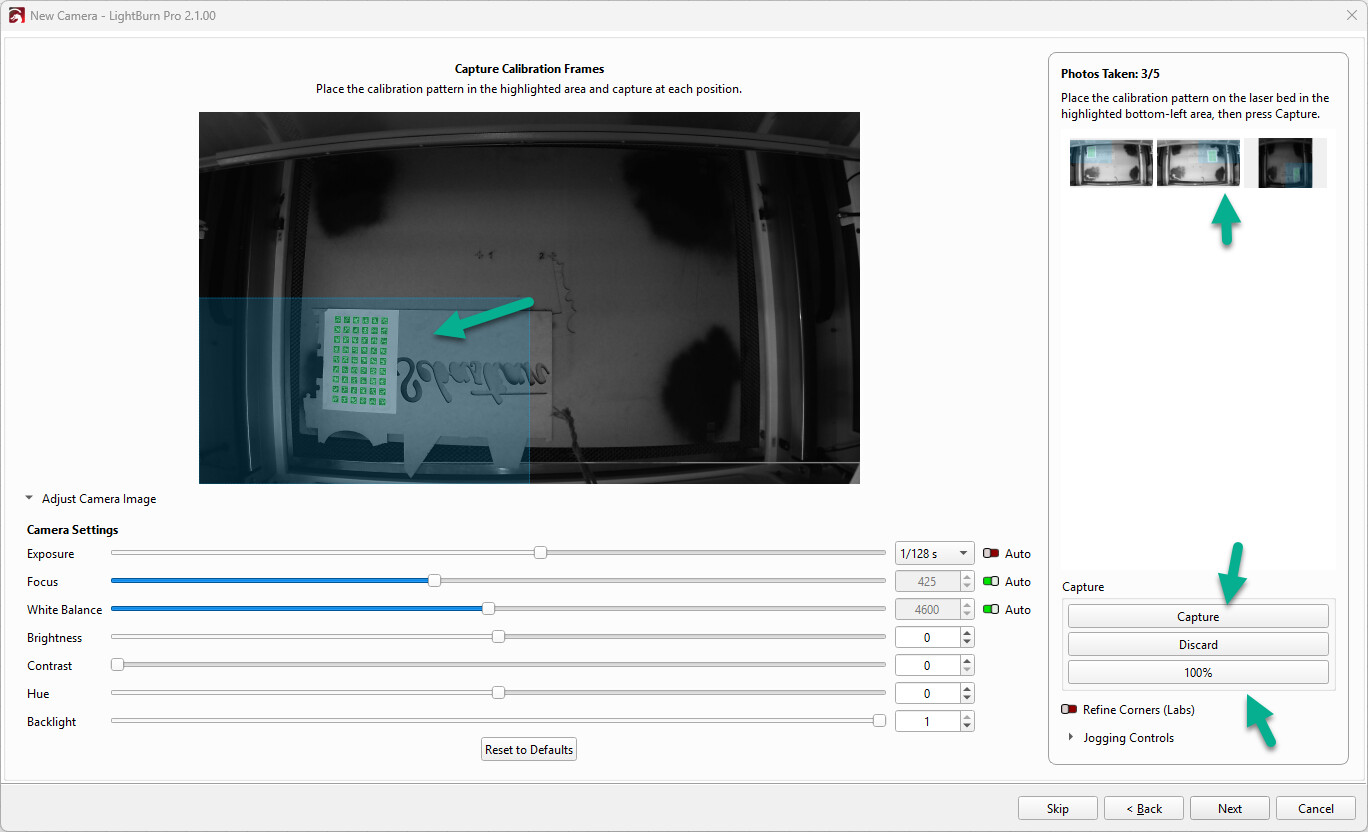
I would try to do the calibration again. Holding the target closer, up to the camera. You should try to cover as much of the camera image area as possible. Holding the target at various angles relative to the image plane also helps. Then the extended camera calibration should lead to better results. You can always click back and gather more calibration captures if you need.
Only for devices where either the Support or Material height fields are available in the Cuts / Layers panel, will the alignment wizard give you the option to define those on the Burn Alignement Pattern page.
This is a fairly new feature. We are aiming to add support for more devices in future.
Thank you for the quick response and the suggestions on improving the calibration quality. I will definitely re-run the lens calibration process following your advice to hold the target closer, cover more of the image area, and introduce different angles to ensure the model can calculate the straight lines properly.
Before I do that, I wanted to share a screenshot and clarify a few points regarding the behavior I am seeing in LightBurn Pro v2.1.00, as there still appears to be an underlying software bug with how this specific screen is validating data and rendering the preview:
The Progress Bar Was Completed: During my initial calibration run, the progress bar did reach 100%, which is why the wizard allowed me to advance to this model selection screen in the first place.
Inconsistent “Next” Button Behavior: If the calibration quality was overall too low to proceed with the Fish-Eye Model, it is confusing why the wizard considers that exact same dataset valid enough to activate the Next button for the Standard and Extended models. If the underlying calibration data is completely insufficient, one would expect the button to remain locked across all four choices.
The “Score: 0%” Diagnostic: As shown in the attached screenshot, when selecting Fish-Eye Model, the UI displays a Score: 0%. This selective 0% score only triggers on the last two options (Fish-Eye Model and Original Calibration), while the first two options read the calibration data successfully and allow progress.
Broken “Reframe View (Labs)” Toggle: To test further, I toggled the Reframe View (Labs) feature on and off while the Fish-Eye Model was selected. Activating this toggle did absolutely nothing the aspect ratio, framing, and preview image remained completely static. This lack of response strongly points to a calculation regression or a broken hook in the fisheye algorithm’s preview code for this build.
Regarding the alignment offset, that completely makes sense. I understand now that using the precalibrated preset was a flawed workaround on my part and that a precise lens calibration is required for the coordinate overlay to map accurately.
I will capture a new set of data using your tips to see if a higher-quality capture forces the fisheye algorithm to register above 0%, and I will report back with the results.
I re-ran the lens calibration process multiple times following your recommendations. I held the calibration card much closer to the lens, ensured it filled a significant portion of the frame at various points, and captured images at multiple different tilt angles relative to the camera plane.
Unfortunately, the behavior is completely identical. Here is what happened with the fresh, high-quality calibration data:
Standard and Extended Models Work: Just like before, the wizard accepts the new calibration captures and fully enables the Next button if I select the Standard or Extended Camera Models.
Fisheye and Original Still Locked at 0%: Despite the improved captures and positioning, selecting Fish-Eye Model or Original Calibration instantly drops the UI readout to Score: 0% and greys out the Next button.
Reframe View Remains Inactive: Toggling the Reframe View (Labs) switch still yields zero visual change or recalculation on the preview window when the fisheye model is highlighted.
Given that the data is high-quality enough to fully satisfy the calculation requirements for the first two models, it appears highly unlikely to be a user capture error. There seems to be a specific code regression in build v2.1.00 where the validation math for the Fish-Eye and Original processing tracks completely drops or fails to read the active calibration matrix entirely.
Is there a specific debug log I can export from this session to help the development team trace why the fisheye calculation pipeline is failing to register the capture score?
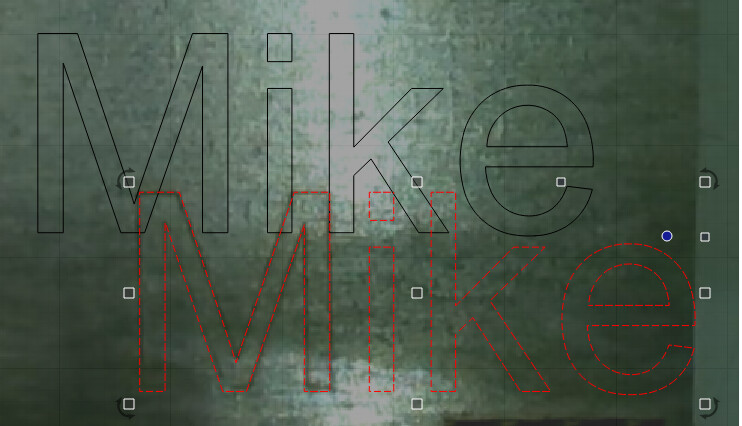
I didn’t use the pre-calibrated camera setting for by LB purchased camera and I am still significantly off.
x wanted → 78.02 / x actual =-> 87.2
y wanted → 121.907 / y actual => 107.65
The black was the intended target area, the red is where I landed. I’ve gone through this process twice. The first time I didn’t bother measuring how far off it was - wasn’t’ even in the ballpark.
I recommend using the Extended Calibration Model. The fish eye and standard calibration models will probably be depricated or upgraded soon.
Gathering calibration data does require some time and effort atm. In the images above the calibration target does still look very small. It should occupy at least an 1/8th of the camera frame, closer / bigger is better. Also try angling the pattern more. Like 30-45 degrees relative to the camera plane. If the calibration is successful all straight lines should be perfectly straight.
Alignments require good camera calibration data. Please could you also share images of your calibrated images @3boysdad ?
I went back to the settings/alignment process and noted that - despite having gone through the entire process the camera was still sitting at “imported configuration”. I just deleted these, saved the camera configuration. Then restarted my computer.
I went through the process entirely again. This time I glued the test pattern paper to stiff backed cardboard which forced the test patterns for the camera calibration to lay flag. After scoring an impressive 80%+ on that I went forward and did an alignment test again. I was able to have all 8 targets recognized, which I seemed to be a good thing. The final image looked straight with no distortions. I thought I had saved the alignment, in fact I know I did. But after the wizard finished I still couldn’t get the camera to refresh the workspace. I went and edited the camera and it claimed that it hadn’t completed the alignment… Gratefully I hadn’t moved the test pattern that I just burned, so I redid the alignment, saved it again and this time it seemed to “stick”. Hopefully exporting the camera brings along these settings?