I created layer in AutoCad with 243,105,38 color,and it was meant to be tool T1 layer in Lightburn.However,Lightburn see it as C05 because its similar color.Can I fix that?
Just select the items you want and then click on T1 layer.
I’m assuming you’re exporting from AutoCAD as DXF then importing into LB? Unfortunately DXF doesn’t support custom colours and will convert them into the nearest match in its indexed colour table. On export, your 243,105,38 gets mapped to ACAD’s colour index of 30 (255,127,0). LB then maps this to its own nearest colour of 255,128,0, which is C05. If you use SVG instead of DXF this should keep your custom colours as intended and come over on the correct LB layers.
Hope this helps.
1 Like
Thank you very much!
1 Like
I wanted it to be automatic 
Im not familar with autocad. But when you import to lightburn as an svg you don’t have any control over the assignment of the Cut/Layers. You will need to select and assign as needed. An SVG file does not contain that information.
If the SVG colors exactly match the LightBurn palette colors:
CellCut = "black"               # C00 Black
SheetCut = "red"                # C02 Red
HeavyCut = "rgb(255,128,0)"     # C05 Orange        black mask paper is harder
HeavyCellCut = "rgb(0,0,160)"   # C09 Dark Blue     ditto
Tooling = "rgb(12,150,217)"     # T2  Tool
Then the magic happens:
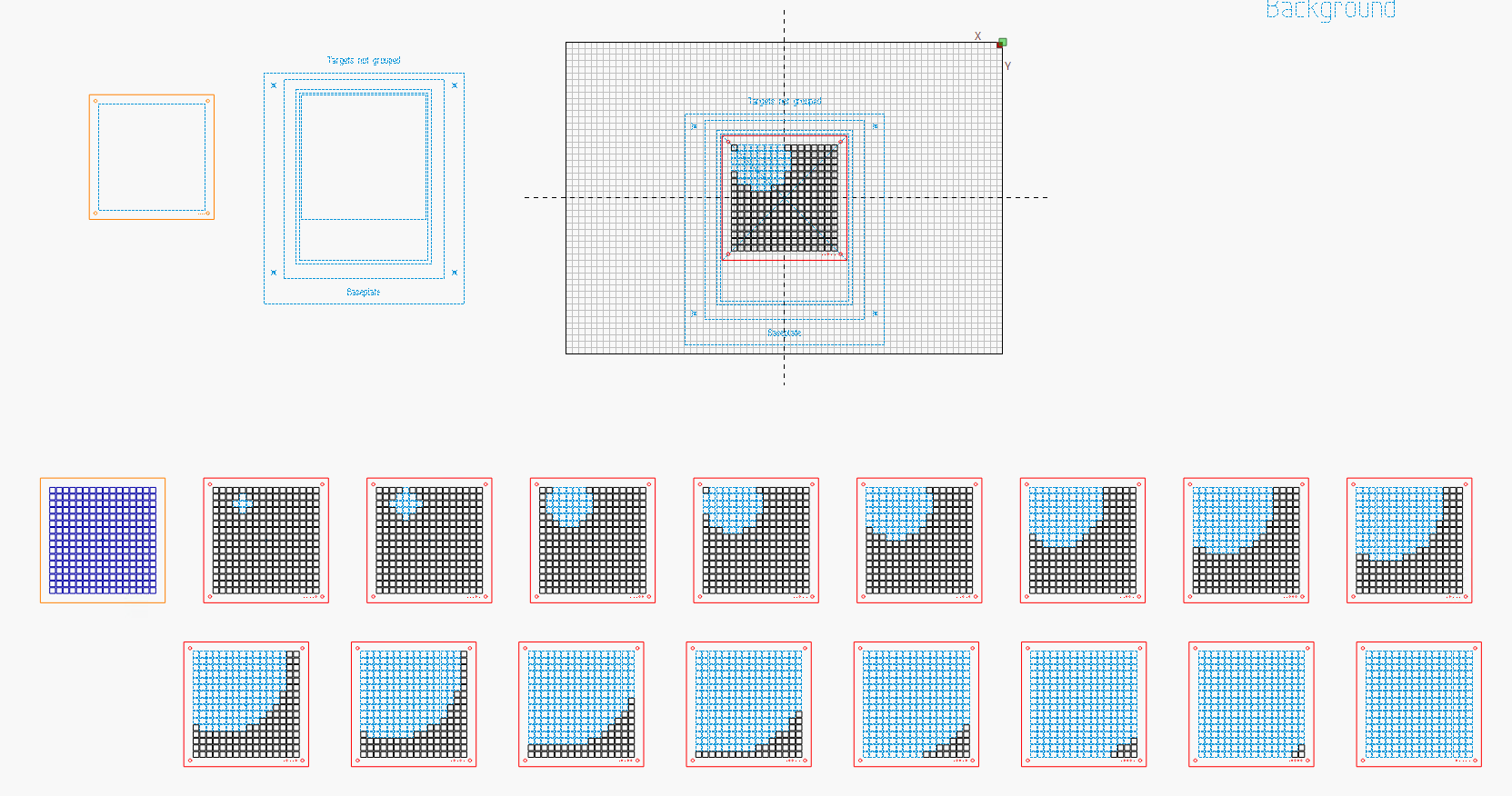
All the colors in each SVG file were automagically assigned to the corresponding LightBurn layers during import and the LightBurn layouts were ready to cut:
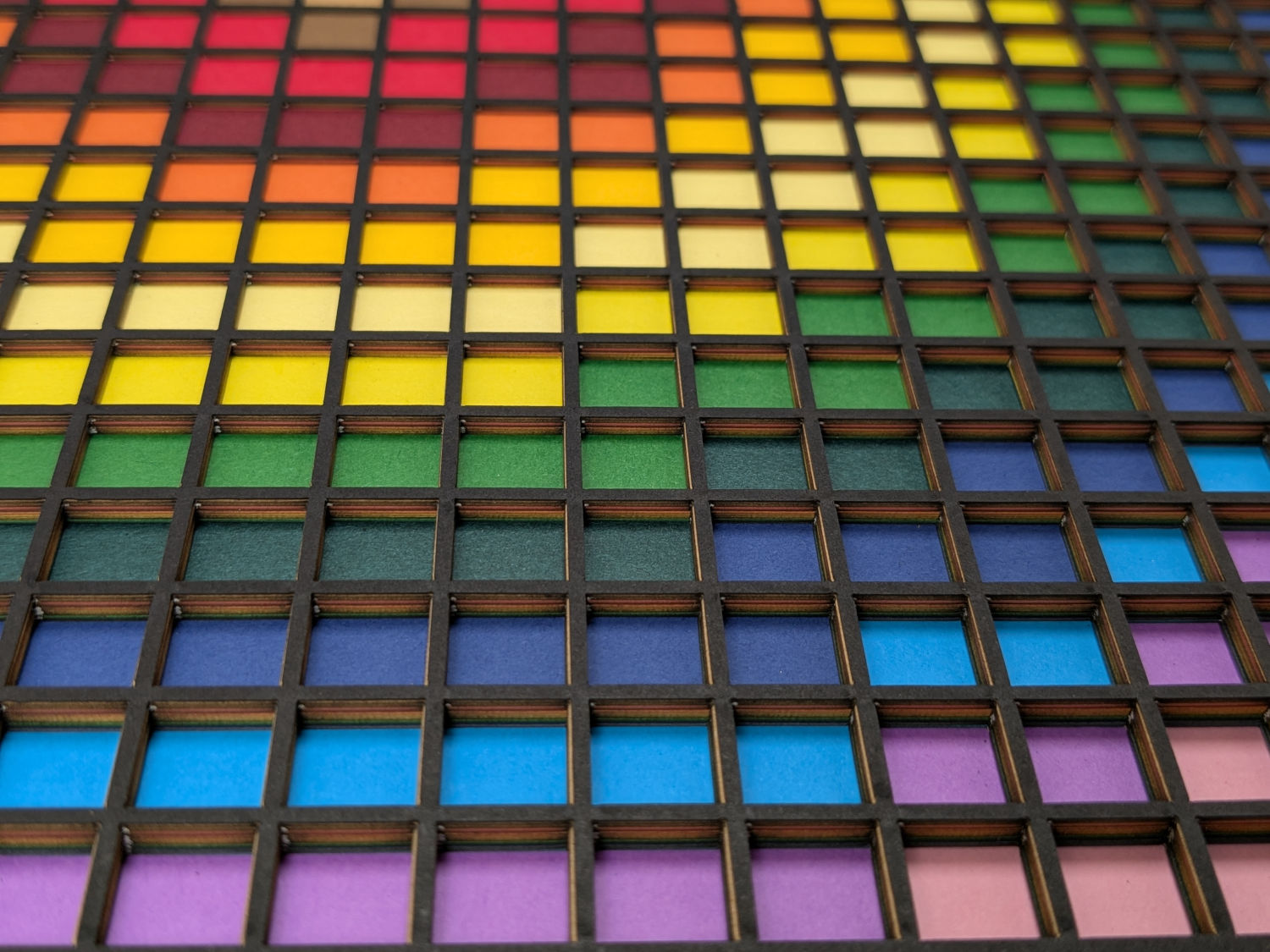
Alas, those cheerful colors come from the cut paper, not the LightBurn layers. 
1 Like
As @ednisley pointed out, that’s incorrect. As per the documentation, LB will match the colour of the entity to the closest LB layer colour.
This topic was automatically closed 30 days after the last reply. New replies are no longer allowed.