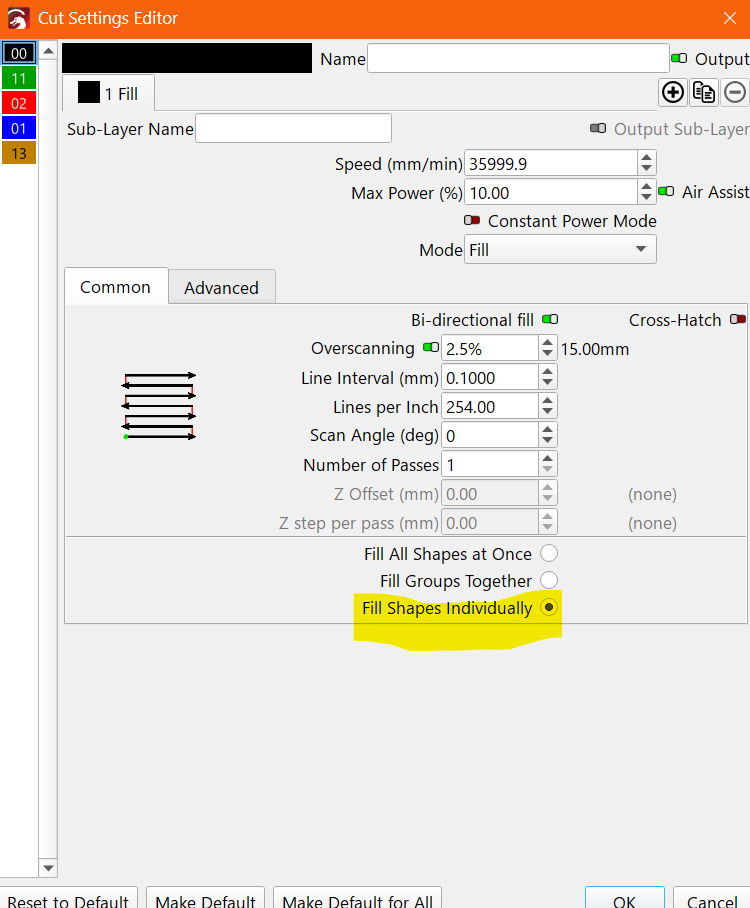
I’m an old man and well out of my depth here… At some point I stumbled into how to change the Etching Pattern from the Laser sweeping side to side - and taking a lot of time - to etching individual letters, patterns, etc. - reducing laser time… I cannot for the life of me find out how to do it… I have been thru the Device Settings and Machine Settings menu’s as well as Preview and truly am lost as Last Years Easter Egg… Any aid or advice would be greatly appreciated..
Thank You, JimNM, I clicked on several of my layers and didn’t get a window/menu like this in Open Cuts/Layers… Tried clicking on the Cuts/Layers in Window menu to no avail either… THank You
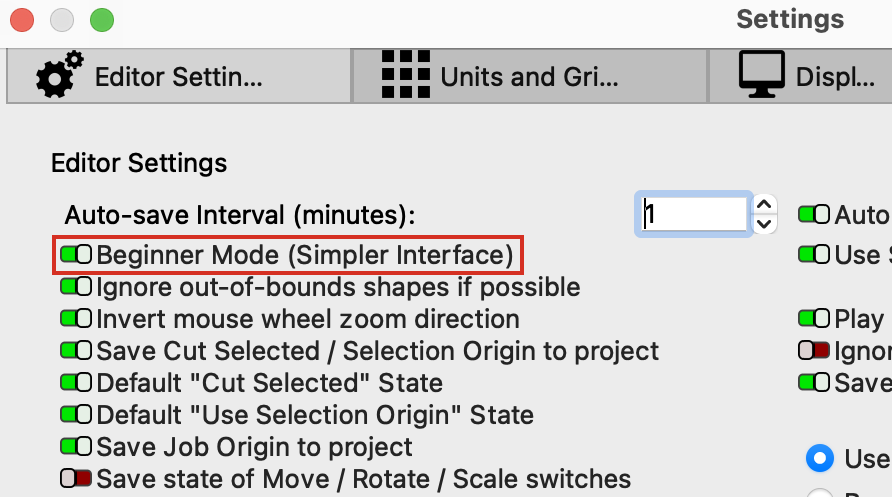
Thank You… I checked and I wasn’t in Beginner… Just not clicking the right place as Parsec had instructed… Appreciate your feedback because I am not reall good with this stuff…
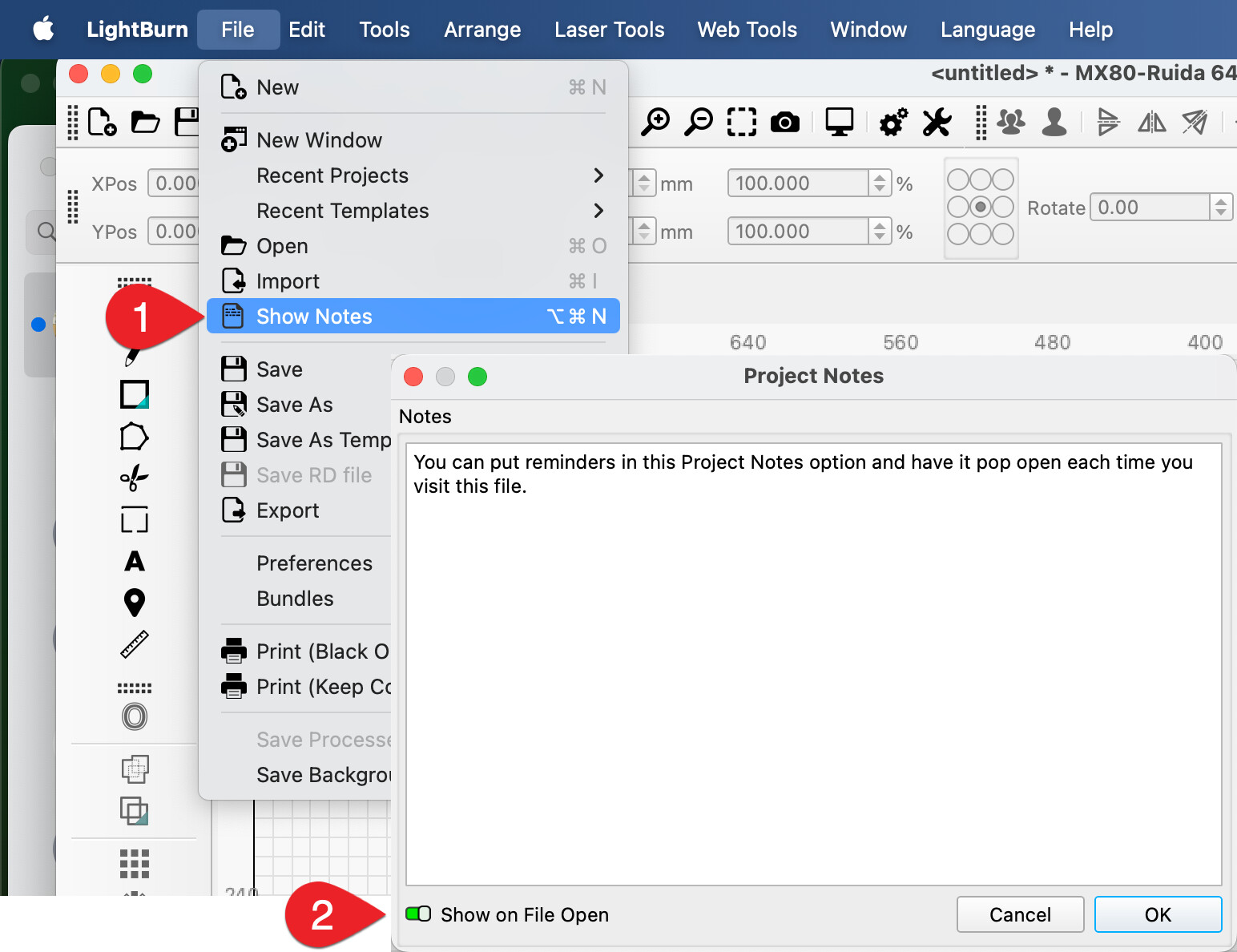
That is too cool!!..Thank You… I’ve seen that on the menu just never fooled with it… I’m not good at tyring things on LightBurn that I don’t know about so I don’t screw something up!!
Poke at all the new things you like! We’re here to help, and if you want to read first and click after, check out our documentation - it has everything
And to add to that, if you do try something and it isn’t working for you, you can always change your settings back. And if you want to free yourself up a bit from worry, backups can be great - if you get really frustrated, you can always go back to a previous configuration. I have to change my settings pretty often for writing the documentation, and backups have saved my sanity a few times.
And if you want to make sure you can restore everything, you can create a User Bundle that not only contains your preferences, but also additional components like Material Libraries. User Bundles - LightBurn User Guide
Thank You so much for this information!!!.. I will certainly review these and try them out… Not being “Techie” in this day n age is a great disadvantage and my experience with only Microsoft products and Windows based programs I think hampers me… Because I know how to do things in those programs because I had young people to show me how but LightBurn is very far out of my comfort zone as well as not being like Excel, Power Point, etc… Sincerly Appreciate your reaching out…
I will get ono that right away!!.. I am very tentative to “poke things” mostly out of discomfort of " What happens if it doesn’t work??" or more for me is the Jargon/Lingo for a lot of these functions - or in my case, Malfunctions!!!.. I find LightBurn to be sort of Windows product - ish but not really and that is where my limited experience lies so I get frustrated not understanding… When I research and watch the wonderful tutorials that LightBurn provides, I still struggle to understand… But, I will Endeavour to Persevere!!.. Thank You so much for reaching out…
Be assured that you cannot damage the program by trying new processes. I learned more by accident that I did by intention. CTRL+Z is my most used command. If only it worked in real life