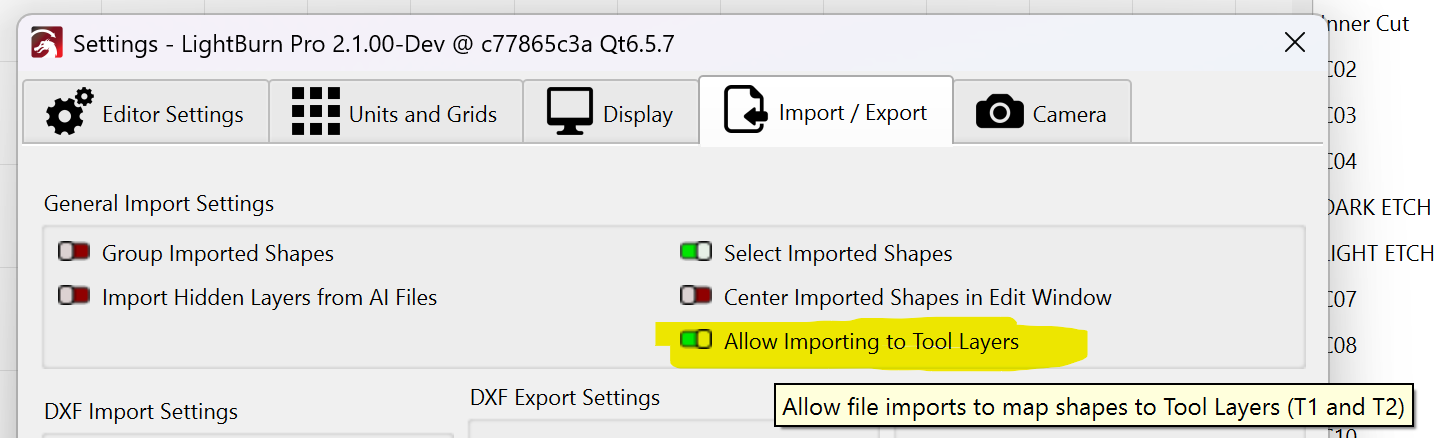
Using Lightburn’s exact color palette in Illustrator and saving in AI format, some colors are being re-assigned during import as different palette colors.
This issue is related to the color translation that is happening during import. In my opinion, it would be best to leave colors as is without “forcing” them into the palette, which limits the number of layers and possibly results in this bug. This is how RDWorks operates, which allows for any number of layers and colors.
Using Illustrator v29 in RGB color mode, Lightburn v2.0.02. Also tried saving as Legacy format but still had the same issue. Double-checked all hex value in palette. I attached the Illustrator file renamed to extension .txt to allow attachment here.
Fixing the import color assignment would be nice, but preferable would be to simply import the colors as is allowing the user to choose any further color assignment.
I don’t have Illustrator, but I do have Affinity Designer and CorelDraw 2018. I was able to import your .AI file into Affinity (Corel just hung when attempting to import it) and the colours came through correctly. I then exported it as SVG and imported it into LB where the colours were assigned to the correct layers. I also imported the SVG into CorelDraw then exported it as .AI (CS5) then imported the .AI file into LB, again, the colours were mapped to the correct layers..
So it appears that it might be specific to files saved from Illustrator. Hopefully this might help someone figure out what’s going wrong or maybe find a workaround.
I tried saving as CS5 and got the same issue. Exported to SVG and the colors came in correctly. So this seems like an Illustrator issue.
My vote would be to import all colors as is without translation. Trying to migrate from RDWorks, and all our files are in a different palette. Importing them results in different colors/layers being combined unwantedly.
The colors in your file aren’t saved as RGB - they’re apparently stored in either CMYK or a mixed CMYK+RGB, and we’ve had issues in the past relying on the RGB portion of those lines.
If you go to your main file properties, what colorspace setting are you using?
Edit:
The colors in your file look like this (the native commands from the AI file):
The format isn’t documented, but we’ve reverse engineered most of it. From your file, the first four values are being interpreted as CMYK colors, but when converting them to RGB, they aren’t the same as the values supplied (they’re close), and they aren’t in sRGB or any similar gamma space I’m aware of.
If I read the 4th, 5th, and 6th numbers as RGB, it appears to map exactly to our layer colors, so I’ll try a bunch of other files I have and see if that holds up - I recall having issues with this in the past.
As you might notice, some form of translation is required - they’re not stored as just <255, 128, 0> like you might expect.
Unless you meant “take the file colors and map them exactly to our internal colors”, which is already what we do if the match is exact. If not, it’s “closest one first”, which works as long as the colors in your file are what you think they are.
The colours in your attached file correspond to my Lightburn/Illustrator template (apart from some clipping groups) that I made using AI CS6. I’ve had zero trouble importing into Lightburn 1.7.03
Thanks for all the responses, it looks like the Lightburn A5 file was able to fix it!
Here’s the steps, in case anyone else has this issue:
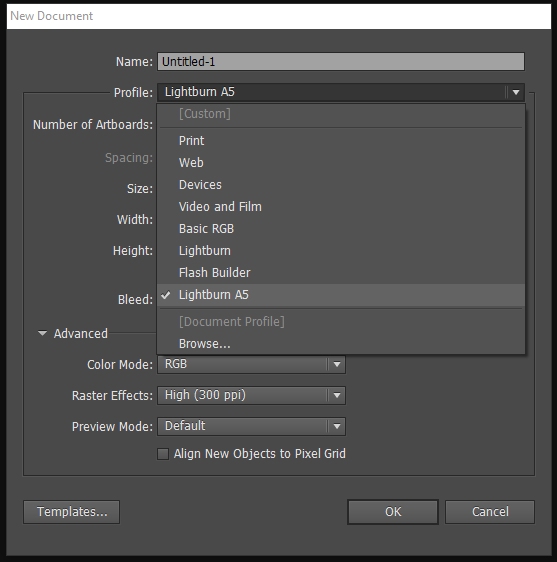
Open Swatch Library | Other Library and use “Lightburn A5.ai” attachment in the post from Pete above
Use this palette to assign all colors in the Illustrator document
Save and Importing into LB shows colors as expected
A lot of this colorspace definition is over my head, I expected a correct hexcode and document color mode to be enough for a smooth import.
I downloaded a different Lightburn Palette from a post in a forum that I can’t find now, but I think that was causing the issues.
As for the color mapping, I see now what you’re saying about requiring some translation. Perhaps it should be a separate feature request to not force all colors into the internal palette (possibly an import setting?) I have found times the import will force 2 separate colors into 1 color, combining layers when not desired.
The issue was not the color mapping, the palette I originally downloaded had all the correct colors – I checked each one. It seems the way Illustrator encodes the colors can vary based on the palette you use to assign them. Or it’s how the palette was generated. (I would guess Oz can speak to this better than I)