Question.
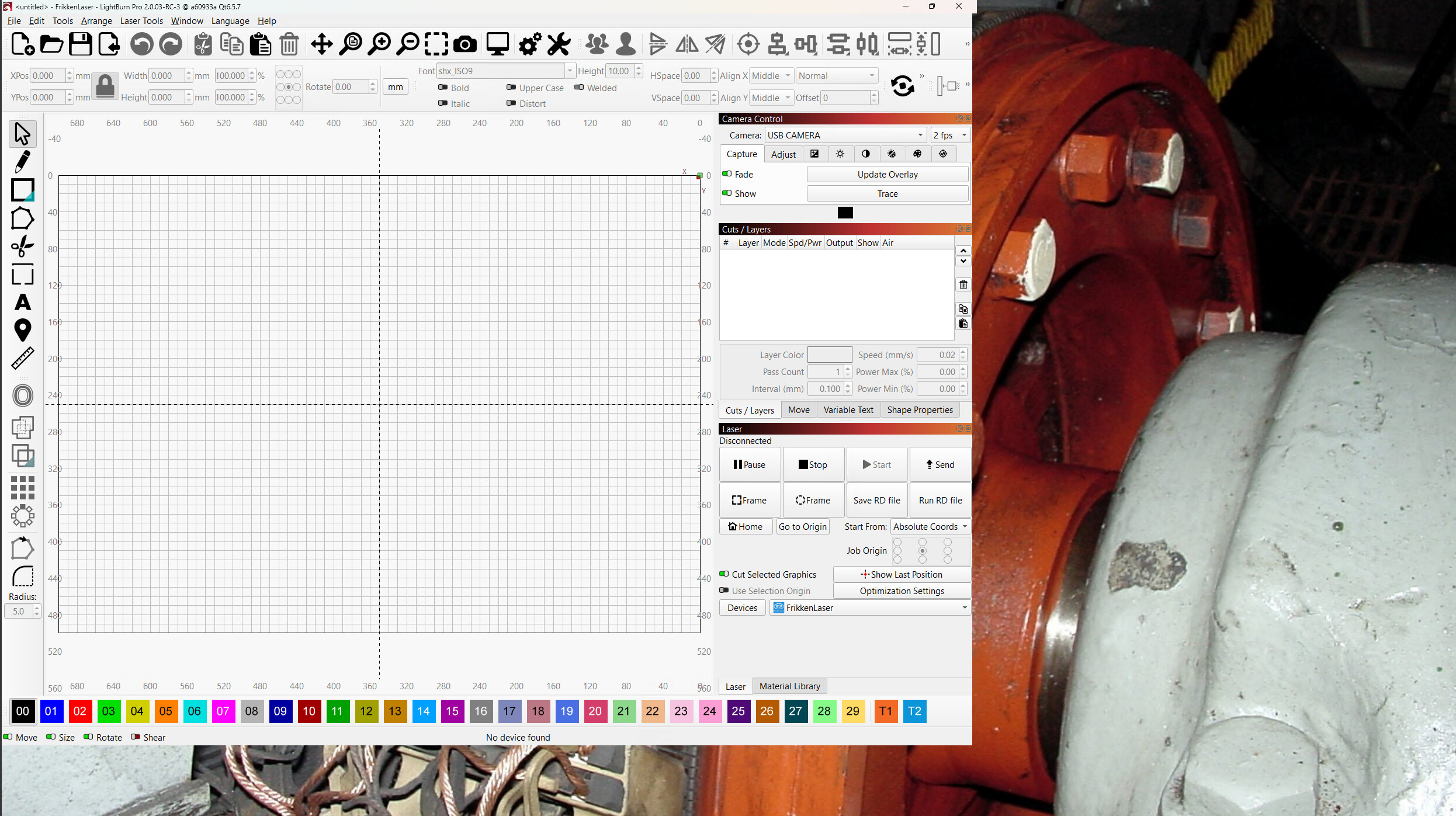
Is there a way to actually lock where my windows appear on the screen, i.e. cuts/layers, Laser, etc.
As every time I fire up Lightburn half of them are missing and what’s left has moved to random places on the screen.
Also that stupid Macro window continually pops up and it’s not selected in the windows box, is there a way to either stop it from appearing or a way to delete it !.
There are a couple of other odd issues with the screen but these are the most frustrating at the moment.
Hi Barry,
This sounds rather annoying, It may be related to a bug I am currently working on a solution for.
If I can get a little more information from you, it will really help in narrowing the issue down.
What Operating System are you using (Windows 10/11, MacOS 11-15)?
Do you have more than one monitor connected to the computer you are experiencing these issues on?
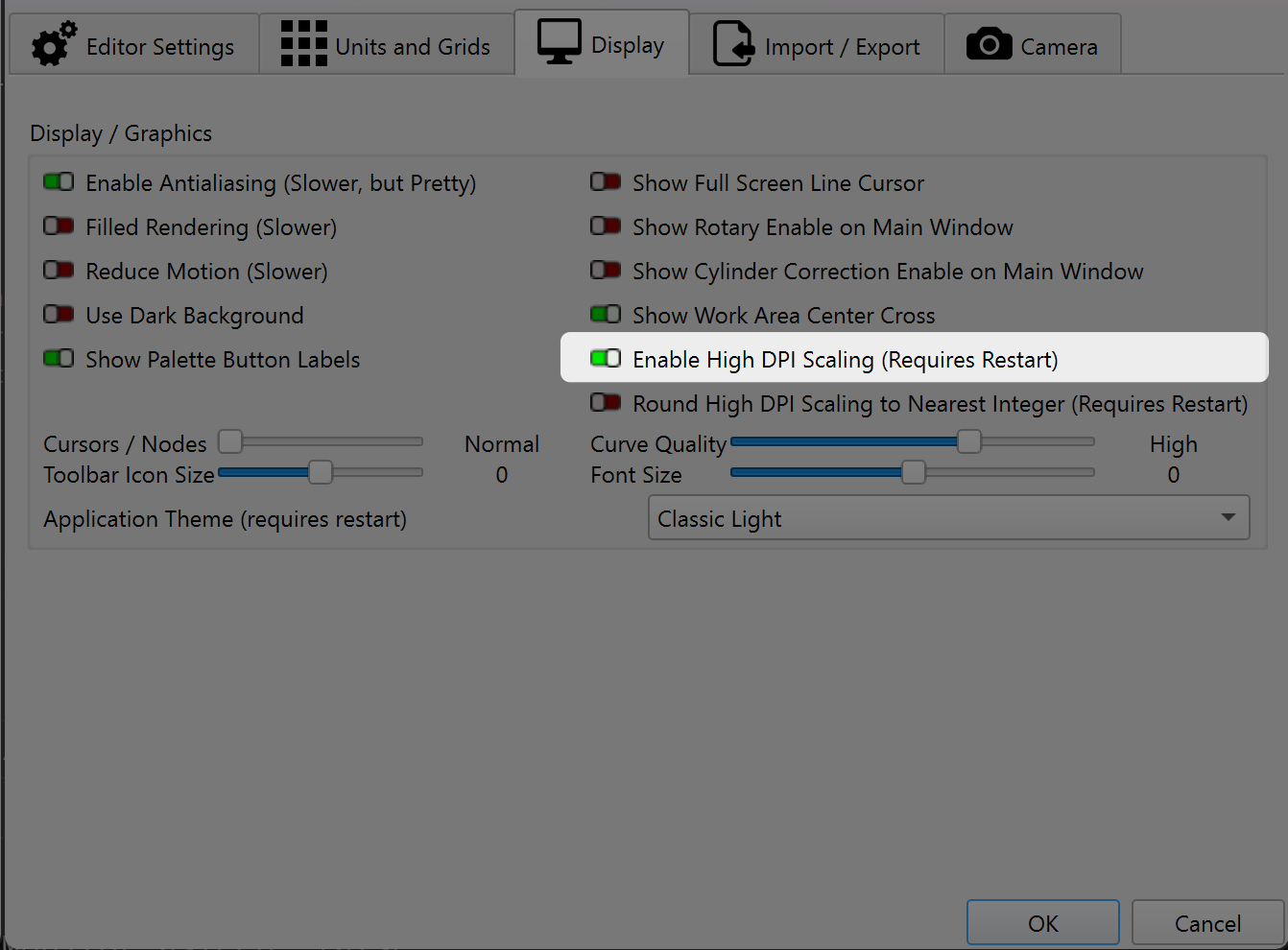
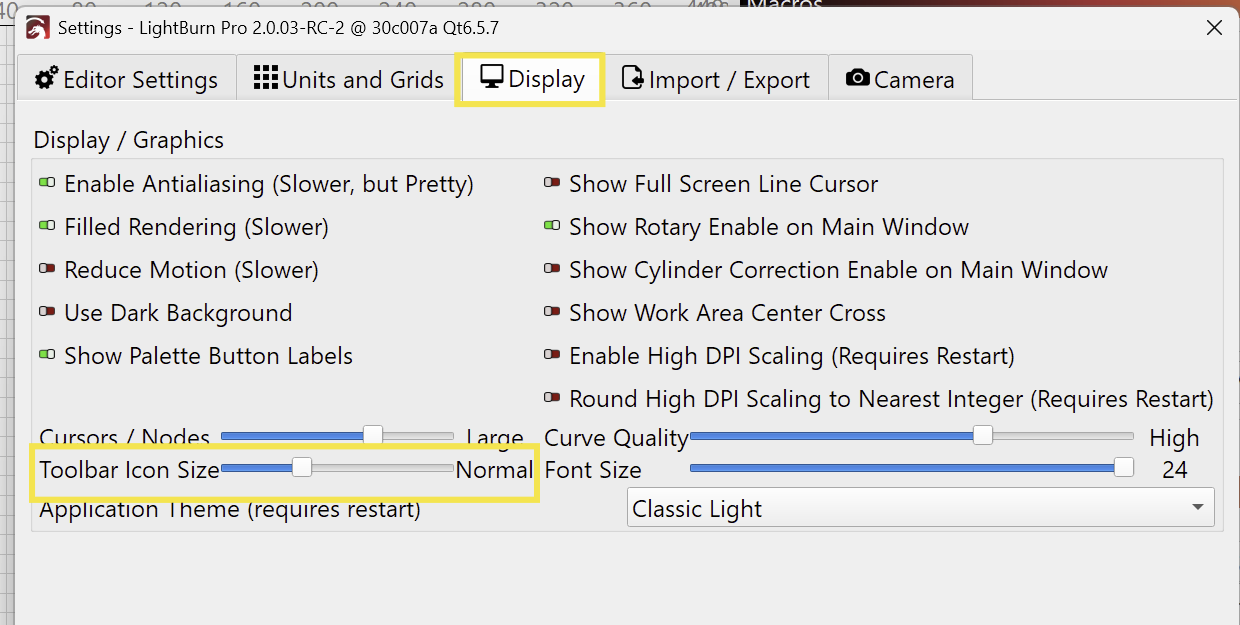
If you’re using Windows, do you have the “Enable High DPI Scaling” setting turned on?
Are you switching between an older version of LightBurn (like 1.7.08) and the current release?
Have you previously changed any compatibility settings with an older version of LightBurn (like the one shown in this post).
Also a screenshot of LightBurn with everything resized and positioned the way you like it, then another screenshot after closing and restarting LightBurn where everything is messed up.
The more information you can provide, the easier it will be for us to work out what is actually happening, but don’t stress if you can’t answer everything on the list.
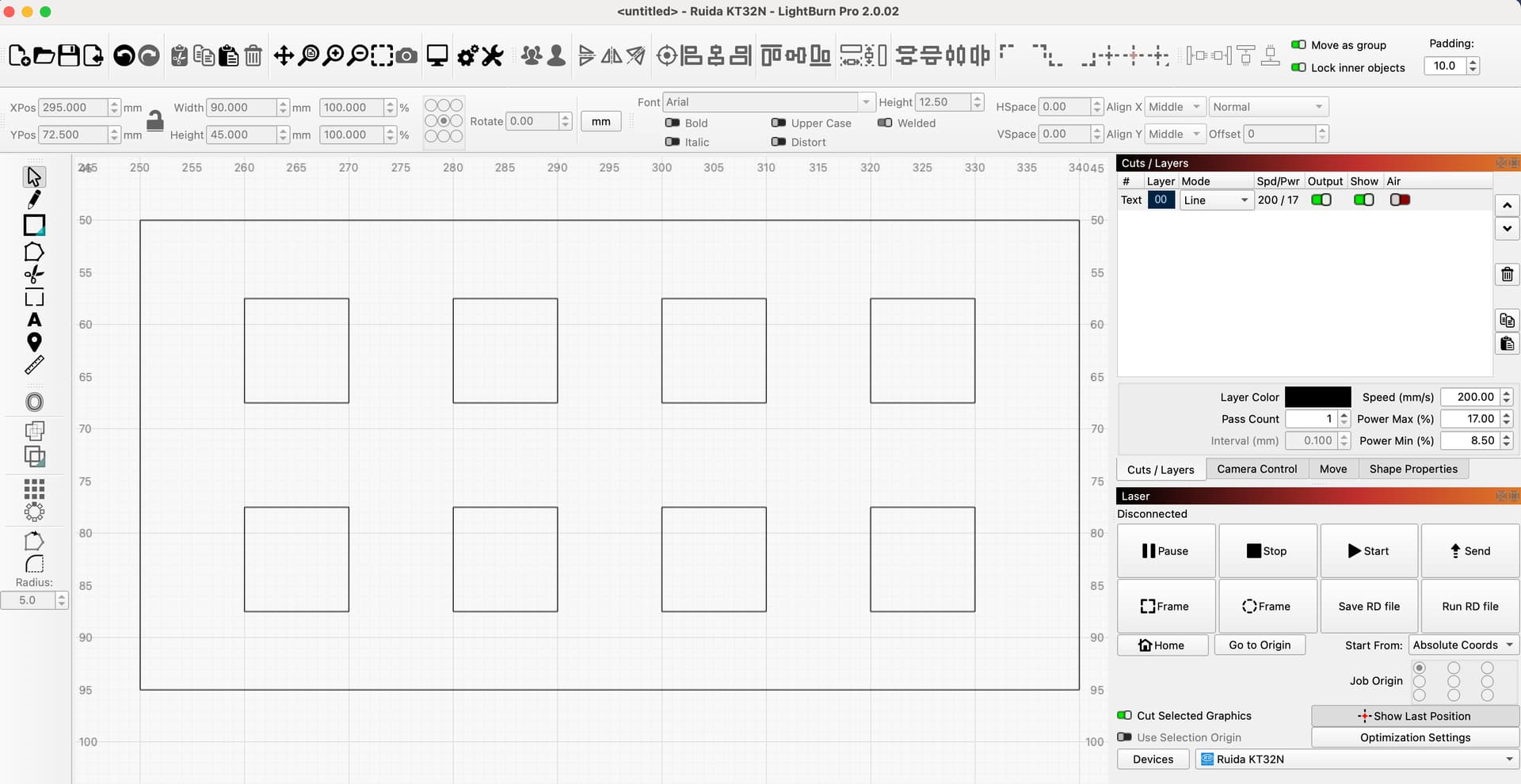
On my Mac it looks like the contrast of the layers has been reduced or the lines have become thinner in the last RC, is this intentional or a “side effect” of that improvement?
Thank you for reporting this @bernd.dk. I had a chat about this with @Brodie from our UI team just yesterday or the day before. Further refinements are inbound.
O.S. Windows 11
I have 2 monitors, but only use the main one for Lightburn which has the higher resolution.
Enable High DPI setting is selected.
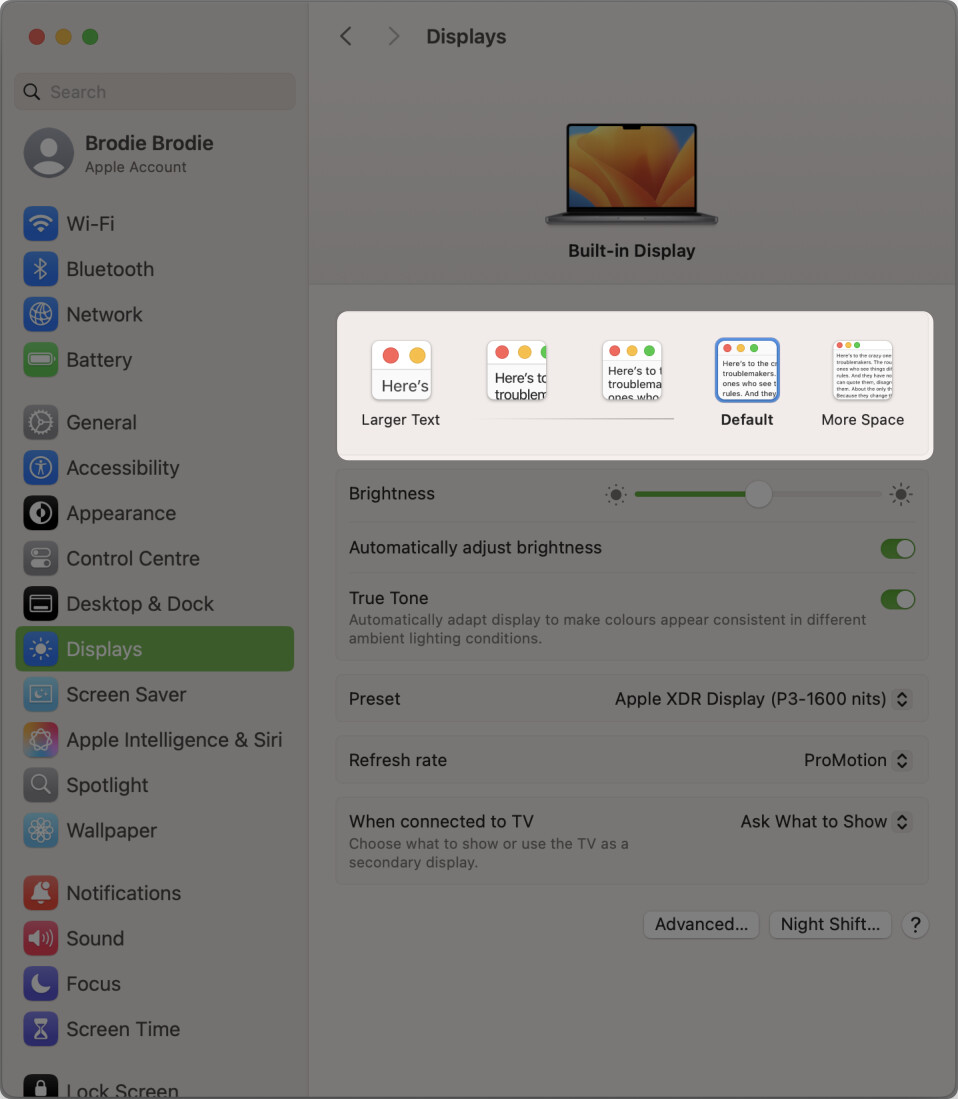
Display scale currently 125%
Display resolution 3840x2160 (Recommended)
Only using the current update Vers. Lightburn Core 2.0.02
Changed nothing
This morning when I started Lightburn only the windows on the left changed slightly, but that stupid macro box popped up again and if I move any of my windows to within about 4cm of the top of the screen the window immediately populates across the top of the entire screen.
P.S.
Is it possible to actually migrate the cut settings and shape properties into the notes box, instead of needing to type them in individually and would it be possible to save your preferred screen setup as the reset to default.
As an aside.
Yesterday I loaded a project that I have done at least 30 times it looked ok on the screen but when I looked at the finished item it looked slightly strange, then I noticed that the text had moved down about 2 centimeters onto the graphic below it although the file was grouped, I moved it back and ran it again and it still looked strange, then I noticed that the graphic had changed from fill to line? I changed that back and it is working again.
I have started to notice that quite a few of my filles seem to be loading with altered power/speed settings, that’s one of the reasons for saving them in the notes as a safety check.
Thank you for the screenshot. It seems the boundaries and icon sizes aren’t updating in sync here.
Are you using different Windows scaling settings for your monitors, and does it look normal on the other screen?
It’s a shot in the dark, but please see if changing the “Toolbar Icon Size” to a lower value and back helps. (Click OK in between to save the new value)
V nastaveniach “Display” som skúšal. Na Macbook 16" M1 MacOS 15.6 je to v poriadku, avšak po presunutí okna na monitor hp EliteDisplay E231 sa icony zmenia tak, ako je to na screenshote
English:
In the “Display” settings I tried. On a Macbook 16" M1 macOS 15.6 it’s fine, but after moving the window to the hp EliteDisplay E231 monitor, the icons change as shown in the screenshot
On my Ikier K1 Pro 70, the red laser pointer no longer turns on during framing unless the “enable fire button” and “laser on when framing” switches are selected. Is this a new “feature”, or a bug? If I turn on those two switches and set the power to 1%, the red laser pointer is turned on throughout framing and is the correct gauge for where the cut will occur while the actual laser just follows along. If those switches are not turned on, the red laser only turns on at the completion of the framing operation.
In addition, the framing appears to behave differently now. Instead of starting to frame at the lower left (or, I assume, wherever the origin location for the laser is set), it starts framing at the laser head closest point to a corner of the print job. This doesn’t seem like helpful behavior.
Thanks for any help resolving these issues
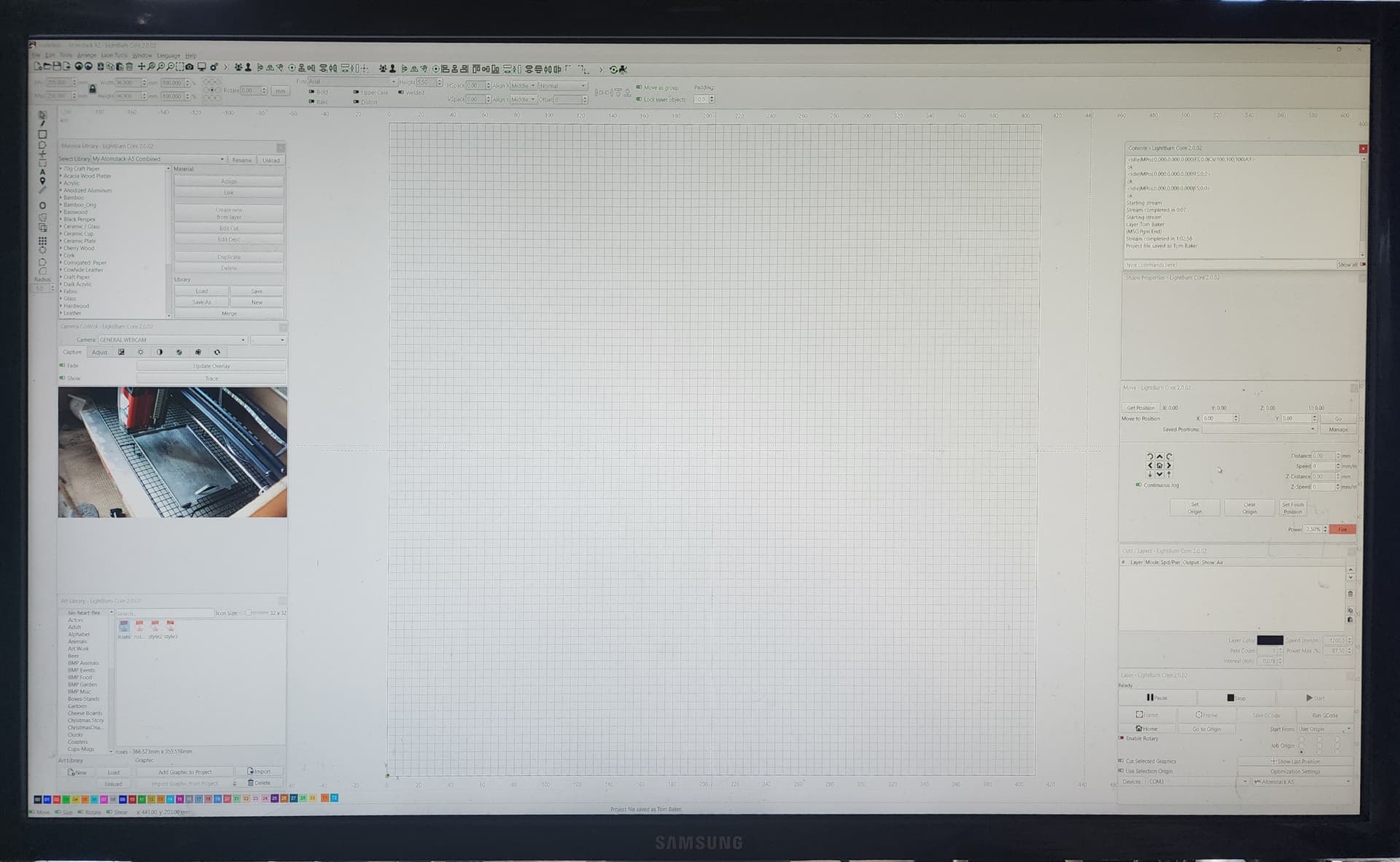
That’s the initial window most of the times it starts up. The little tab sticking out on the upper-right corner seems like it should attach to something, but it doesn’t.
As a side effect, all of the windows / tabs stacked up along the right edge return to their default arrangement.
Doing the Shift-startup dance produces a normal window in the middle of the screen, but the next startup generally reverts to the initial broken window.
Hitting the window arrange button (title bar, just left of the X close button) puts the non-maximized window somewhere on the screen, occasionally with the title bar offscreen of the top edge.
After that, hitting the Maximize button does what it should and I can rearrange the stack of windows / tabs to my liking, but the next startup generally reverts to the broken window and resets the stacked windows / tabs.
This happens using either the local display or through RDP, with a 2560×1440 monitor.
It’s a bone-stock updated Windows 11 setup on a machine that does nothing else other than run LightBurn.
Haven’t gotten around to testing what the Ruida initialization fix does to Print-and-Cut …
Thanks Ed!
I’m looking into this one now.
I’ve found the cause of the right dock being reset every time the app is started.
As for the Window size and state, if the “Enable High DPI Scaling” setting is turned on, can you disable it and see if you get the same broken window issue?
Not having a real High-DPI display, that’s never been turned on.
Just for fun:
Turned Enable High DPI Scalingon
Got the same broken initial window (albeit somewhat taller) on the next start
Turned it off
Same broken window on next start
So it doesn’t have any obvious effect.
On the upside, a PnC alignment worked the first time. However, the failure was intermittent, so I can’t do the Happy Dance until I cut a few more designs.