Bought an Acmer P1 S Pro second hand. Lightburn software will not connect find the unit. Have changed Com ports and upgraded to the latest version of Lightburn. Have tried all of the troubleshooting available online.
Please help.
Bought an Acmer P1 S Pro second hand. Lightburn software will not connect find the unit. Have changed Com ports and upgraded to the latest version of Lightburn. Have tried all of the troubleshooting available online.
Please help.
You did not mention what you tried…
Thank you Mikey for getting back to me. Please see my responses below.
Would you have any other suggestions?
It’s possible some other piece of software uses the COM ports on your PC and is preventing LightBurn from locking onto comms from your device - are there any 3D printing or other CNC device communication-providing softwares open?
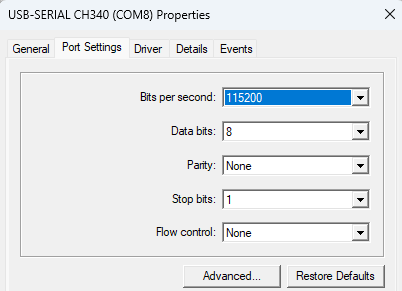
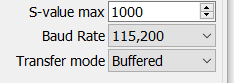
What is your baud rate set to in device settings?
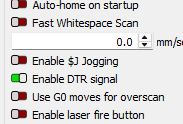
Also try toggling the DTR switch…
What you are telling us is that it connects, but is not actually communicating. Our 3 suggestions above should get you going.
Thank you Colin. This is the first laser engraver that has been hooked to this computer. Have not hooked a 3d printer or a CNC to the computer either.
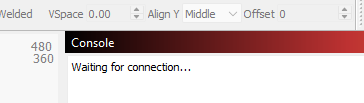
Thank you Dskall. Baud rate is at 115200 in both the laser burn device settings and in properties for the respective COM port in device manager. Still “Waiting for connection…” Is there anywhere else I should check?

Thank you Mikey. It was off, I toggled it on but didn’t seem to make a difference.
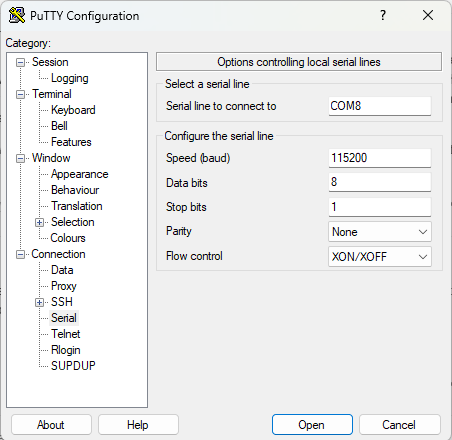
Additionally, ChatGPT advised to download putty.exe and after some commands, a black box would open. That was not the case. Instead an error sound played. Unsure if that tells you anything.
Anything else I could try?
Without telling me what you entered into putty, not much.
Did you go through these one by one, or did you say"Yeah, that was okay" on any of them? It is important that we (all of us) make no assumptions. The littlest detail might be the key to finding a solution.
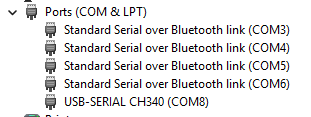
In Posting #8, I see a LOT of BT ports. With this window open in Device Manager, try deleting all the COM ports listed. Then unplug the laser and reboot windows. Let Windows rebuild them as needed when you power back up. Reopen the Device manager and then connect the laser. You should see only the CH340 entry. Screen shot it and post in a reply.
By the way, can you post the link for the ChatGPT result you got. I am interested in what it said.
I found something about PuTTY thaat might help. After you download the PDF, remove the .TXT extension.
COM Test with PuTTY.pdf.TXT (273.4 KB)
Thank you Mikey.
Appreciate the thoroughness in asking. I did go through step by step. Regarding #4 - .lbdev file. Where can I find this?
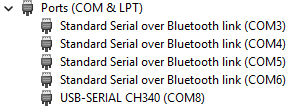
Additionally, I deleted all COM ports as instructed, rebooted Windows, then plugged the laser back in. The results are below. The BT Coms returned.
Unfortunately, I’ve lost the ChatGPT at this time. I wasn’t logged into my account at the time so it disappeared when the browser was closed.
Truly appreciate all the help you’re offering. Would love to get this unit working and I’m sure it’s something simple.
Unsure what you’re advising on this one. I apologize - I’m somewhat out of my depth here. The below is what I was advised to enter into putty by ChatGPT.
My bad, it should have been .lbprefs not .lbdev, under File, Preferences. I have Geriatric Dyslexia.
That last line is the one we are interested in, and it is the only USB-SERIAL. It also shows the CH340 driver is installed.
Did you try swapping the USB cable end for end?
Did you try uninstalling the CH340 driver and reinstalling it? I have read postings where this was done 3-4 times befire it worked properly.
Another test: With the PC on and Lightburn running, turn on the Show All button in the Console window. Now with the laser powered up, plug in the USB cable. Then copy everything in the Console window and paste it in a Reply.
This topic was automatically closed 30 days after the last reply. New replies are no longer allowed.