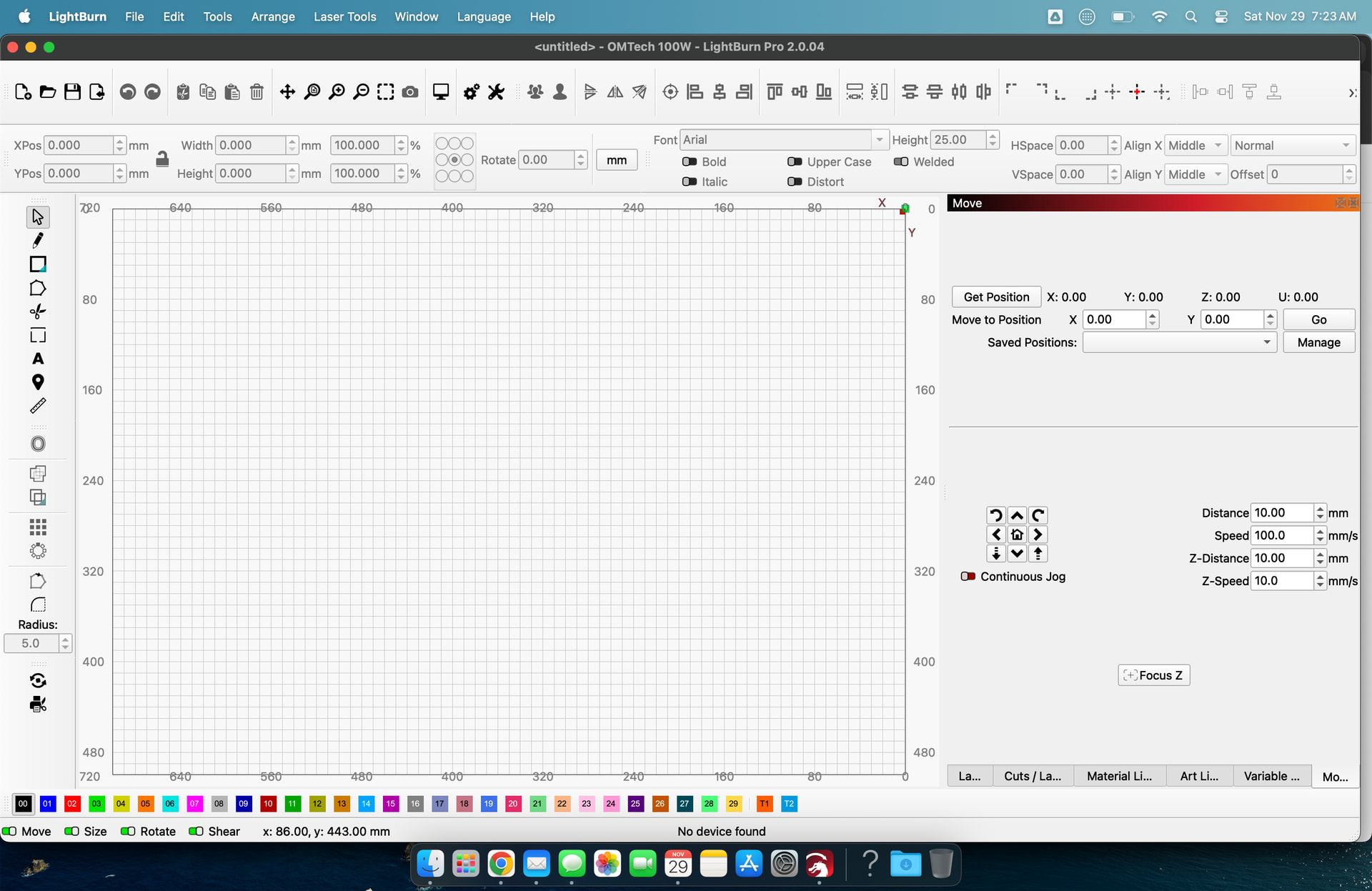
Lightburn 2.0.04 on a MacBook Pro 13’ retina early 2015. The bottom portion of the window is not viewable - missing the colour palette and the info bar below it. I’ve tried changing the settings for display (Toolbar icon size and Font size) with little effect, other than to make everything harder to see because its too small. I have also tried editing the values for window size in the prefs.ini file, with some limited success - it seems there is some other instruction somewhere that Lightburn uses to determine the window size which overrides the .ini file.
In addition, moving the cursor to the edge of the window to use the shrink/expand arrows doesn’t seem to work on initial opening - sometimes they appear after I’ve been round the houses trying to sort it out, sometimes not.
I see that there are some instructions for Windows users to tackle a similar problem, but they don’t apply to the dialogs on the Mac version. This is quite frustrating - I’m spending an hour or so getting the window to display at a useable size before I can get on with the work. Surely there must be a simple way to set up the window size and make it stick on Lightburn??
Screen resolution is an issue on small laptops. I have a 14" MBP and run at 1512x982, but in order to have everything visible I had to go to a single layer of the side panels instead of having multiple layers stacked. The side panels have a minimum size and having them below each other increases the needed real estate for the rest of the interface. Try moving the panels into one layer.
Thanks, that has helped. My screen res is 2560x1600, so I’m surprised that Lightburn came up with a size that is bigger, given the x and y figures in the prefs.ini file are smaller. As you suggest, the y dimension must be governed by the height of the side panels - I’ll have a look through the ini file to see if I can find them, but they may well be fixed somewhere else that isn’t accessible to me.
If you’re running at that resolution you may have some sort of scaling enabled. I’m running 1920x1080 on my Mac Mini and have no problems fitting everything on the screen.
I think MacOS by default has some scaling enabled - on 13" Macs I usually drop the display scale by one “click” in the OS display settings. You can also reduce the font size and toolbar icon size in LightBurn’s display settings to make things fit.
Having the same problem with my PC. I can’t get the bottom of the “layers” page to set colors to a certain defalt setting. You mentioned you had heard of a fix for PCs. Can you point me in that direction? TIZ
Still not seeing a fix…The issue I’m having is I can’t see the “defalt” on “Cut Setting Editor”. It is below the physical screen and can’t be moved up. Any suggestions?
For the window not being fully visible where you can see the layer colors and top window controls, press the Windows key and Up Arrow together.
As far as not seeing the bottom of cut settings editor, you will need to wait for the next version to release or download the latest release candidate. I believe they have that problem fixed there.