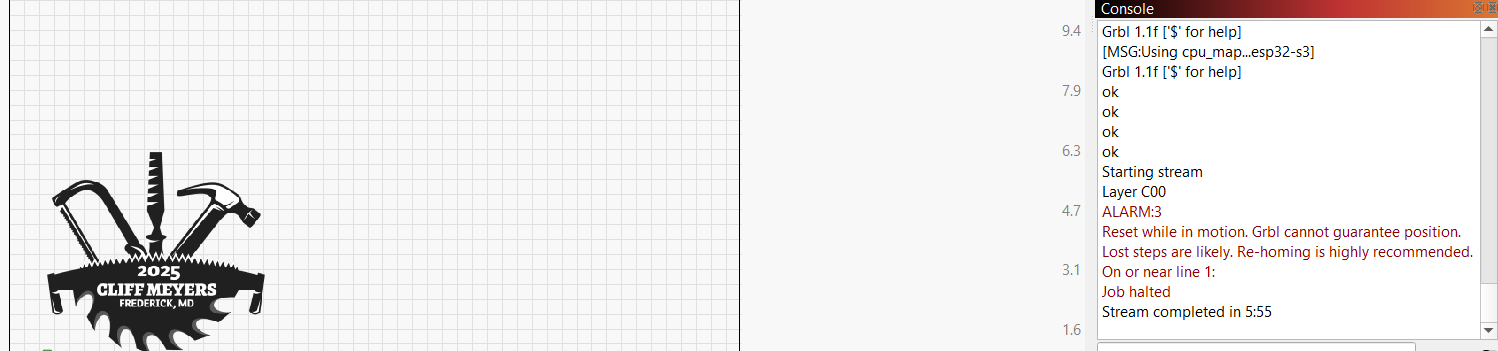
Show your preview screenshot with traverse moves turned on.
Welcome! Thank you for taking a screenshot. It’s appreciated!
I see Alarm 3 - Reset while in motion.
We often see this when overscan runs out of bounds. Generally this is most likely when engraving images or Filling closed shapes.
To check to see if this is the cause, open the Preview Window in LightBurn.
You can reach this from the Menu Bar by clicking Window then clicking the Preview option at the top of the list. You can also reach the preview window by clicking the Icon in the middle of the top row of Icons that looks like a flat panel monitor. This tool is handy for seeing what the code from LightBurn will command the laser to do. 
In order to engrave images at a consistent speed, the laser shuts off before slowing to reverse direction. If the speed is High, the distance required to slow, stop, reverse direction and get back up to speed can be longer than expected.
In the Preview window, confirm that the ‘Show traversal moves’ switch is on and that you see some red ‘moves’. This tool shows where the laser engraver will move when the laser is not commanded to fire (in red) and shows where the laser is firing in black.
I threw a quick file together and captured two previews. For the second capture, the speed was increased to increase the overscan, which pushes the second attempt out of bounds.
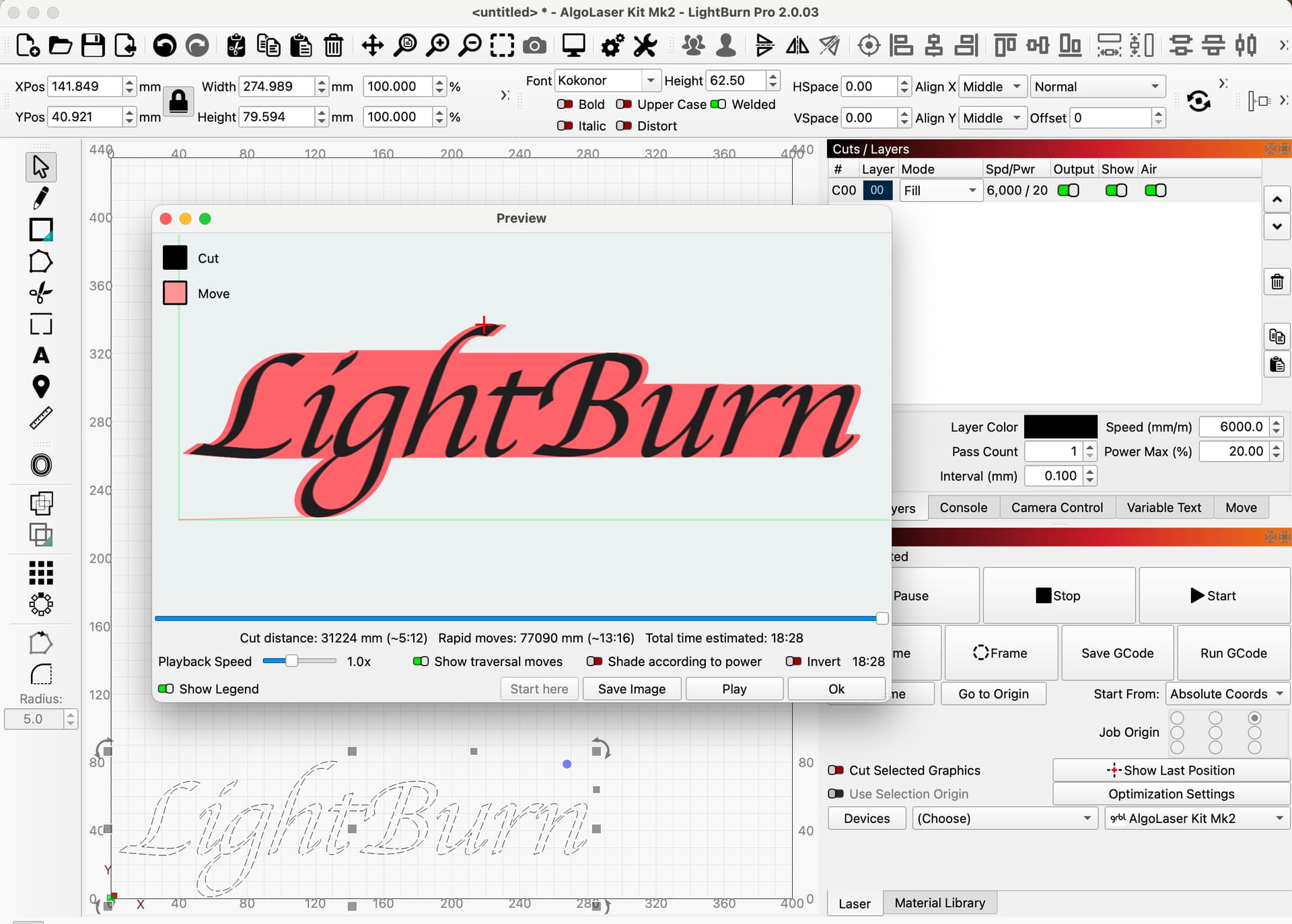
This image shows that there is no overscan outside the boundary.
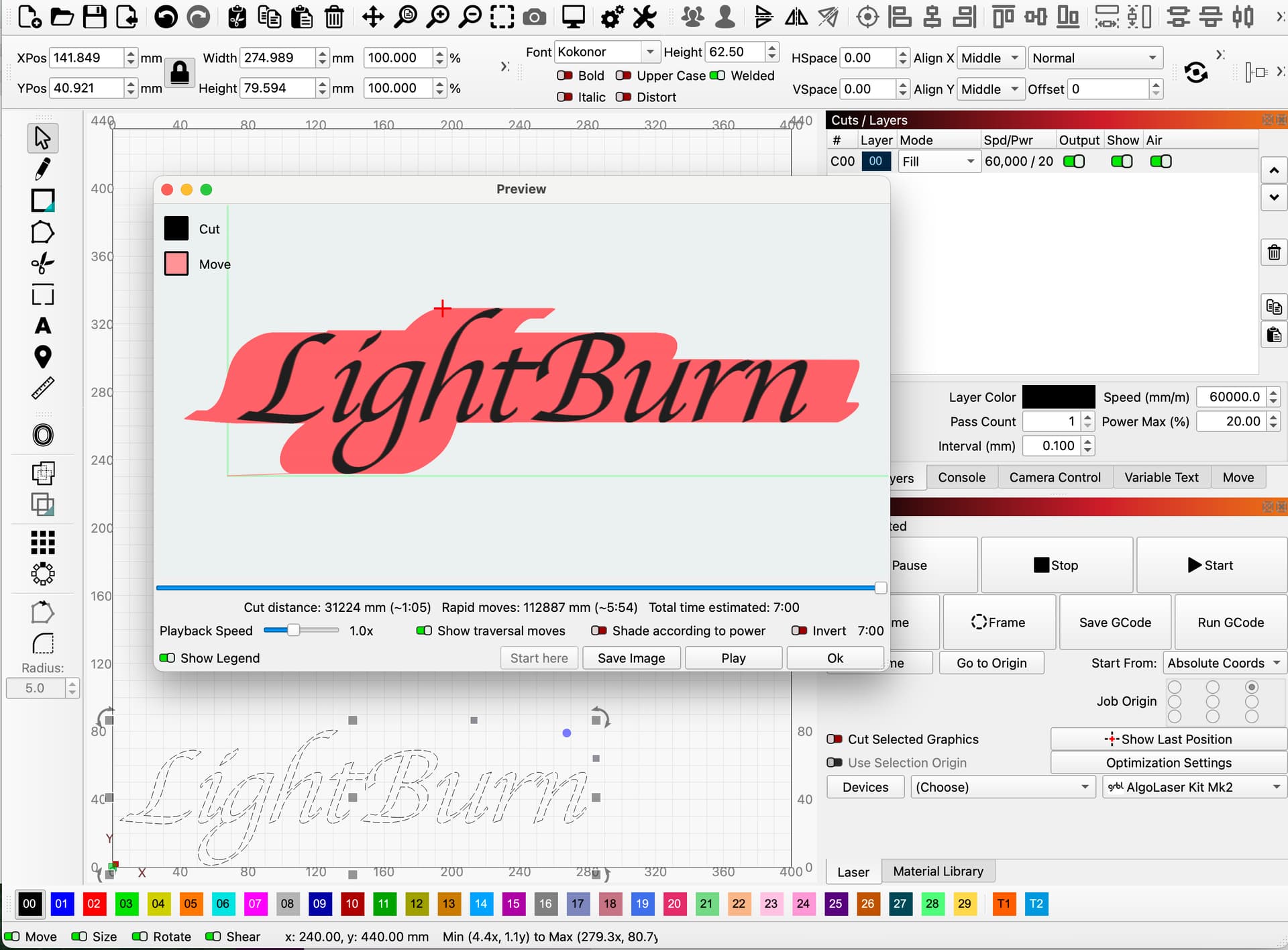
This image shows the overscan crossing the green boundary line on the left-hand side.
Let us know what you see when you open the preview window.
Again, Screenshots are always appreciated.
Jim
Thanks you! That is a big help.
John:
Thank you! That’s got it! Works great now. Thank you very much!
This topic was automatically closed 30 days after the last reply. New replies are no longer allowed.