My Falcon 2 Pro set-up lens calibration only shows 9999 in capture. I have followed the videos, the dot card looks great in the camera view but will not capture. Only gives 9999. I’ve moved the dot card, it’s well lite but will not capture. but doe show in Lens Calibration window.
HP Windows 11 Laptop USB connections to camera and to Falcon 2 Pro, latest version 2.0.05. New item setup. .
Try to use the april tag markers instead of the dot pattern. That is deprecated.
I am using the Dot Pattern provided, Apriltag 6x9 selected and either standard or fisheye. When using Capture, only 9999.0 appears and does not capture. I can see the camera on my left is good, but does not capture the image. I can not go further.
I am having the same problem: new falcon 2 pro 22watt camera lens alignment using lightburn 2.0.05 not working Windows 11. Followed all the suggestions. Is there a fix?
That’s contradictory. You can’t use the dot pattern and then select AprilTags. If you use the dot pattern, you need to use the old calibration; if you printed AprilTags, you need to use those. Which one did you actually use?
From support:Hi Jim,
LightBurn version 2.0 introduced a new way to calibrate the camera lens. It uses the new calibration card with the AprilTags and tracking function. (The circle pattern should not be used anymore)
If you haven’t already, please download and install the latest version from here: https://lightburnsoftware.com/pages/download-trial
You can then follow the instructions for camera calibration with Tracking here: https://docs.lightburnsoftware.com/2.0/Reference/CalibrateCameraLensExperimental/
This feature is still in testing (Labs feature) but is currently the most precise way to calibrate your camera. It’s only accessible with a right click on the “Camera” window:
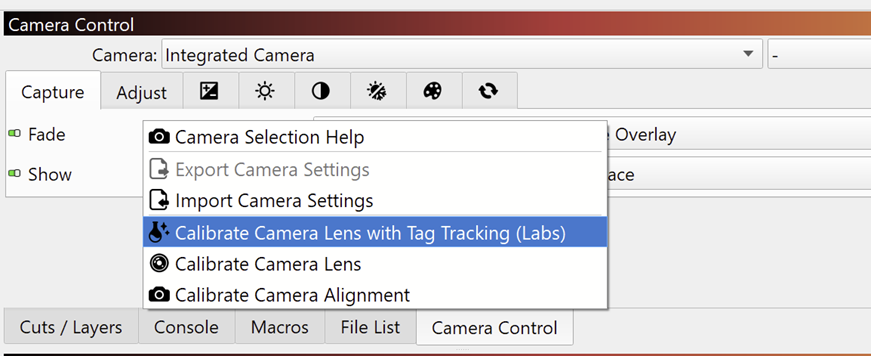
After this, you need to perform another Camera Alignment, as usual: https://docs.lightburnsoftware.com/2.0/Reference/CalibrateCameraAlignment/
Cheers,
LightBurn Software Support