I am new to using LightBurn when I opened the software I had a graph on my workspace with loads of squares. I inadvertently using the menus changed the view of my workspace which which is now showing the workspace as a shaded column. I want to return to a normal screen how do I do this or is there a"factory reset" choice to go back to a fresh start? thank you.I have a screen shot of the problem and I am unsure if how to add this to this posting.
To upload a picture just drag and drop into the editor.
Settings menu (Gears Icon) Units and grids tab, adjust the grid contrast. Display tab, uncheck dark background.


It did come out in the posting!!!
Hi I have looked at the display element I can not see any command that puts the display back to “normal”
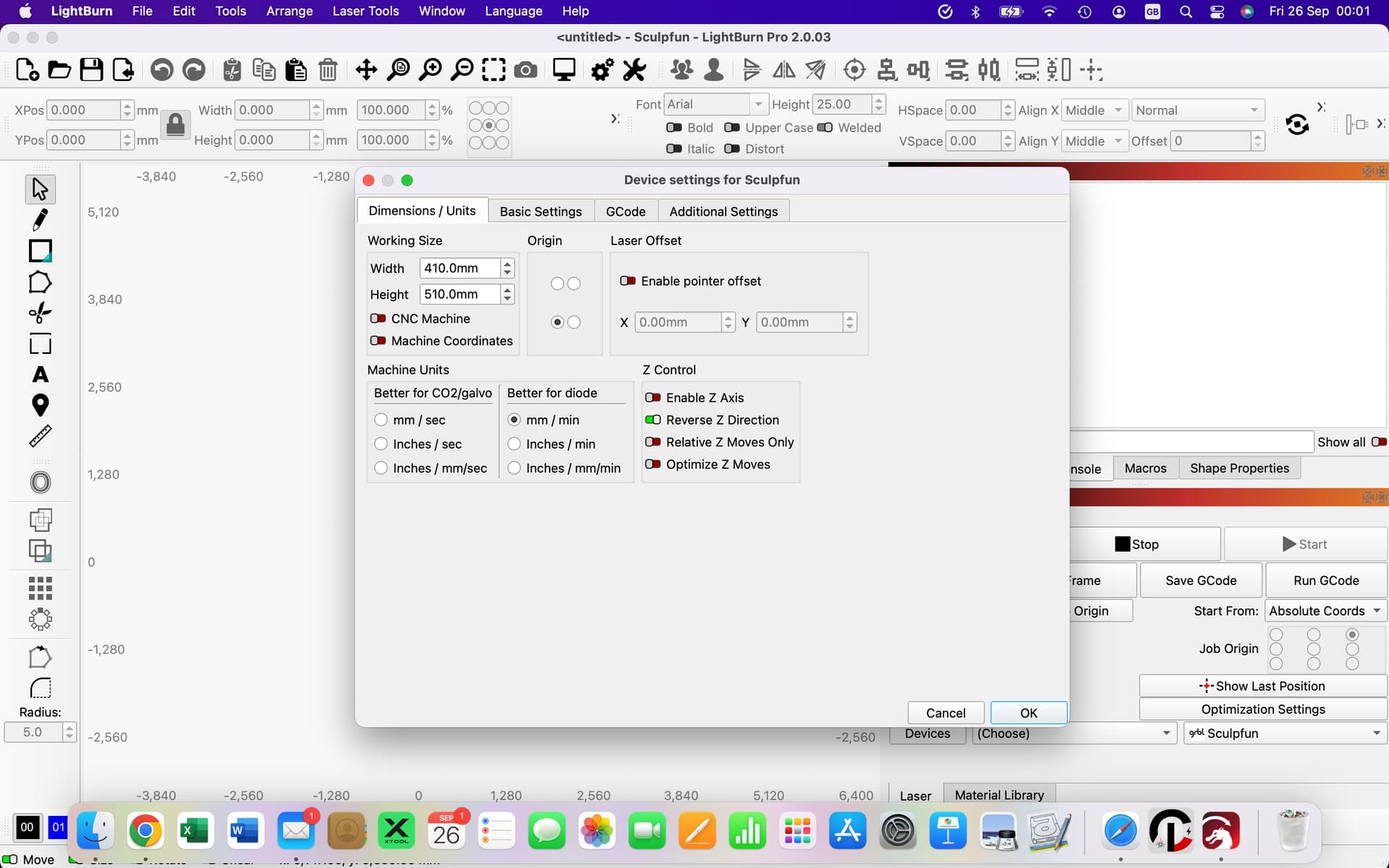
It looks as though the Y axis setting in Working Size is a very very large value:
Perhaps off by a factor of ten?
1 Like
Thank you for your response and have visited and changed the sizes to fit my laser. I attach a screen shot of my amended dimensions menu which has changed the screen to the work area as a small square screen,. I also a a screen shot of the amended view of the screen which is still not correct?

Looks good!
Now zoom in on the Workspace by putting the mouse pointer in the middle of that tiny grid and rolling the mouse wheel.
The doc will give you other navigation tips:
The Getting Started doc will introduce a whole bunch of useful tools & techniques:
You should auto-hide the Mac toolbar (or whatever it’s called) to get access to the Layers palette and other info along the bottom edge of the LightBurn window. However, not being an Apple guy, I have no idea how that’s done.
1 Like
Hi and thank you that worked, your comments have been welcome and very helpful.
This topic was automatically closed 30 days after the last reply. New replies are no longer allowed.