Omtech K40+ controller issue?

The last time I used this was a couple of months ago. It performed just fine at that time. Today, when I turned it on, it fiddles around for a while, and then repeatedly homes. Over and over.

In Lightburn it may say disconnected, then it will say busy, and a variety of other complaints.

I’ve changed out the USB cable several times, and even moved it to other positions on the computer. Normally, the device manager says it’s on COM3, and when I move the cable to the front of the computer, it changes to COM4, both in the device manager and Lightburn. Running the latest version of Lightburn, and the driver is CH341.

Here’s what the console says:

[G56:0.000,0.000,0.000]
[G57:0.000,0.000,0.000]
[G58:0.000,0.000,0.000]
[G59:0.000,0.000,0.000]
[G28:0.000,0.000,0.000]
[G30:0.000,0.000,0.000]
[G92:0.000,0.000,0.000]
[TLO:0.000]
[PRB:0.000,0.000,0.000:0]
ok
Homing
ok
ok
omtech
[VER:1.1h.24-01-15:]
<Idle|MPos:0.000,0.000,0.000|FS:0,0>
ok
[G54:0.000,0.000,0.000]
[G55:0.000,0.000,0.000]
[G56:0.000,0.000,0.000]
[G57:0.000,0.000,0.000]
[G58:0.000,0.000,0.000]
[G59:0.000,0.000,0.000]
[G28:0.000,0.000,0.000]
[G30:0.000,0.000,0.000]
[G92:0.000,0.000,0.000]
[TLO:0.000]
[PRB:0.000,0.000,0.000:0]
ok
Homing
ok
<Idle|MPos:0.000,0.000,0.000|FS:0,0|WCO:0.000,0.000,0.000>
\xCD#!b\x8A\x82\x82\xE2\x05\xE9S>
ok
ok
ok
omtech
[VER:1.1h.24-01-15:]
<Idle|MPos:0.000,0.000,0.000|FS:0,0>
ok
[G54:0.000,0.000,0.000]
[G55:0.000,0.000,0.000]
[G56:0.000,0.000,0.000]
[G57:0.000,0.000,0.000]
[G58:0.000,0.000,0.000]
[G59:0.000,0.000,0.000]
[G28:0.000,0.000,0.000]
[G30:0.000,0.000,0.000]
[G92:0.000,0.000,0.000]
[TLO:0.000]
[PRB:0.000,0.000,0.000:0]
ok
Homing
ok
ok
ok
ok
ok
ok
ok
ok
omtech
[VER:1.1h.24-01-15:]
<Idle|MPos:0.000,0.000,0.000|FS:0,0>
ok
[G54:0.000,0.000,0.000]
[G55:0.000,0.000,0.000]
[G56:0.000,0.000,0.000]
[G57:0.000,0.000,0.000]
[G58:0.000,0.000,0.000]
[G59:0.000,0.000,0.000]
[G28:0.000,0.000,0.000]
[G30:0.000,0.000,0.000]
[G92:0.000,0.000,0.000]
[TLO:0.000]
[PRB:0.000,0.000,0.000:0]
ok
Homing
ok
<Idle|MPos:0.000,0.000,0.000|FS:0,0>
Port failed to open - already in use?
ok
ok
ok
ok
ok
ok
ok
ok
omtech
[VER:1.1h.24-01-15:]
<Idle|MPos:0.000,0.000,0.000|FS:0,0>
ok
[G54:0.000,0.000,0.000]
[G55:0.000,0.000,0.000]
[G56:0.000,0.000,0.000]
[G57:0.000,0.000,0.000]
[G58:0.000,0.000,0.000]
[G59:0.000,0.000,0.000]
[G28:0.000,0.000,0.000]
[G30:0.000,0.000,0.000]
[G92:0.000,0.000,0.000]
[TLO:0.000]
[PRB:0.000,0.000,0.000:0]
ok
Homing
ok
<Idle|MPos:0.000,0.000,0.000|FS::100,100,100|A:S>
ok
ok
ok
omtech
[VER:1.1h.24-01-15:]
<Idle|MPos:0.000,0.000,0.000|FS:0,0>
ok
[G54:0.000,0.000,0.000]
[G55:0.000,0.000,0.000]
[G56:0.000,0.000,0.000]
[G57:0.000,0.000,0.000]
[G58:0.000,0.000,0.000]
[G59:0.000,0.000,0.000]
[G28:0.000,0.000,0.000]
[G30:0.000,0.000,0.000]
[G92:0.000,0.000,0.000]
[TLO:0.000]
[PRB:0.000,0.000,0.000:0]
ok
Homing
ok
<Idle|MPos:0.000,0.000,0.000|FS:0,0|WCO:0.000,0.000,0.000>
G0
<Idle|MPos:0.000,0.000,0.000|FS:0,0|Ov:100,100,100|A:S>
ok
ok
ok
$I

Is this a configuration issue? Or is it something more sinister like a part going out (yikes)? Any advice?

When you haven’t changed anything and something changes, the cause is rarely a software problem.

The controller in the laser supervises homing, so problems with homing have nothing to do with LightBurn. Everything you see in the Console window comes from the controller.

It sounds very much like the power supply has failed, the power cable is loose, or there’s a broken wire / connector in between.

That would cause the repeated resets and homing cycles as shown in the Console.

If wiggling & jiggling the wires / connectors causes a restart, you can probably identify the problem. Otherwise, a multimeter will be helpful to verify voltages at the power supply terminals and controller board.

I was afraid of that. I do have an analog multi-meter from back in the 70s, I’ve never been very good with it, but it still works. Since the last time I used this laser, I’ve upgraded my computer, and also updated Lightburn to the most recent version. I was hoping I had just misidentified the machine in some setting which would be an easy fix.

It’s not unheard of to have power surges in my town, although I’ve not been aware of one lately. The machine is not on a surge protector. My bad. I spend much more effort in defending the computer and commercial embroidery machines from issues like that. I may have created this problem for myself. Looks like it’s time to get in touch with Omtech to figure out what’s wrong with this machine.

Thanks for getting back to me. My little project for the weekend seems to be on hold for now.

An analog meter will work fine. Used to be that’s all we had… :thinking:

Ensure your limit switches are working, using your meter. Measure the inputs for the limit switch, likely on the control board would be easiest. Both should be pulled to ground when the switch is active.

Can you post a photo of the board were we can read the connector labels?

:grinning_cat:

1 Like

It is possible a config got dropped along the way, so Migrate the settings from the old PC.

As a quick test, disconnect the USB cable and restart the laser. If it does the repeated homing dance, then the hole is definitely in the machine’s end of the boat.

1 Like

Oh great. I got out the wrenches and took off the bracket the board is attached to, only to find out the board itself has these cute little snap-in plastic posts. Could have just pried it off, but who knew?

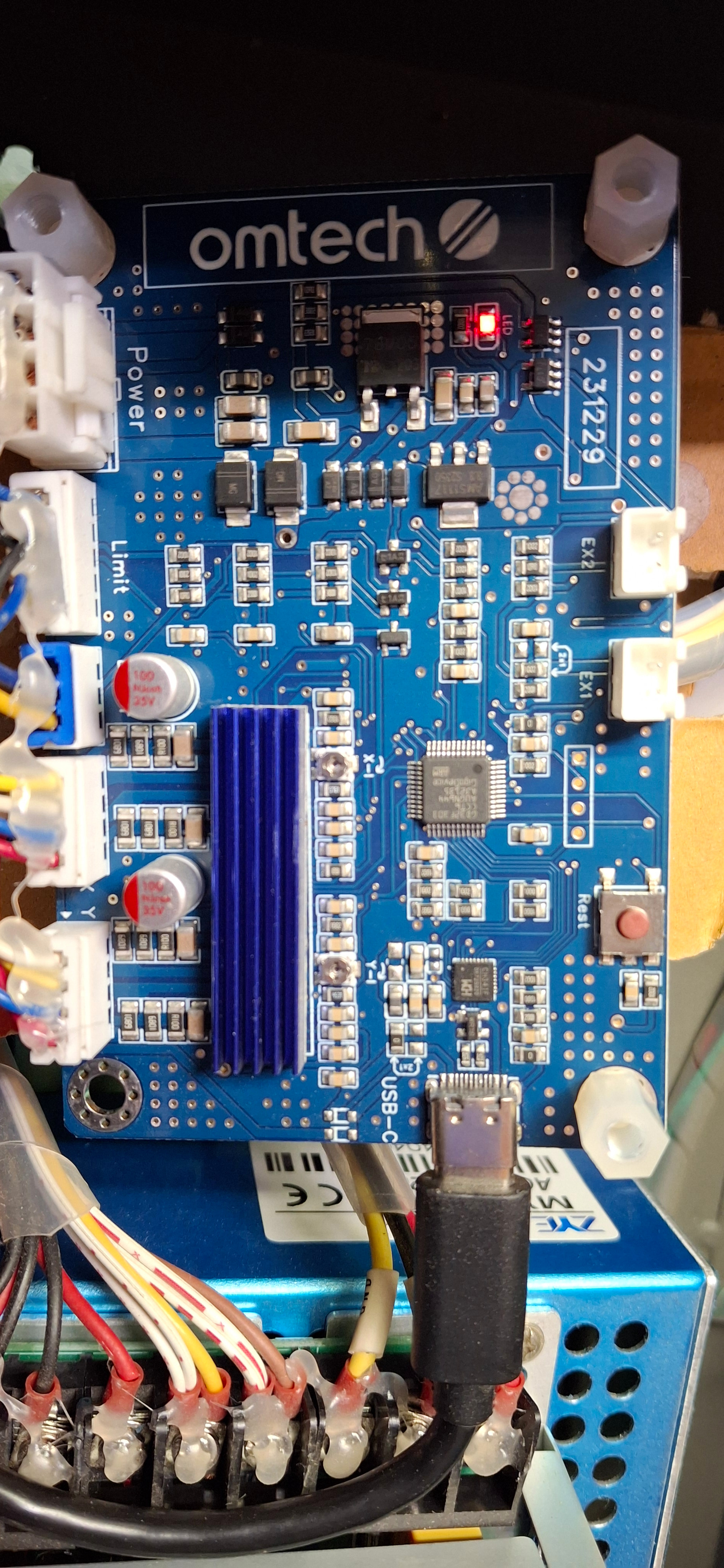
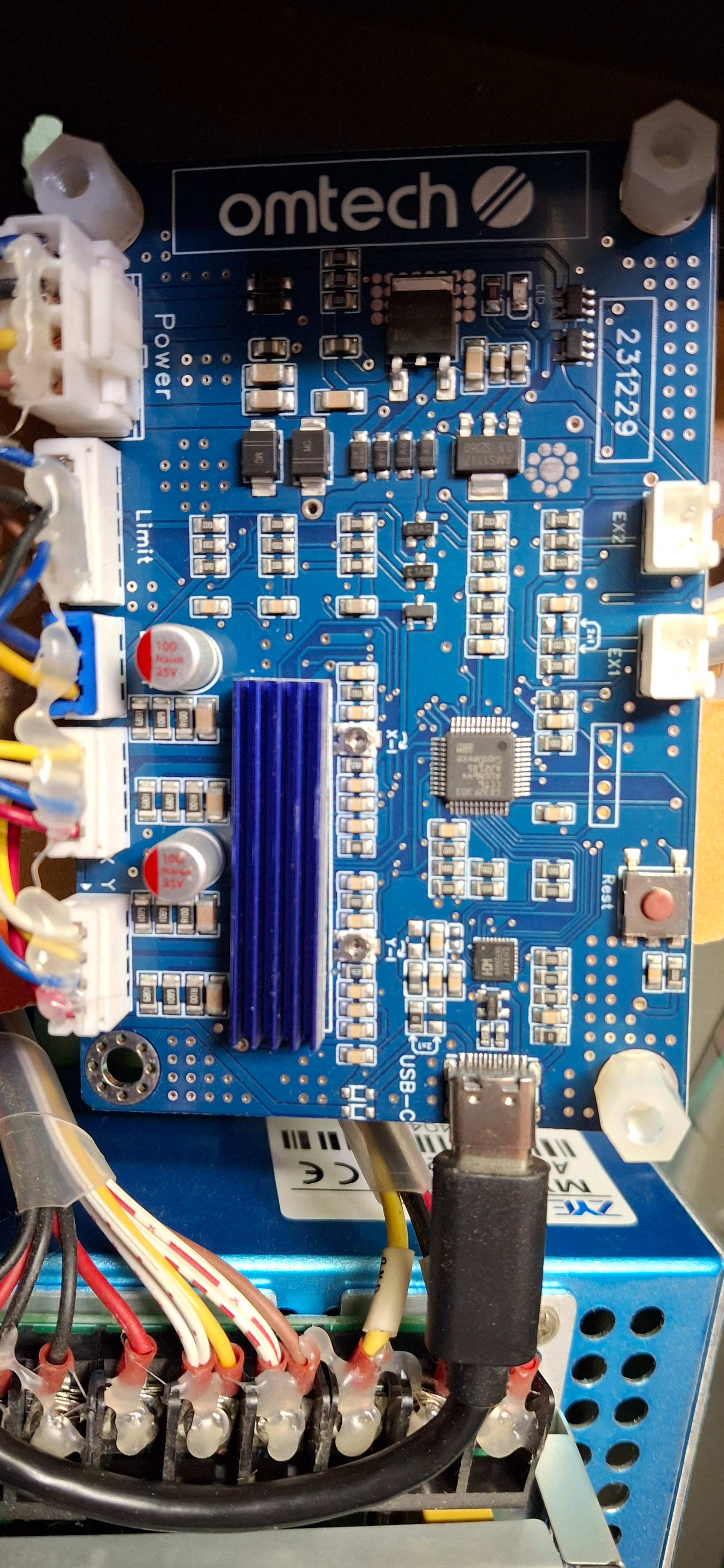
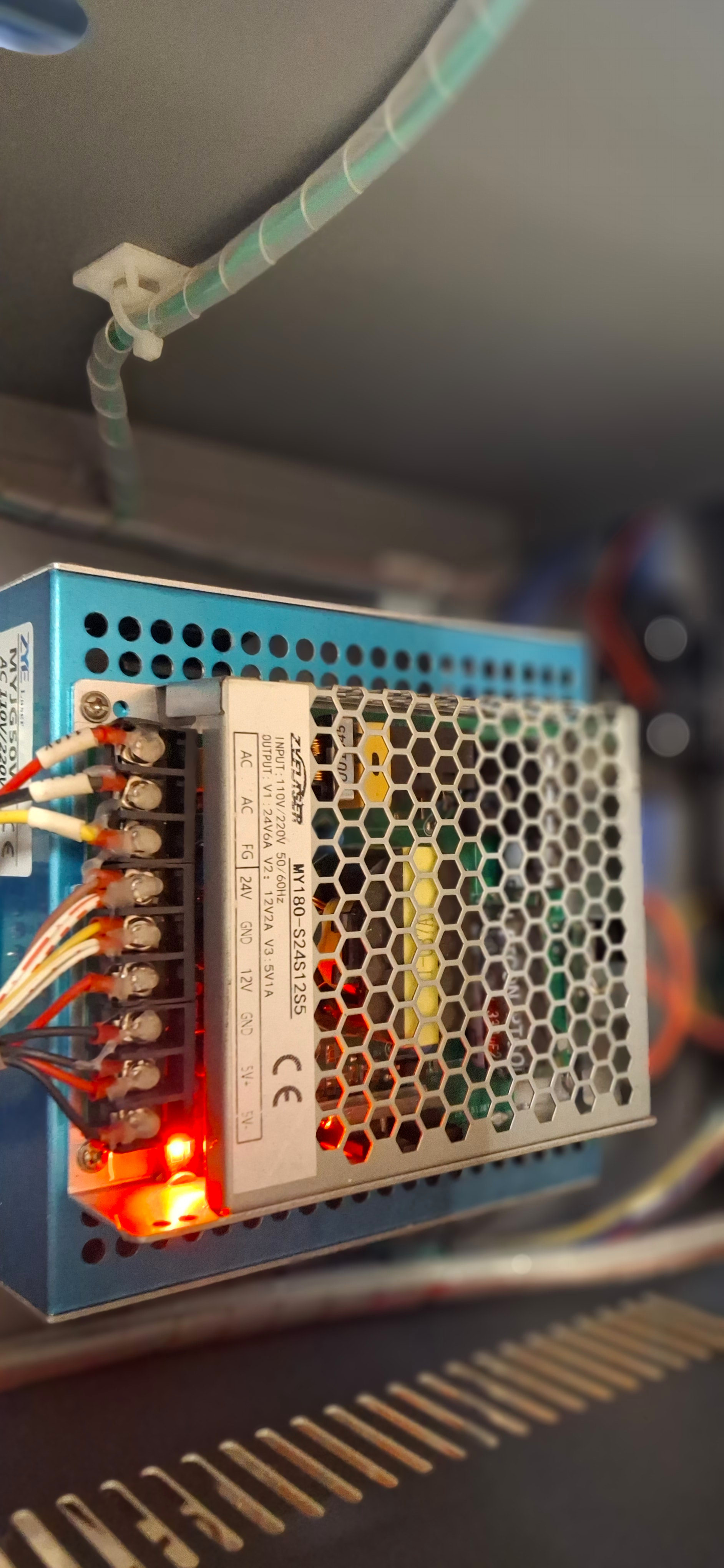
Here are two pics of the board itself. One with the machine turned off, then another with it powered up. And one of the power supply while I was at it.

I didn’t change computers, but rather installed a new much larger hard drive, which I cloned.

Ed: It does not seem to want to home at all with the USB cable unplugged.

Suggest you first, follow @ednisley suggestion and use that vom you have to measure the output voltage of the power supply.

Generally, when this stuff fails, it’s not electrical, it’s more likely a faulty switch, wiring or it’s connection.

The board has a connector labeled ‘limit’, this is likely where the limit switches plug into the main board.

My big laser had connectors similar and when I tugged on the wire it just came out. When they put a layer of hot glue on it, I’d double check it.

You should be able to read 0 or 5v across the inputs. Be smart to look at the switches and see if they have a color code they’re trying to use. It’s best to measure at the switches, manually activating them. You can use the ohm meter part to chase down the wire, but usually just measuring the voltage across them with power on should be fine. If that works, then move to the connector. It’s unlikely to be an hardware issue, but they do fail.

Let us know… Good luck. :thinking:

:grinning_cat:

What happens when you turn on the laser power with the USB cable plugged in, but LightBurn not running?

What about when the default OMTech program (LaserGRBL / whatever) is running?

Yup, sometimes the obvious way becomes obvious only after you get in there somehow. :grin:

You do not see this in the other ones. It suggests a USB communications issue.

Replace the USB cable with a quality shielded one and that it contains a ferrite (big knot).

Also try unpluging and reconnecting the USB on both ends a few times. There may be corrosion on one of the connectors.

OK, power supply seems to be fine. Not entirely sure which contacts on the Limit of the motherboard. Plug has black, blue, and brown that plug into it. All seem to be OK, but I didn’t try to pry off the hot glue or anything.

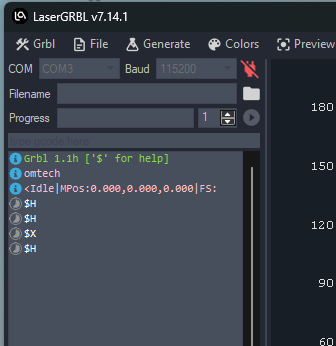
Had to reinstall LaserGRBL to even try that. I had uninstalled unused programs when I changed out the hard drive. Here’s what that looks like, although I have no idea if configuration is needed. It does not respond to this program. I hit the home button, nothing. Then the unlock button, still nothing.

Lightburn is currently not running while I tried out GRBL. Still no homing.

Speaking of limit switches. I have no idea how these orange ones work, compared to the little switches that are on the bottom of the unit and the door. When it’s doing its compulsive homing routine, it looks like this. Is this correct?

Hope this link works. Had to put it in Dropbox.

The initial line suggests the COM port / baud is set correctly, as the Grbl 1.1h … comes from the controller.

The third <Idle … line is truncated. If there’s no way to scroll to the right in order to see the rest of the line, then perhaps the controller crashed / locked up while sending that message, which would explain why the $H commands do not produce a response (and implicate a controller problem).

Or, perhaps, LaserGRBL prevents you from sending commands through its console; I don’t have a GRBL laser, so I don’t use it.

The GUI seems to have a Home button, so give that a poke and see what happens.

The evidence accumulates toward a controller problem.

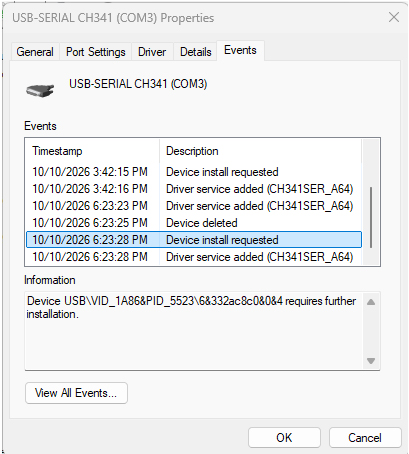
Well, well, well. The plot thickens. No idea if this is what’s going on or not, but I’m trying to leave no stone unturned at this point. This conversation is from 2024. I don’t have any idea if I was using a driver from 2019 before or not. I do not have a copy of it now, though. This computer just updated to Windows 11 Pro 26H2, and everything’s the latest version.

I can say, however, in the device manager I get this:

In all my masses of cables I’ve collected over the years, I do not have a single one that’s USB-A on both ends. So, I shall do as Mike says, and order me a new one. I’m about out of ideas at this point.

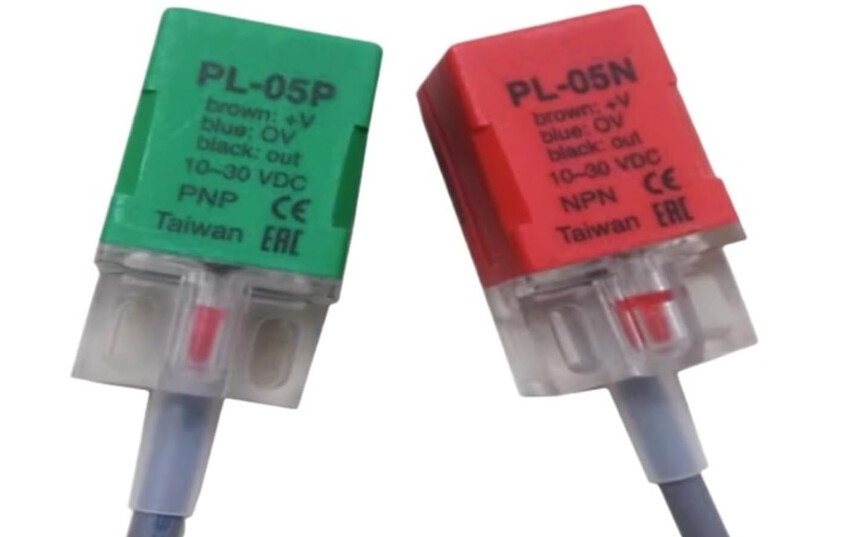
The switch you pointed out appears to be a hall effect switch.

They come in both a P and an N version. P is for PNP and N is NPN outputs. Mine uses an open collector or a NPN type of sensor.

These are activated by proximity to a Ferris metal. Usually a screwdriver tip is enough to switch them. Most of them have internal led that show when active.

:grinning_cat:

Ah, proximity then is fine… I thought maybe the gap was part of the problem. Grabbing at flippin’ straws at this point. Thanks!

1 Like

Looks good: the switch LED is On and blinks Off twice during the homing routine, as it should. The steel bar attached to the laser head approaching its right side trips it.

The similar proximity switches in my machine have LEDs that are Off until they blink On when activated, but the operation is the same.

There should be a similar switch behaving the same way on the Y axis.

1 Like

Update on everything. I finally got in the brand new cable w/ferrite last night. It did no good at all, and the Ports in the Device Manager have disappeared, as well as the formerly failing listing under USB.

Now, when I plug the USB cable in the USB 2.0 ports in the back of the computer, it seems to cut off the surrounding ports that go to the printer, mouse/keyboard, etc. Maybe it has to do with all the plugging/unplugging going on while following instructions from google gemini, but it seems to me that the motherboard is the culprit. Do you agree?

This has been several days of misery trying to figure out what’s going on. If I was into tearing my hair out, my purple ponytail would be gone by now. Looks like this motherboard will be expensive, and I’m not sure it’s even worth it at this point.

I really doubt it’s in Lightburn or your controller. The grbl controllers are pretty tough. I’m thinking like @MikeyH but I think it’s your windows drivers.

Don’t know the difference between a 340 and 341 type drivers, there may be some incompatibility issues with windows itself accepting Lightburn.

Just because you see a driver doesn’t mean it’s all hunky/dory… EZCad2 and Lightburn use different drivers.

I think you’re nuts. Even if you put a new dsp controller and lps in the machine, it’s only be around $300 to $400 USD, these new with a + model (grbl) are around $800, if I recall.

Worst case a new controller is about $100 USD, whereas a new MKS DLC32 grbl controller is more like $25 usd… from e-bay, slightly more from Amazon.

I’d suggest you don’t use the assumption method, it’s likely not the most expensive part and try to work out why it’s not doing what you want.

We are here to help… :thinking:

:grinning_cat:

2 Likes

So you think it may not be the controller after all? I’m almost afraid to plug this USB cable into the computer at this point, the way it seems to put the surrounding ports out of service. I have four USB-2 in the back, and two USB-3 on the front. For instance, when I plugged it into the front (where it’s not supposed to go) my little receiver for the mouse in the other stopped working. If I plug it in the back, the printer or scanner quits. I do not want to fry something that’s resident on the computer’s motherboard. Yikes. Just trying not to be stupid here.

It’s so hard to figure out how something that gets this little use could go bad this way. I might even try to blame a power surge or something, but nothing else has croaked in this building, no matter whether they’re on a surge protector or not. Everything I seem to do seems to make it worse!

These usb ports go through what’s known as a hub, this allows multiple connections to the different usb ports. Depending on the machine, it could be taking down the hub itself. It would still lead me to believe it’s driver related. It shouldn’t take your machine down, but unless the new usb cord is not wired correctly, I can’t think of where to advise you.

Maybe @misken has a clue of where to look. He’s pretty up on grbl machine and how they talk. Big thing with these, is don’t get in a hurry, that’s usually when the smoke gets out…

:grinning_cat: