Ortur LM2 Pro S2 freezes in Busy state in LightBurn (works fine in LaserGRBL)

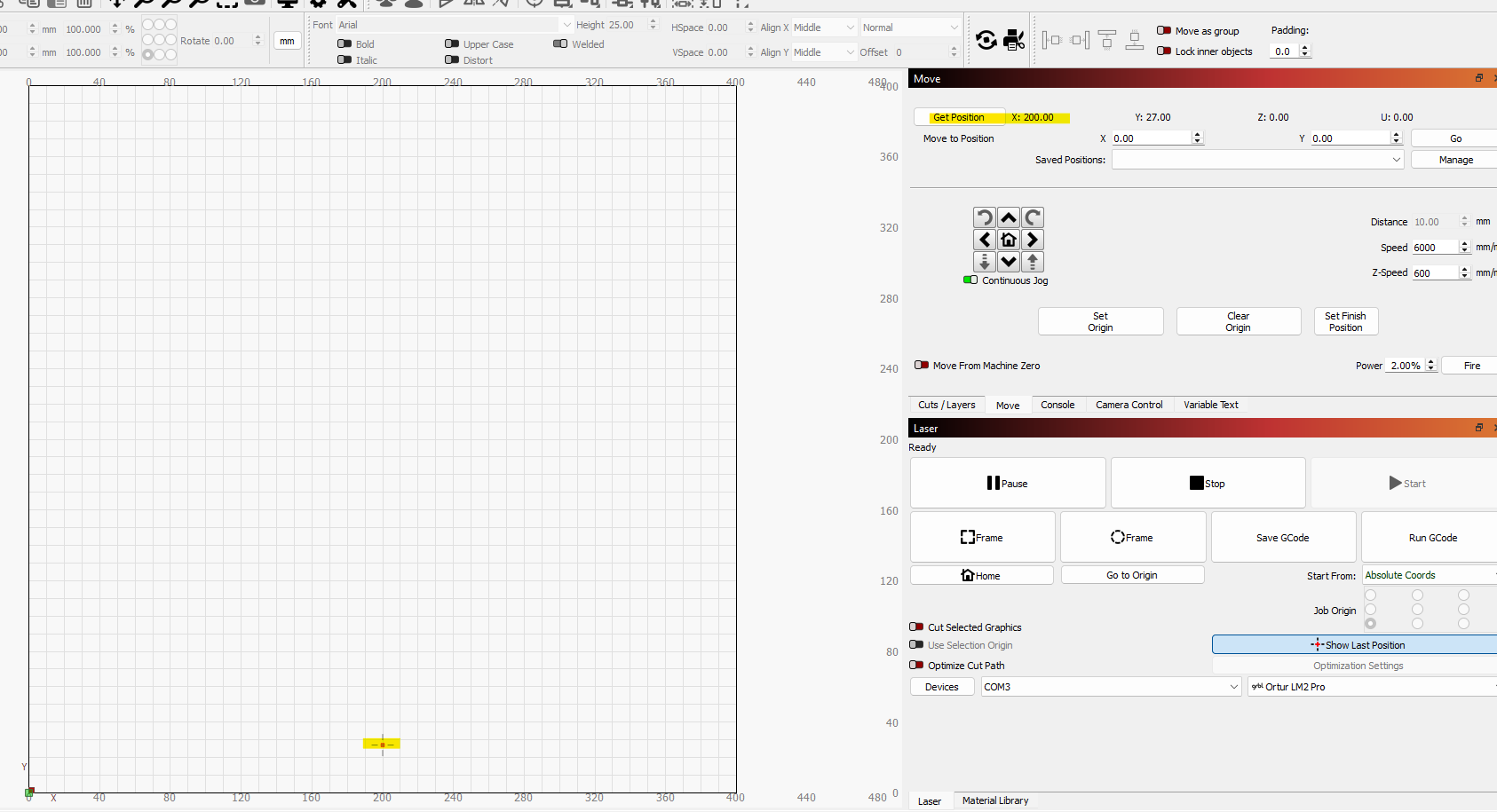
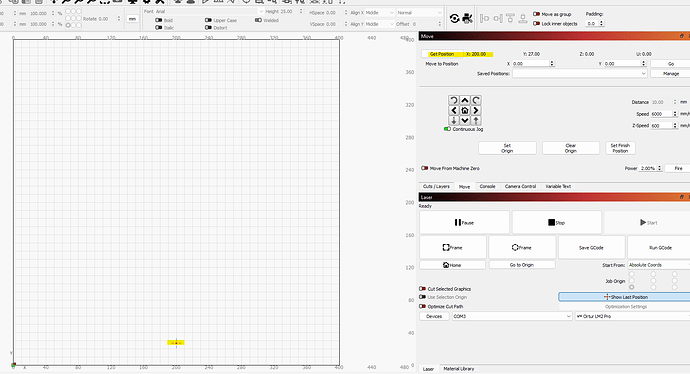
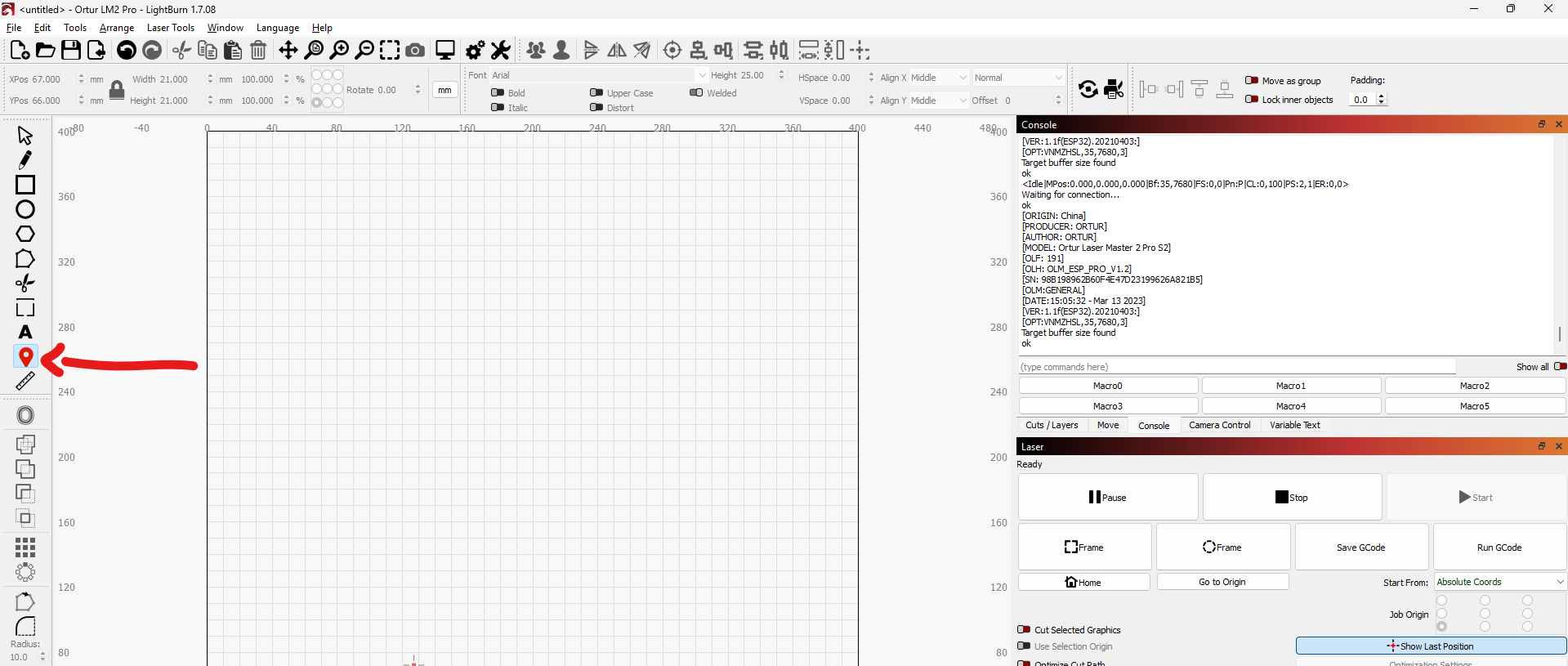
The button for setting laser position in the map
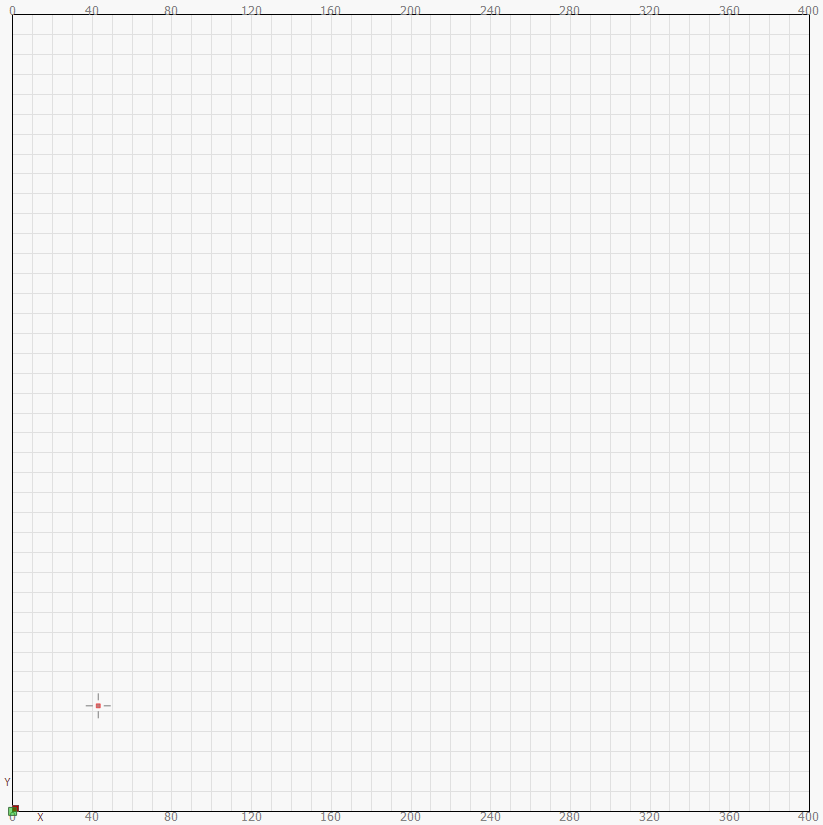
When clicked the button, you set the laser position in the map, and the laser will move to the selected position.

With that function, the laser moves ok in every direction.

$$
$0=5.0
$1=100
$2=0
$3=6
$4=7
$5=7
$6=1
$10=2047
$11=0.050
$12=0.002
$13=0
$14=6
$15=0
$16=1
$17=4
$18=0
$19=0
$20=0
$21=0
$22=1
$23=7
$24=600.000
$25=3000.000
$26=100
$27=3.000
$28=0.100
$29=0.0
$30=1000.
$31=0.
$32=1
$33=1000.000
$34=0.000
$35=0.000
$36=100.000
$37=0
$39=1
$40=1
$41=0
$42=1
$43=1
$44=3
$45=0
$46=0
$56=1.000
$57=1800.000
$58=395.000
$59=6000.000
$60=0
$61=0
$62=0
$63=3
$64=1
$65=0
$100=160.000
$101=160.000
$102=2124.000
$110=10200.000
$111=10200.000
$112=600.000
$120=2200.000
$121=1800.000
$122=200.000
$130=400.000
$131=400.000
$132=100.000
$259=0
$260=70
$261=0
$262=400
$263=0
$264=0
$265=50
$266=100
$267=0
$268=0
$269=0
$270=5120
ok

Got it, the “Teardrop” Tool. :grin:

That should not fix things. It is just a simple move command.

Cycle the laser power. Once it Homes, you should be able to Jog UP. If it fails, try DOWN (you may have to re-Home the machine). If it is backwards, let me know, then open up Machine Settings. Once that is in front of you, I will talk you through the settings.

By the way, thank you for being so patient. Most people would have had the hammer out by now. :joy:

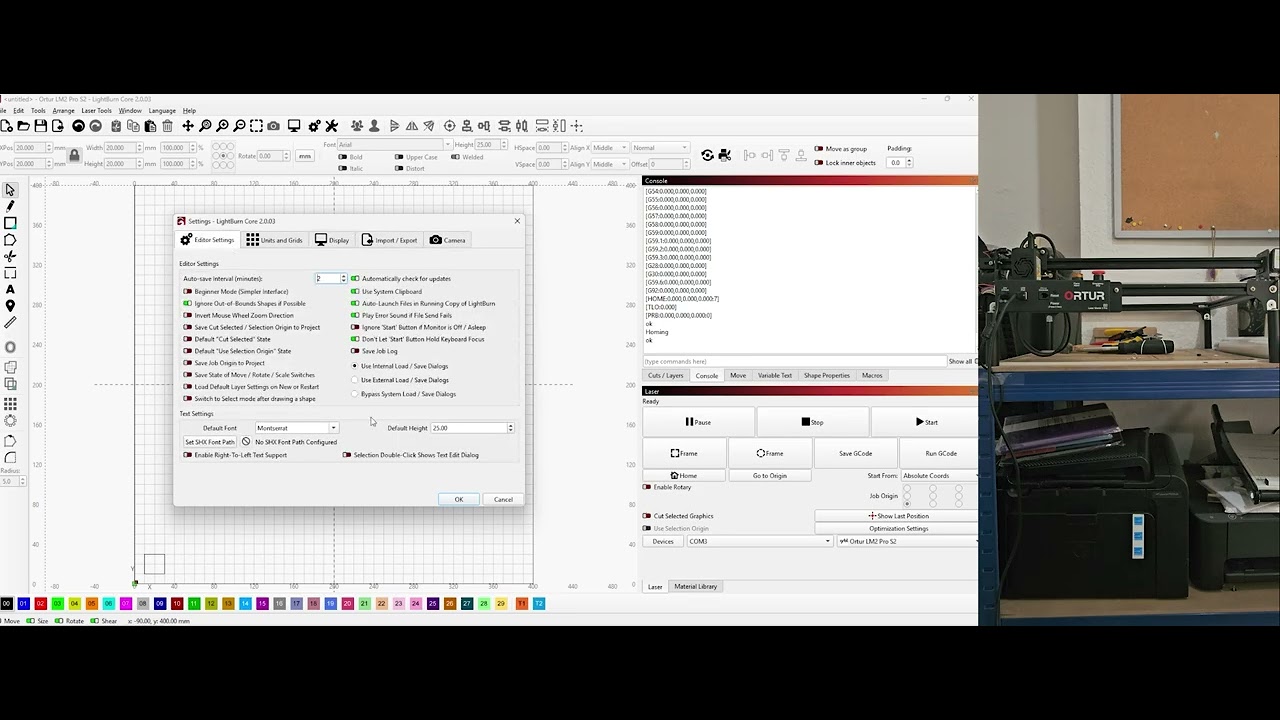
Grabación 2025-09-08 110128

The initial position it’s now at zero correctly

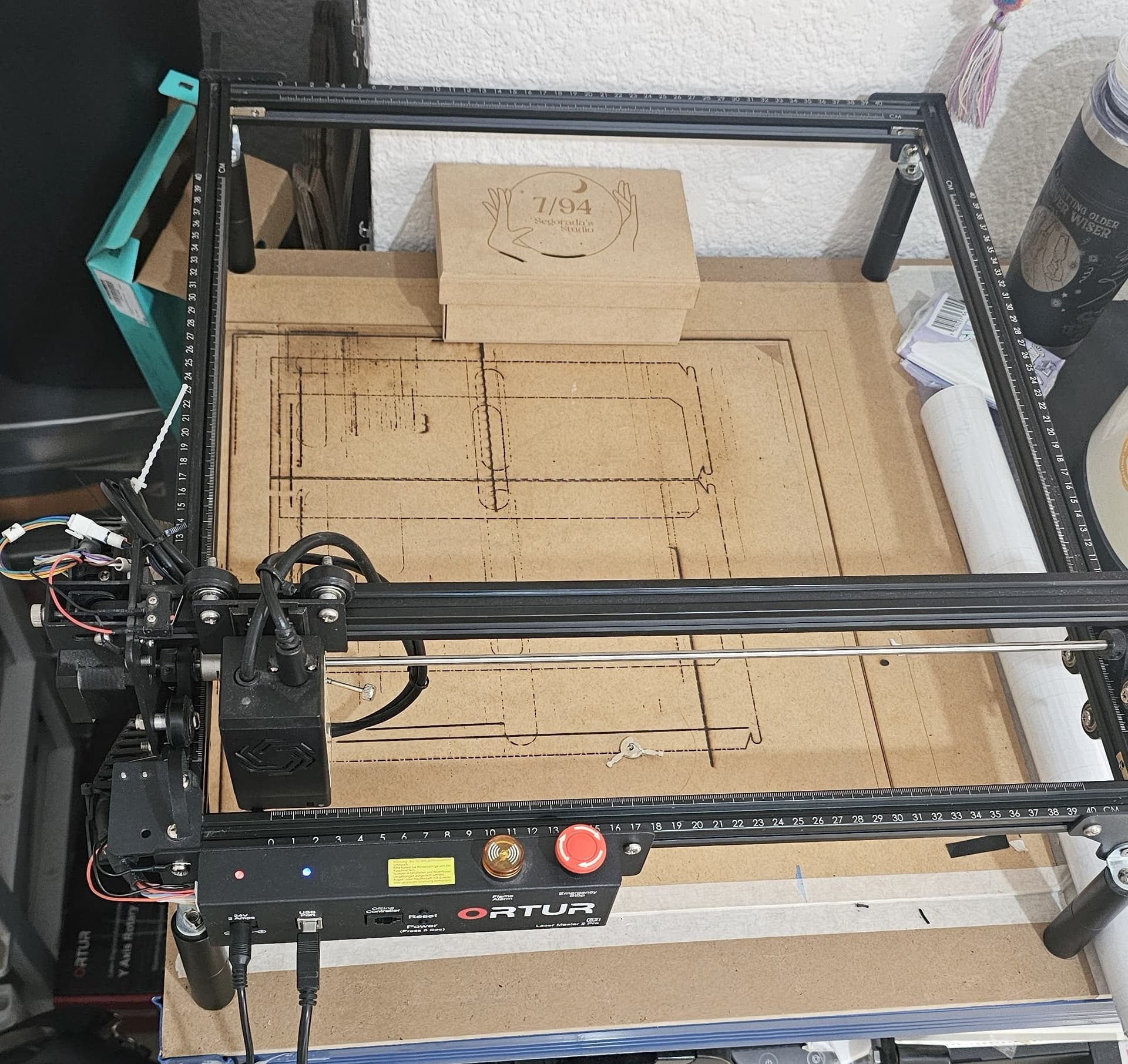
BUT physically it’s on the limit.

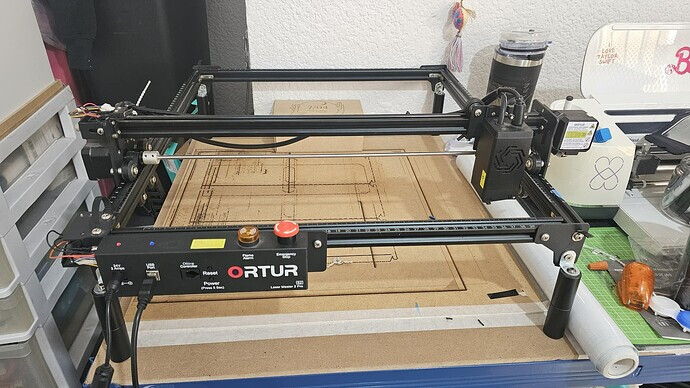
THAT is where it Homes? Your Xaxis Home switch is on the left in the image. I cannot see the Yaxis Home switch, but I am guessing it is on the front left corner.

When you hit Home in the Laser window, does it grind when it stops?

If we do not get the Home cycle right, nothing else will be.

  1. If the laser module goes right instead of left when Homing, switch the X Homing direction invert ($23). Then try again.
  2. If the laser module goes back instead of front (towards the control box) when Homing, switch the Y Homing direction invert ($23). Then try again.

No, there’s where when I set the Teardrop tool, the laser goes.
What I’m trying to say, is that, that’s the limit for my laser, as it was the 200 mm, but it’s the 400 mm X. Same for the Y axis.

HOME

In the previous images:

Here’s the laser (teardrop tool) set at the 200 mm

But physically on the 400 mm

Still getting “busy” and freeze.

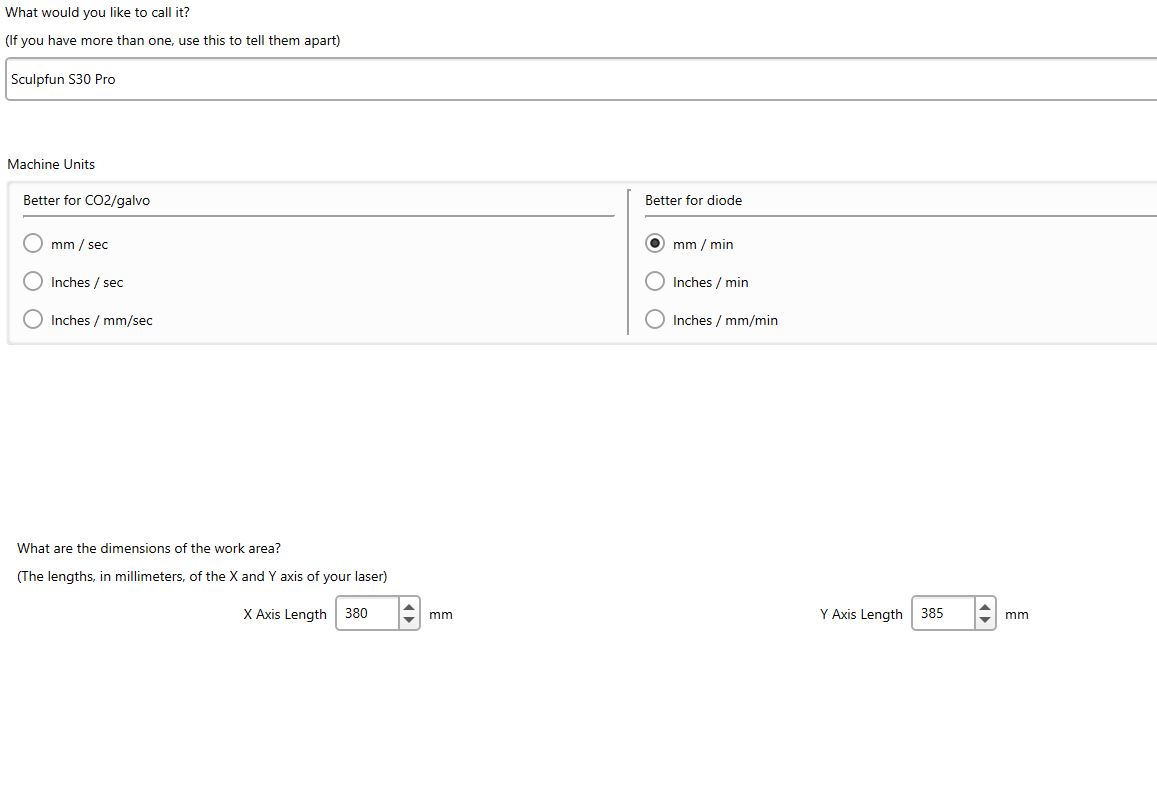
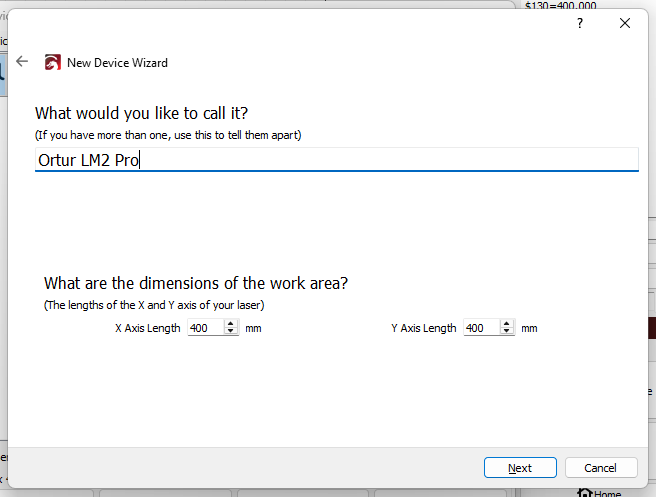
In Laser window, click on Device → Edit → Next 2 times. You should see a window like this one. Please show it…

Wrong Devices window. :grin:

:rofl:

Here’s the one:

400x400 in Lightburn.
$130=400.000 and $131=400.000 in GRBL.
It should be able to go farther back. :enraged_face:

Does it move freely with the power off and you move it by hand, with no snags or rough spots?

If it moves freely, try this GCode in the Console window, one line at a time…

  1. $H
  2. G90
  3. G0 X200 Y200 F1000 S0
  4. It should move to the center of the frame, laser off.
  5. G0 X350 Y350
  6. It should move near the far right corner.

I am not giving up. I hope you do not either.

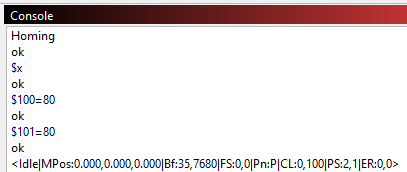
It looks like you still need to calibrate the scale - as your steps/mm are twice what they were before? These are normally set to 80 for your machine:

$100=160.000
$101=160.000

Posting #1 = 80.
Posting #21 = 160.

I recently upgraded to LightBurn 2.0.03, and I can finally move the laser in any direction without getting the “Busy” signal.

However, when I try to start a project or use Frame, the machine immediately shows “Busy” again and won’t proceed.

I also noticed that the Y-axis movements are very rough, unlike the X-axis.

I recorded a short video to show the issue. Here’s the YouTube link:

Go to your Console Window, and enter these lines one at at time;

$100=80
$101=80

These GRBL settings determine how many microsteps are sent to the X ($100) and Y ($101) stepper motors for every 1mm of travel. You seem to still have them set too large.

Still gets Busy

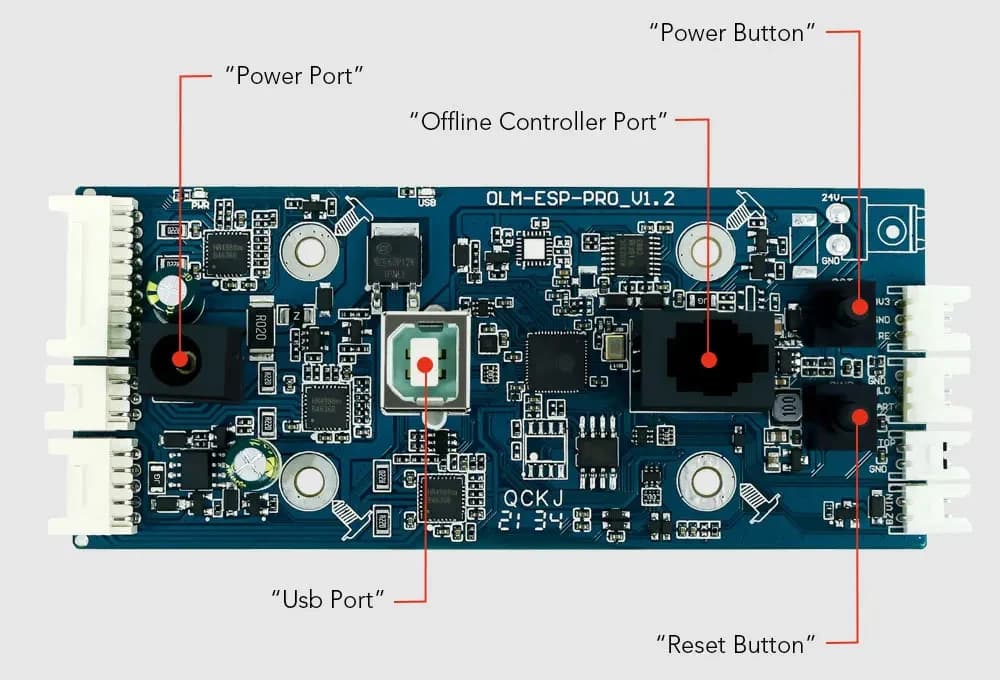
The motherboard is OLM-ESP-PRO_V1.2

I’m So Stressed Out! :tired_face:

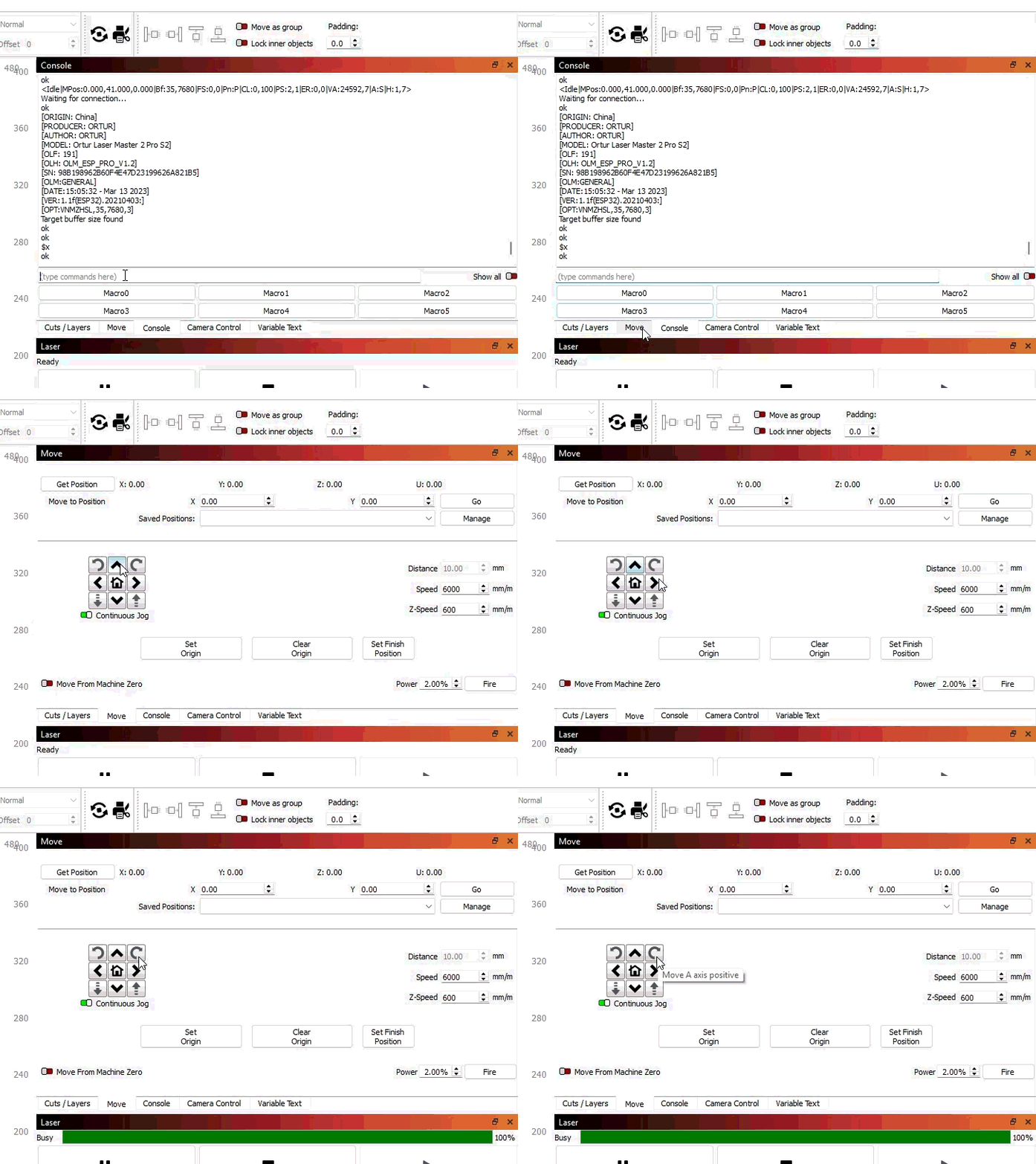
The controller responds with “Ok” to let Lightburn know it is ready for the next command. It appears it is not sending the Ok after it sends the <Idle|MPos:0.000,0.000…" string to Lightburn. This is a Status Message sent by the controller.

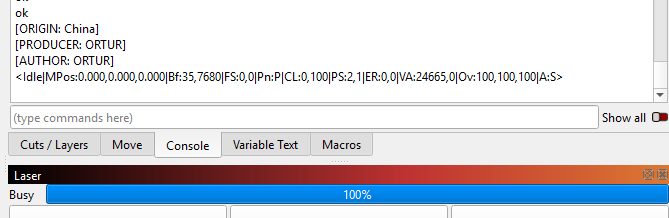
Turn on Show All to see if there is anything else being sent after the status message.

Have you contacted Ortur about this?

With show all:

[ORIGIN: China]
[PRODUCER: ORTUR]
[AUTHOR: ORTUR]
[MODEL: Ortur Laser Master 2 Pro S2]
[OLF: 191]
[OLH: OLM_ESP_PRO_V1.2]
[SN: 98B198962B60F4E47D23199626A821B5]
[OLM:GENERAL]
[DATE:15:05:32 - Mar 13 2023]
[VER:1.1f(ESP32).20210403:]
[OPT:VNMZHSLW,35,7680,3]
Target buffer size found
ok
[G54:0.000,0.000,0.000]
[G55:0.000,0.000,0.000]
[G56:0.000,0.000,0.000]
[G57:0.000,0.000,0.000]
[G58:0.000,0.000,0.000]
[G59:0.000,0.000,0.000]
[G59.1:0.000,0.000,0.000]
[G59.2:0.000,0.000,0.000]
[G59.3:0.000,0.000,0.000]
[G28:0.000,0.000,0.000]
[G30:0.000,0.000,0.000]
[G59.6:0.000,0.000,0.000]
[G92:0.000,0.000,0.000]
[HOME:0.000,0.000,0.000:7]
[TLO:0.000]
[PRB:0.000,0.000,0.000:0]
ok
Homing
ok
$x
ok
Starting stream
Stream completed in 0:00
ok
Starting stream
Stream completed in 0:00
ok
Starting stream
Stream completed in 0:00
ok
Starting stream
Stream completed in 0:00
ok
Starting stream
Stream completed in 0:00
ok
Starting stream
Stream completed in 0:00
ok
Starting stream
Stream completed in 0:00
ok
ok
<Idle|MPos:0.000,0.000,0.000|Bf:35,7680|FS:0,0|Pn:P|CL:0,100|PS:2,1|ER:0,0>

I’ve contacted them (ORTUR), but since I purchased my OLM2PS2 in Mexico through a third party, I haven’t received a solution, as they require the original purchase order number.

This is normally 80, not 160. If you tell it to move 1mm, it would move 2mm (twice as many steps) instead.

I watched your video again:

  1. You do not have Continous Jog turned on. It is moving in 10mm increments, one for each click of the mouse.
  2. I saw GRBL-LPC in your devices window. Were you specifically instructed to use the -LPC variant for your Device type? Maybe you can create a Device Manually and select just plain GRBL as the Device Type. Manually creating one is really easy. Then select the new one and see how it behaves.

Because you have been making a lot of changes to your device settings, I suggest you delete your existing device (‘Devices’ button, select Device, ‘Remove’ and then ‘OK’) and try the attached device profile:
Ortur LM2 Pro S2.lbzip (1.4 KB)

(Drag and drop into LightBurn and “Import”)

Once connected to ‘Ortur LM2 Pro’, enter into the console;

$20=1
$10=0

(Now your machine and device settings should be about the same as mine.)

Home the machine, then try framing something.

If the machine goes ‘Busy’, click on the ‘Stop’ button (soft-resets the GRBL controller) and then see if the Status changes to ‘Ready’ again, if it does rehome, and try the job again.

If the problem continues, try turning off ‘Laser On When Framing’ and also set the power for the job to 0% to see there is any difference without the laser on.

It’s been a while since I turned on the laser, now it won’t do anything at all.
Not a single move.

But, I downloaded your file, and ineed, when “busy”, I clicked on “Stop” and it will stop and show “ready”.

But now the machine even before the file importation, won’t move.