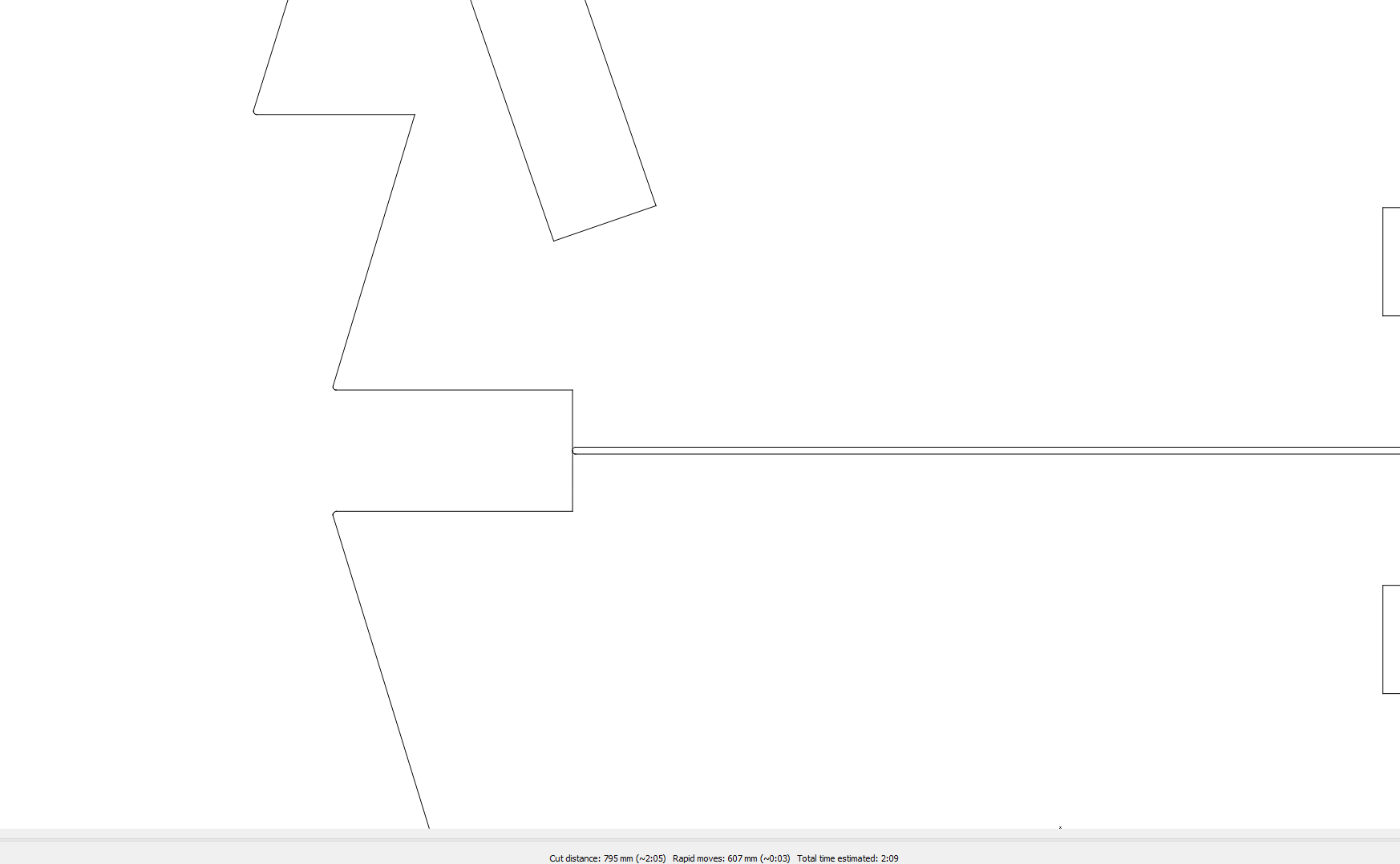
I’m getting a weird preview when using “Remove overlapping lines”
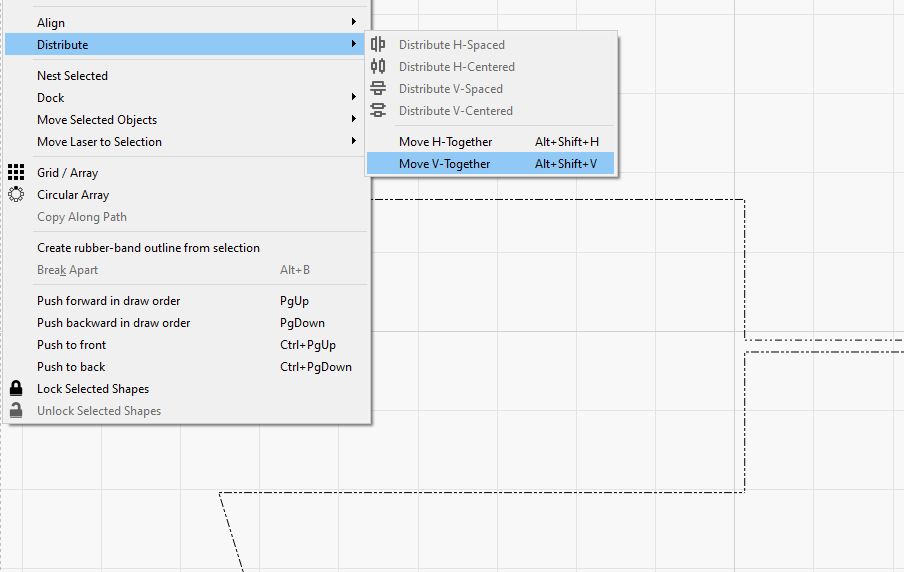
I select the 2 pieces, then Distribute - Move-V together.
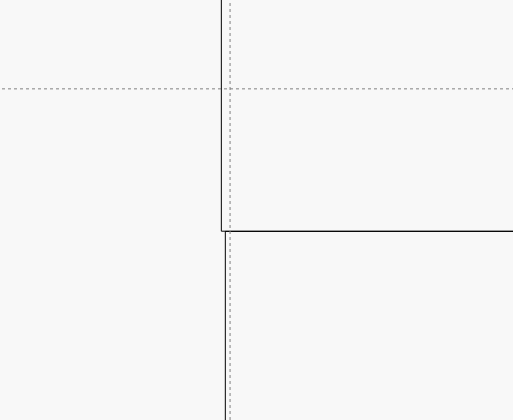
When I zoom in max it looks like the lines are not overlapping.
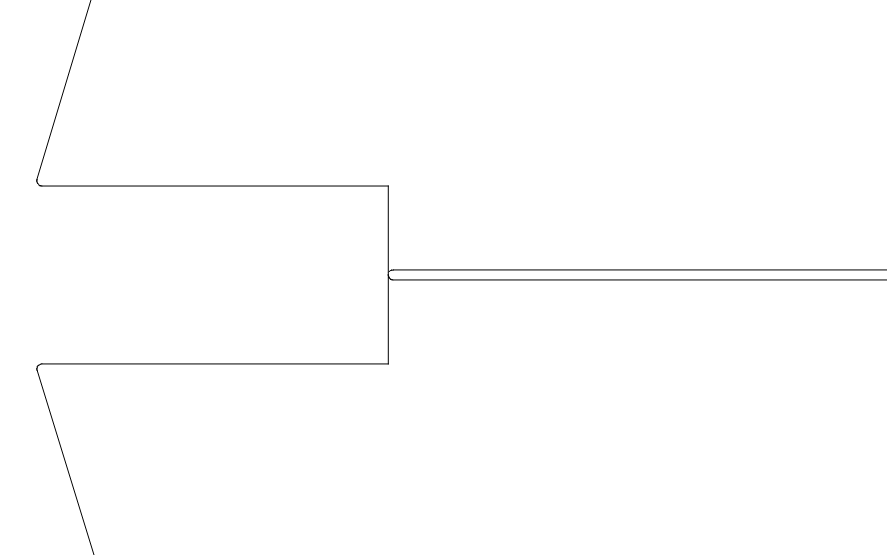
But in the preview they are.
What causes this?
Did as the short video posted here.
I tested on another file also with many rectangular shapes. Also same problem.
I’m pretty sure I did this one time and it worked perfect.
You asked why the not-quite overlapping lines disappeared.
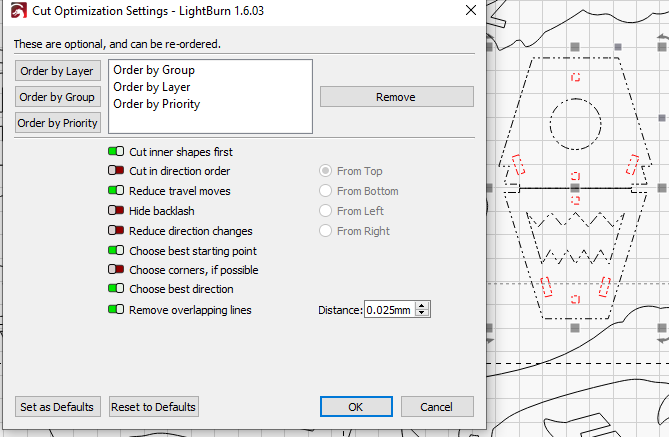
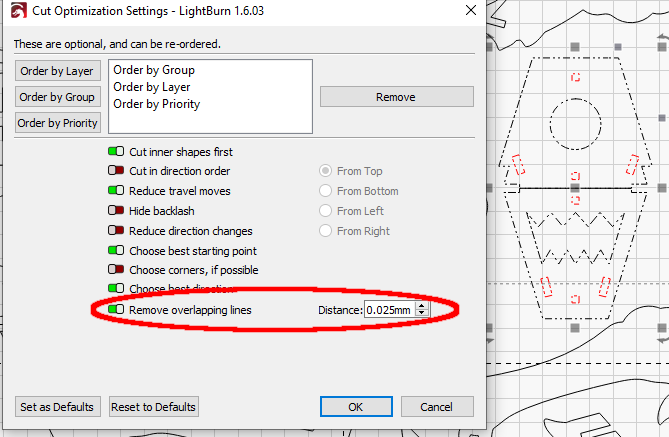
I pointed out the “Remove overlapping lines” setting is enabled with a tolerance that (almost certainly) covers the “zoom in max” distance between the lines.
So LightBurn is doing exactly what you told it to do: remove parallel lines that are no more than a small distance apart.
I’m smiling because I have often run into a similar situation: a program did what I asked, not what I expected.
Based on the rounding of the lines in your preview it looks like you have a Kerf Offset enabled. LightBurn applies the Offset before Removing overlapping lines, so that’s why the lines are not being removed (the Kerf Offset causes them not to overlap within your specified tolerance). If you share your project file, we can verify whether that is the case.
If you need that Kerf Offset for other parts of your design, try using Docking to move the parts together with a padding that matches 2x the Kerf Offset value — ie, if your Kerf Offset is .5, you’ll need 1 mm of padding.
To answer the question you PMed me: Optimization Settings are saved per-file, so you need to save the file after making any adjustments. Otherwise, when you re-open the file, the Optimization Settings will revert to whatever they were when you last saved it.
When I move objects together, overlap corners, etc and then zoom all the way in, it’s not always perfect. This drove me crazy until I used the ruler tool to try and measure the offset - it showed “0.00mm”. I believe we’re seeing an artifact of rounding, and at cut time they cut fine.