I have a few squares and lines and now want to cut different lines with the scissors, but it doesn’t cut, it just extends the line to the edge of the work surface in Lightburn.
An image would help us understand what you are trying to accomplish. However, here are a couple of hints.
- Apply Convert to Path to circles, squares, and regular polygons. They do not have Nodes until you convert them.
- Use the Node Tool to insert nodes or break line segments. The Scissors Tool needs to find starting and stopping points.
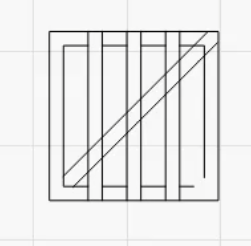
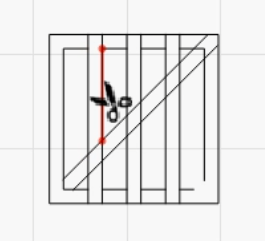
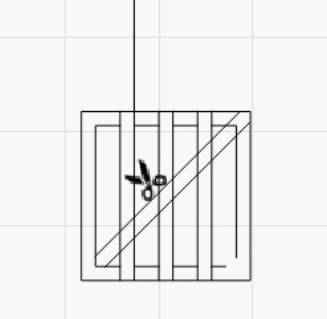
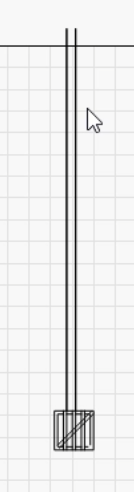
After cutting with scissors, the lines extend to the edge of the work surface.
These are images from a video I filmed from my screen. How can I upload videos?
Link to my video
Upload your .lbrn2 file so we can take a look at it.
I can verify that it’s doing what you say. I cannot explain why. The workaround is to use the node editor instead of scissors. Select the line you want to work with, click node editor, hover over an intersection and press the I key to insert a node at that point, insert a node at tne nextr intersection point then hover over the section you want to delete and click the D key.
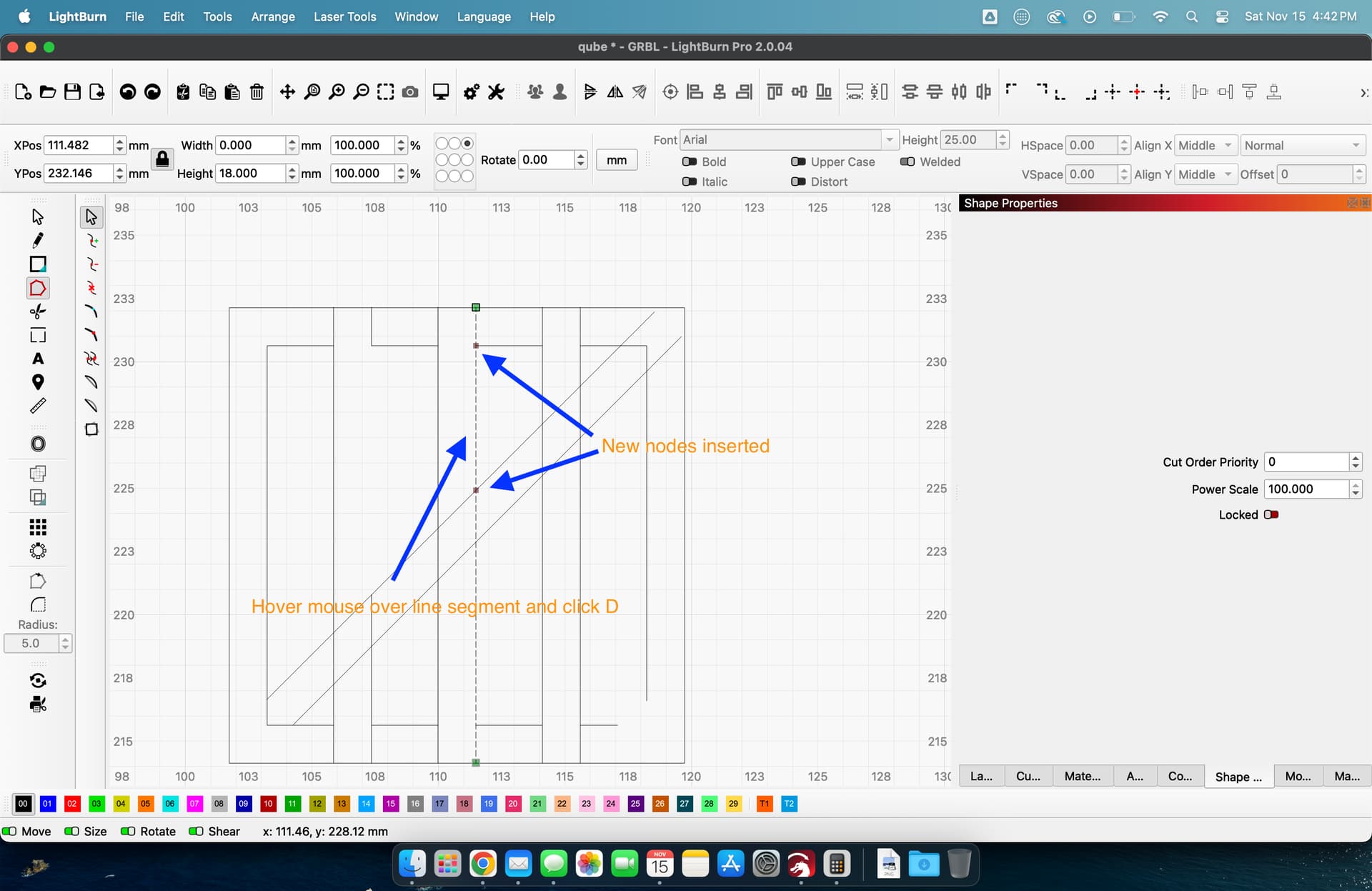
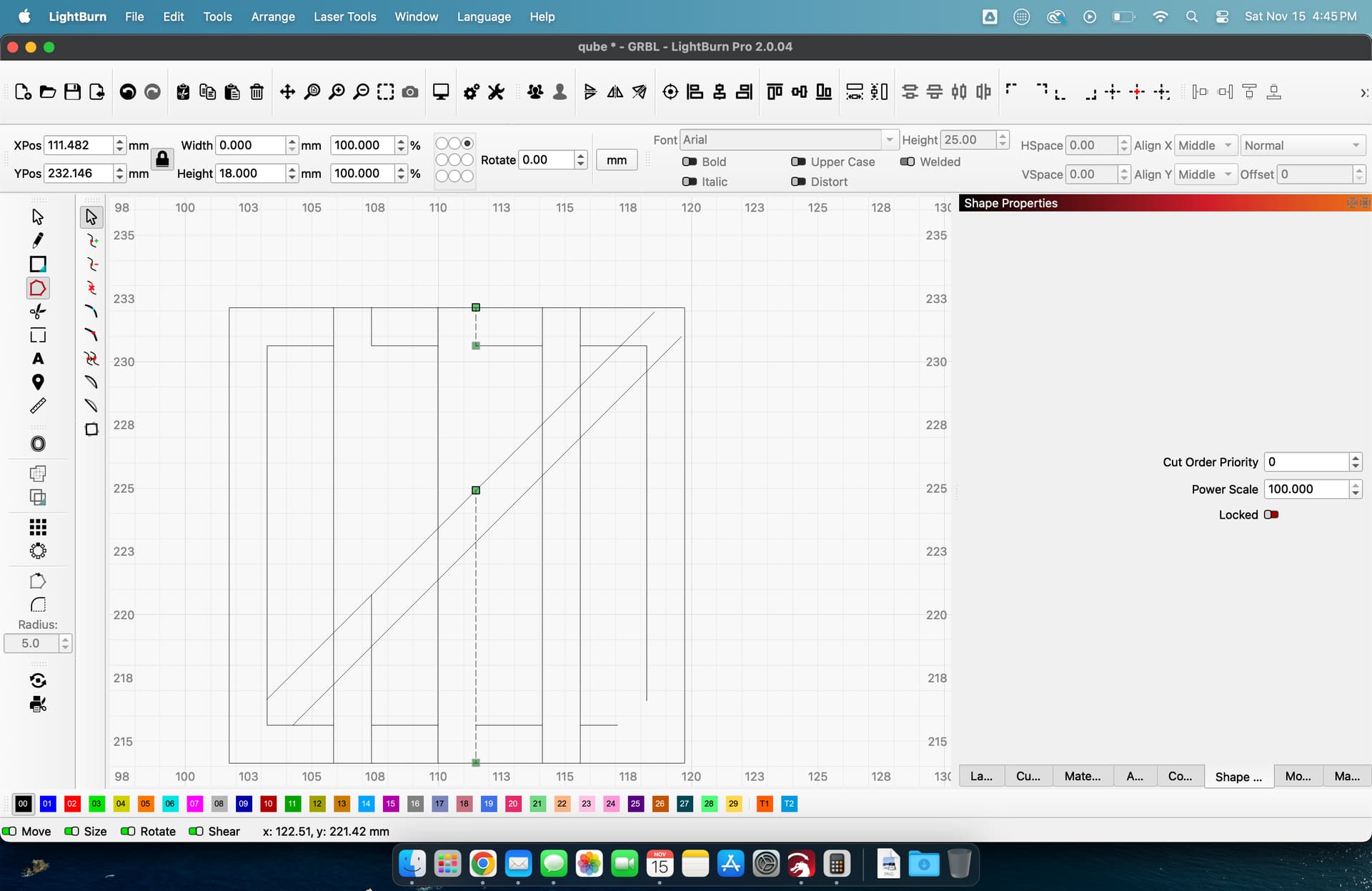
One thing I’ve actually had success with is this:
If you can define the task from a programming aspect, you can actually ask ChatGPT to make a Python script to process a Lightburn project file.
LB’s file format is basically Postscript with some additional tagging. ChatGPT worked it out surprisingly easy. It can’t actually use the Node Edit tool inside LB, because that’s not in the LB project file and AFAIK LB doesn’t have a scripting API.
But, if you can articulate and objectively define what needs to be edited and how, ChatGPT could edit nodes inside the script.
Hard to guess how difficult that will be to work out. It’s more important if you get presented with a job that takes way too much time to hand-edit stuff, especially if there’s a chance that you will change something upstream in your design flow that would require starting manual edits all over again each time
Thank you very much. I did exactly as you described, placing dots and then deleting the line with D. Another solution was to restart the PC, then start Lightburn and redraw the object, and then it worked with the scissors. However, I keep encountering this problem with the scissors when working on larger projects, and then I have to set points with I and delete the line with D, which sometimes takes a lot of time. Have a nice day and thank you very much.
I have reproduced your problem here and will investigate. I can tell you that the code for the Scissors tool is surprisingly complicated, and getting all the weird math cases to behave is challenging.
1 Like
So the reason this is failing is a bit complicated - The line shape was scaled horizontally to zero. (at some point you probably selected it and typed 0 in the width).
We are trying to do the snipping in the “space” that the line is in, and because of that zero scaling, the math no longer works - there isn’t a single answer.
To give you a vague idea of what that means, draw these three lines as individual shapes:
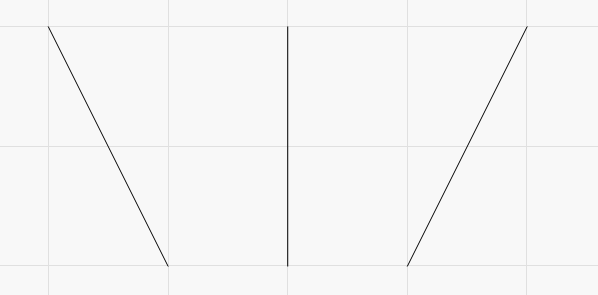
If you then scale each of those shapes to have zero width, they look like this:
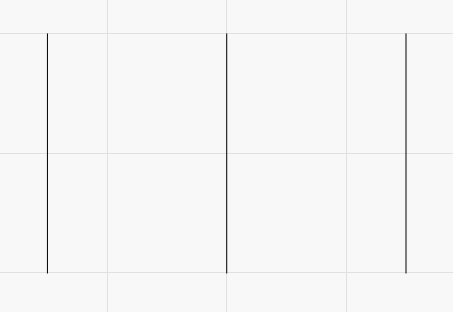
They are now identical - So three different shapes, scaled to zero width, all produce the same result. That means that the “opposite of” scaling to zero width has many answers, and so it breaks the math.
It can be solved in a different way, so I’ll try to get this fixed for the next update.
1 Like
Fixed - will be in LightBurn 2.1, and I’ll see if I can get it into the 2.0.05 patch.
2 Likes
Yes, I tried it, I drew three lines and set the width to zero, then drew two more lines across them and also set the width to zero, and then when I cut with the scissors, I got exactly this effect where the lines are not cut but extended to the work surface. If I do the same thing without setting the width to zero, the scissors work fine. My question: how can I draw a straight horizontal line without setting the height to zero?
Or I’ll just wait for your update.
Thank you very much for your support.
1 Like
Hold the Shift key while drawing to restrict the line to horizontal, vertical, or diagonal.
Just a note of thanks to Lightburn - I work with dozens of software companies through work and none of them respond as quickly and considerately as Lightburn. It goes such a long way.
5 Likes
I was getting the same thing with your file. I wasn’t able to figure why it was doing it, but I figured out a workaround.
File –> Export –> Save As a DXF.
After you have exported it, import it again. It might set your layer to FILL so change it to LINE and the scissor tool works.
Thanks for the info, but I’ve solved the problem.
I want to draw horizontal and vertical lines, so I drew a line and then set one dimension to zero, but that doesn’t work. When drawing lines, you have to press the SHIFT key, and then you get a straight line and don’t have any problems with the scissors.
We’ve also fixed the “scaled to zero” issue with the Scissors for the next release.
2 Likes
Dear Oz Owner,
It’s very kind of you to include the “scale to zero” issue in the next update. I have often used the “scale to zero” function, but I realized that it is easier and faster to use the Shift key, and I only learned this after you wrote to me. Thank you very much for your prompt support.
Best regards, Markus
Hi Oz Owner
Thank you very much for the update to the scissors with the “Scale to zero” problem. It works wonderfully.
Best regards
Markus