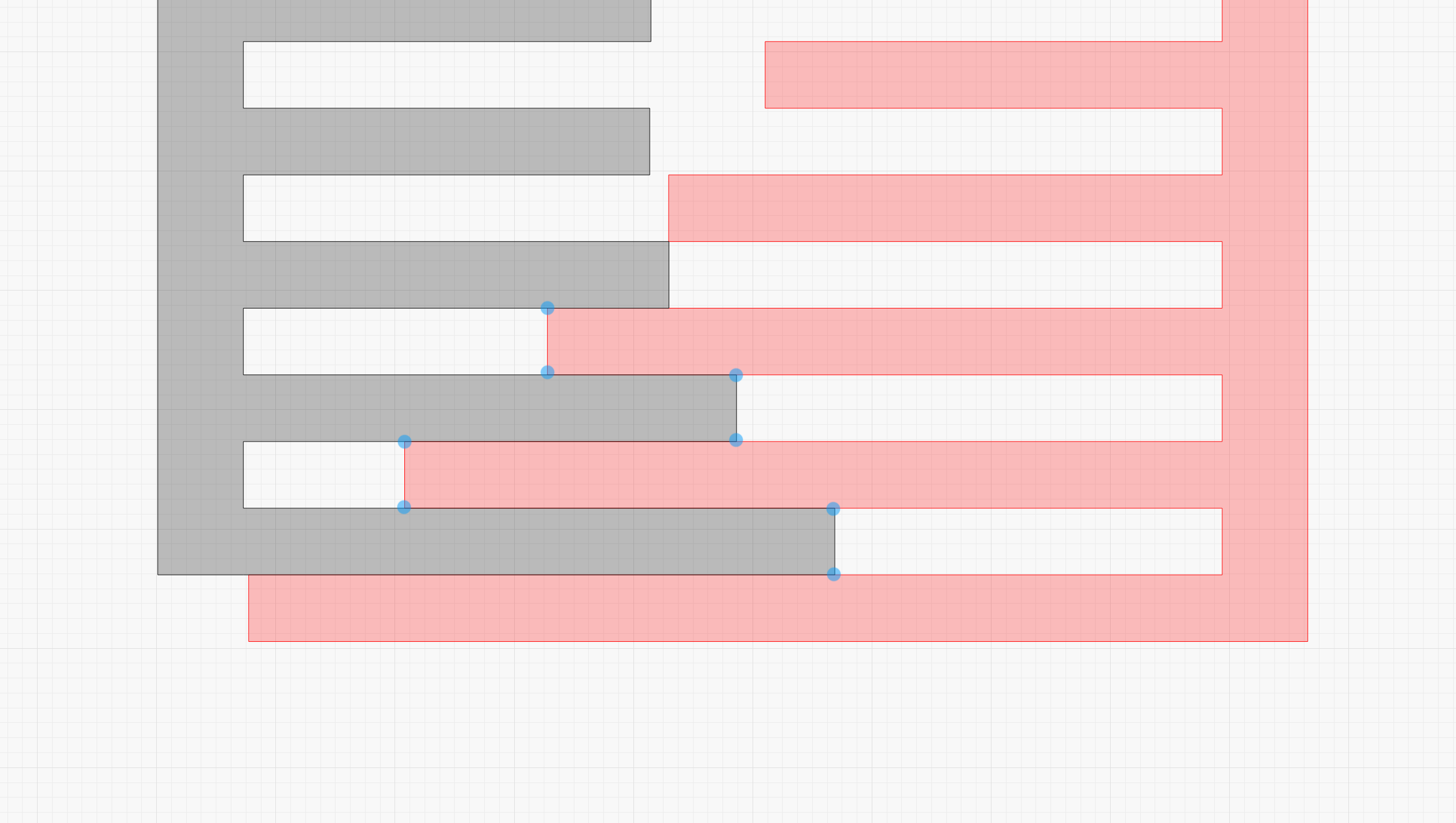
The blue dots shown in this image are where unwanted laser marks are showing. The tightly nested parts share a common line correctly but on the segments that cross the common lines (marked by blue dots) I end up with unwanted laser marks where the dots are. These are small parts. The finger locked pieces are only 1/4" thick, so i’m not sure the best way to problem solve this issue.
[quote=“artmaker, post:2, topic:184714, full:true”]
For further detail: Imagine the red geometry gets cut first. Then the gray filled geometry has to cut blue dot to blue dot, the piece that didn’t get cut in the red geometry pass. In this example, the the blue dot start/stops, after the red portion has been cut, will leave new marks on the red portion. That’s what i’m trying to avoid, if at all possible, without losing my tight nesting.
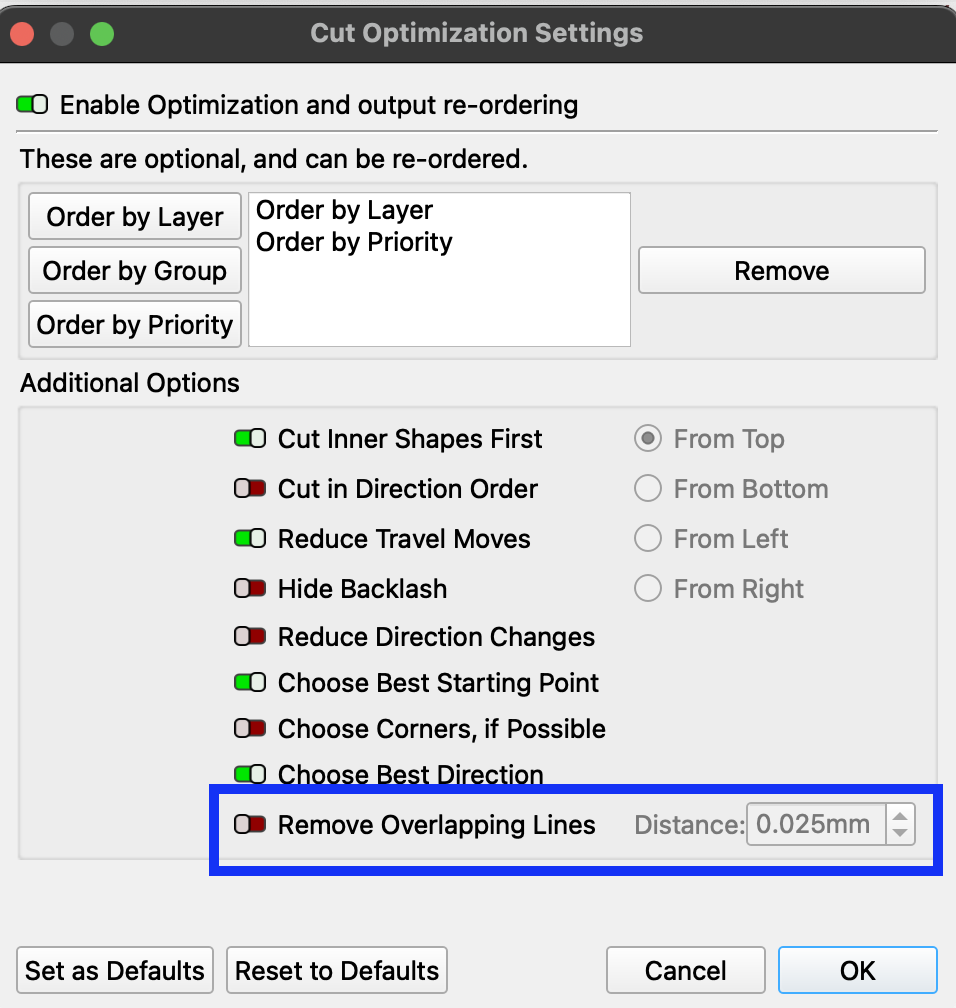
I am successfully removing overlapping lines. That’s a critical part of the operation. The issue isn’t the overlapping line portion, it’s the small segment left over after the two overlapping lines (the little piece inbetween two blue dots). That little vertical segment requires a new “start” and a “stop” which leaves a mark on the portions that are already cut (the horizontal lines). I’m trying to mitigate that mark.
Reduce your minimum power setting? That’s all I can think of.
You might try using variable power too.
This topic was automatically closed 30 days after the last reply. New replies are no longer allowed.