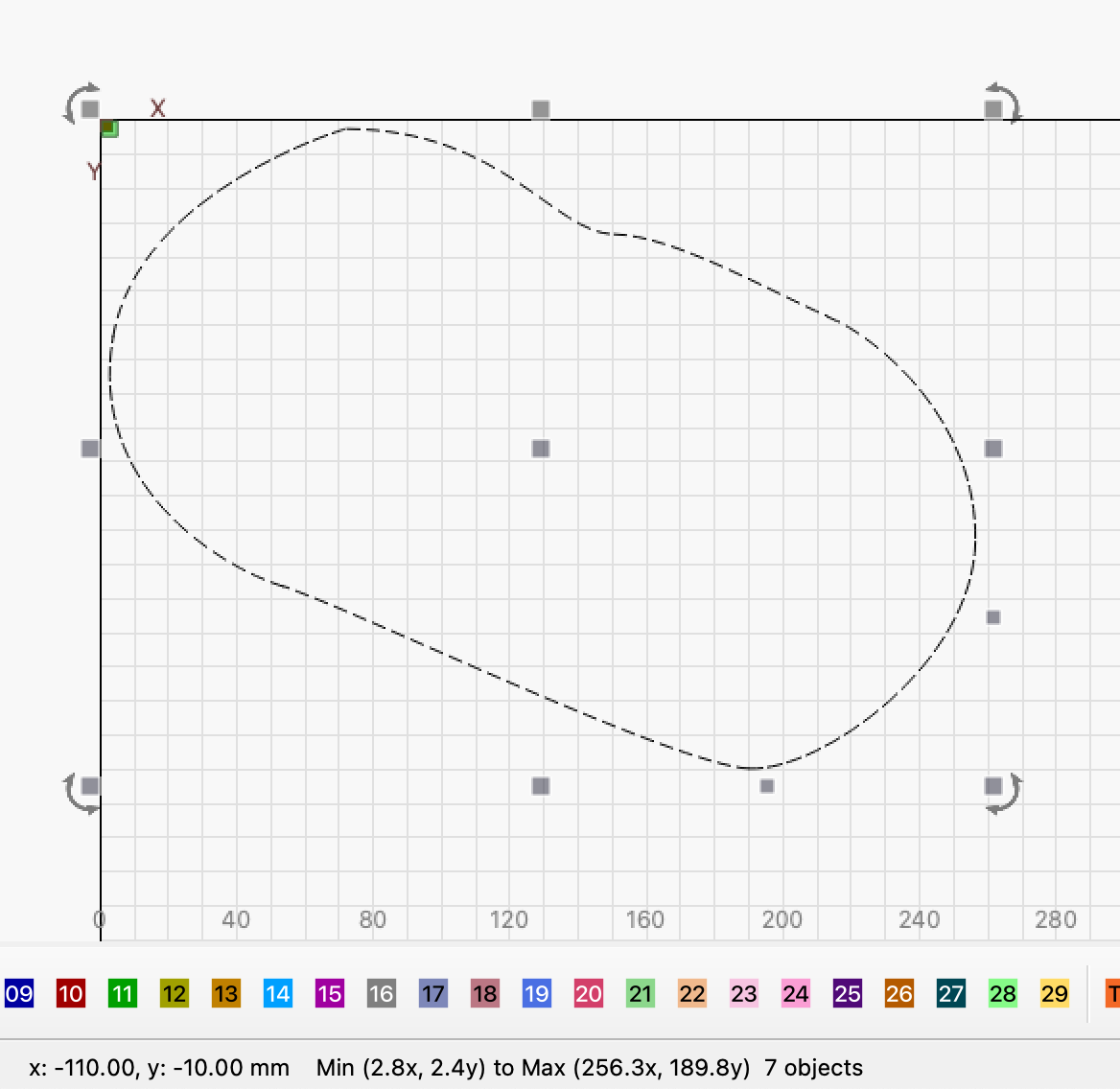
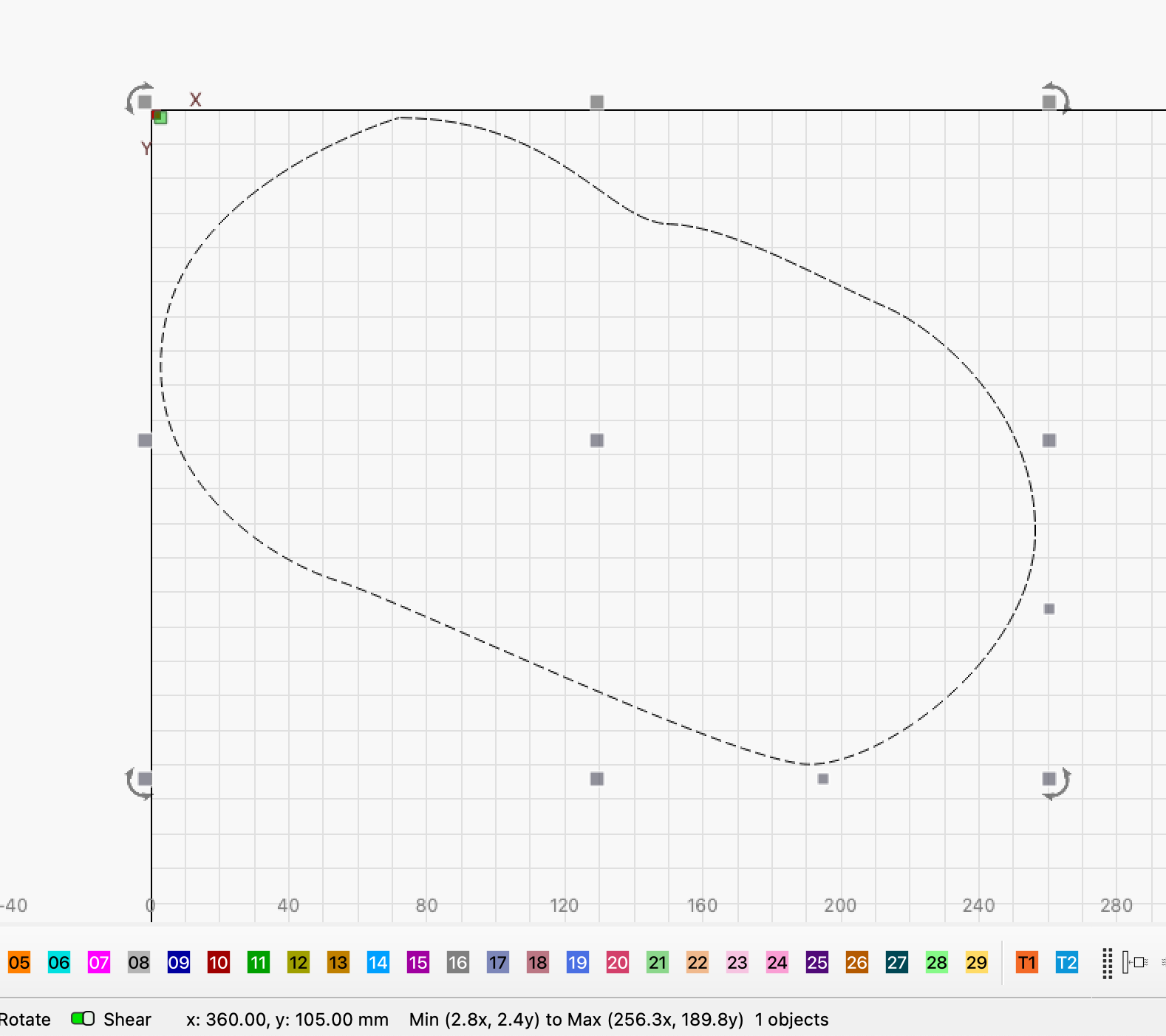
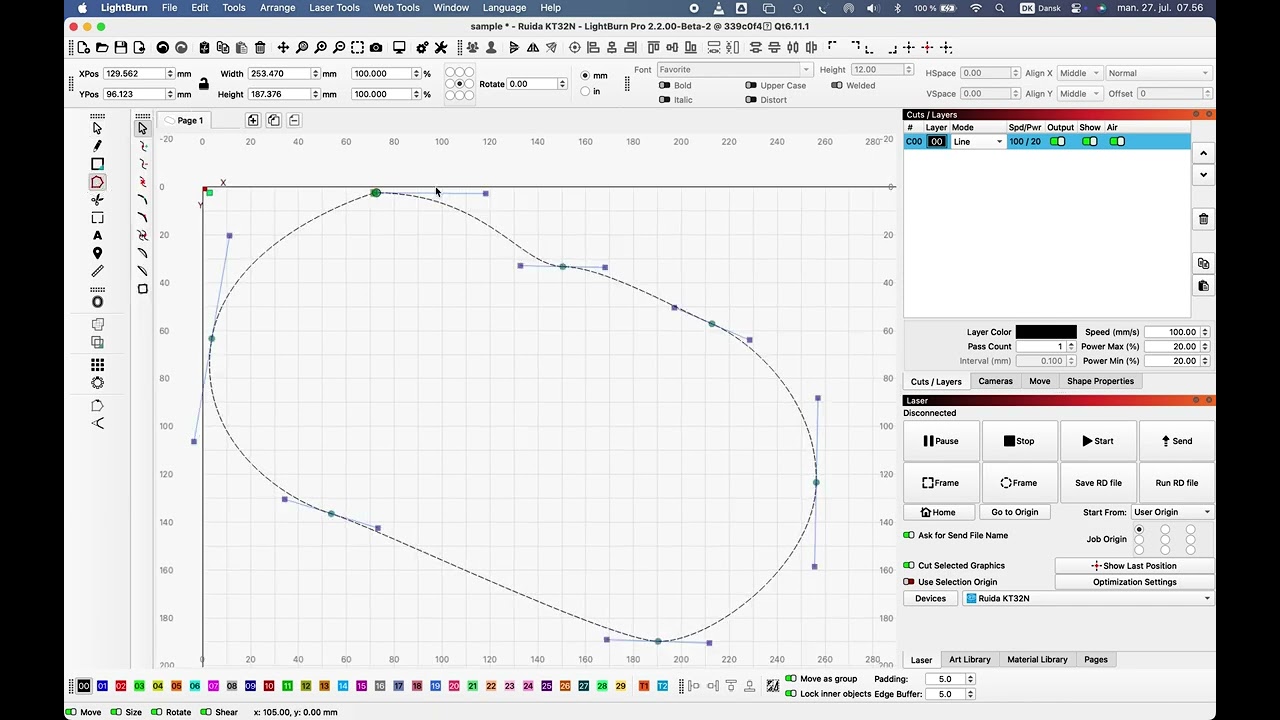
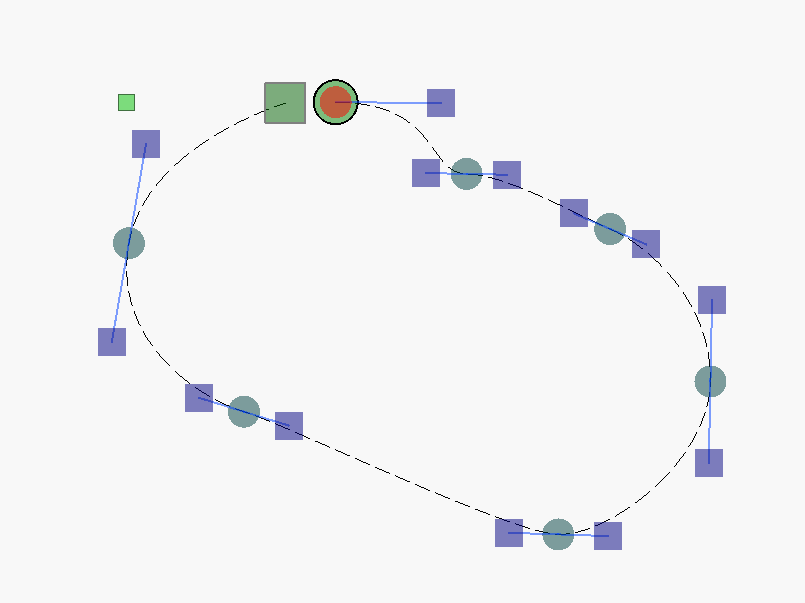
I am trying to "close a letter where 2 nodes are separated. I nodes menu I cannot dragging on top of each other, find Join, Auto Join, Weld, J, ctrl J, etc.,
Submitting this question previous popped up and got it to work having then almost on top of each other a use ALT B and ALT J. That also worked for me to get me moving. But I cannot see those commands on any menu. Where are they? also why do they have to be on top of each other, why not inches away (when closing)
I’m not got a twerk for the Customer this time, but I still don’t understand the problems I had
I would like to take you up on that. I’m going to send you privately the SVG and my LightBurn file with the break. I still can’t find the Auto join or weld or any of those on the 2.1.0.2 version. So after you see that you can help explain it to me
having the issue again. Simple drawing a cut line (circle) first It will not connect during the draw when I try to last click right on top of where i start. But then trying to close the shape. tried selecting the 2 nodes then Alt - B then alt - J nothing. even when I zoom way in and make sure I am not to far away. I would think I could start draw around get close to start and it would close.’
@eichacsj, I too struggle with closing paths. I zoom all the way in, put one square on the top of the other, try the Auto-Join, and no joy.
I tried my other method on your project and I share it here with you…
Select all of the path. I did a green rectangle (click and swipe left), but you may have to manually add each segment one at a time if there is other stuff in there. You may have to temporarily move it to a different layer to isolate it, then move back when done.
Switch from Line to Fill in the Cuts / Layers
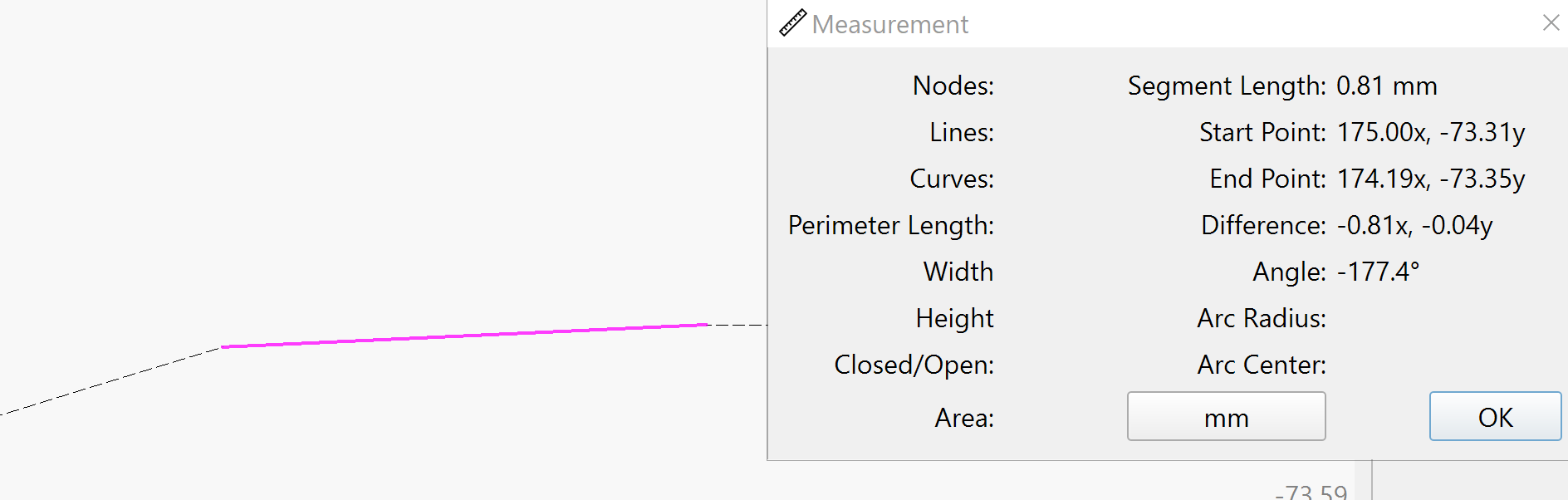
Open the Close Selected Paths With Tolerance window, and slide the Distance Threshold: over until you see the object fill. In your design, it was less than .04mm.
If you move the slider all the way over and it does not fill, sometimes Join with Line will work.
Then switch back to Line and you are good to go.
If none of the tools close the path so it will fill, they you have serious issues with the path. Plan on checking out the entire path to find out what is holding you up. Been there, done that.
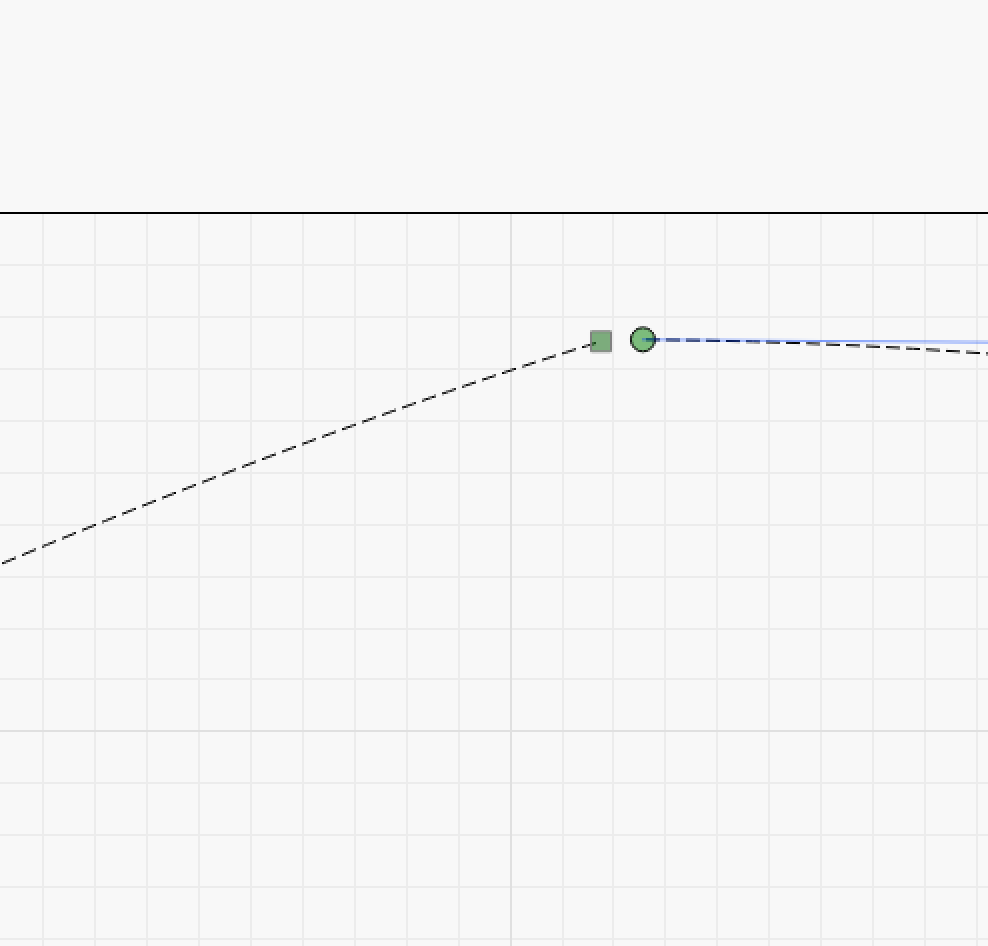
Note to the Programmers: It would be nice if there is some OBVIOUS indication that two line ends are actually on top of eachother. I am just not seeing it on my screen.
Thanks for all the suggestions. This forum is amazing. I found my issue.
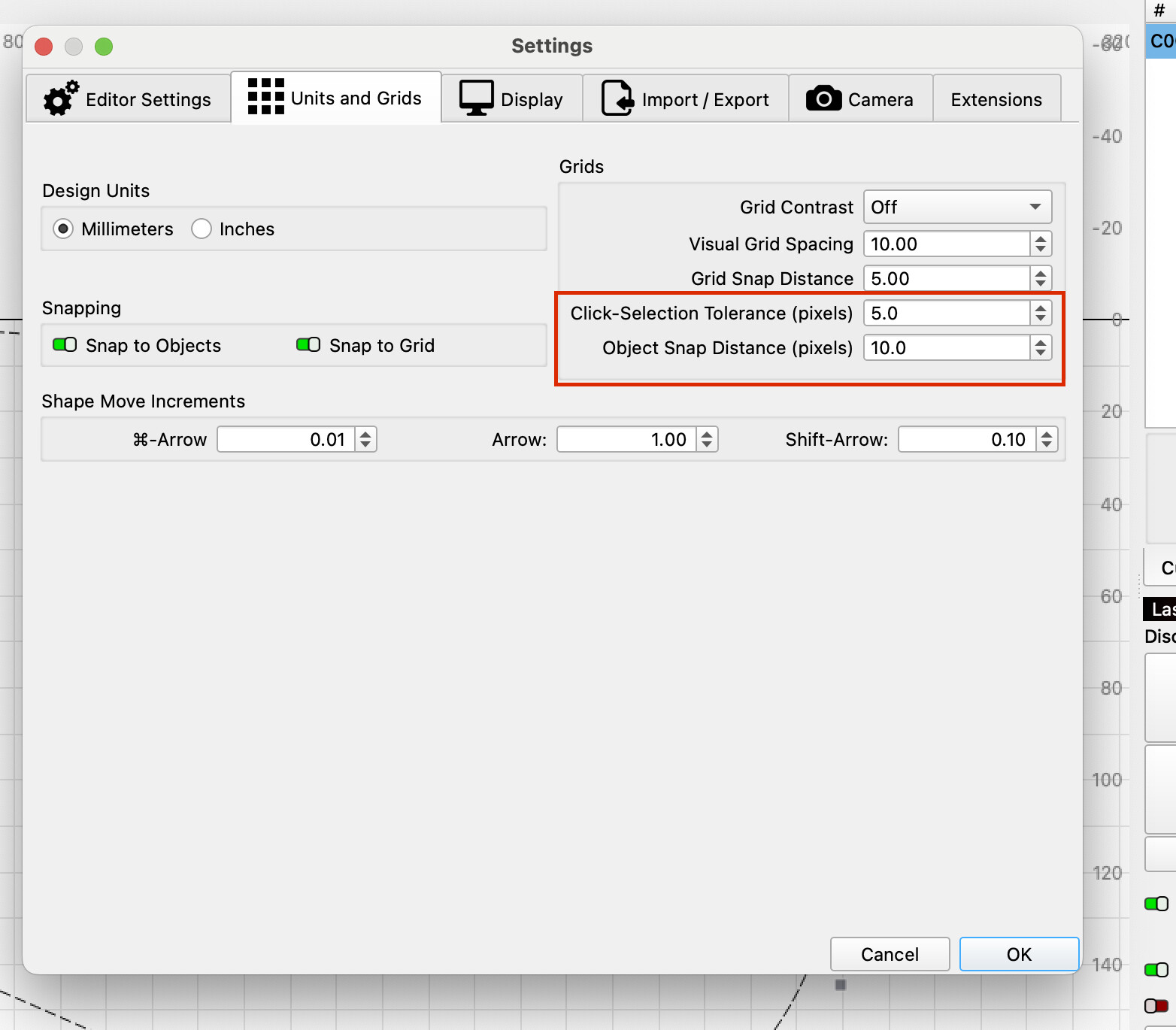
First “why won’t the line I am drawing close?” from my old days of CAD in MFG, In settings I turn off the “Snap to Object” and “Snap to Grid” It dawned on me why it wasn’t snapping. I turned on “Snap to Object” and that fixes the issue. So now I get closed drawings and i can manually close by selecting a node and dragging to the node I want to close.
Selecting and “breaking” with menu alt - b breaks, so great so far. but I still can’t get auto join to work (alt-J) I am sure it is a tolerance setting somewhere. if someone knows that let me know. For now even manually doing it is working with the “Snap to Object” set to on.
I will leave open in case someone knows where the tolerance setting is. but over all I am good.
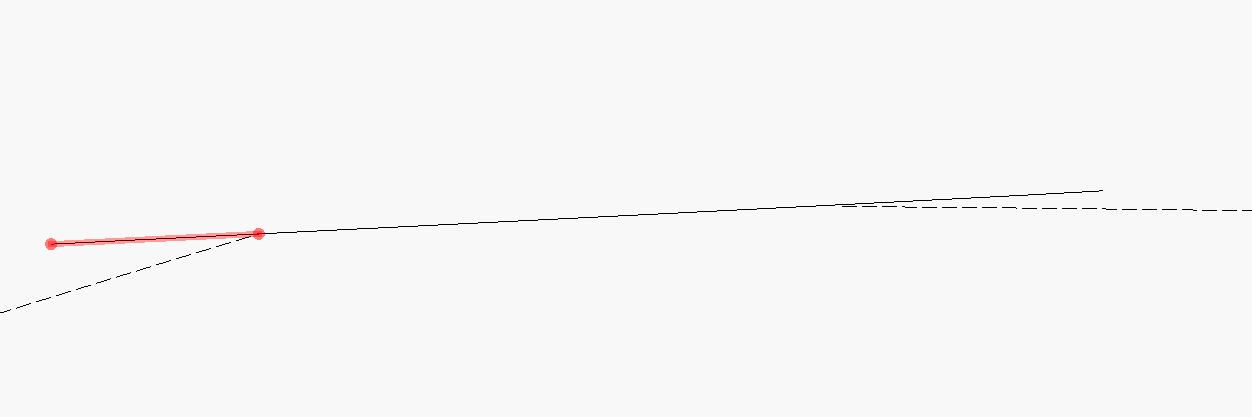
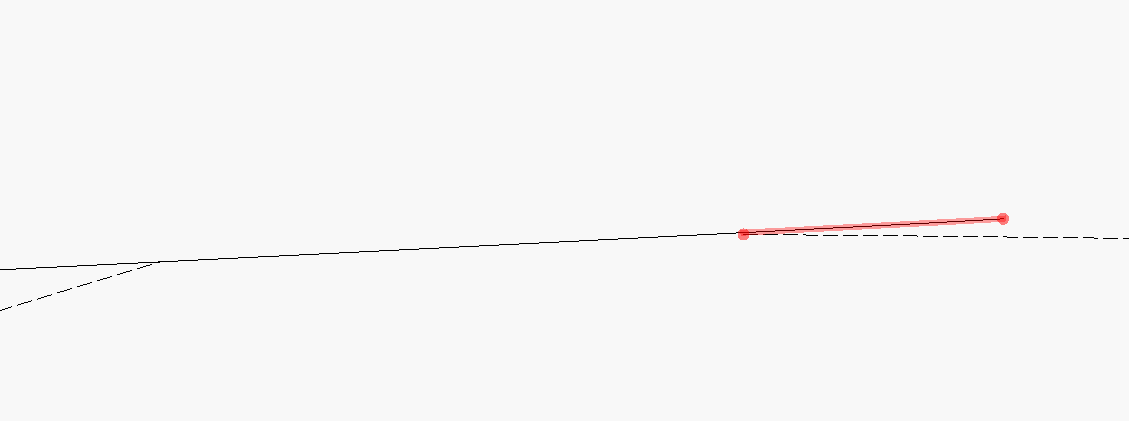
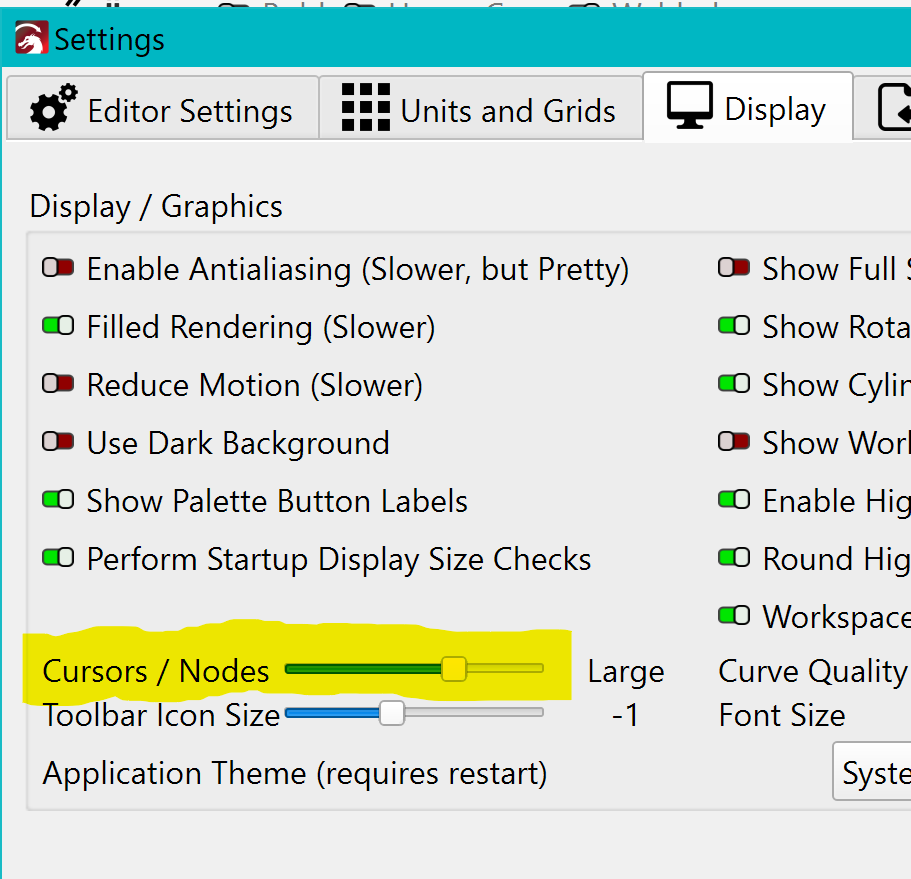
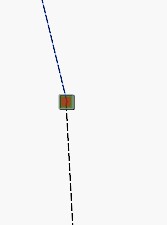
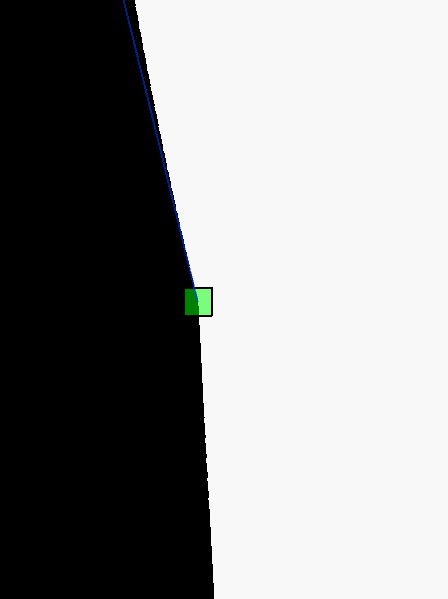
I put fat Nodes, zoomed all the way in, and put one green (turned red) on the top of the other as best as I could. This is set to Fill, but obviously it is not filled. I would still have to use one of the joining tools to close the path. I am wondering if this would ever work…