I was having an issue with the tilt sensor on my Sculpfun SF-A9 40W machine. It would randomly stop the machine (usually within the final 5 minutes) and mess up the burn.
Massimo Togni from the Sculpfun A9 (Ultra) User Group on Facebook gave me the commands to enable and disable the tilt sensor.
$MT/Enable=Off to disable the tilt sensor $MT/Enable=On to reenable the tilt sensor $MT/Threshold=(value) to adjust the sensor tilt value (factory set to 15.000)
Many thanks for this, Melvin. I had looked through it (obviously not thoroughly enough) and could not find that particular command, so I asked in the Facebook group. I had a pressing job to do for a friend’s funeral and could not wait to discover the error of my ways.
As an aside… I had an ALARM 11 stop a job yesterday. My researches tell me it is something bout a character space problem. Is there a place in LightBurn to set this?
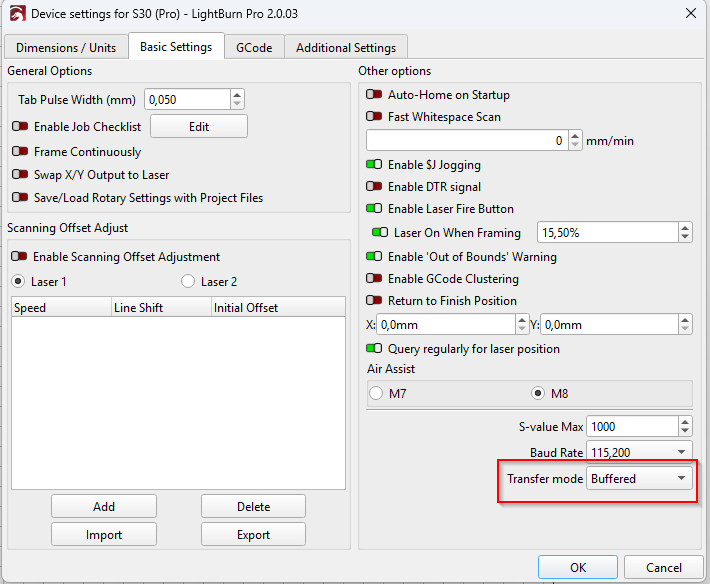
I think it’s more likely caused by a bad usb connection. I’d check that first. You can check if buffered transfer is enabled in device settings, but it usually is.
Hmmm… Thank you Melvin. Brand new USB leads from computer to laser machine. I will swap a couple out and see if that has any effect. I did not find a device setting in LightBurn that refers to buffered transfer. Is it somewhere in the computer? I have been a Mac user since the 1980s and do not know anything about the Windows OS. I am using Windows 11 Pro for Lightburn and my CNC machine.

 Thank you, Melvin.